
Uvod
The MCHOSE V9 PRO Wireless Gaming Headset delivers an immersive audio experience with 7.1 surround sound, low-latency wireless connectivity, and an AI noise-canceling microphone. This manual provides detailed instructions for setup, operation, and maintenance to ensure optimal performance.
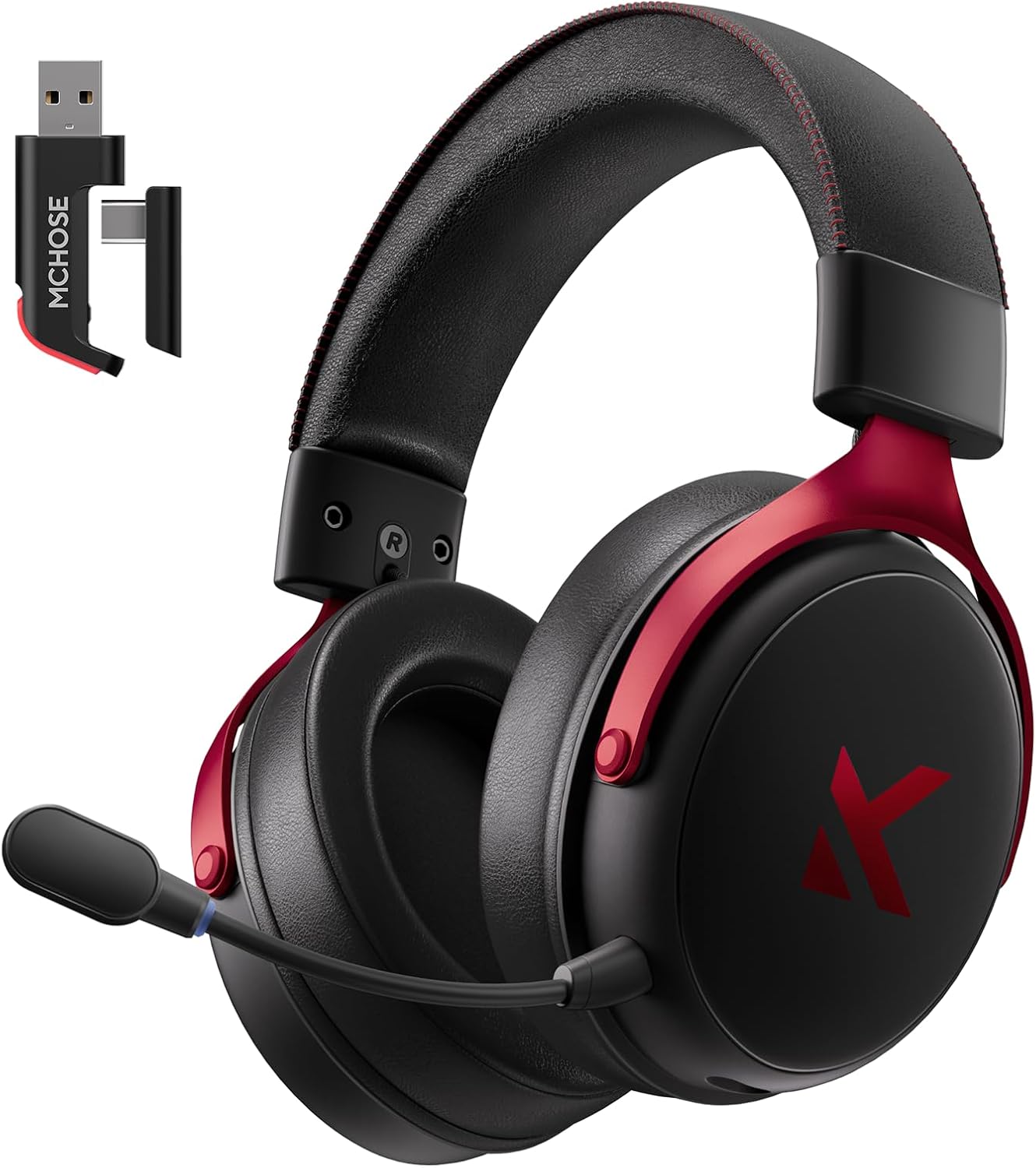
Image: MCHOSE V9 PRO Wireless Gaming Headset with its 2.4GHz USB receiver.
Sadržaj paketa
Provjerite da li se u vašem paketu nalaze sve dolje navedene stavke:
- MCHOSE V9 PRO bežične gejmerske slušalice
- 2.5GHz Receiver (USB-A & Type-C compatible)
- USB-C kabl za punjenje
- Odvojivi mikrofon
- Foam Windscreen (pre-installed on microphone)
- Uputstvo za upotrebu

Image: Diagram illustrating the headset, receiver, cables, microphone, and user manual.
Product Overview
Kontrole i indikatori

Image: Handy guide showing the location and function of buttons and indicator lights on the headset.
- Dugme za napajanje: Long press for approximately 3 seconds to power on/off.
- Prekidač načina povezivanja: Double-click the power button to switch between 2.4GHz wireless, Bluetooth, and wired modes.
- Prekidač načina igre/muzike: Triple-click the power button to switch between Game Mode 1, Game Mode 2, and Music Mode.
- Pusti/pauza: Jednim klikom na dugme za napajanje.
- Odgovori/Završi poziv: Jednim klikom na dugme za napajanje.
- odbiti poziv: Dugo pritisnite dugme za napajanje otprilike 1.5 sekunde.
- Dugme za mikrofon: Jednim klikom da uključite/isključite mikrofon.
- Točak jačine zvuka: Slide upwards to increase volume, slide downwards to decrease volume.
Indikatorska svjetla
- Bluetooth (BT) Waiting for Connection: Crvena i plava svjetla trepere naizmjenično.
- 2.4G Waiting for Connection: Red and green lights flash alternately.
- Punjenje: Crveno svjetlo ostaje upaljeno.
- Potpuno napunjen: Plavo svjetlo ostaje upaljeno.
- 2.4G Mode Active: Zeleno svjetlo.
- Bluetooth Mode Active: Plavo svjetlo.
- Microphone Active: Blue light on microphone tip.
Podešavanje i povezivanje
2.4GHz Wireless Connection (PC, PS5, PS4, Switch)
- Remove the 2.4GHz USB receiver from its storage slot on the headset.
- Plug the 2.4GHz receiver into an available USB-A port on your computer or gaming console. For devices with only USB-C ports, detach the USB-A adapter from the receiver and plug in the USB-C end.
- Press and hold the power button on the headset for approximately 3 seconds to power it on.
- Double-click the power button to ensure the headset is in 2.4GHz wireless mode (indicated by a green light). The headset should automatically connect to the receiver.
Bluetooth Wireless Connection (Mobile Phone, Tablet, PC, Switch)
- Press and hold the power button on the headset for approximately 3 seconds to power it on.
- Double-click the power button to switch the headset to Bluetooth mode (indicated by a blue light flashing alternately with red).
- On your device (phone, tablet, PC, Switch), navigate to Bluetooth settings and search for "MCHOSE V9 PRO".
- Select the headset to pair. Once connected, the blue light will remain steady.
Wired Connection (PC, PS5, PS4, Switch, Mobile Phone, Tablet)
The headset supports a wired connection via the included USB-C cable. This mode is primarily for charging and can also be used for audio if wireless options are not preferred or available.
- Connect the USB-C cable to the headset's charging port.
- Connect the other end of the USB-C cable to your device.
- The headset will function as a wired device.
Podešavanje mikrofona
- Plug the detachable microphone into the designated port on the left earcup of the headset. Ensure it is securely inserted.
- Adjust the microphone's position for optimal voice pickup.
- Single-click the microphone button on the headset to toggle the microphone on or off. A blue light on the microphone tip indicates it is active.
Video: This video demonstrates the initial setup of the MCHOSE V9 PRO Wireless Gaming Headset, including connecting the 2.4GHz receiver, powering on, switching modes, and attaching the microphone.
Software Installation and Customization (MCHOSE HUB)
The MCHOSE HUB software allows for advanced customization of your headset's audio settings. It is compatible with Windows 10 and above.
Koraci instalacije
- Posjetite službeni MCHOSE webstranica (mchose.store).
- Navigate to the 'Support' section and click on 'Drivers & Firmwares'.
- Locate the 'V9 / V9 Pro Driver' and download the desktop driver.
- Before installing the driver, ensure the 2.4GHz receiver is plugged into your computer.
- Install the downloaded driver and follow the on-screen instructions.
- Once installed, open the MCHOSE HUB application. You can switch the application language to English from the settings.
Video: This video guides you through the process of connecting and installing the MCHOSE desktop driver for your headset.
Audio Equalizer Customization
The MCHOSE HUB features a customizable equalizer to fine-tune your audio output.
- In the MCHOSE HUB, right-click on 'Speakers' and select 'Equalizer'.
- Enable the equalizer.
- Adjust the frequency bands as needed to create your desired sound profile.
- You can save your custom settings as a preset or choose from official presets like Dance, Rap, Metal, Jazz, etc.
- You can also restore the default equalizer settings.

Image: Screenshot of the MCHOSE HUB software interface displaying the audio equalizer settings.
7.1 Surround zvuk
Enable 7.1 surround sound for enhanced spatial awareness in games and movies.
- In the MCHOSE HUB, right-click on 'Speakers' and select 'Xear Surround Headphone'.
- Enable Xear Surround.
- Choose between 'Music/Gaming mode' or 'Movie mode' based on your content.
- Adjust the 'Room Size' for optimal effect.

Image: Visual representation of 7.1 surround sound technology with the MCHOSE V9 PRO headset.
Voice Effects (Magic Voice)
The software includes various voice effects for fun or specific communication needs.
- In the MCHOSE HUB, right-click on 'Mic' and select 'Xear Magic Voice'.
- Enable 'Magic Voice' and choose from different voice effects.
AI Noise Reduction for Microphone
Enhance microphone clarity by enabling AI noise reduction.
- In the MCHOSE HUB, right-click on 'Mic' and select 'AI NoiseReduction'.
- Enable 'AI NoiseReduction' to filter out background noise.
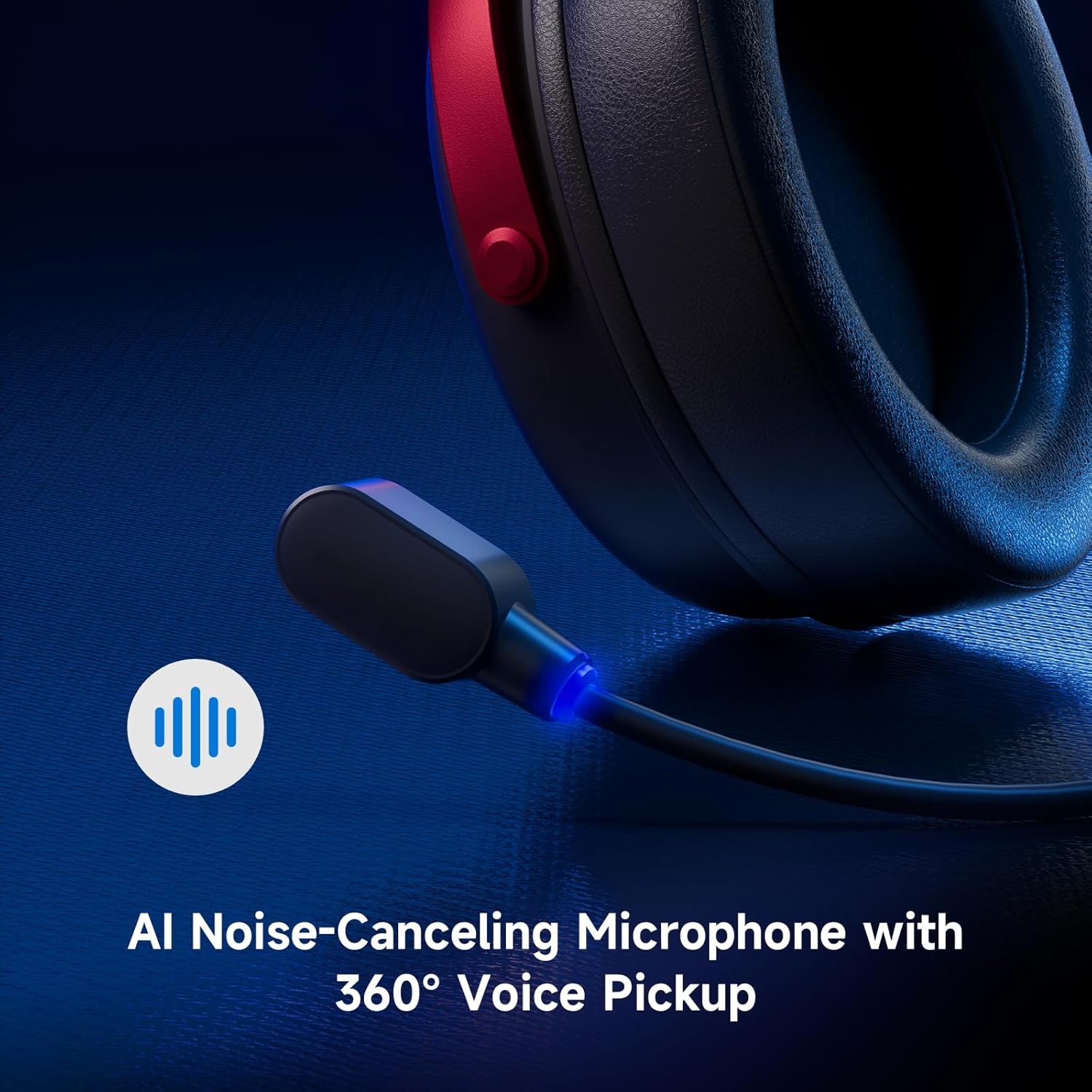
Image: Close-up of the AI Noise-Canceling Microphone on the MCHOSE V9 PRO headset.
Uputstvo za upotrebu
Uključivanje/isključivanje
To power on the headset, press and hold the power button for approximately 3 seconds. To power off, repeat the action.
Prebacivanje modova
Double-click the power button to cycle through 2.4GHz wireless, Bluetooth, and wired connection modes. The indicator light color will change accordingly (Green for 2.4GHz, Blue for Bluetooth).
Triple-click the power button to switch between Game Mode 1, Game Mode 2, and Music Mode, optimizing audio profiles for different content.
Kontrola jačine zvuka
Use the volume wheel located on the earcup to adjust the audio output level. Slide up to increase volume, slide down to decrease volume.
Isključivanje mikrofona
Single-click the microphone button to mute or unmute the microphone. The blue light on the microphone tip indicates its active status.
Održavanje
- čišćenje: Za čišćenje slušalica koristite meku, suhu krpu. Izbjegavajte upotrebu jakih hemikalija ili abrazivnih materijala.
- Skladištenje: Slušalice čuvajte na hladnom i suhom mjestu, dalje od direktne sunčeve svjetlosti i ekstremnih temperatura.
- Održavanje baterije: Za optimalno trajanje baterije, izbjegavajte često potpuno pražnjenje slušalica. Redovno ih punite.
- mikrofon: Handle the detachable microphone carefully. Ensure the foam windscreen is properly seated.
Rješavanje problema
- Nema zvuka/niska jačina zvuka:
- Check headset volume wheel and device volume settings.
- Ensure the headset is correctly connected (2.4GHz receiver, Bluetooth, or wired).
- Verify the correct audio output device is selected in your computer's sound settings.
- Mikrofon ne radi:
- Provjerite je li mikrofon sigurno priključen na slušalice.
- Check if the microphone is muted (blue light on tip should be on).
- Verify the correct microphone input device is selected in your device's sound settings.
- If using MCHOSE HUB, check AI Noise Reduction settings.
- Connection Issues (2.4GHz/Bluetooth):
- Ensure the headset is in the correct connection mode (green light for 2.4GHz, blue for Bluetooth).
- Za 2.4 GHz, pokušajte uključiti prijemnik u drugi USB priključak.
- Za Bluetooth, pokušajte odvojiti i ponovo upariti slušalice sa svojim uređajem.
- Proverite da li su slušalice napunjene.
- Software Not Detecting Headset:
- Ensure the 2.4GHz receiver is plugged into the computer before launching the MCHOSE HUB.
- Restart the MCHOSE HUB application and/or your computer.
Specifikacije
| Naziv modela | V9 Pro |
| Brand | MCHOSE |
| Tehnologija povezivanja | 2.4GHz Wireless, Bluetooth (BT 5.1), Wired |
| Audio Drivers | 53mm Neodymium Drivers with Bio-cellulose Diaphragm |
| Surround Sound | 7.1 Surround zvuk |
| Mikrofon | AI Noise-Canceling Microphone with 360° Voice Pickup |
| Bežična latencija | 15ms (TOPSPEED 2.4GHz) |
| Trajanje baterije | Do 250 sata reprodukcije |
| Bluetooth verzija | 5.1 |
| Bluetooth domet | Do 40 metara |
| Kompatibilni uređaji | PC, Laptop, Switch, PS5, PS4, Mobile Phone, Tablet |
| Težina | 0.60 lbs (približno 275 g) |
| Materijal | Metal, Plastic, Polyurethane (PU) |
| Postavljanje uha | Preko uha |
Garancija i podrška
MCHOSE products are designed for quality and reliability. For warranty information, technical support, or to contact customer service, please visit the official MCHOSE website at mchose.store. You can find detailed warranty policies and support contact information in the 'Support' section of the website.


