
1. Uvod
The Phomemo M950 Label Maker is a versatile, portable thermal label printer designed for both home and office use. It offers dual printing modes: direct input via its integrated keyboard and wireless printing via Bluetooth connection to a mobile application. This device utilizes thermal printing technology, eliminating the need for ink cartridges, and supports various label tape types for diverse labeling needs.
2. Sigurnosne informacije
- Držite uređaj dalje od vode i visoke vlažnosti kako biste spriječili strujni udar ili oštećenje.
- Ne rastavljajte ili pokušavajte sami da popravite uređaj. Obratite se korisničkoj podršci za pomoć.
- Use only Phomemo-approved label tapes to ensure optimal performance and prevent damage to the print head.
- Čuvati van domašaja djece.
- Izbjegavajte izlaganje uređaja direktnoj sunčevoj svjetlosti ili ekstremnim temperaturama.
- Charge the device using a compatible Type-C USB power adapter.
3. Sadržaj paketa
Please check the package contents upon unboxing. If any items are missing or damaged, contact your retailer or Phomemo customer support.
- Phomemo M950 Label Maker
- 12mm Label Tape Roll (pre-installed or included separately)
- USB kabel za punjenje tipa C
- Korisnički priručnik (ovaj dokument)
4. Proizvod je gotovview
Familiarize yourself with the components of your Phomemo M950 Label Maker.

Image: Phomemo M950 Label Maker showing its main features including no ink, one-touch key, keyboard editing, app editing, 203 DPI resolution, backlight support, Type-C recharge, and built-in cutter.
Ključne karakteristike:
- Unos tipkovnice: Integrated QWERTY keyboard for direct label creation.
- Bluetooth povezivanje: Connects to smartphones for advanced label design via the Phomemo app.
- Termička štampa: No ink required, uses thermal label tapes.
- Pozadinsko osvjetljenje ekrana: Osigurava vidljivost u uslovima slabog osvjetljenja.
- Ugrađeni rezač: For clean and precise label cutting.
- Punjiva baterija: Integrated 1200mAh battery, rechargeable via Type-C port.
5. Podešavanje
5.1. Punjenje uređaja
Before first use, fully charge the label maker.
- Spojite priloženi USB Type-C kabel na priključak za punjenje sa strane uređaja za etiketiranje.
- Drugi kraj kabla priključite na kompatibilni USB adapter za napajanje (nije uključen) ili USB port računara.
- Indikatorska lampica punjenja će prikazivati status punjenja. Nakon što je uređaj potpuno napunjen, indikator će se promijeniti ili ugasiti.

Image: Phomemo M950 Label Maker highlighting the Type-C charging port and its compact dimensions.
5.2. Umetanje trake s etiketama
Ensure the device is powered off before loading or replacing tape.
- Open the tape compartment cover located on the top or back of the device.
- Insert the label tape roll with the label side facing up, ensuring it sits securely in the compartment.
- Feed the end of the label tape through the tape guide until it protrudes slightly from the output slot.
- Čvrsto zatvorite poklopac pretinca za traku.
5.3. Uključivanje / isključivanje napajanja
Press and hold the Power button (usually marked with a power symbol) for a few seconds to turn the device on or off.
6. Uputstvo za upotrebu
The Phomemo M950 offers two primary methods for creating labels.

Image: Phomemo M950 Label Maker illustrating the two usage modes: direct printing from the keyboard and printing via a mobile device using the 'Print Master' app.
6.1. Keyboard Printing
This mode allows you to create labels directly on the device without needing a smartphone.
- Uključeno: Turn on the label maker. The screen will illuminate.
- Upišite tekst: Use the QWERTY keyboard to type your desired label text. The text will appear on the display.
- Prilagodite: Use the function keys (e.g., 'Fn', 'Shift', 'Symbol', 'Caps', 'Accent') to access various customization options such as font styles, sizes, symbols, and borders. The device supports multiple languages, borders, and symbols.
- Preview: Use the 'Preview' button to see how your label will look before printing.
- Štampa: Press the 'Print' button to print the label. The built-in cutter will automatically cut the label after printing.

Image: Phomemo M950 Label Maker showcasing its extensive features including support for 23+ languages, 103+ borders, and 790+ symbols and icons for label customization.
6.2. Bluetooth App Printing
For more advanced design options, connect your label maker to the 'Print Master' mobile app.
- Preuzmi aplikaciju: Download the 'Print Master' app from your mobile device's app store (App Store for iOS, Google Play for Android).
- Omogući Bluetooth: Ensure Bluetooth is enabled on your mobile device and the Phomemo M950.
- Povežite se: Open the 'Print Master' app and follow the on-screen instructions to connect to your M950 label maker via Bluetooth.
- Dizajnerska oznaka: Use the app's interface to design your label. The app offers massive templates, additional fonts, borders, and icons.
- Štampa: Once your design is complete, tap the print icon in the app to send the label to the M950 for printing.

Image: Phomemo M950 Label Maker demonstrating the use of the 'Print Master' app with numerous templates, 270+ borders, 110+ fonts, 1500 icons, and 14+ languages for creative label design.
6.3. Adjusting Print Density
For optimal print quality, especially with ribbon tapes, adjust the print density.
- Press the 'Fn' key, then select 'Pinter Densities' (Printer Densities).
- Choose 'High' for clearer prints, particularly when using ribbon tapes.

Image: Step-by-step guide on how to set the print density to 'High' on the Phomemo M950 Label Maker for clear prints, especially for ribbon tapes.
7. Održavanje
7.1. Čišćenje glave za štampanje
Regular cleaning ensures consistent print quality.
- Turn off the label maker and open the tape compartment.
- Pažljivo obrišite glavu za štampanje mekom krpom koja ne ostavlja dlačice dampnapunjen izopropil alkoholom.
- Ostavite glavu za štampanje da se potpuno osuši prije nego što zatvorite odjeljak i uključite uređaj.
7.2. Tape Storage
Store label tapes in a cool, dry place away from direct sunlight to preserve their quality and adhesive properties.
8. Otkrivanje problema
If you encounter issues with your Phomemo M950, refer to the following common problems and solutions.
| Problem | Mogući uzrok | Rješenje |
|---|---|---|
| Nema struje | Low battery; Device off | Charge the device; Press and hold power button to turn on. |
| Loš kvalitet štampe | Print head dirty; Incorrect print density; Low battery | Clean print head; Adjust print density to 'High'; Charge device. |
| Label not feeding | Tape incorrectly loaded; Tape jammed; Out of tape | Re-load tape correctly; Clear any jams; Replace tape roll. |
| Greška Bluetooth veze | Bluetooth off; Device not paired; App issue | Ensure Bluetooth is on for both devices; Re-pair in app; Restart app/device. |
| Rezač ne radi | Tape jammed; Cutter mechanism obstructed | Clear any tape jams; Ensure no debris is blocking the cutter. |
9. Specifikacije
| Feature | Detalj |
|---|---|
| Naziv modela | M950 |
| Brand | Phomemo |
| Tehnologija štampe | Thermal |
| Tehnologija povezivanja | Bluetooth, Keyboard |
| Izlaz štampača | Monochrome |
| Maksimalna rezolucija ispisa | 203 dpi |
| Maksimalna veličina medija | 12mm * 4000mm |
| Kompatibilni uređaji | Smartphones |
| Snaga | 10 Watts |
| Vrsta baterije | Ugrađeni litijum-jonski od 1200mAh |
| Port za punjenje | USB Type-C |
| Dimenzije proizvoda | 15.2 x 5.4 x 11.2 cm |
| Težina artikla | 490 grama |
| Boja | Bijelo |
| Posebna karakteristika | Portable, Backlight Screen, Built-in Cutter |
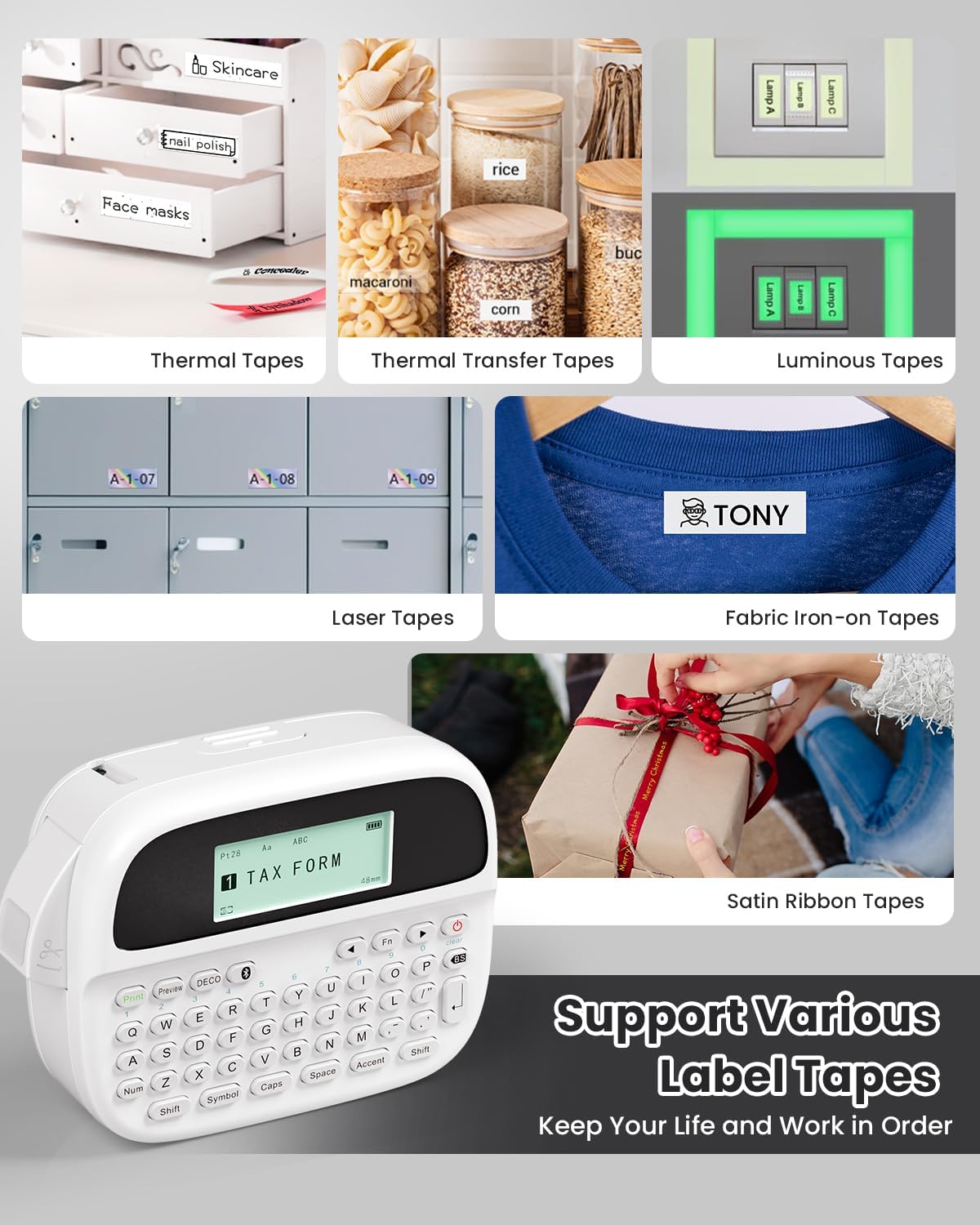
Image: Phomemo M950 Label Maker supporting various label tape types including Thermal, Thermal Transfer, Luminous, Laser, Fabric Iron-on, and Satin Ribbon tapes.

Image: Phomemo M950 Label Maker demonstrating its backlight screen feature, allowing for comfortable use even at night.
10. Garancija i podrška
For warranty information, technical support, or service inquiries, please refer to the official Phomemo webweb-mjesto ili direktno kontaktirajte njihovu korisničku službu. Sačuvajte račun kao dokaz o kupovini za reklamacije u slučaju garancije.
Phomemo Official Webstranica: Visit Phomemo Store