
HUAWEI PSDN-AX30
HUAWEI WiFi AX3S Router
Uputstvo za upotrebu
1. Uvod
This user manual provides detailed instructions for setting up, operating, maintaining, and troubleshooting your HUAWEI WiFi AX3S router. The AX3S is a high-performance Wi-Fi 6 Plus router designed to deliver ultra-fast speeds of up to 3000 Mbps, enhanced coverage, and smart network management features for your home or office.
2. Sigurnosne informacije
Please read this section carefully before using the device to ensure proper and safe operation. Keep this manual for future reference.
- Koristite samo strujni adapter koji ste dobili uz uređaj.
- Ne izlažite uređaj ekstremnim temperaturama, vlazi ili direktnoj sunčevoj svjetlosti.
- Avoid placing the device near sources of interference, such as microwave ovens or cordless phones.
- Ne pokušavajte sami rastavljati ili popravljati uređaj. Za pomoć se obratite kvalifikovanom servisnom osoblju.
- Osigurajte odgovarajuću ventilaciju oko uređaja kako biste spriječili pregrijavanje.
3. Sadržaj paketa
Provjerite da li se sve stavke nalaze u vašem paketu:
- HUAWEI WiFi AX3S Router
- Adapter za napajanje
- Ethernet kabl
- Vodič za brzi početak
4. Proizvod je gotovview
Familiarize yourself with the components of your HUAWEI WiFi AX3S router.

Slika 4.1: Front view of the HUAWEI WiFi AX3S router, showcasing its sleek black design and four external antennas.

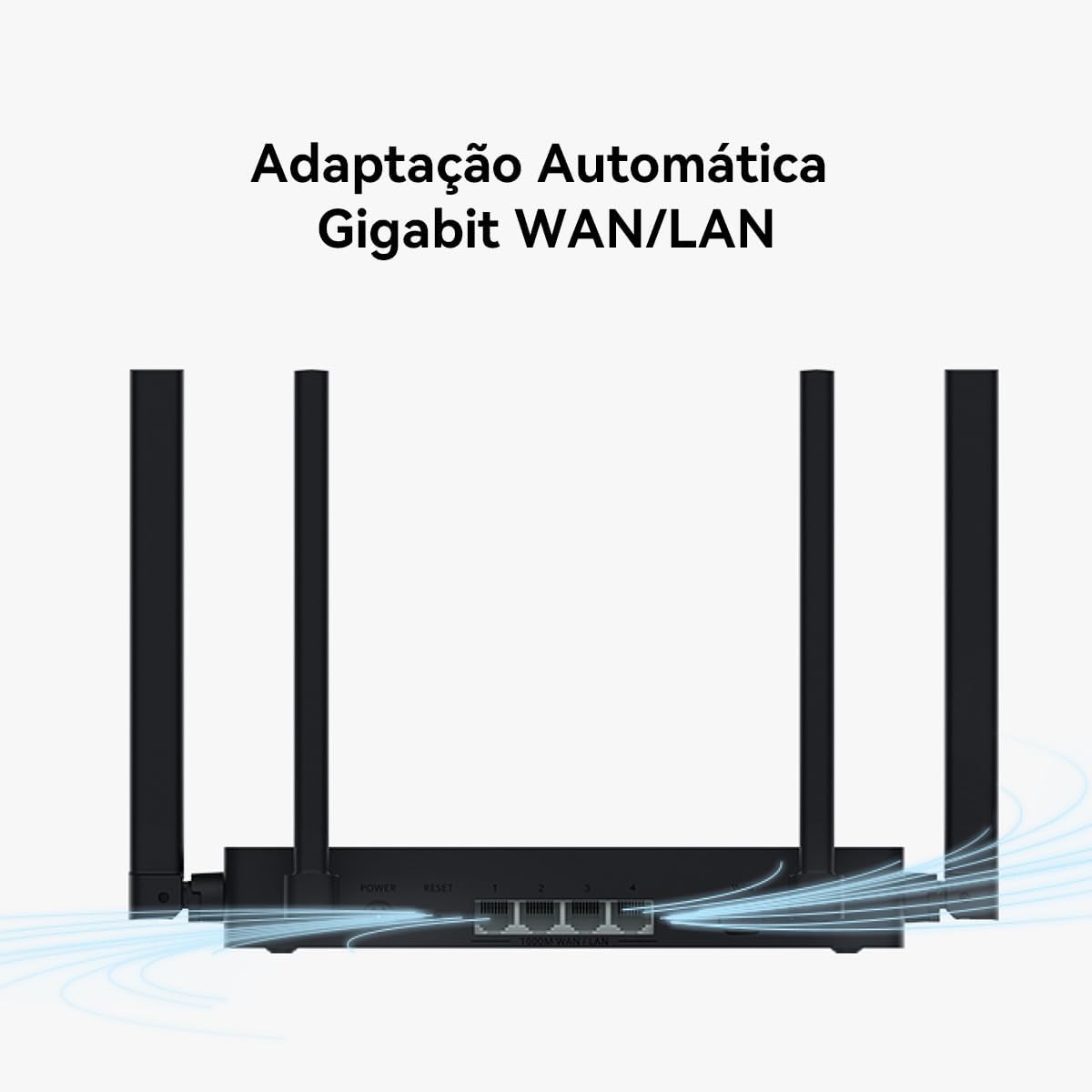
Slika 4.2: Pozadi view of the HUAWEI WiFi AX3S router, displaying the power input, reset button, four Gigabit WAN/LAN adaptive ports, and the WPS button.
4.1. LED indikatori
- Indikatorsko svjetlo: Located on the front panel.
- Steady Green: Connected to the internet.
- Steady Red: Not connected to the internet.
- Flashing: Pairing or WPS in progress.
4.2. Priključci i dugmad
- Napajanje: Povezuje se na strujni adapter.
- WAN/LAN portovi (x4): Gigabit Ethernet ports that automatically adapt between WAN and LAN functions.
- Dugme za resetiranje: Pritisnite i držite duže od 2 sekundi da vratite fabrička podešavanja.
- WPS dugme: Press to enable Wi-Fi Protected Setup for easy device connection.
5. Vodič za postavljanje
Follow these steps for the initial setup of your HUAWEI WiFi AX3S router.
- Spojite kablove:
- Spojite adapter za napajanje na priključak za napajanje rutera i uključite ga u utičnicu.
- Connect one end of the Ethernet cable to the WAN/LAN port on your router and the other end to your modem's LAN port or the wall's internet port.
- If connecting a wired device, use another Ethernet cable to connect it to any of the remaining WAN/LAN ports on the router.

Slika 5.1: Diagram illustrating the connection of the router to the power source, modem, and a wired device.
- Sačekajte indikator: Wait until the indicator light on the router turns steady green, indicating a successful internet connection.
- Konfigurirajte ruter:
- Koristeći a Web Preglednik: Connect your computer to the router via Wi-Fi (SSID and password are on the router's label) or an Ethernet cable. Open a web pretraživač i unesite 192.168.3.1 in the address bar. Follow the on-screen instructions to complete the setup, including setting up your Wi-Fi name and password.
- Using HUAWEI AI Life App: Download the HUAWEI AI Life app from your smartphone's app store. Open the app, search for your router, and follow the prompts to connect and configure it.
6. Uputstvo za upotrebu
Once set up, you can connect your devices and manage your network.
6.1. Povezivanje uređaja
- Wi-Fi veza: On your wireless device (smartphone, laptop, tablet), search for available Wi-Fi networks. Select the Wi-Fi name (SSID) you configured during setup and enter the password.
- Žična veza: Connect an Ethernet cable from your device to any available WAN/LAN port on the router.
6.2. Wi-Fi 6 Plus Performance
The HUAWEI WiFi AX3S supports Wi-Fi 6 Plus, offering significantly faster speeds and improved efficiency, especially with compatible devices.
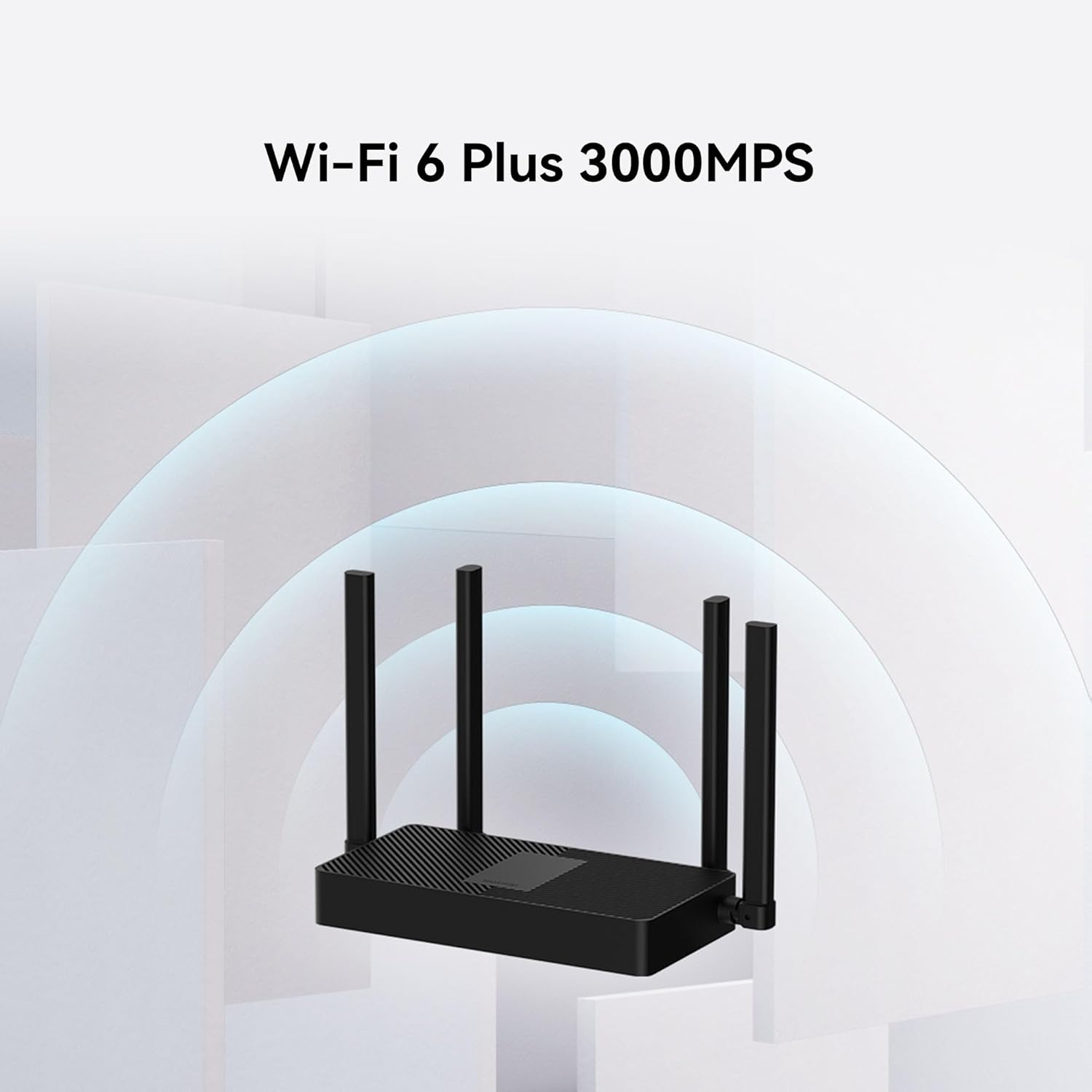
Slika 6.1: Visual representation of the Wi-Fi 6 Plus 3000MPS capability, highlighting its advanced wireless technology.
Slika 6.2: A chart comparing the theoretical speeds of the AX3S on 2.4GHz and 5GHz bands against older Wi-Fi standards, demonstrating its superior performance.
With 1024-QAM and 160 MHz bandwidth, the theoretical speed can reach up to 3000 Mbps (574 Mbps on 2.4 GHz and 2402 Mbps on 5 GHz). Connecting Wi-Fi 5 devices that support 160 MHz to the AX3S can increase their internet speed by 60% or more.
7. Napredne funkcije
7.1. Roditeljski nadzor
Manage internet access for specific devices to ensure a safe online environment for your family. You can block inappropriate websites and limit access times directly from the HUAWEI AI Life app.

Slika 7.1: An image depicting a family using a tablet, symbolizing the effective use of parental controls on the router to manage children's online activities.
7.2. Smart Wi-Fi Management and Diagnosis
The AX3S allows you to visualize your home's Wi-Fi coverage, quickly check network status, and resolve issues with suggested tips through the HUAWEI AI Life app.

Slika 7.2: Screenshots of the HUAWEI AI Life app interface showing signal coverage maps, smart diagnostics, and internet connection error reports, enabling intelligent home Wi-Fi management.
7.3. Automatic Gigabit WAN/LAN Adaptation
The router features four Gigabit Ethernet ports, each supporting automatic WAN/LAN adaptation. This eliminates the need to distinguish between WAN and LAN ports, simplifying broadband installation.

Slika 7.3: A visual representation of the router's rear ports with blue lines indicating the automatic adaptation of Gigabit WAN/LAN functionality, simplifying cable connections.
7.4. Seamless Roaming and Optimal Network Connection
The router intelligently guides your devices to the optimal Wi-Fi band (2.4GHz or 5GHz) and access point for the best performance, ensuring a smooth and stable connection throughout your home.

Slika 7.4: An overhead diagram of a house showing the router centrally located, with devices automatically connecting to the optimal 2.4GHz or 5GHz Wi-Fi bands for seamless coverage.
8. Održavanje
To ensure optimal performance and longevity of your router, follow these maintenance tips:
- Ažuriranja firmvera: Regularly check for and install firmware updates through the HUAWEI AI Life app or the web management interface. Updates often include performance improvements and security patches.
- čišćenje: Gently wipe the router with a soft, dry cloth to remove dust. Do not use liquid cleaners or abrasive materials.
- Optimalni plasman: Postavite ruter na centralnu lokaciju u vašem domu, dalje od prepreka i drugih elektronskih uređaja koji mogu uzrokovati smetnje.
- Ponovno pokretanje: Ako imate problema s mrežom, pokušajte ponovo pokrenuti ruter tako što ćete isključiti adapter za napajanje na 10 sekundi, a zatim ga ponovo uključiti.
9. Otkrivanje problema
Ako naiđete na probleme s ruterom, pogledajte sljedeće uobičajene probleme i rješenja:
| Problem | Mogući uzrok | Rješenje |
|---|---|---|
| Nema pristupa Internetu | WAN cable disconnected, incorrect settings, modem issue. | Check all cable connections. Restart the modem and router. Verify internet settings in the router's web interface or AI Life app. |
| Slab Wi-Fi signal ili mrtve zone | Router placement, interference, too many obstacles. | Relocate the router to a central, open area. Minimize obstacles. Check for sources of interference. Consider using Wi-Fi extenders if needed. |
| Nije moguće povezivanje na Wi-Fi | Netačna lozinka za Wi-Fi, uređaj je previše udaljen, Wi-Fi je onemogućen. | Ensure correct password. Move closer to the router. Check if Wi-Fi is enabled on your device and router. |
| Spora brzina interneta | Network congestion, outdated firmware, ISP issue. | Disconnect unused devices. Update router firmware. Contact your Internet Service Provider (ISP). |
| Router Indicator Light is Red | Nema internetske veze. | Refer to 'No Internet Access' solution above. |
9.1. Factory Reset
If problems persist, you may need to perform a factory reset. This will erase all custom settings and restore the router to its default configuration.
- With the router powered on, use a pin or paperclip to press and hold the Reset button on the back of the router for more than 2 seconds until the indicator light flashes.
- Release the button. The router will restart with factory default settings. You will need to reconfigure it as per Section 5.
10. Specifikacije
| Feature | Opis |
|---|---|
| Brand | HUAWEI |
| Broj modela | PSDN-AX30 |
| Serije | AX3S |
| Wi-Fi Standard | 802.11ax (Wi-Fi 6 Plus) |
| Theoretical Speed | Up to 3000 Mbps (574 Mbps 2.4GHz, 2402 Mbps 5GHz) |
| Ethernet portovi | 4 x Gigabit WAN/LAN Adaptive Ports |
| Boja | Crna |
| Dimenzije (proizvod) | 26 x 5 x 21 cm |
| Težina (proizvod) | 324 g |
| Izvor napajanja | Električna energija |
| Certifikacija | Anatel: 12569-23-03257 |
11. Garancija i podrška
Your HUAWEI WiFi AX3S router comes with a standard manufacturer's warranty. For specific warranty terms and conditions, please refer to the warranty card included in your package or visit the official HUAWEI support website.
For technical support, troubleshooting assistance, or to download the latest drivers and firmware, please visit the official HUAWEI support webweb-mjesto ili kontaktirajte njihovu korisničku službu. Držite račun za kupovinu i serijski broj proizvoda pri ruci kada tražite podršku.
This manual is subject to change without notice. Please refer to the latest version on the official HUAWEI website.
Ask a question about this manual
Ask about setup, troubleshooting, compatibility, parts, safety, or missing instructions. Manuals+ will review the question and use this page’s manual context to help answer it.