
1. Uvod
Thank you for choosing the typecase Touch iPad Keyboard Case. This manual provides detailed instructions for setting up, operating, and maintaining your keyboard case to ensure optimal performance and longevity. Please read this manual thoroughly before use.
2. Kompatibilnost
This keyboard case is designed for specific iPad models. Please verify your iPad model number to ensure compatibility.
- iPad 10th Generation (10.9-inch, 2022): Modeli A2696, A2757, A2777
- iPad A16 (11th Generation, 2025): Modeli A3354, A3355, A3356
To verify your iPad model:
- Metoda 1: Check the back of your iPad for the model number (e.g., A2696).
- Metoda 2: Go to iPad Settings > General > About > Model Number. Tap the model number to display the A-number.
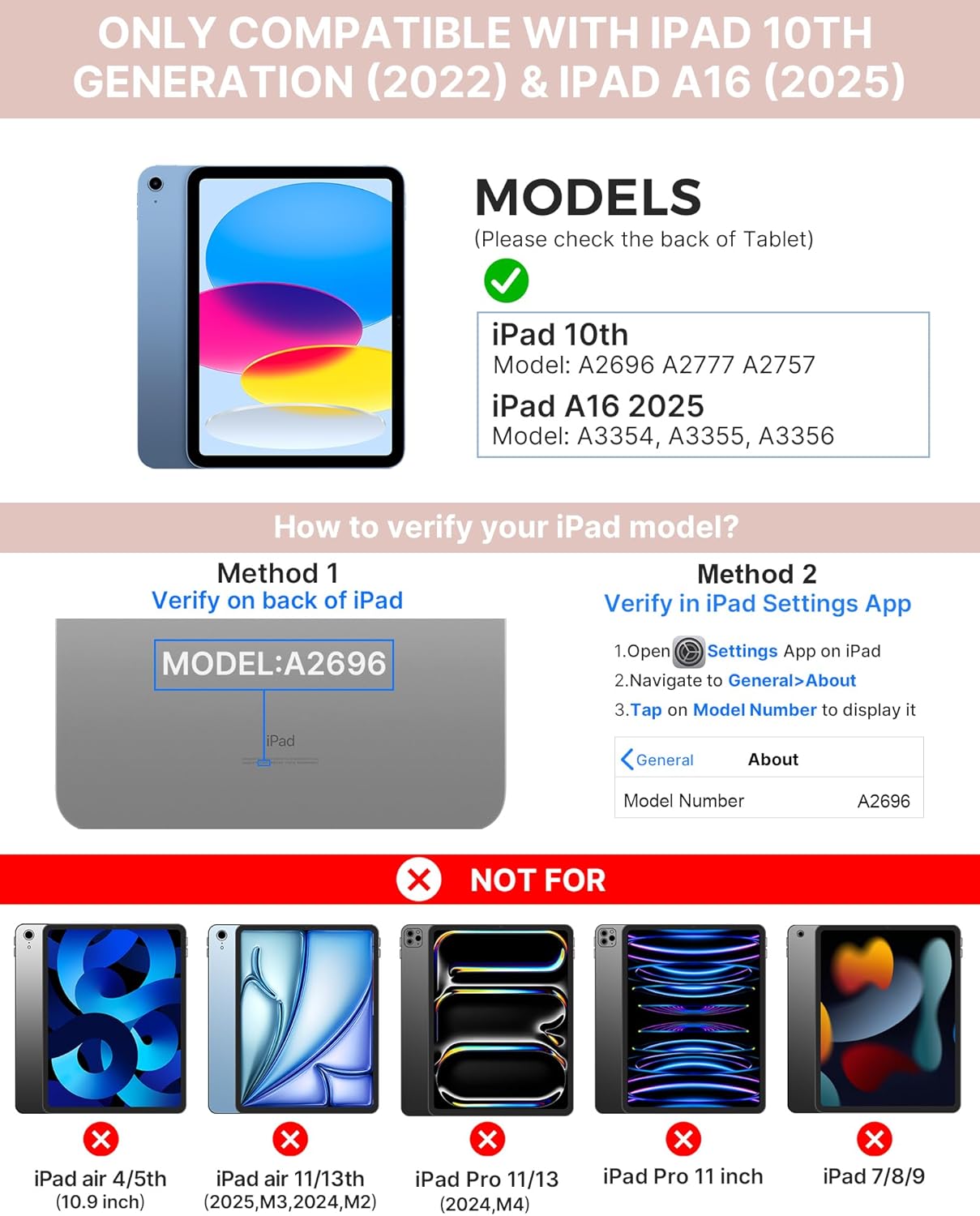
Image: Visual guide for identifying compatible iPad models and verifying the model number on the device or through settings.
3. Sadržaj paketa
Paket uključuje:
- 1 x typecase Touch iPad Keyboard Case
- 1 x USB-C kabel za punjenje
- 1 x Uputstvo za upotrebu
4. Upute za postavljanje
4.1 Punjenje tastature
Prije prve upotrebe, potpuno napunite tastaturu. Spojite priloženi USB-C kabel za punjenje na priključak za punjenje tastature i izvor napajanja. Indikatorska lampica punjenja će pokazati status punjenja.
- Standby: Do 1 godine
- Daytime use (2 hours/day with backlight off): Do 3 mjeseci
- Nighttime use (2 hours/day with backlight on): Do 2 sedmice

Image: Close-up of the keyboard's USB-C charging port and battery life specifications.
4.2 Pairing with iPad
- Provjerite da li je tastatura napunjena.
- Turn on the keyboard by pressing the power button. The Bluetooth indicator light will flash.
- Na vašem iPadu idite na Postavke > Bluetooth.
- Uključite Bluetooth. Vaš iPad će tražiti dostupne uređaje.
- Select "typecase Keyboard" from the list of devices.
- Slijedite upute na ekranu da biste dovršili proces uparivanja. Indikatorska lampica Bluetooth veze na tastaturi će svijetliti neprekidno nakon uspješnog uparivanja.
5. Uputstvo za upotrebu
5.1 Instaliranje vašeg iPada
Gently insert your iPad into the case, ensuring all edges are securely seated. The case provides full protection for your device.
5.2 Funkcije tastature
The keyboard features a standard 78-key layout with a dedicated row of iPadOS shortcut keys for enhanced productivity.

Slika: Iznad glave view of the keyboard layout, highlighting the 78-key design and iPadOS shortcuts.
Tasteri sa pozadinskim osvetljenjem
The keyboard features 11-color RGB LED backlighting with adjustable brightness levels. This allows for comfortable typing in various lighting conditions.
- Pritisnite ključ za sijalicu za cikličku promjenu boja pozadinskog osvjetljenja.
- Pritisnite Fn + light bulb key za podešavanje jačine pozadinskog osvetljenja.
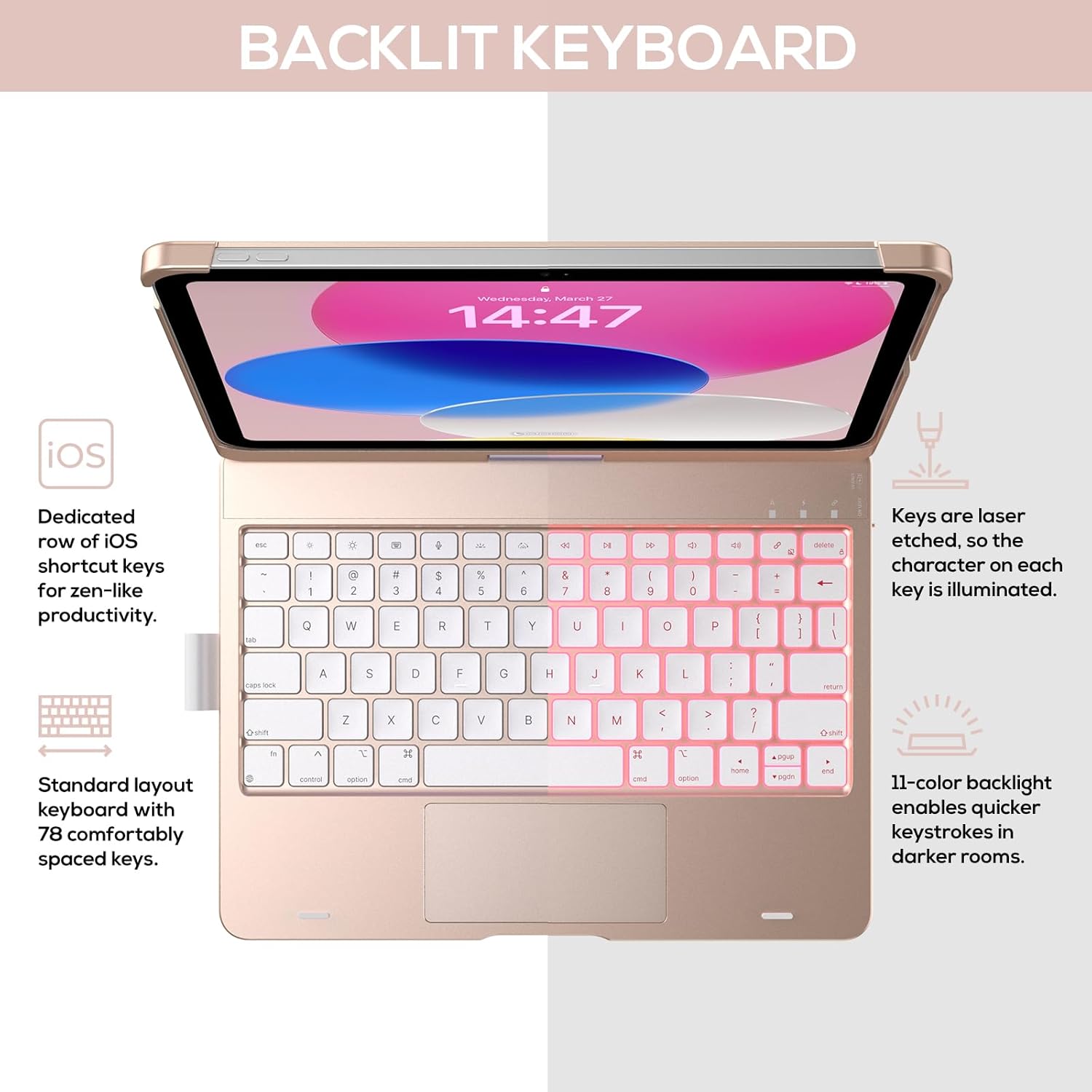
Image: The keyboard with illuminated keys, demonstrating the 11-color backlight and dedicated iOS shortcut keys.
5.3 Višestruki dodirni dodir
The integrated precision trackpad supports multi-gesture controls, enhancing productivity for tasks like document editing, web browsing, and presentation building.
- Tapkanje jednim prstom: Click/Select
- Pomicanje s dva prsta: Pomicanje gore/dolje ili lijevo/desno
- Prstima za zumiranje: Uvećavanje/umanjivanje
- Prevlačenje s tri prsta prema gore: Otvorite prebacivač aplikacija
- Prevlačenje tri prsta prema dolje: Povratak na početni ekran

Image: Diagram showing common multi-touch gestures for the trackpad, including managing files, web pregledavanje i prebacivanje između aplikacija.
5.4 360° Rotatable Hinge and Use Modes
The patented 360° hinge allows for versatile use of your iPad in 7 unique modes, adapting to various tasks from typing to viewing.
- Režim rada laptopa: Traditional laptop setup for typing.
- Način rada stalka: Idealno za viewing content.
- Način rada šatora: Stable for touch interaction or presentations.
- Način rada tableta: Fold the keyboard behind the iPad for tablet use. Keys are protected in this mode.
- Ugaoni način rada: Angled for comfortable drawing or writing.
- Način dijeljenja: Rotate the screen to share content with others.
- Protect Mode: Close the case to fully protect the iPad.
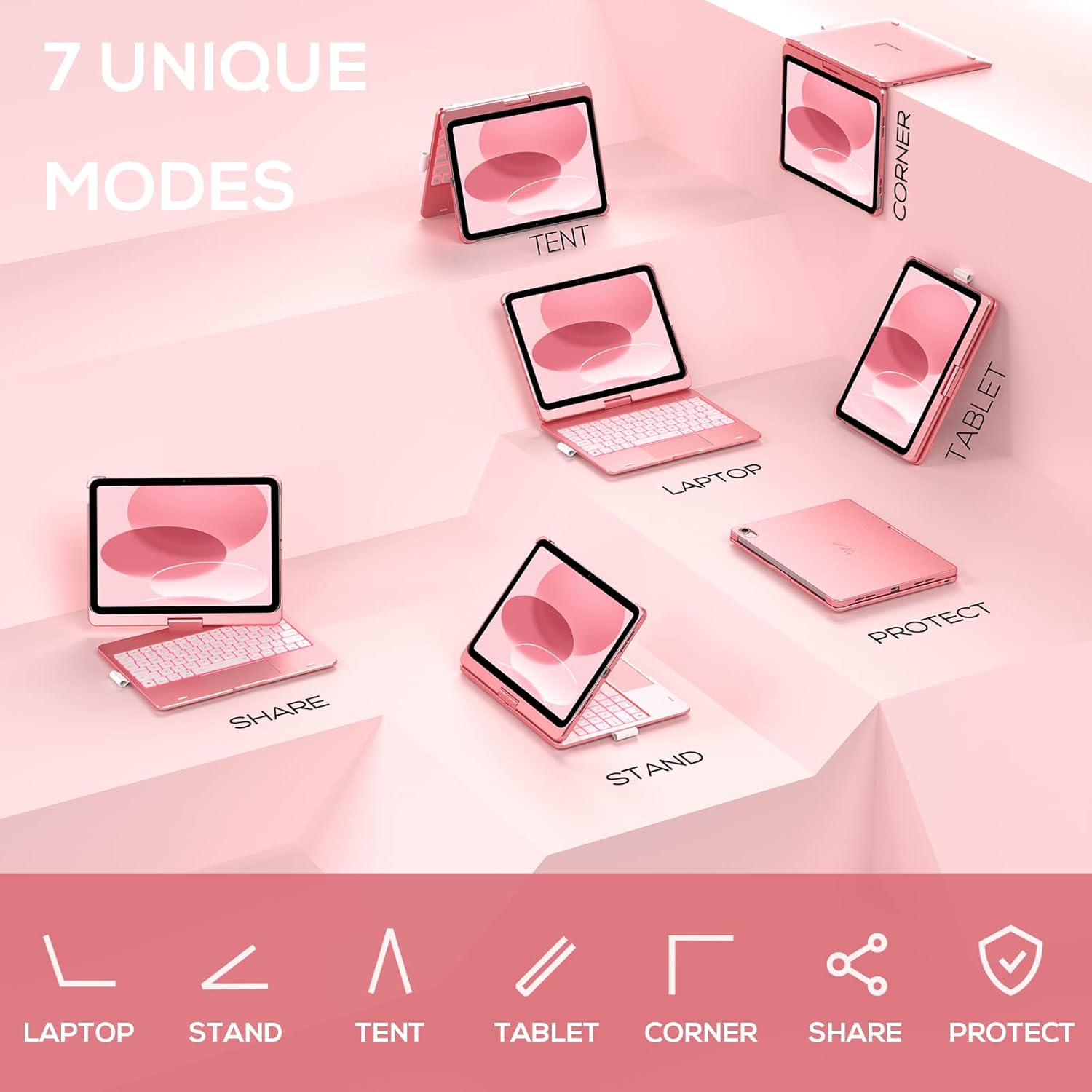
Image: A visual representation of the seven different configurations the keyboard case can be used in, including laptop, stand, and tablet modes.
5.5 Funkcija automatskog spavanja/buđenja
The case features an auto sleep/wake function. Opening the case will wake your iPad, and closing it will put your iPad to sleep, helping to conserve battery life for both the iPad and the keyboard.

Image: A user's hand on the trackpad, illustrating the built-in trackpad and the auto sleep/wake feature that activates when the case is opened or closed.
5.6 Apple Pencil Holder
An integrated holder is provided for your Apple Pencil, ensuring it is securely stored and easily accessible.
6. Održavanje
6.1 Čišćenje
To clean the keyboard case, use a soft, damp cloth. Avoid using harsh chemicals or abrasive materials, as these may damage the surface. Ensure the charging port is dry before charging.
6.2 Skladištenje
Kada se ne koristi duži period, futrolu za tastaturu čuvajte na hladnom i suhom mjestu. Preporučuje se da potpuno napunite tastaturu prije dugotrajnog skladištenja kako biste održali dobro stanje baterije.
7. Otkrivanje problema
7.1 Tastatura se ne povezuje
- Provjerite je li tastatura uključena i napunjena.
- Provjerite je li Bluetooth omogućen na vašem iPadu.
- Zaboravite uređaj u Bluetooth postavkama vašeg iPada i pokušajte ga ponovo upariti.
- Ponovo pokrenite i iPad i tastaturu.
7.2 Tipke ne reagiraju
- Provjerite je li tastatura pravilno povezana putem Bluetootha.
- Provjerite nivo baterije tastature.
- Očistite sve ostatke oko tipki.
7.3 Trackpad Not Working
- Provjerite da li je tastatura povezana.
- Check iPad settings for trackpad functionality (Settings > General > Trackpad).
- Ponovo pokrenite tastaturu i iPad.
7.4 Pozadinsko osvjetljenje ne radi
- Uvjerite se da je tastatura uključena.
- Press the backlight control keys (light bulb key, Fn + light bulb key) to activate or adjust.
- Provjerite nivo baterije; slaba baterija može onemogućiti pozadinsko osvjetljenje.
8. Specifikacije
| Broj modela | KB201T-100 |
| Dimenzije proizvoda | 11 x 8.6 x 1.5 inča (11"D x 8.6"Š x 1.5"V) |
| Težina artikla | 1.43 funte |
| Tehnologija povezivanja | Bluetooth |
| Opis tastature | Flexible, 78-key layout with iPadOS shortcuts |
| Posebne karakteristike | 360° Rotatable, 11-Color Backlit, Ergonomic, Lightweight, Multi-Touch Trackpad, Auto Sleep/Wake, Apple Pencil Holder |
| Pozadinsko osvetljenje tastature | RGB (11 boja) |
| Vrsta baterije | 1 litijum-polimerska baterija (uključena) |
9. Garancija i podrška
typecase is committed to product quality and customer satisfaction. This product comes with the following support:
- Usluga zamjene: Within 1 year of purchase.
- Politika povrata novca: U roku od 30 dana od kupovine.
For any issues or inquiries, please contact typecase customer support for quick feedback and assistance.

Image: Information on typecase's after-sales service, including replacement, refund, and customer support.