1. Uvod
This manual provides essential information for the safe and efficient use of your Philips 329P1H 32-inch 4K UHD LCD Monitor. This monitor features a 32-inch 4K UHD (3840 x 2160) display, an integrated USB-C docking station with power delivery, a pop-up webcam with Windows Hello™ facial recognition, and various eye-care technologies. Please read this manual thoroughly before operating the device.
2. Sigurnosne informacije
Observe the following safety precautions to prevent damage to the monitor or injury to yourself:
- Ne izlažite monitor kiši ili vlazi.
- Ne otvarajte monitor casing. Za sve servisne radove obratite se kvalifikovanom osoblju.
- Osigurajte odgovarajuću ventilaciju oko monitora.
- Koristite samo adapter za napajanje koji dolazi s monitorom.
- Izbjegavajte postavljanje monitora na direktnu sunčevu svjetlost ili blizu izvora topline.
- Clean the screen with a soft, lint-free cloth. Do not use liquid cleaners directly on the screen.
3. Sadržaj paketa
Information regarding the exact contents of the product package is not available. Typically, a monitor package includes:
- Philips 329P1H Monitor
- Power Cable
- USB-C kabl
- HDMI kabel (može varirati ovisno o regiji)
- Vodič za brzi početak
4. Podešavanje
4.1 Fizička postavka
Carefully remove the monitor and its components from the packaging. Assemble the stand according to the instructions provided in the Quick Start Guide. Place the monitor on a stable, level surface.
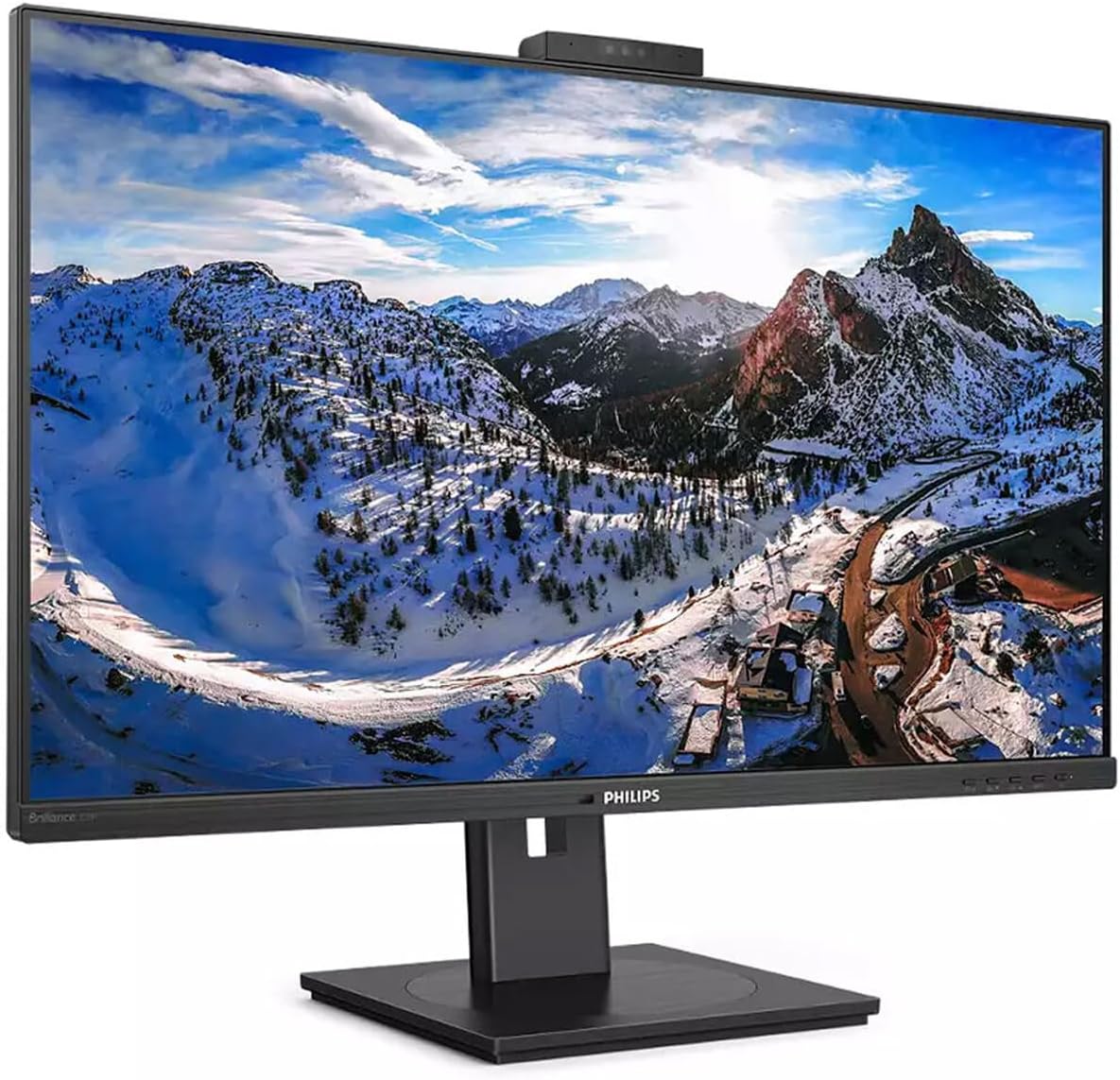
Slika 4.1: Prednja strana view of the Philips 329P1H Monitor.
4.2 Kablovi za povezivanje
- Priključak za napajanje: Spojite kabel za napajanje na ulaz za napajanje monitora, a zatim na utičnicu.
- Video veza: Connect a video cable (e.g., HDMI, DisplayPort, or USB-C) from your computer to the corresponding input on the monitor. For 4K UHD resolution, ensure your graphics card and cable support the required bandwidth.
- USB-C priključna stanica: If your laptop supports USB-C with power delivery, connect the supplied USB-C cable from your laptop to the monitor's USB-C port. This single cable can provide video, data, and power charging to your laptop.
- USB periferijski uređaji: Connect your keyboard, mouse, or other USB devices to the USB ports on the monitor.
- Ethernet veza: Connect an RJ-45 Ethernet cable from your network router/modem to the monitor's RJ-45 port for network access through the USB-C connection.
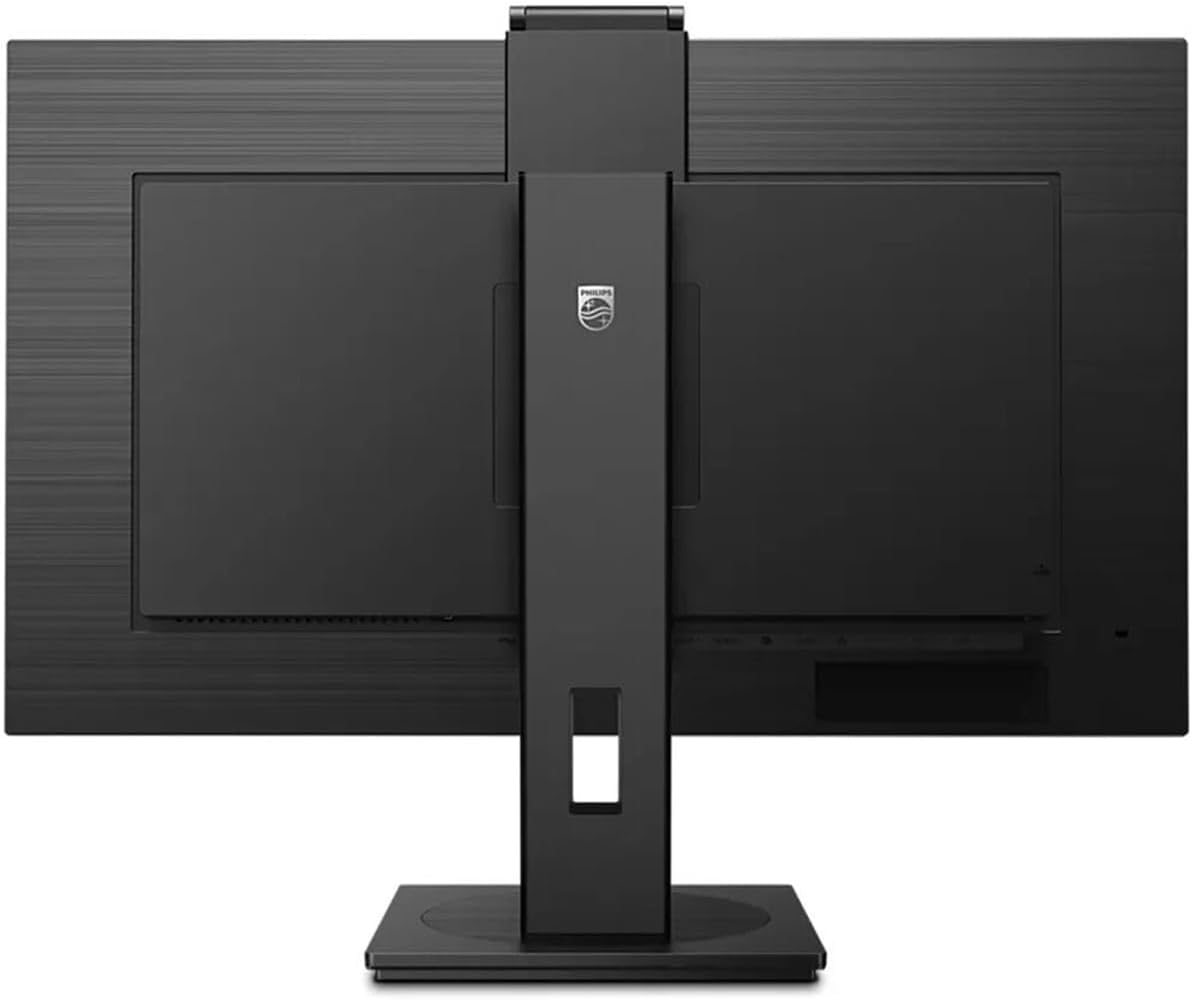
Slika 4.2: Pozadi view monitora sa ulaznim portovima.
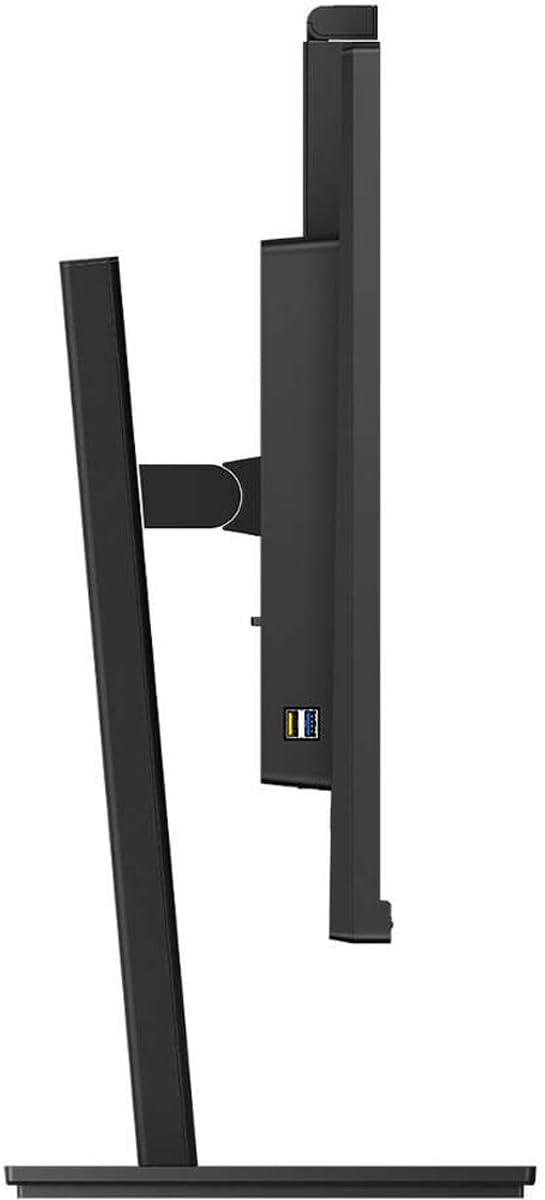
Slika 4.3: Bočna strana view showing USB ports.
4.3 Početna konfiguracija
After connecting all necessary cables, power on the monitor and your computer. The monitor should automatically detect the input signal. If not, use the monitor's On-Screen Display (OSD) menu to select the correct input source.
5. Uputstvo za upotrebu
5.1 Uključivanje/isključivanje napajanja
Pritisnite dugme za napajanje koje se nalazi na monitoru da biste ga uključili ili isključili. Indikator napajanja će svijetliti kada je monitor aktivan.
5.2 USB-C Docking Functionality
The integrated USB-C docking station allows for a single-cable solution for video, data transfer, and laptop power charging (up to 90W). Connect your compatible laptop via the USB-C port on the monitor to utilize this feature. Peripherals connected to the monitor's USB ports and the RJ-45 Ethernet port will also be accessible to your laptop.
5.3 Iskačući prozor Webkamera sa Windows Hello ™
The monitor features an innovative pop-up webcam. When needed, the webcam extends from the top of the monitor. It is equipped with advanced sensors for Windows Hello™ facial recognition, enabling secure and fast login to Windows devices. When not in use, the webcam can be securely tucked back into the monitor for privacy.
5.4 Display Technologies
- UltraClear 4K UHD (3840 x 2160): Provides highly detailed and crisp images for professional applications.
- IPS tehnologija: Ponude široke viewing angles (178/178 degrees) and consistent color accuracy, suitable for graphic design and professional use.
- Tehnologija bez treperenja: Regulates brightness to reduce screen flicker, minimizing eye fatigue during extended use.
- Niskoplavi način rada: A software solution that reduces harmful shortwave blue light emissions, promoting eye comfort.
- PowerSensor: Detects user presence and automatically reduces monitor brightness when the user steps away, saving up to 80% energy.
- LightSensor: Adjusts picture brightness based on ambient room lighting conditions for optimal viewing and minimal power consumption.
6. Održavanje
6.1 Čišćenje monitora
Da biste očistili ekran monitora, nježno ga obrišite mekom krpom koja ne ostavlja dlačice. Za tvrdokorne mrlje, laganoampen the cloth with water or a mild, non-abrasive screen cleaner. Do not spray liquids directly onto the screen. For the monitor casing, koristite meku, suhu krpu.
6.2 Skladištenje
If storing the monitor for an extended period, ensure it is powered off and disconnected from the power source. Store it in a cool, dry place, ideally in its original packaging to protect it from dust and physical damage.
7. Otkrivanje problema
Ako naiđete na probleme s monitorom, pogledajte sljedeća uobičajena rješenja:
| Problem | Mogući uzrok | Rješenje |
|---|---|---|
| Nema slike na ekranu | Power cable disconnected; Video cable disconnected or loose; Incorrect input source selected. | Check power and video cable connections. Ensure the correct input source is selected via the OSD menu. |
| Slika je mutna ili iskrivljena | Netačna rezolucija; Neispravan video kabl. | Set the display resolution to 3840 x 2160. Try a different video cable. |
| WebKamera ne radi | USB-C cable not connected or faulty; Webcam privacy setting enabled; Operating system driver issue. | Ensure the USB-C cable is securely connected and supports data transfer. Check privacy settings in your operating system. For Mac Mini users, if the camera disconnects after sleep mode, try restarting the monitor or ensuring the USB-C cable is fully functional. Update USB drivers if necessary. |
| Nema zvuka iz zvučnika monitora | Volume too low; Incorrect audio output selected on computer. | Podesite jačinu zvuka monitora putem OSD-a. Odaberite monitor kao zadani audio izlazni uređaj u postavkama zvuka vašeg računara. |
8. Specifikacije
The following table outlines the key technical specifications for the Philips 329P1H monitor:
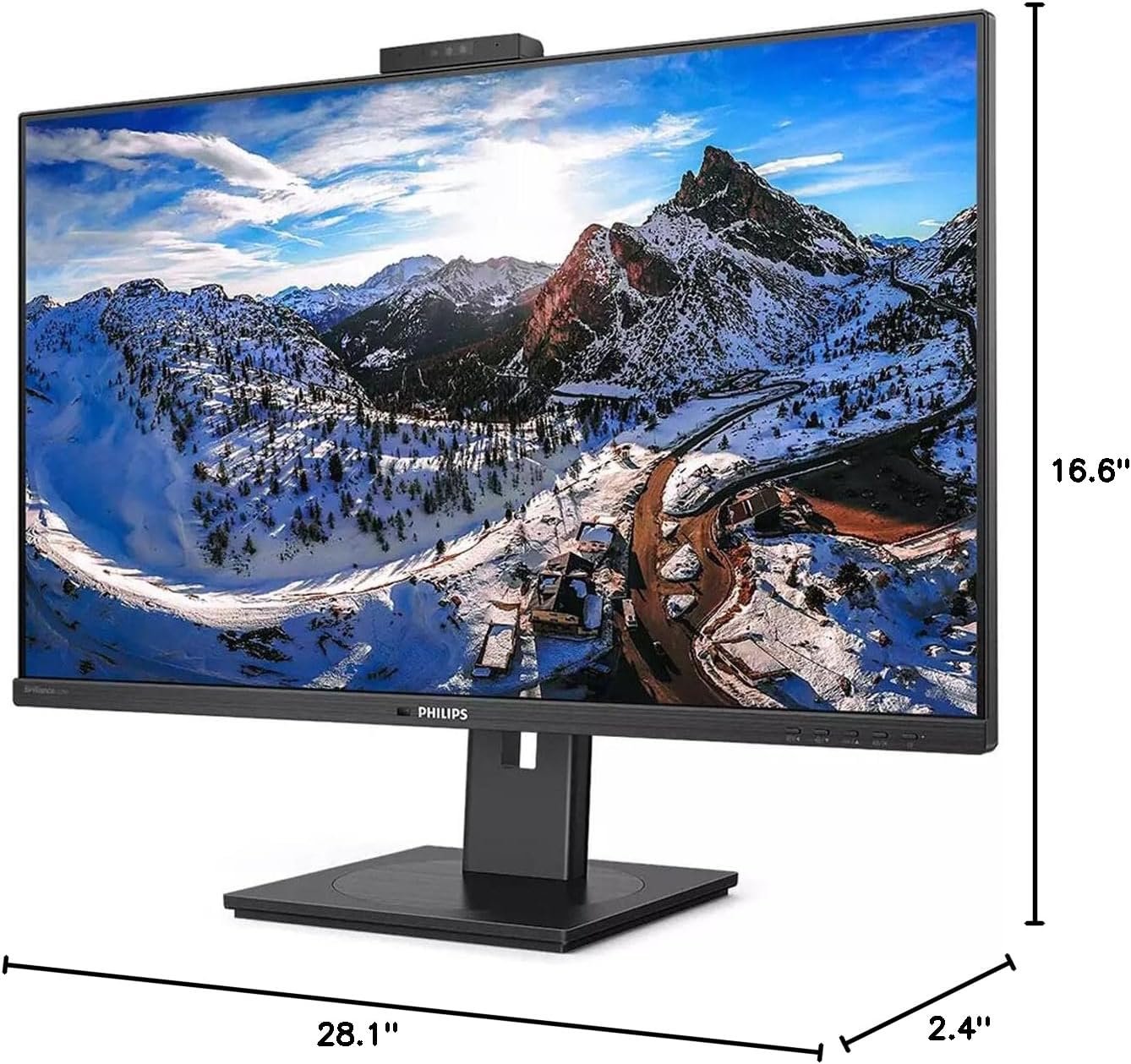
Slika 8.1: Dimenzije monitora.
| Feature | Specifikacija |
|---|---|
| Broj modela | 329P1H |
| Veličina ekrana | 31.5 inča (viewsposoban) |
| Maksimalna rezolucija ekrana | 3840 x 2160 (4K UHD) |
| Aspect Ratio | 16:9 |
| Vrijeme odgovora | 4 ms GTG |
| Osvetljenost | 350 Nit |
| Refresh Rate | 75 Hz |
| Tip panela | IPS |
| Tehnologija pozadinskog osvetljenja | WLED |
| Povezivanje | USB Type-C (with Power Delivery), HDMI, DisplayPort, RJ-45 Ethernet |
| Webcam | Pop-up with Windows Hello™ |
| Težina artikla | 18.06 funte |
| Dimenzije proizvoda (DxŠxV) | 2.4 x 28.1 x 16.6 inča |
| Boja | Teksturirana crna |
9. Garancija i podrška
Za informacije o garanciji i tehničkoj podršci, pogledajte garantni list koji ste dobili uz proizvod ili posjetite službenu Philips podršku. webSačuvajte račun kao dokaz o kupovini za reklamacije u slučaju reklamacije.