
Uvod
This user manual provides detailed instructions for the installation, operation, maintenance, and troubleshooting of your Xprinter XP-K200L 80mm Thermal Receipt Printer. Please read this manual thoroughly before using the printer to ensure proper function and to extend the product's lifespan. Keep this manual for future reference.
Sigurnosne informacije
- Uvijek koristite adapter za napajanje koji dolazi s pisačem.
- Ne izlažite štampač vodi ili vlazi.
- Izbjegavajte postavljanje štampača na direktnu sunčevu svjetlost ili u blizinu izvora toplote.
- Osigurajte odgovarajuću ventilaciju oko štampača.
- Ne pokušavajte sami rastavljati ili popravljati štampač. Obratite se kvalifikovanom servisnom osoblju.
- Čuvati van domašaja djece.
Sadržaj paketa
Molimo Vas da provjerite sadržaj paketa prilikom raspakivanja. Ako bilo koji artikl nedostaje ili je oštećen, obratite se prodavaču.
- Xprinter XP-K200L Thermal Receipt Printer
- Adapter za napajanje
- Kabl za napajanje
- USB kabel
- Termo papirna rola (početna rola)
- Kabel ladice za gotovinu
- Korisnički priručnik (ovaj dokument)
Product Overview
Familiarize yourself with the main components of your Xprinter XP-K200L thermal receipt printer.

Slika 1: Bočna strana view of the Xprinter XP-K200L thermal receipt printer. On the right, the power switch is visible, and on the left, a button to open the paper cover is present.
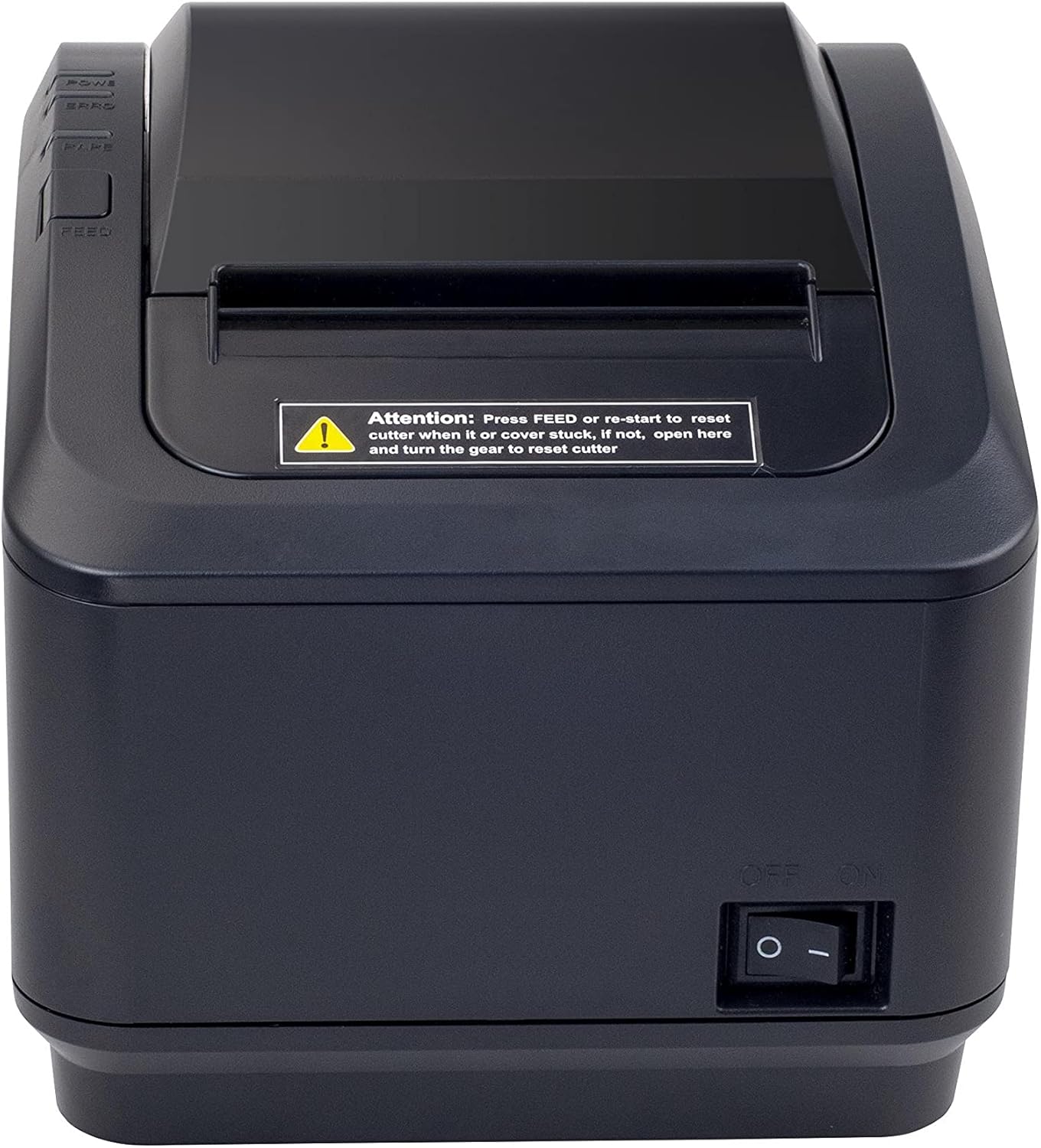
Slika 2: Prednja strana view of the Xprinter XP-K200L thermal receipt printer. The paper output slot is at the top, and below it are control buttons for functions like feed and error reset. A warning label is also visible.

Figure 3: This image displays the Xprinter XP-K200L thermal receipt printer with its top cover open, showing the internal compartment where the thermal paper roll is loaded. The print head mechanism is also visible.
Setup
1. Spajanje napajanja
- Ensure the printer's power switch is in the OFF pozicija.
- Spojite adapter za napajanje na priključak za napajanje štampača.
- Uključite kabl za napajanje u odgovarajuću električnu utičnicu.
2. Ubacivanje termalnog papira
- Press the cover open button (refer to Figure 1) to open the top cover of the printer.
- Insert a new 80mm thermal paper roll into the compartment, ensuring the paper feeds from the bottom and the leading edge extends slightly out of the printer.
- Close the top cover firmly until it clicks into place. Ensure there is no slack in the paper roll.
3. Connecting to a Computer/Network
The XP-K200L printer supports both USB and LAN (Ethernet) connectivity.
USB veza:
- Spojite jedan kraj USB kabla na USB port štampača.
- Povežite drugi kraj USB kabla na slobodan USB port na računaru.
- Install the printer drivers. Drivers are typically provided on a CD or can be downloaded from the manufacturer's webstranica. Slijedite upute na ekranu za instalaciju.
LAN (Ethernet) Connection:
- Connect one end of an Ethernet cable to the printer's LAN port.
- Povežite drugi kraj Ethernet kabla na mrežni ruter ili prekidač.
- Configure the printer's network settings (e.g., IP address) if necessary. This usually involves printing a self-test page to get the current IP address and then accessing the printer's web interface or using a utility tool provided by the manufacturer.
- Install the printer drivers on your computer, selecting the network connection option during setup.
4. Connecting a Cash Drawer
- Spojite kabel ladice za novac na namjenski priključak ladice za novac na pisaču.
- Ensure your POS software is configured to send commands to open the cash drawer via the printer.
Uputstvo za upotrebu
Uključivanje/isključivanje
- To power on the printer, flip the power switch (refer to Figure 1) to the ON pozicija.
- To power off the printer, flip the power switch to the OFF pozicija.
Basic Printing
Once the printer is connected and drivers are installed, you can print receipts from your POS software or any application that supports printing.
- Ensure the printer is powered on and has paper loaded.
- From your application, select the print option.
- Choose the "Xprinter XP-K200L" from the list of available printers.
- Confirm print settings and click "Print".
Self-Test Page
To print a self-test page, which provides information about the printer's settings and status:
- Ensure the printer is powered off and the paper roll is loaded.
- Pritisnite i držite FEED dugme.
- Dok držite FEED button, turn the power switch to ON.
- Otpustite FEED button after the printer starts printing.
Održavanje
Čišćenje štampača
- Glava za štampanje: Lagano koristite pamučni štapićampened with isopropyl alcohol to gently wipe the thermal print head. Allow it to dry completely before use. Clean regularly to ensure print quality.
- rezač: If the cutter becomes jammed or dirty, carefully clean it with a soft brush or cloth.
- Eksterijer: Obrišite vanjski dio pisača mekom, suhom krpom. Ne koristite abrazivna sredstva za čišćenje ili otapala.
Zamjena termalnog papira
When the paper roll is depleted or near its end, replace it following the steps in the "Loading Thermal Paper" section under Setup.
Rješavanje problema
| Problem | Mogući uzrok | Rješenje |
|---|---|---|
| Štampač se ne uključuje. | Power cord or adapter not connected properly; power outlet issue. | Provjerite sve priključke za napajanje. Pokušajte s drugom utičnicom. |
| Nema štampanja. | No paper; paper loaded incorrectly; printer offline; driver issue; incorrect connection. | Load paper correctly. Check printer status. Reinstall drivers. Verify USB/LAN connection. |
| Loš kvalitet štampe. | Dirty print head; low quality thermal paper. | Clean the print head (see Maintenance). Use recommended thermal paper. |
| Paper jam or cutter error. | Paper loaded incorrectly; debris in cutter mechanism. | As per printer label: Pritisnite FEED or re-start to reset cutter. If the issue persists, open the top cover and carefully turn the gear to reset the cutter mechanism. Ensure paper is loaded correctly and remove any obstructions. |
| Cash drawer does not open. | Cable not connected; POS software not configured. | Check cash drawer cable connection. Verify POS software settings for cash drawer trigger. |
Specifikacije
| Feature | Detalj |
|---|---|
| Brand | Xprinter |
| Naziv modela | XP-K200L |
| Tehnologija štampača | Thermal |
| Tehnologija povezivanja | USB, LAN (Ethernet) |
| Posebne karakteristike | Mreža spremna |
| Boja | Crna |
| Izlaz štampača | Monochrome |
| Težina artikla | 1.5 kg |
| Dimenzije proizvoda (DxŠxV) | 19.5 cm x 14 cm x 13.8 cm |
| Compatible OS/Controller Type | Android (and typically Windows/Linux via drivers) |
| Print Media | Plain Thermal Paper |
| Ispis u boji | Crna |
| Rezolucija | 576 x 512 dots per inch (or dots per line) |
| Max Print Resolution B/W | 576 dpi |
| Dodatne funkcije štampača | Samo štampa |
| Kontrolni metod | Daljinski |
| Maksimalna veličina medija | 80 mm |
| Veličina papira | 79.5 mm |
| Snaga | 60 vati |
| Uključene komponente | Power adapter, Cash drawer cable |
| Serije | XP-K |
| Specifične upotrebe | Restaurants, bars, cinemas, garages, transportation, hospitals, clinics |
| Ukupni USB portovi | 1 |
Garancija i podrška
For warranty information and technical support, please refer to the documentation provided with your purchase or contact your vendor directly. Keep your proof of purchase for warranty claims.
For driver downloads and further support resources, visit the official Xprinter website.


