
Въведение
Welcome to the HP OmniDesk M03 AI Desktop PC. This manual provides essential information for setting up, operating, maintaining, and troubleshooting your new computer. The HP OmniDesk M03 is designed for performance and efficiency, featuring an Intel Core Ultra 7 265 processor with dedicated AI cores, 16GB DDR5 RAM, and a 2TB NVMe SSD, running on Windows 11 Home.
Какво има в кутията
Проверете дали всички компоненти са налични в опаковката:
- HP OmniDesk Desktop PC
- Безжична клавиатура
- Мишка
- Ръководство за бързо инсталиране
- Захранващ кабел

Image: The HP OmniDesk M03 desktop PC, wireless keyboard, mouse, and power cable, illustrating the contents of the product box.
Настройка
1. Свързване на периферни устройства
Before powering on your PC, connect your monitor, keyboard, and mouse.
- монитор: Connect your monitor to the PC using an HDMI or DisplayPort cable. The ports are located on the rear of the PC.
- Клавиатура и мишка: The included keyboard and mouse are wireless. Insert batteries (if not pre-installed) and connect their USB receiver to an available USB port on the PC.
- мощност: Connect the power cable to the PC's power input on the rear and then to a wall outlet.
- Мрежа (по избор): For a wired internet connection, connect an Ethernet cable from your router to the RJ45 port on the rear of the PC.

Image: Rear panel of the HP OmniDesk M03, highlighting the DisplayPort, HDMI, USB, and Ethernet ports for connecting external devices.

Изображение: Отстрани view of the HP OmniDesk M03 AI Desktop PC, showing its compact tower design.
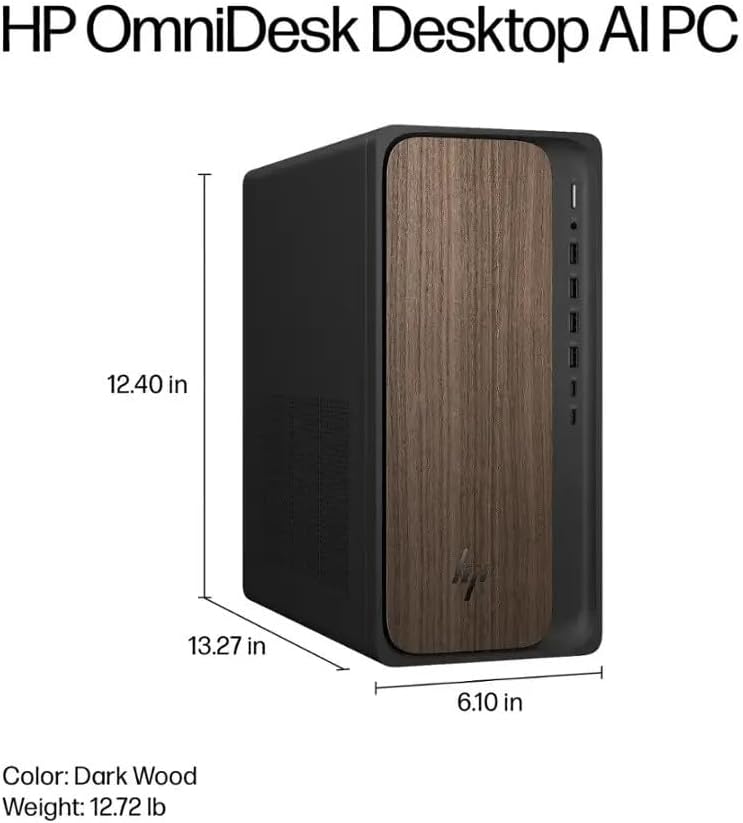
Image: Diagram illustrating the location and type of front and rear ports on the HP OmniDesk M03, including USB-A, USB-C, HDMI, DisplayPort, and audio jacks.
2. Включване и първоначална настройка
След като всички периферни устройства са свързани:
- Натиснете бутона за захранване, разположен отпред на компютъра.
- Follow the on-screen instructions to complete the Windows 11 Home initial setup, including language selection, network connection (if not wired), account creation, and privacy settings.

Изображение: Отпред view of the HP OmniDesk M03, showing the power button at the top right and various USB ports below it.
Работа с вашия компютър
Windows 11 Начало
Your HP OmniDesk M03 comes pre-installed with Windows 11 Home. Familiarize yourself with the operating system's interface, Start menu, and settings. Microsoft provides extensive online resources for Windows 11 usage.
AI функции
The Intel Core Ultra 7 265 processor includes dedicated AI cores and Intel AI Boost, enhancing performance for AI-driven applications and features within Windows 11, such as AI Copilot. These features can assist with tasks, content creation, and system optimization.
Свързаност
- Wi-Fi 6 (802.11ax): Connect to wireless networks for internet access. Manage Wi-Fi settings through the Windows 11 network settings.
- Bluetooth 5.4: Pair wireless devices such as headphones, speakers, or additional input devices. Access Bluetooth settings via the Windows 11 settings menu.
- Ethernet: For a stable, high-speed wired connection, ensure an Ethernet cable is connected to the RJ45 port.
Поддръжка
Cleaning Your PC
- Екстериор: Използвайте леко мека кърпа без мъх dampened with water or a mild cleaning solution to wipe down the exterior. Avoid harsh chemicals.
- Vents: Периодично почиствайте праха от вентилационните решетки със сгъстен въздух, за да осигурите правилен въздушен поток и да предотвратите прегряване.
- Портове: Поддържайте портовете чисти от прах и отломки.
Софтуерни актуализации
Regularly update Windows 11 and device drivers to ensure optimal performance, security, and compatibility. Access Windows Update through the Settings menu.
Архивиране на данни
Препоръчително е редовно да архивирате важните си данни на външен диск или в облачно хранилище, за да предотвратите загуба на данни.
Отстраняване на неизправности
Този раздел разглежда често срещани проблеми, с които може да се сблъскате.
- Без захранване:
- Уверете се, че захранващият кабел е здраво свързан както към компютъра, така и към контакта.
- Проверете дали контактът работи, като включите друго устройство.
- Без дисплей:
- Check that the monitor is powered on and correctly connected to the PC via HDMI or DisplayPort.
- Уверете се, че на монитора е избран правилният входен източник.
- Няма интернет връзка:
- За Wi-Fi проверете дали Wi-Fi адаптерът е активиран и дали сте свързани към правилната мрежа с правилната парола.
- За кабелна връзка се уверете, че Ethernet кабелът е правилно свързан и че рутерът ви работи.
- Клавиатурата/мишката не реагира:
- Проверете нивата на заряд на батериите на безжичните устройства.
- Ensure the USB receiver is plugged into a functional USB port.
- Опитайте да рестартирате компютъра.
За по-сложни проблеми се обърнете към поддръжката на HP webсайт или се свържете с отдела за обслужване на клиенти.
Спецификации
Detailed technical specifications for the HP OmniDesk M03 AI Desktop PC:
| Компонент | Спецификация |
| Процесор | Intel Core Ultra 7 265 (20-Core, up to 5.3 GHz, Intel AI Boost) |
| Операционна система | Windows 11 Home (64-битова) |
| Памет (RAM) | 16GB DDR5 5600 MHz |
| Съхранение | 2TB PCIe NVMe M.2 SSD |
| Графика | Интегрирана Intel Graphics |
| Видео изход | 1x HDMI 2.1, 1x DisplayPort 1.4a |
| USB портове (отпред) | 2x USB-A 5Gbps, 2x USB-A 10Gbps, 1x USB-C 5Gbps, 1x USB-C 10Gbps |
| USB портове (отзад) | 4x USB 2.0 Type-A |
| Аудио портове | 1x Headphone/Microphone Combo, 1x Line Input, 1x Line Output |
| мрежа | Wi-Fi 6 (802.11ax), Bluetooth 5.4, Gigabit Ethernet (RJ45) |
| Размери (В x Ш x Д) | 13.3" x 6.1" x 12.4" (33.8 см x 15.5 см x 31.5 см) |
| Тегло | 11.77 фунта (5.34 кг) |

Image: Diagram showing the height (13.27 inches), width (6.10 inches), and depth (12.40 inches) of the HP OmniDesk M03 desktop PC.
Гаранция и поддръжка
Гаранционна информация
Your HP OmniDesk M03 AI Desktop PC comes with a 90-дневна ограничена гаранция. This warranty covers defects in materials and workmanship under normal use. For detailed terms and conditions, please refer to the warranty documentation included with your product or visit the official HP support webсайт.
Поддръжка на клиенти
For technical assistance, troubleshooting, or warranty claims, please contact HP Customer Support:
- Онлайн помощ: Посетете длъжностното лице Поддръжка на HP Webсайт за драйвери, ръководства и ръководства за отстраняване на неизправности.
- Поддръжка по телефона: Refer to the Quick Setup Guide or HP's webсайт за регионални номера за контакт.
When contacting support, please have your product model (M03) and serial number ready.