
Уводзіны
This user guide provides essential information for the HP OfficeJet Pro 8125e printer. It covers initial setup, connecting to networks, performing print, scan, and copy functions, routine maintenance, and troubleshooting common issues. Follow these instructions to ensure optimal performance and longevity of your device.
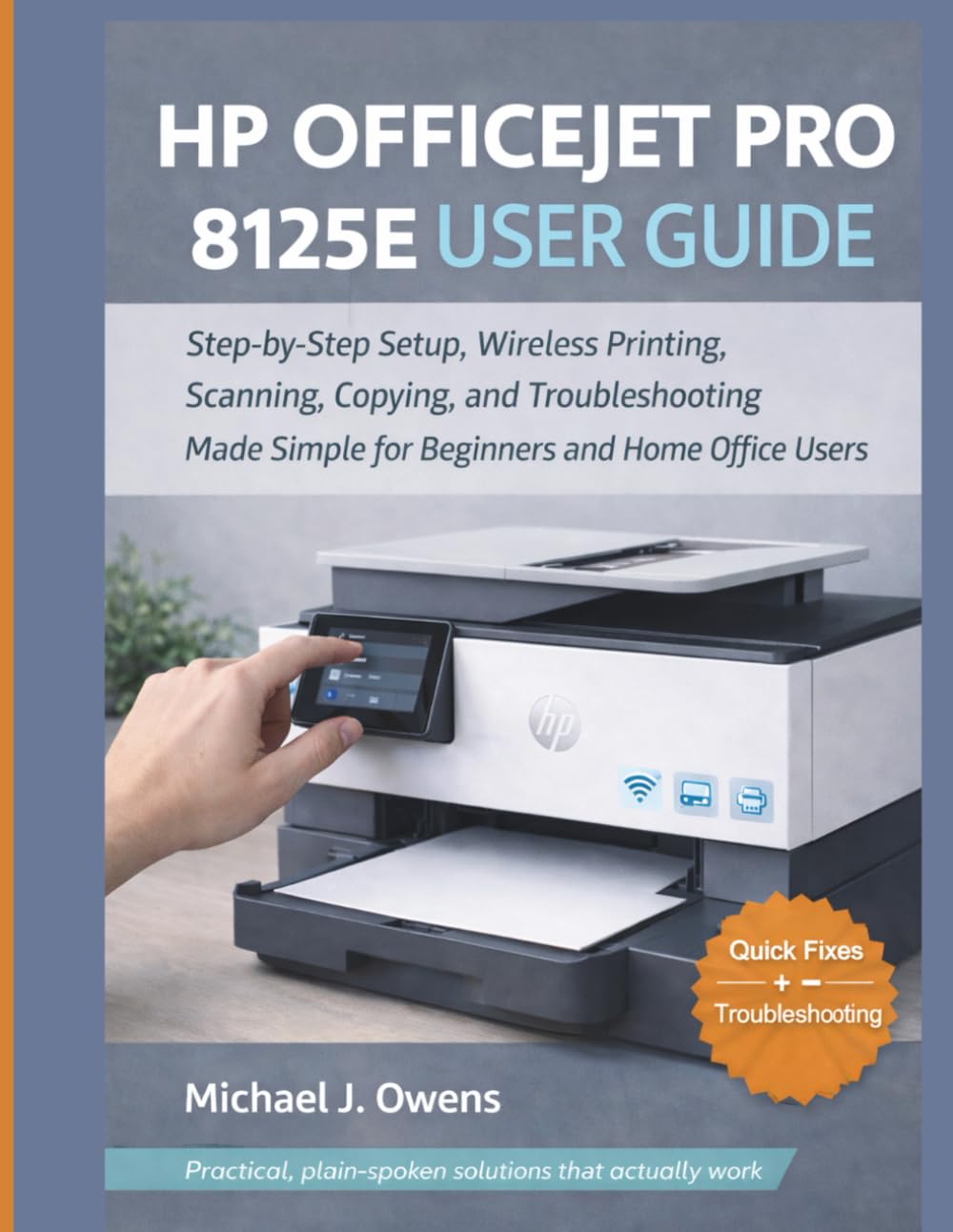
Image: Front cover of the HP OfficeJet Pro 8125e User Guide. This image represents the manual itself, designed to assist users with their printer.
1. Настройка
1.1 Распакоўка і першае ўключэнне
- Акуратна дастаньце прынтар з упакоўкі.
- Зніміце ўсе ахоўныя стужкі і ўпаковачныя матэрыялы з вонкавай і ўнутранай паверхняў прынтара.
- Падключыце шнур харчавання да прынтара, а затым да разеткі.
- Націсніце кнопку харчавання, каб уключыць прынтар.
- Follow the on-screen prompts on the printer's control panel to select your language and region.
1.2 Усталёўка чарнільных картрыджаў
- Адкрыйце дзверцы доступу да чарнільнага картрыджа.
- Пачакайце, пакуль карэтка друку перамясціцца ў цэнтр.
- Unpack the new ink cartridges.
- Устаўце кожны картрыдж у адпаведны слот, пераканаўшыся, што ён зашчапіўся.
- Зачыніце дзверцы доступу да чарнільнага картрыджа.
1.3 Загрузка паперы
- Выцягнеце ўваходны латок.
- Адрэгулюйце накіроўвалыя для паперы ў адпаведнасці з патрэбным памерам паперы.
- Загрузіце стос звычайнай белай паперы ў латок бокам для друку ўніз.
- Засуньце ўваходны латок назад у прынтар.
- Confirm paper type and size on the printer's control panel if prompted.
1.4 Падключэнне да Wi-Fi
- На панэлі кіравання прынтара перайдзіце да майстра налады бесправадной сеткі.
- Выберыце сваю сетку Wi-Fi са спісу даступных сетак.
- Enter the Wi-Fi password (WPA key) when prompted.
- Confirm the connection. The wireless light on the printer should turn solid blue.
1.5 Ўстаноўка драйвера
For Windows and Mac computers, download the latest drivers and HP Smart software from the official HP support webсайт. Выконвайце інструкцыі на экране падчас усталёўкі.
2. Кіраванне прынтарам
2.1 Друк дакументаў
- З кампутара: Open the document, select "Print," choose your HP OfficeJet Pro 8125e, and adjust settings as needed before printing.
- З мабільных прылад (прыкладанне HP Smart): Install the HP Smart app, add your printer, and use the app to print photos or documents directly from your smartphone or tablet.
- Email Print: If enabled, send documents to your printer's unique email address.
2.2 Сканіраванне дакументаў
- Змясціце дакумент тварам уніз на шкло сканера або тварам уверх у аўтаматычным падавальніку дакументаў (ADF).
- On the printer's control panel or via the HP Smart app/software on your computer, select "Scan."
- Choose scan settings (e.g., color, resolution, destination).
- Пачніце сканаванне.
2.3 Капіраванне дакументаў
- Змесціце арыгінальны дакумент на шкло сканера або ў аўтапад'ёмнік дакументаў.
- On the printer's control panel, select "Copy."
- Adjust settings such as number of copies, color/black & white, and size.
- Націсніце кнопку «Пачаць капіраванне».
3. Тэхнічнае абслугоўванне
3.1 Cleaning the Print Heads
If print quality degrades (streaks, faded colors), perform a print head cleaning from the printer's control panel or the HP Smart software. This process uses ink, so only perform it when necessary.
3.2 Замена чарнільных картрыджаў
When an ink cartridge is low or empty, the printer will notify you. Follow the steps in Section 1.2 to replace cartridges. Use genuine HP ink cartridges for best results.
3.3 Генеральная ўборка
Працярыце знешнія паверхні прынтара мяккай тканінайamp, lint-free cloth. Clean the scanner glass regularly with a glass cleaner applied to a cloth (not directly to the glass) to prevent smudges from affecting scan quality.
4. Выпраўленне непаладак
| праблема | Рашэнне |
|---|---|
| Паведамленне прынтара ў аўтаномным рэжыме |
|
| Захрасанне паперы |
|
| Дрэнная якасць друку |
|
| HP Smart App Issues |
|
5. Тэхнічныя характарыстыкі
Note: The following specifications are typical for the HP OfficeJet Pro 8125e printer. For precise details, refer to the official HP product page or documentation.
- Функцыі: Print, Copy, Scan, Fax (optional, depending on region/model)
- Тэхналогія друку: Цеплавая струйная машына HP
- Хуткасць друку (чорна-белы): Да 22 праміле ў хвіліну (ISO)
- Хуткасць друку (каляровы): Да 18 праміле ў хвіліну (ISO)
- Print Resolution (Best): Аптымізаванае дазвольванне колеру да 4800 x 1200 dpi
- Разрозненне сканавання (аптычнае): Да 1200 dpi
- Падключэнне: Wi-Fi 802.11a/b/g/n, Ethernet, USB 2.0
- Апрацоўка паперы: 250-sheet input tray, 60-sheet output tray, 35-sheet ADF
- Двухбаковая друк: Аўтаматычны (стандартны)
- Дысплей: Каляровы сэнсарны экран
6. Гарантыя і падтрымка
For warranty information, please refer to the documentation included with your printer or visit the official HP support website. HP provides various support resources, including online FAQs, driver downloads, and contact options for technical assistance.
Image: Back cover of the HP OfficeJet Pro 8125e User Guide. This image provides additional information and ISBN details for the manual.