
Lenovo ZAEG0096US
Кіраўніцтва карыстальніка Lenovo Yoga Tab Plus
Model: ZAEG0096US
Уводзіны
This manual provides comprehensive instructions for setting up, operating, maintaining, and troubleshooting your Lenovo Yoga Tab Plus. Designed for creativity and productivity, this tablet features a 12.7-inch 3K display, a powerful Snapdragon 8 Gen 3 processor, and comes with a Lenovo Tab Pen Pro and an ergonomic keyboard. Please read this manual thoroughly to ensure optimal performance and longevity of your device.
Змест пакета
Before proceeding, verify that all items are present in your package:
- Lenovo Yoga Tab Plus Tablet
- Lenovo Tab Pen Pro
- Падстаўка для клавіятуры
- Power Adapter and USB-C Cable
- Кароткае кіраўніцтва (гэта кіраўніцтва)
Настройка
1. Пачатковае ўключэнне і зарадка
To power on your tablet for the first time, press and hold the power button located on the side of the device until the Lenovo logo appears. It is recommended to fully charge the tablet before first use. Connect the provided USB-C cable to the tablet's charging port and the power adapter to a wall outlet.
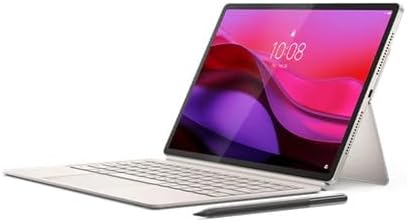
Figure 1: Lenovo Yoga Tab Plus with its accompanying keyboard and pen, showcasing the complete setup.
2. Attaching the Keyboard Stand
The keyboard stand attaches magnetically to the tablet. Align the magnetic connectors on the keyboard with the corresponding points on the tablet's bottom edge. The stand allows for multiple viewныя вуглы.

Малюнак 2: бок view of the Lenovo Yoga Tab Plus demonstrating its integrated kickstand for versatile positioning.
3. Pairing the Lenovo Tab Pen Pro
The Lenovo Tab Pen Pro typically pairs automatically when brought near the tablet. If not, ensure Bluetooth is enabled on your tablet and follow the on-screen prompts for pairing. The pen can be magnetically attached to the side of the tablet for storage and charging.
Інструкцыя па эксплуатацыі
1. Асноўная навігацыя (Android 14)
Your tablet runs on Android 14. Swipe up from the bottom to access the app drawer, swipe down from the top for quick settings and notifications. Use gestures or the navigation bar for Home, Back, and Recent Apps functions.
2. Using the Lenovo Tab Pen Pro
The Tab Pen Pro offers precise input for drawing, writing, and navigating. It supports pressure sensitivity for artistic applications. Specific pen functions and customizable buttons can be configured in the tablet's settings under "Stylus" or "Pen settings."
3. Utilizing the Keyboard Stand
The keyboard stand transforms your tablet into a productivity workstation. It features a full QWERTY layout and a trackpad for mouse input. Ensure the tablet is securely seated in the magnetic slot for proper connection.
4. Функцыі дысплея і гуку
The 12.7-inch 3K PureSight Pro display offers vibrant visuals with a 144Hz refresh rate for smooth scrolling and gaming. The anti-reflection coating minimizes glare. Experience immersive sound with the integrated Harman Kardon audio system, providing rich and clear sound for media consumption.

Малюнак 3: Спераду view of the Lenovo Yoga Tab Plus tablet, highlighting its large 3K display.
5. Выкарыстанне камеры
The tablet is equipped with a 13MP wide-angle front camera with a privacy lens and a 13MP AF + 2MP (Macro) FF back camera. Open the Camera app to capture photos and videos. Explore various modes and settings for optimal results.
Тэхнічнае абслугоўванне
1. Ачыстка прылады
Выкарыстоўвайце мяккую тканіну без ворса для чысткі экрана і корпуса планшэта. Для выдалення ўстойлівых плям злёгкуampПрацярыце тканіну вадой або бяспечным для экрана ачышчальным растворам. Пазбягайце агрэсіўных хімічных рэчываў або абразіўных матэрыялаў.
2. Сыход за батарэяй
To prolong battery life, avoid exposing the tablet to extreme temperatures. It is not necessary to fully discharge the battery before recharging. For long-term storage, charge the battery to about 50% and store the device in a cool, dry place.
3. Абнаўленне праграмнага забеспячэння
Рэгулярна правярайце наяўнасць абнаўленняў праграмнага забеспячэння і ўсталёўвайце іх, каб пераканацца, што ваш планшэт мае найноўшыя функцыі, патчы бяспекі і паляпшэнні прадукцыйнасці. Перайдзіце да Налады > Сістэма > Абнаўленне сістэмы каб праверыць наяўнасць абнаўленняў.
4. Кіраванне сховішчам
Your tablet comes with 256GB of UFS 4.0 storage. To manage storage, go to Налады > Сховішча. You can clear cached data, uninstall unused apps, and move files to cloud storage to free up space.
Ліквідацыю непаладак
This section addresses common issues you might encounter with your Lenovo Yoga Tab Plus.
- Прылада не ўключаецца: Пераканайцеся, што акумулятар зараджаны. Падключыце зарадную прыладу і пачакайце некалькі хвілін, перш чым зноў паспрабаваць уключыць прыладу. Калі прылада не рэагуе, націсніце і ўтрымлівайце кнопку харчавання 10-15 секунд, каб прымусова перазагрузіць прыладу.
- Экран не рэагуе: Try restarting the tablet. If the issue persists, perform a factory reset (data will be lost, back up important files).
- Праблемы з падключэннем да Wi-Fi або Bluetooth: Toggle Wi-Fi/Bluetooth off and on. Restart your router or the tablet. Ensure you are within range of the network/device.
- Збоі або завісанні праграм: Зачыніце і зноў адкрыйце праграму. Ачысціце кэш праграмы (Налады > Праграмы > [Назва праграмы] > Памяць і кэш > Ачысціць кэш). Абнавіце праграму або аперацыйную сістэму планшэта.
- Lenovo Tab Pen Pro not working: Ensure the pen is charged and properly paired via Bluetooth. Check pen settings in the tablet's system settings.
Тэхнічныя характарыстыкі
| Асаблівасць | Дэталь |
|---|---|
| Працэсар | Qualcomm Snapdragon 8 Gen 3 Processor (3.30 GHz) |
| Памяць | 16 GB LPDDR5X (Soldered) |
| Дысплей | 12.7" 3K (2944 x 1840), LTPS, 650 nits (Type), 900 nits (Peak), 144Hz |
| Захоўванне | 256 ГБ UFS 4.0 |
| Аперацыйная сістэма | Android 14 |
| Камеры | 13MP Wide-Angle FF Front + Privacy Lens + 13MP AF + 2MP (Macro) FF Back |
| Пяро | Lenovo Tab Pen Pro |
| Вага прадмета | 4 фунта |
| Памеры прадукту | 11.45 х 0.33 х 7.41 цалі |
Гарантыя і падтрымка
Your Lenovo Yoga Tab Plus is covered by a limited warranty. For detailed warranty terms and conditions, please refer to the warranty card included in your product packaging or visit the official Lenovo support webсайт. Каб атрымаць тэхнічную дапамогу, спампаваць драйверы і атрымаць дадатковую падтрымку, наведайце support.lenovo.com.
For protection plans, consider options such as the 2-Year or 4-Year Protection Plans available for extended coverage.