
1. Product Overview
The Zbtlink 4G LTE WiFi 6 Router is a high-performance networking device designed for both home and office environments. It features dual-band WiFi 6 technology, providing up to 2.4Gbps total speed for seamless 4K streaming and gaming. Equipped with a SIM card slot, it supports 4G Cat 9 cellular speeds, offering flexible internet connectivity. The router also incorporates mesh WiFi capabilities for whole-home coverage, advanced security features like WPA2 encryption, parental controls, and ad blocking, along with multiple Gigabit Ethernet ports for wired connections.
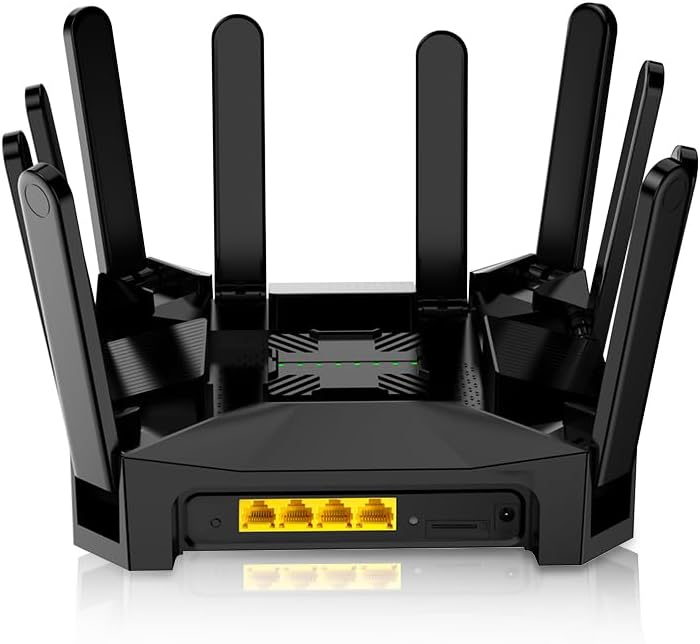
Figure 1.1: Front view of the Zbtlink 4G LTE WiFi 6 Router, showcasing its design and multiple antennas.
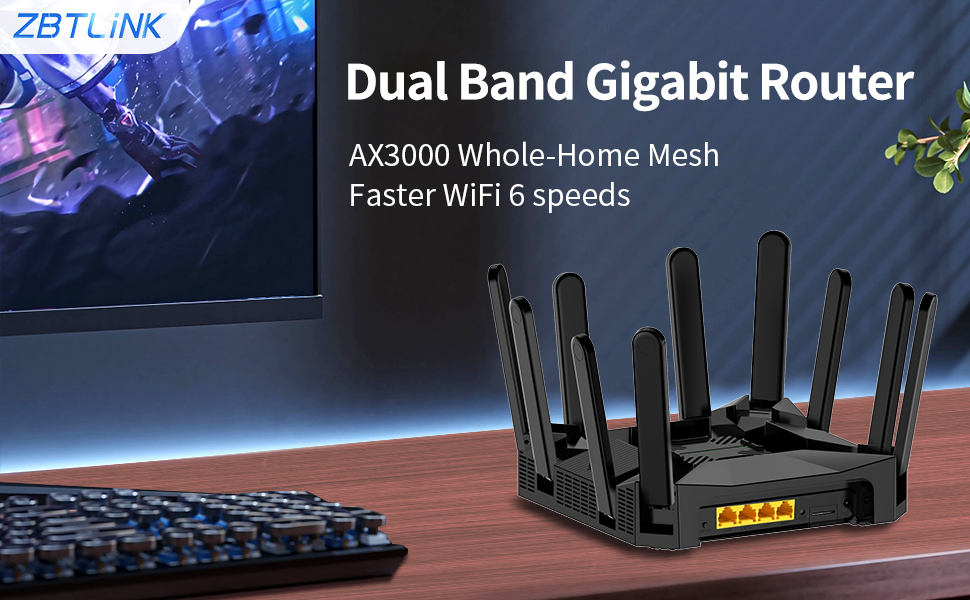
Figure 1.2: The Zbtlink AX3000 Dual Band Gigabit Router, highlighting its WiFi 6 capabilities and sleek design.
2. Setup Guide
2.1 Package Contents
Before you begin, ensure all items are present in the package:
- Z8105 Router
- Power Adapter
- Ethernet Cable
- User Manual (this document)
2.2 Physical Connection
- Power Connection: Connect the provided power adapter to the DC Power port on the router and plug it into a power outlet.
- SIM Card Insertion: Locate the SIM card slot on the back of the router. Gently insert a standard 4G SIM card into the slot until it clicks into place. Ensure the SIM card is correctly oriented. You should hear a sound indicating it is plugged in. If you need to remove it, push it in slightly until it springs out.
- Ethernet Connections (Optional):
- Connect your modem's Ethernet cable to the 1Gbps WAN port for internet access via a wired connection.
- Connect devices such as computers, gaming consoles, or smart TVs to the 3 x 1Gbps LAN ports using Ethernet cables for wired network access.

Figure 2.1: Rear view of the router, showing the MESH button, LAN ports, WAN port, RESET button, SIM card slot, and DC Power input.
2.3 Initial Configuration
After physical setup, configure your router:
- Connect to Router: Connect your computer or mobile device to the router's Wi-Fi network (SSID and password are usually found on a sticker on the router) or via an Ethernet cable to one of the LAN ports.
- Access Admin Panel: Open a web browser and enter the router's default IP address (e.g., 192.168.1.1 or 192.168.0.1). The default IP address, username, and password are typically printed on a sticker on the bottom of the router.
- APN Settings (for 4G/5G connection): For stable network performance, it is recommended to fill in the APN (Access Point Name) in the router's settings.
- Navigate to the "Network" section, then find "3/4/5G" settings.
- Enter the correct APN for your mobile carrier. Common APNs include:
- T-Mobile: fast.t-mobile.com or epc.tmobile.com
- AT&T: phone or broadband
- Verizon: internet
- US Cellular: internet
- Boost Mobile: Boost Mobile
- Virgin Mobile: sprint
- Change Default Credentials: For security, change the default admin username and password immediately after logging in.
3. Operation
3.1 Wi-Fi Connectivity
The router supports dual-band Wi-Fi 6 (802.11ax) for high-speed wireless connections on both 2.4GHz and 5.8GHz bands. Connect your devices by selecting the router's Wi-Fi network name (SSID) from your device's Wi-Fi settings and entering the password.
3.2 Mesh Networking Function
The Zbtlink router can create a seamless mesh Wi-Fi network for whole-home coverage. Press the MESH button on the router to initiate the mesh system. This allows for stable Wi-Fi connectivity throughout your home, automatically selecting the best connection as you move.
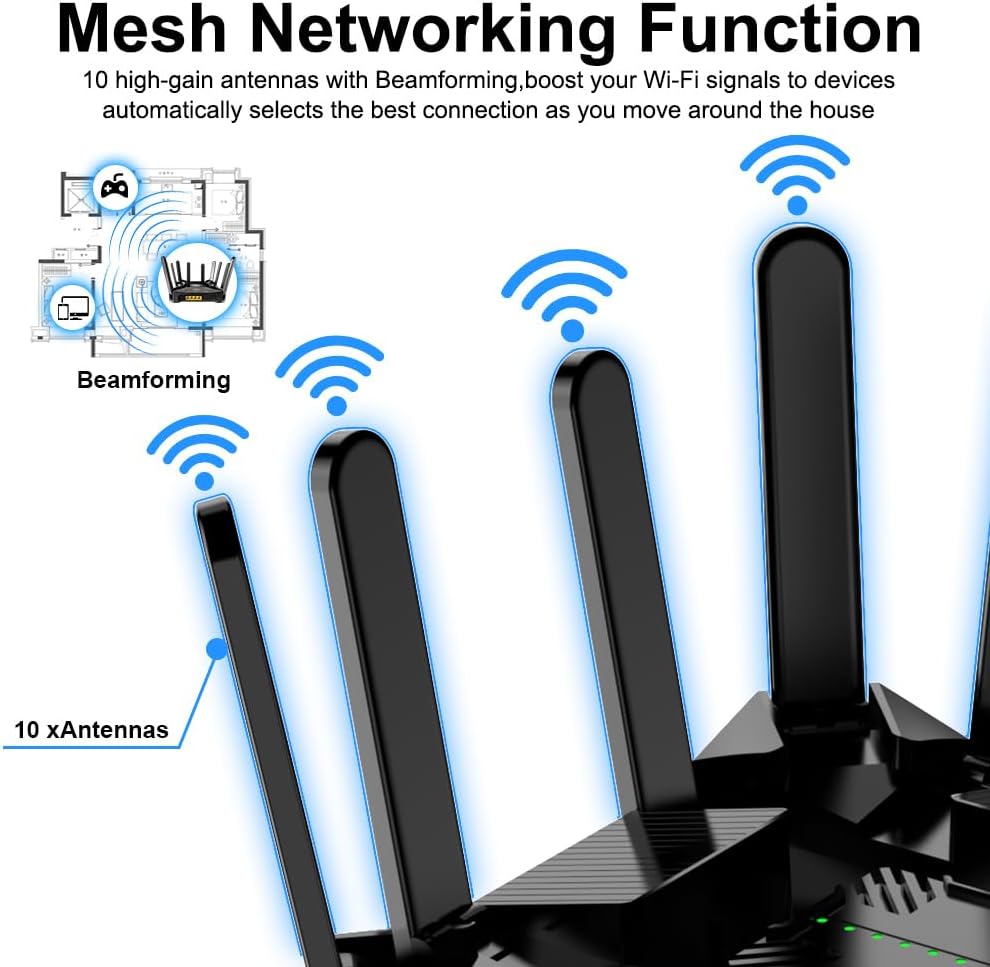
Figure 3.1: Illustration of the router's mesh networking function, showing 10 high-gain antennas and Beamforming technology for extended coverage.
3.3 Connecting Multiple Devices
Utilizing OFDMA and MU-MIMO technology, the router efficiently handles connections for over 30 devices simultaneously, including smart home devices, mobile phones, and laptops, ensuring high speeds and stability.
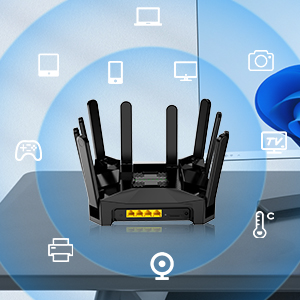
Figure 3.2: The router's ability to connect various devices such as tablets, phones, computers, cameras, and smart home devices.
3.4 Advanced Features and Security
- Parental Controls: Manage internet access times and content for connected devices.
- Guest Wi-Fi: Create a separate Wi-Fi network for guests, keeping your main network secure.
- OpenVPN: Support for VPN functionality to secure your network traffic.
- Ad Blocking: Built-in ad blocking features to enhance browsing experience and security.
- WPA/WPA2 Encryption: Advanced encryption standards to protect your wireless network.
- MAC White/Blacklist: Control which devices can connect to your network based on their MAC addresses.
- TTL Bypass: Enable TTL (Time To Live) to mask hotspot traffic as regular phone data, potentially bypassing carrier speed limits on tethering.
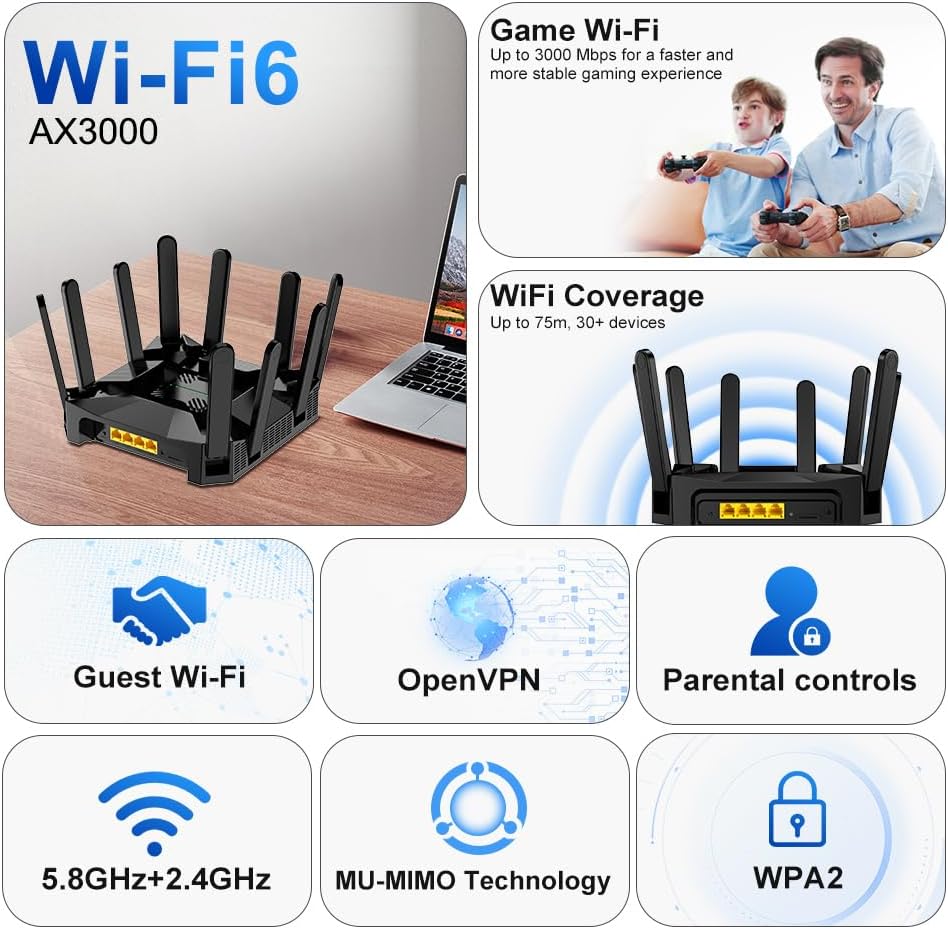
Figure 3.3: Overview of key features including Game Wi-Fi, extensive coverage, Guest Wi-Fi, OpenVPN, Parental Controls, Dual-Band support, MU-MIMO, and WPA2 security.
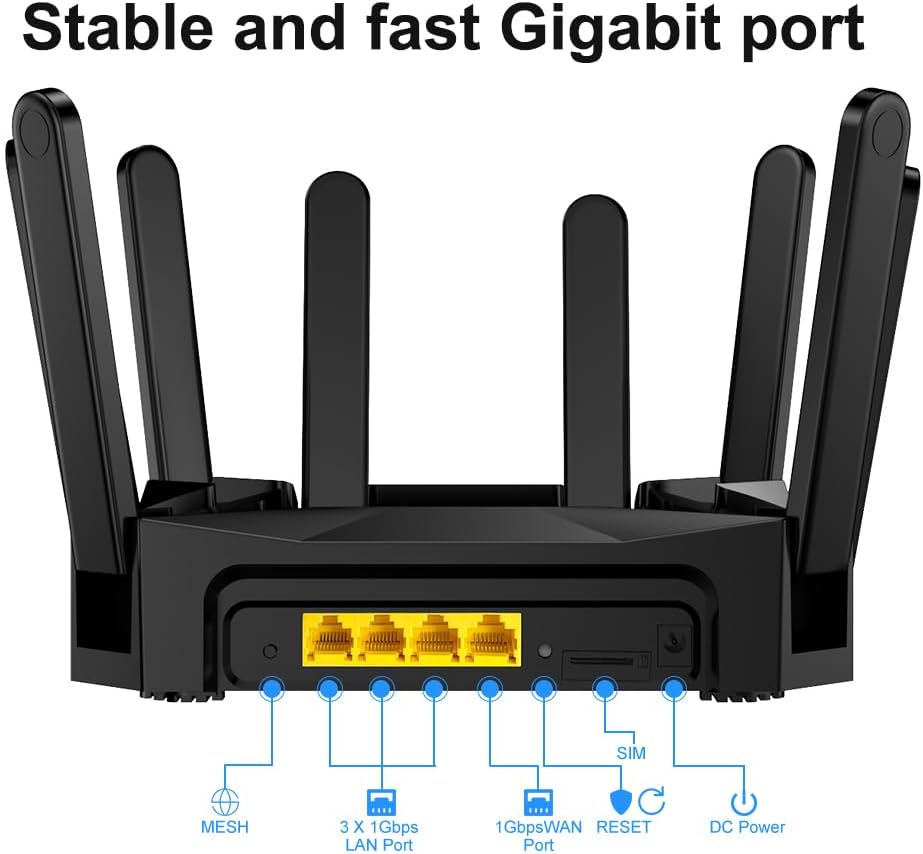
Figure 3.4: Screenshot of the router's web interface, demonstrating ad blocking capabilities and network management options.
3.5 Router Modes
The Zbtlink router supports multiple operating modes:
- Router Mode: Connects to a modem to provide internet access to multiple devices via Wi-Fi and Ethernet.
- Access Point Mode: Extends an existing wired network by providing wireless connectivity.
- 4G Router Mode: Uses a SIM card to provide internet access via cellular data, distributing it wirelessly and via Ethernet.
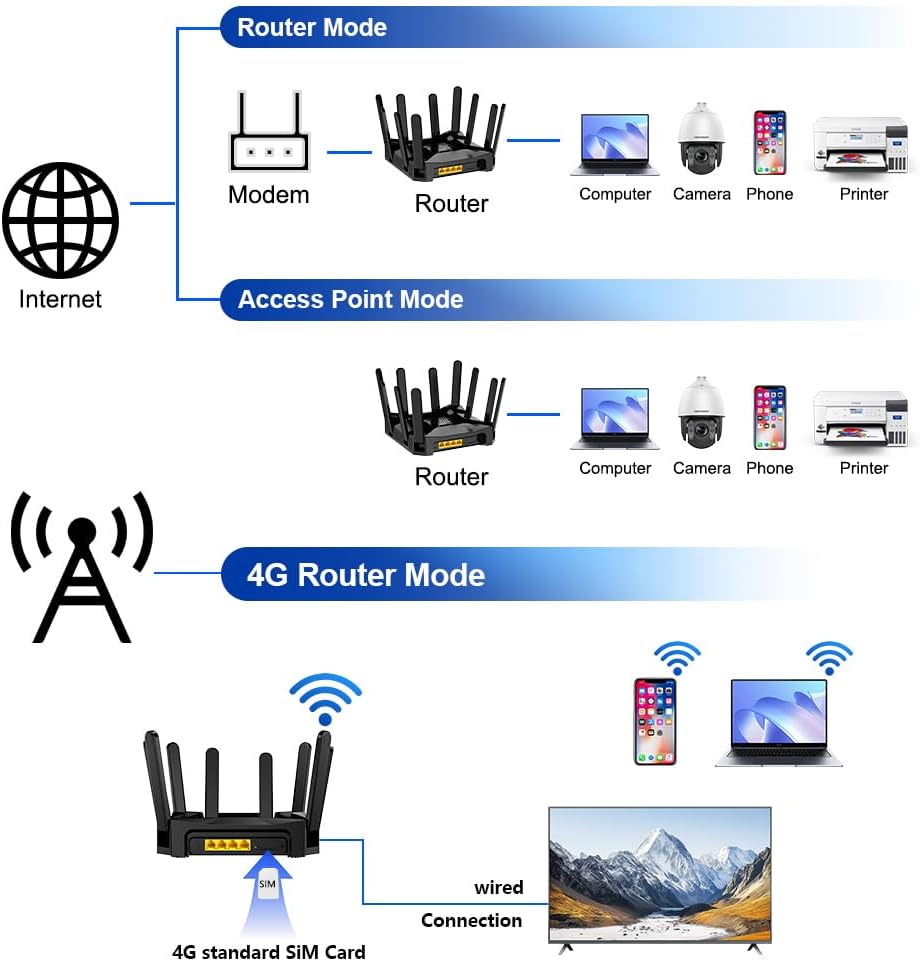
Figure 3.5: Visual representation of the different operational modes: Router Mode, Access Point Mode, and 4G Router Mode.
4. Maintenance
4.1 Firmware Updates
Regularly check the manufacturer's website for firmware updates. Updating the firmware can improve performance, add new features, and enhance security. Follow the instructions provided with the firmware update package carefully.
4.2 Network Watchdog Setting
If you experience frequent disconnections, you may adjust the "Network watchdog" setting. In the router's admin panel, navigate to "Advanced Setup" and find "Network watchdog". Set "execute action" to "no action" to prevent the router from automatically restarting or performing other actions that might interrupt connectivity.
4.3 Cleaning
To maintain optimal performance, periodically clean the router. Use a soft, dry cloth to wipe down the exterior. Ensure the ventilation openings are free from dust and obstructions. Do not use liquid cleaners or aerosols.
5. Troubleshooting
5.1 No Internet Connection
- Check Cables: Ensure all Ethernet cables are securely connected to the correct ports (WAN, LAN).
- SIM Card: Verify the SIM card is properly inserted and activated with your carrier. Check the APN settings in the router's admin panel (refer to Section 2.3).
- Modem/ISP: If using Router Mode, ensure your modem is working correctly and your Internet Service Provider (ISP) is not experiencing outages.
- Router Status Lights: Observe the LED indicators on the router. Refer to the quick start guide for their meaning.
5.2 Dropping Connections
- Network Watchdog: Adjust the "Network watchdog" setting as described in Section 4.2.
- Interference: Move the router away from other electronic devices that might cause interference (e.g., cordless phones, microwaves).
- Firmware: Ensure your router's firmware is up to date.
5.3 Forgotten Admin Password
If you forget your router's admin password, you can perform a factory reset. Locate the RESET button on the back of the router (often a small pinhole). With the router powered on, use a paperclip or similar pointed object to press and hold the RESET button for about 10-15 seconds until the router restarts. This will revert all settings to factory defaults, including the admin password (usually 'admin' or 'password').
6. Specifications
| Feature | Detail |
|---|---|
| Product Dimensions | 8.34 x 8.38 x 2 inches |
| Item Weight | 2.53 pounds |
| Model Name | Z8103AX-G |
| Special Feature | 4G Wifi 6 AX3000, CAT 9 |
| Frequency Band Class | Dual-Band (2.4GHz & 5.8GHz) |
| Wireless Communication Standard | 802.11a, 802.11ac, 802.11ax, 802.11b, 802.11g |
| Compatible Devices | Personal Computer, Smartphone, Tablet |
| Recommended Uses | Business, Gaming, Home |
| Connectivity Technology | 4G, Ethernet, LTE |
| Color | Black |
| Cellular Speed | Category 9 (3 times faster than Cat 4) |
| Supported LTE Bands | 1, 2, 3, 4, 5, 7, 8, 12, 13, 17, 18, 19, 20, 21, 25, 26, 28, 29, 30, 38, 39, 40, 41, 66 |
| Supported WCDMA/3G Bands | 1, 2, 3, 4, 5, 6, 8, 19 |
| Ethernet Ports | 1 x 1000Mbps WAN, 3 x 1000Mbps LAN |
| Processor | 1.3GHz Dual-Core |
| Memory | 256MB DDR, 128MB Flash |
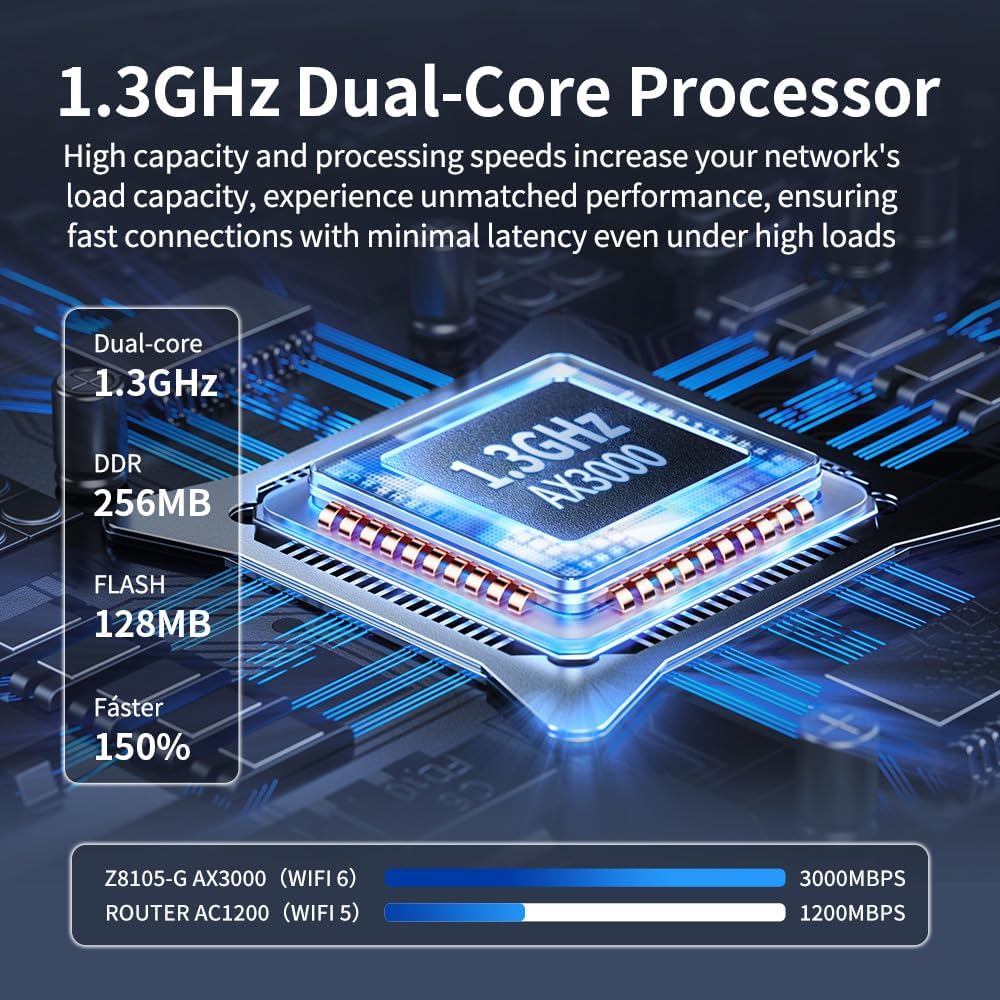
Figure 6.1: Details of the router's 1.3GHz Dual-Core Processor, DDR, and Flash memory, illustrating its internal components.

Figure 6.2: Illustration of the router's industry-leading Cat.9 speeds (450Mbps DL) and single SIM slot capability.
7. Warranty and Support
7.1 Warranty Information
For specific warranty terms and conditions, please refer to the warranty card included with your product or visit the official Zbtlink website. Keep your proof of purchase for warranty claims.
7.2 Technical Support
If you encounter issues not covered in this manual or require further assistance, please contact Zbtlink customer support. Contact information can typically be found on the official Zbtlink website or on the product packaging.


