
Уводзіны
This manual provides comprehensive instructions for the Docooler T-Wolf V11 Wired Gaming Mouse. It covers setup, operation, maintenance, and troubleshooting to ensure optimal performance and longevity of your device. The T-Wolf V11 is designed for both gaming and office use, featuring adjustable DPI, ergonomic design, and customizable RGB lighting.
Асаблівасці прадукту
- Дызайн з 8 кнопкамі: Equipped with 8 programmable buttons suitable for various tasks in gaming and office applications.
- Рэгуляваны DPI: Offers 6 levels of DPI adjustment (1000/1600/2400/3200/4800/6400) for precise cursor control and sensitive operation.
- Ergonomic Arc Design: Engineered for a comfortable grip, fitting closely to your palm to reduce fatigue during extended use.
- Integrated Weights: Features independent weights within the mouse, allowing customization for improved stability and precision to suit individual preferences.
- RGB Colorful Backlight: Provides 6 types of colorful RGB streaming light effects, enhancing the visual experience.
- Трывалая канструкцыя: Includes a lightweight aluminum alloy anti-skid roller for comfortable and reliable use.
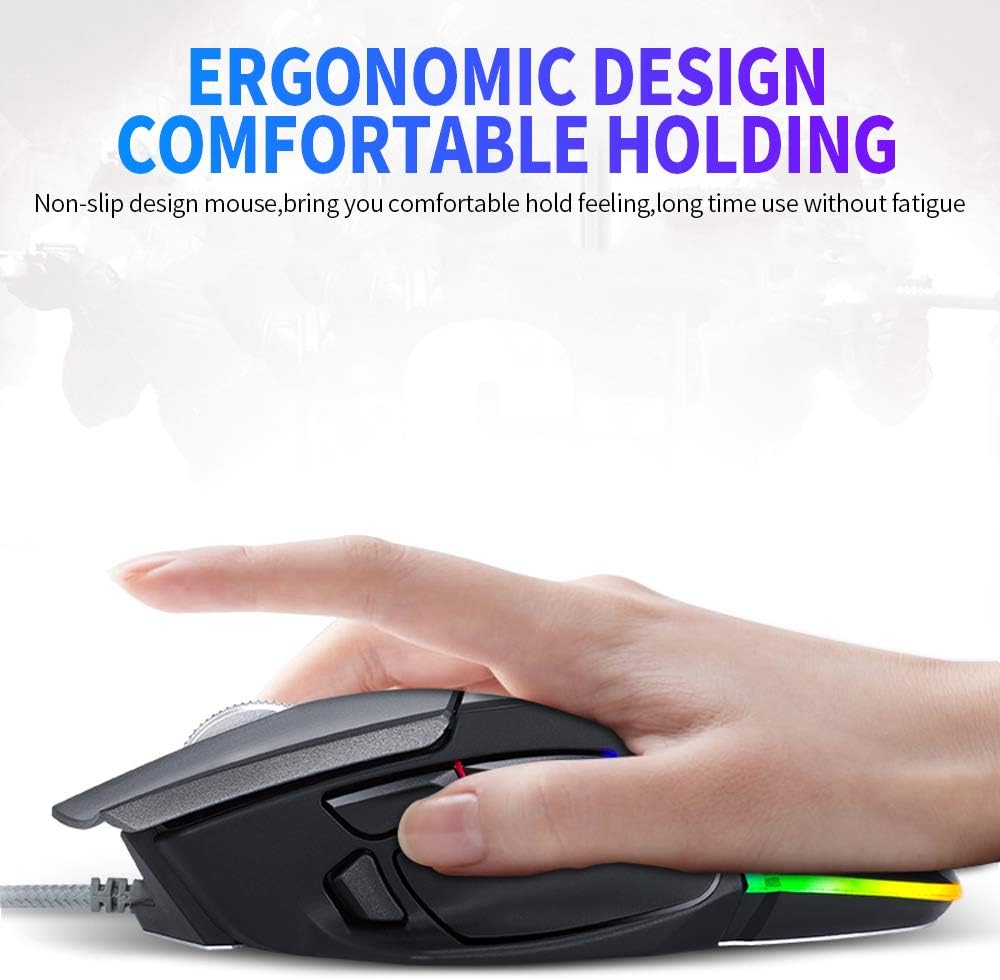
Image: The ergonomic design of the T-Wolf V11 mouse, demonstrating how it comfortably fits the hand to reduce strain during prolonged use.

Image: The T-Wolf V11 mouse illuminated with its dynamic RGB streaming light effects, showcasing the customizable lighting options.
Інструкцыя па наладзе
- Распакуйце мыш: Carefully remove the T-Wolf V11 mouse from its packaging.
- Падключыцеся да кампутара: Plug the USB connector of the mouse's cable into an available USB port on your computer (desktop or laptop).
- Ўстаноўка драйвера: The mouse is typically plug-and-play. Your operating system (Windows, macOS, Linux) should automatically detect and install the necessary drivers. No additional software installation is usually required for basic functionality.
- Праверце функцыянальнасць: Once connected, move the mouse to check cursor movement and click the left and right buttons to ensure they are responsive.

Image: The Docooler T-Wolf V11 gaming mouse connected to a laptop, illustrating a typical setup scenario.
Інструкцыя па эксплуатацыі
Функцыі кнопак
- Левы клік (кнопка 1): Стандартная функцыя асноўнага кліку.
- Пстрыкніце правай кнопкай мышы (кнопка 2): Стандартная функцыя другаснага кліку.
- Кола пракруткі (кнопка 3): Scrolls content up/down. Can also be pressed for middle-click functionality.
- DPI Cycle Button (Button 4): Located near the scroll wheel, press to cycle through DPI settings (1000/1600/2400/3200/4800/6400).
- Кнопкі «Наперад/Назад» (кнопкі 5 і 6): Typically located on the side, used for navigation in web браўзэры або file даследчыкі.
- Additional Programmable Buttons (Buttons 7 & 8): These buttons can often be customized using third-party software or operating system settings for specific functions or macros.
Рэгуляванне DPI
Press the DPI cycle button (usually located behind the scroll wheel) to switch between the available DPI settings. Each press will change the sensitivity, allowing you to adapt to different tasks, from precise aiming in games to fast navigation in desktop environments. The RGB lighting may change color to indicate the current DPI level.
Светлавыя эфекты RGB
The T-Wolf V11 features 6 types of colorful RGB streaming light effects. These effects are pre-programmed and cycle automatically, providing a dynamic visual experience. There is no specific button to change RGB modes on the mouse itself; the lighting patterns are typically fixed or cycle through automatically.

Выява: Падрабязны view of the T-Wolf V11 mouse, illustrating its DPI adjustment capabilities and RGB streamer marquee lighting.
Тэхнічнае абслугоўванне
- Уборка: Выкарыстоўвайце мяккую сухую тканіну для працірання паверхні мышы. Для выдалення ўстойлівага бруду злёгку працярыцеampПрацярыце тканіну вадой або мяккім неабразіўным ачышчальнікам. Пазбягайце выкарыстання агрэсіўных хімікатаў або празмернай вільготнасці.
- Ачыстка датчыка: Перыядычна чысціце аптычны датчык на ніжняй частцы мышы ватовым тампонам, каб забяспечыць дакладнае адсочванне.
- Сыход за кабелем: Avoid sharply bending or twisting the mouse cable to prevent internal damage. Store the cable neatly when not in use.
- захоўванне: Калі мыш не выкарыстоўваецца працяглы час, захоўвайце яе ў чыстым, сухім месцы, удалечыні ад прамых сонечных прамянёў і экстрэмальных тэмператур.
Ліквідацыю непаладак
- Мышка не рэагуе:
- Пераканайцеся, што кабель USB надзейна падключаны да спраўнага порта USB на вашым кампутары.
- Паспрабуйце падключыць мыш да іншага USB-порта.
- Перазагрузіце кампутар.
- Рух курсора няўстойлівы або скачковы:
- Ачысціце аптычны датчык у ніжняй частцы мышы.
- Пераканайцеся, што вы карыстаецеся мышшу на чыстай, небліскучай і аднастайнай паверхні (напрыклад, кілімку для мышы).
- DPI не змяняецца:
- Press the DPI cycle button firmly.
- Ensure the mouse is properly connected and recognized by your system.
- RGB-ліхтары не працуюць:
- Праверце злучэнне USB.
- The RGB lighting is typically automatic; if it's not illuminating, ensure the mouse is receiving power.
Тэхнічныя характарыстыкі
| Марка | Docooler |
| мадэль | V11 |
| Колер | Чорны |
| Тэхналогія падлучэння | Правадная |
| Колькасць кнопак | 8 |
| Налады DPI | 1000/1600/2400/3200/4800/6400 (Adjustable) |
| Тып падсвятлення | RGB Colorful |
| Даўжыня кабеля | 1.9 метраў |
| Памер прадмета | 13 х 8.5 х 4.5 см (5.1 х 3.3 х 1.8 цалі) |
| Вага прадмета | 177 г (6.24 унцыі) |
| Сумяшчальныя прылады | Ноўтбук, ПК |
| Апаратная платформа | PC |
| Крыніца харчавання | Cable Electric (USB) |
Гарантыя і падтрымка
For warranty information and technical support, please refer to the documentation provided with your purchase or contact Docooler customer service directly. Keep your proof of purchase for any warranty claims. Support contact details can typically be found on the manufacturer's official webсайт.