
Уводзіны
This manual provides comprehensive instructions for the Attoe Bluetooth Wireless Mouse, Model XYH20. This device offers versatile connectivity options, customizable RGB lighting, and an ergonomic design for extended use. Please read this manual thoroughly to ensure proper setup and operation of your new mouse.
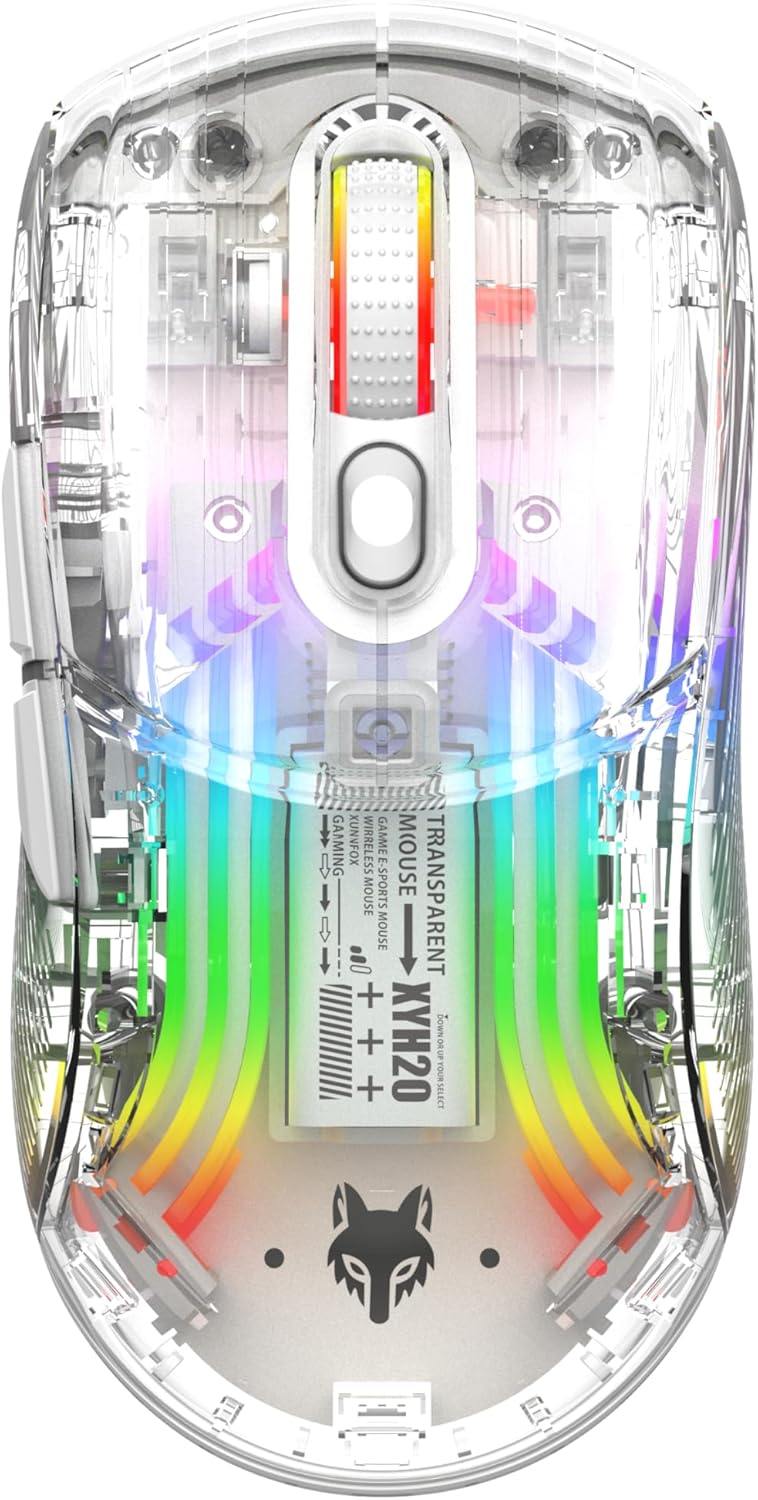
Выява: Уверсе view of the Attoe Bluetooth Wireless Mouse, showcasinг яго празрысты сasing and vibrant internal RGB lighting.
Асаблівасці прадукту
- Празрысты дызайн абалонкі: Unique transparent casing with internal components visible.
- Падключэнне ў два рэжымы: Supports 2.4GHz wireless via USB receiver and Bluetooth connection.
- RGB-падсветка: Multiple adjustable RGB lighting effects.
- Эрганамічны дызайн: Shaped for comfortable grip during prolonged use.
- Quiet Click Buttons: Распрацаваны для бясшумнай працы.
- Рэгуляваны DPI: 5-speed DPI settings (800-1200-1600-2000-2400) for precise control.
- Акумулятарная батарэя: Built-in 500mAh large capacity rechargeable battery with Type-C charging.
- Шырокая сумяшчальнасць: Compatible with Windows 7/8/10/XP, Vista 7/8, Linux, and Mac OS. (Note: Two left side buttons are not available in Mac OS).
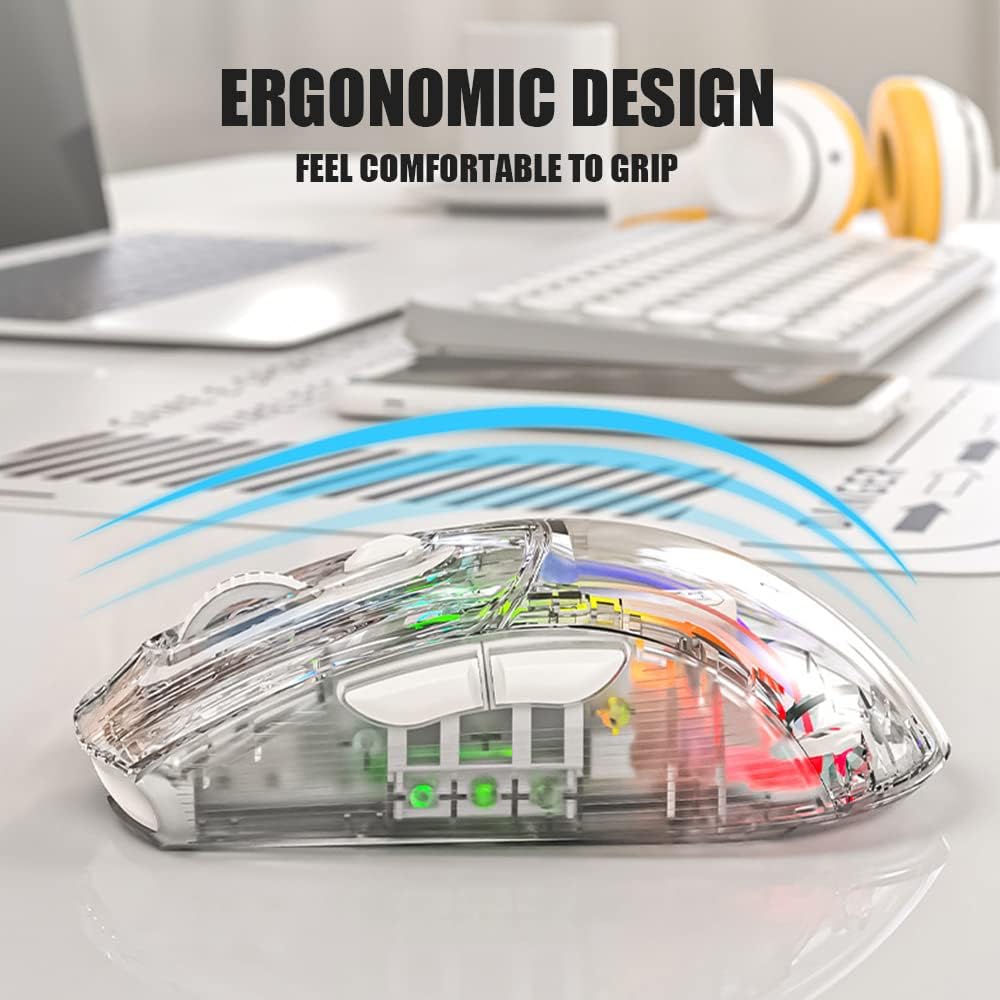
Выява: Збоку view of the Attoe Bluetooth Wireless Mouse, illustrating its ergonomic contour for comfortable handling.
Што ў скрынцы
- Attoe Bluetooth Wireless Gaming Mouse
- Зарадны кабель USB Type-C
- Кіраўніцтва карыстальніка (гэты дакумент)
Настройка
The Attoe Bluetooth Wireless Mouse offers three connection modes: 2.4GHz wireless, Bluetooth, and wired via USB-C cable.
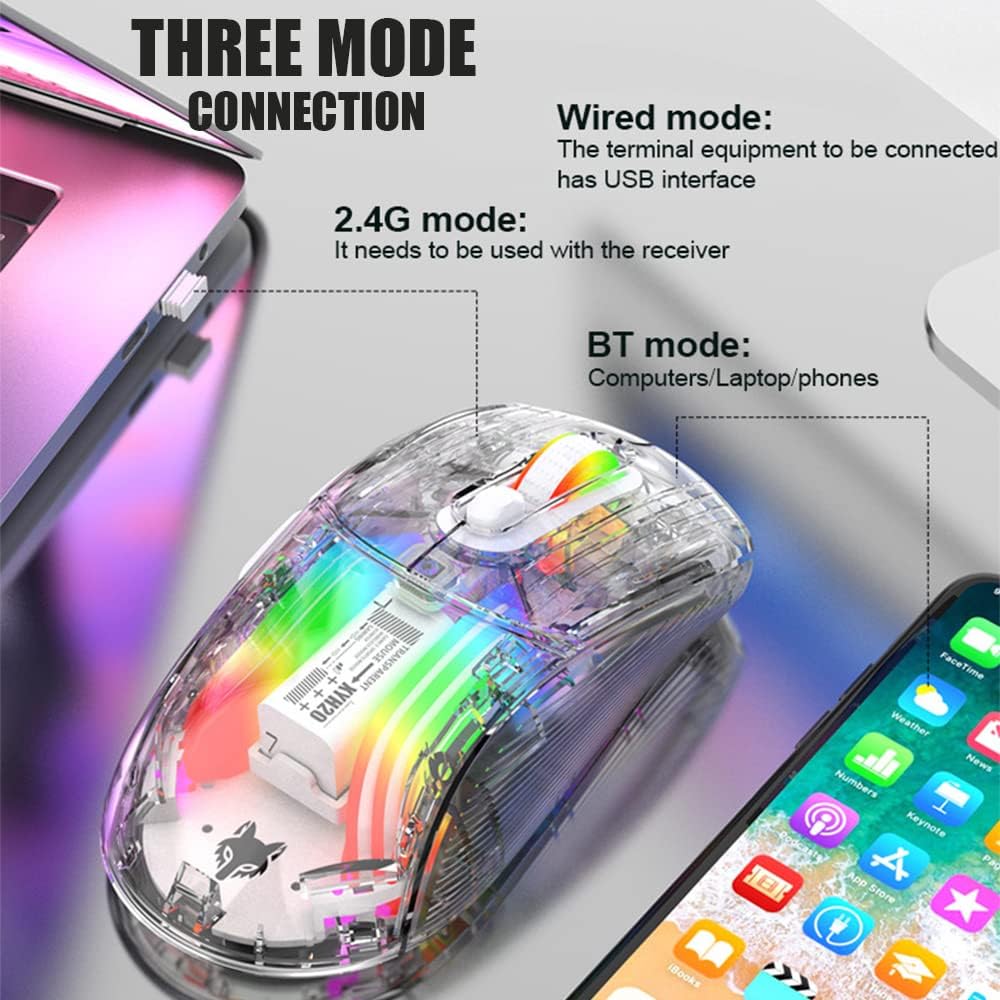
Image: Diagram illustrating the three connection modes: 2.4G wireless, Bluetooth, and wired USB, with exampлес прылад.
Бесправадное злучэнне 2.4 ГГц
- Locate the USB receiver stored in the bottom compartment of the mouse.
- Падключыце USB-прыёмнік да вольнага порта USB на вашым кампутары.
- Set the mode switch on the bottom of the mouse to the 2.4G position.
- Мышка павінна падключыцца аўтаматычна.
Злучэнне Bluetooth
- Set the mode switch on the bottom of the mouse to the Bluetooth position.
- Long press the Left, Middle (scroll wheel), and Right buttons simultaneously for 4 seconds to enter pairing mode. The mouse's indicator light will flash.
- На камп'ютары або прыладзе адкрыйце налады Bluetooth і знайдзіце новыя прылады.
- Select "Attoe Mouse" (or similar name) from the list of available devices to pair.
- Пасля спалучэння індыкатар перастане міргаць.
Правадное злучэнне
You can also use the mouse in wired mode while charging or as an alternative connection. Simply connect the provided USB Type-C cable from the mouse to a USB port on your computer.
Інструкцыя па эксплуатацыі

Image: Detailed diagram of the Attoe mouse, labeling its buttons, receiver storage, charging port, and switches.
Функцыі кнопак
- Левая кнопка (1): Стандартная функцыя левага кліку.
- Правая кнопка (2): Стандартная функцыя правай кнопкі мышы.
- Scroll Button (3): Scroll wheel for vertical navigation; also functions as a middle-click button.
- Кнопка DPI (4): Цыклічнае пераключэнне паміж наладамі DPI.
- Forward Button (5): Перамяшчаецца наперад web браўзэры або file даследчыкі.
- Back Button (6): Пераходзіць назад у web браўзэры або file даследчыкі.
Рэгуляванне DPI
The mouse features 5 adjustable DPI (Dots Per Inch) settings to control cursor sensitivity and speed. Press the Кнопка DPI (4) located below the scroll wheel to cycle through the following settings:
- 800 DPI
- 1200 DPI
- 1600 DPI
- 2000 DPI
- 2400 DPI

Image: The Attoe mouse highlighting the DPI button and its 5-speed adjustment range from 800 to 2400.
Кіраванне RGB асвятленнем
The mouse features various RGB lighting effects. To adjust or turn off the lighting, use the Light Switch (10) located on the bottom of the mouse.

Image: The Attoe mouse displaying its vibrant RGB lighting effects, with an inset showing the location of the light switch on the shell bottom.
Quiet Click Feature
The mouse is designed with mute buttons, providing a quiet clicking experience suitable for environments where noise reduction is desired.

Image: The Attoe mouse with an overlay indicating its quiet click functionality, designed not to disturb others.
Зарадка і акумулятар
The Attoe Bluetooth Wireless Mouse is equipped with a 500mAh rechargeable battery. Use the provided USB Type-C cable to charge the mouse.
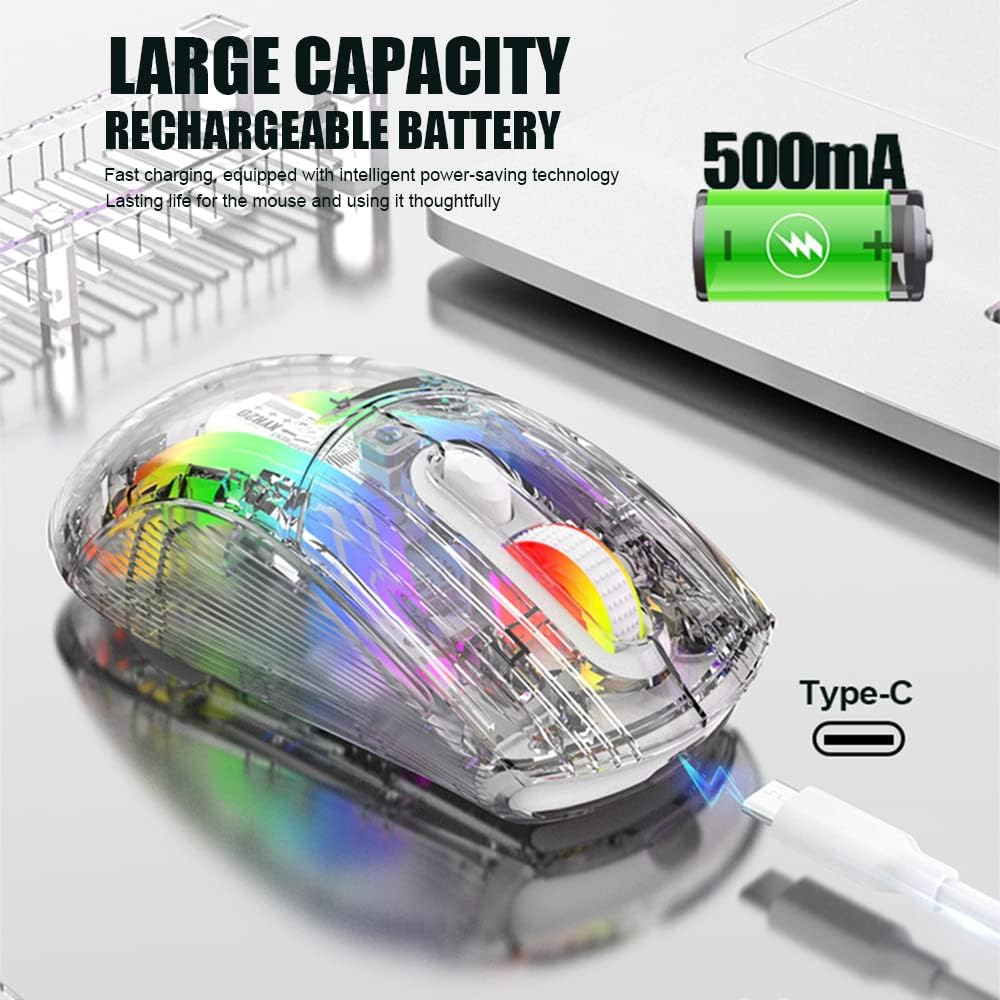
Image: The Attoe mouse connected via a Type-C cable for charging, with an icon indicating its 500mAh rechargeable battery capacity.
- Connect the Type-C end of the charging cable to the Charging Port (11) on the front of the mouse.
- Падключыце канец зараднага кабеля USB-A да крыніцы харчавання USB (напрыклад, да порта USB кампутара, насценнага адаптара USB).
- The mouse can be used while charging in wired mode.
Тэхнічнае абслугоўванне
To ensure the longevity and optimal performance of your Attoe Bluetooth Wireless Mouse, follow these maintenance guidelines:
- Уборка: Выкарыстоўвайце мяккую сухую тканіну для працірання паверхні мышы. Для выдалення ўстойлівага бруду злёгку працярыцеampПрацярыце тканіну вадой або мяккім ачышчальным растворам. Пазбягайце агрэсіўных хімічных рэчываў або абразіўных матэрыялаў.
- Сыход за датчыкам: Для забеспячэння дакладнага адсочвання падтрымлівайце аптычны датчык у ніжняй частцы мышы ў чысціні і без пылу і смецця.
- захоўванне: When not in use for extended periods, store the mouse in a cool, dry place.
- Сыход за батарэяй: Avoid fully discharging the battery frequently. Charge the mouse when the battery level is low.
Ліквідацыю непаладак
| праблема | Магчымая прычына | Рашэнне |
|---|---|---|
| Mouse not connecting (2.4GHz) | USB receiver not properly inserted; mouse not in 2.4G mode; low battery. | Ensure receiver is fully inserted. Set mode switch to 2.4G. Charge the mouse. Try a different USB port. |
| Mouse not connecting (Bluetooth) | Mouse not in pairing mode; Bluetooth disabled on device; low battery; device incompatibility. | Set mode switch to Bluetooth. Long press Left/Middle/Right buttons for 4s to enter pairing. Ensure device Bluetooth is on. Charge the mouse. Check device compatibility (Mac OS side buttons not supported). |
| RGB-ліхтары не працуюць | Святло выключана; нізкі зарад батарэі. | Press the Light Switch on the bottom of the mouse to cycle through modes or turn on. Charge the mouse. |
| Cursor movement is erratic or unresponsive | Брудны аптычны датчык; непрыдатная паверхня; нізкі зарад батарэі. | Clean the optical sensor. Use a mouse pad or a smooth, non-reflective surface. Charge the mouse. |
| Side buttons not working on Mac OS | Operating system limitation. | This is a known limitation; the two left side buttons are not available in Mac OS. |
Тэхнічныя характарыстыкі
| Асаблівасць | Дэталь |
|---|---|
| мадэль | XYH20 |
| Памеры прадукту | 4.8 х 2.8 х 0.04 цалі (12.6 х 6.2 х 3.85 см) |
| Вага прадмета | 3.52 унцыі (110 г) |
| Тэхналогія падлучэння | Bluetooth, 2.4GHz Wireless, Wired (USB Type-C) |
| Тэхналогія выяўлення руху | Аптычны |
| Налады DPI | 800, 1200, 1600, 2000, 2400 |
| Асаблівасці | Ergonomic Design, LED Lights (RGB), Portable, Rechargeable, Soundless (Quiet Click), Wireless |
| Ёмістасць батарэі | 500 мАг |
| Порт для зарадкі | USB Type-C |
| Сумяшчальнасць | Windows 7/8/10/XP, Vista 7/8, Linux, Mac OS (Note: Left side buttons not available in Mac OS) |
Гарантыя і падтрымка
Attoe products are designed for reliability and performance. For any issues or questions regarding your Attoe Bluetooth Wireless Mouse, please contact our customer support. We are committed to providing assistance and ensuring your satisfaction.
Please refer to your purchase documentation for specific warranty details. If you encounter problems, you can contact us at any time; we provide 24-hour after-sales service.