
Уводзіны
This manual provides essential information for the proper setup, operation, and maintenance of your Philips 346B1C Curved Monitor. This 34-inch WQHD (3440 x 1440) display features a 100 Hz refresh rate, 5ms response time, and a curved VA panel for an immersive viewing experience. Key features include USB-C docking, MultiView functionality, FreeSync technology, LowBlue Mode, and FlickerFree technology for enhanced user comfort and productivity.

Выява: спераду view of the Philips 346B1C curved monitor, showcasing its ultrawide display and key features like WQHD, USB-C Docking, and MultiView.
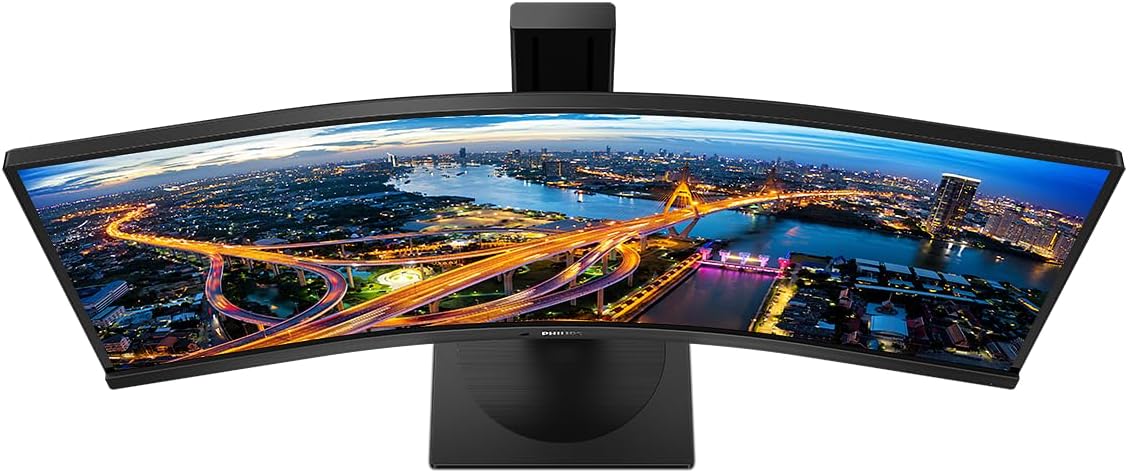
Выява: зверху ўніз view of the Philips 346B1C curved monitor, emphasizing the curvature of the screen.
Што ў скрынцы
Перад тым, як працягнуць наладу, пераканайцеся, што ўсе кампаненты наяўныя.
- Philips 346B1C Curved Monitor
- Падстаўка для манітора (аснова і шыя)
- Сілавы кабель
- Кабель HDMI
- Кабель DisplayPort
- Кабель USB-C да USB-C
- USB-A to USB-B Cable (Upstream)
- Documentation (Quick Start Guide, User Manual CD)
Інструкцыя па наладзе
1. Зборка падстаўкі
- Пакладзеце манітор экранам уніз на мяккую, чыстую паверхню, каб пазбегнуць драпін.
- Прымацуйце падстаўку да панэлі манітора. Пераканайцеся, што яна надзейна зашчапілася або замацавана шрубамі, калі яны ёсць.
- Прымацуйце аснову падстаўкі да шыйкі падстаўкі. Зацягніце шрубу або шрубы з наканечнай галоўкай знізу падставы.

Выява: Задняя частка view of the Philips 346B1C monitor, showing the stand attachment point and VESA mounting holes.
2. Падключэнне да кампутара
Падключыце манітор да кампутара адным з наступных спосабаў:
- Падключэнне HDMI: Падключыце адзін канец кабеля HDMI да порта HDMI манітора, а другі канец — да выхаду HDMI кампутара.
- Падключэнне DisplayPort: Connect one end of the DisplayPort cable to the monitor's DisplayPort and the other end to your computer's DisplayPort output.
- Падключэнне USB-C: Connect one end of the USB-C cable to the monitor's USB-C port and the other end to your computer's USB-C port. This connection supports video, data, and power delivery (up to 90W) to your laptop.
For USB hub functionality, connect the USB-A to USB-B upstream cable from your computer to the monitor's USB-B upstream port.
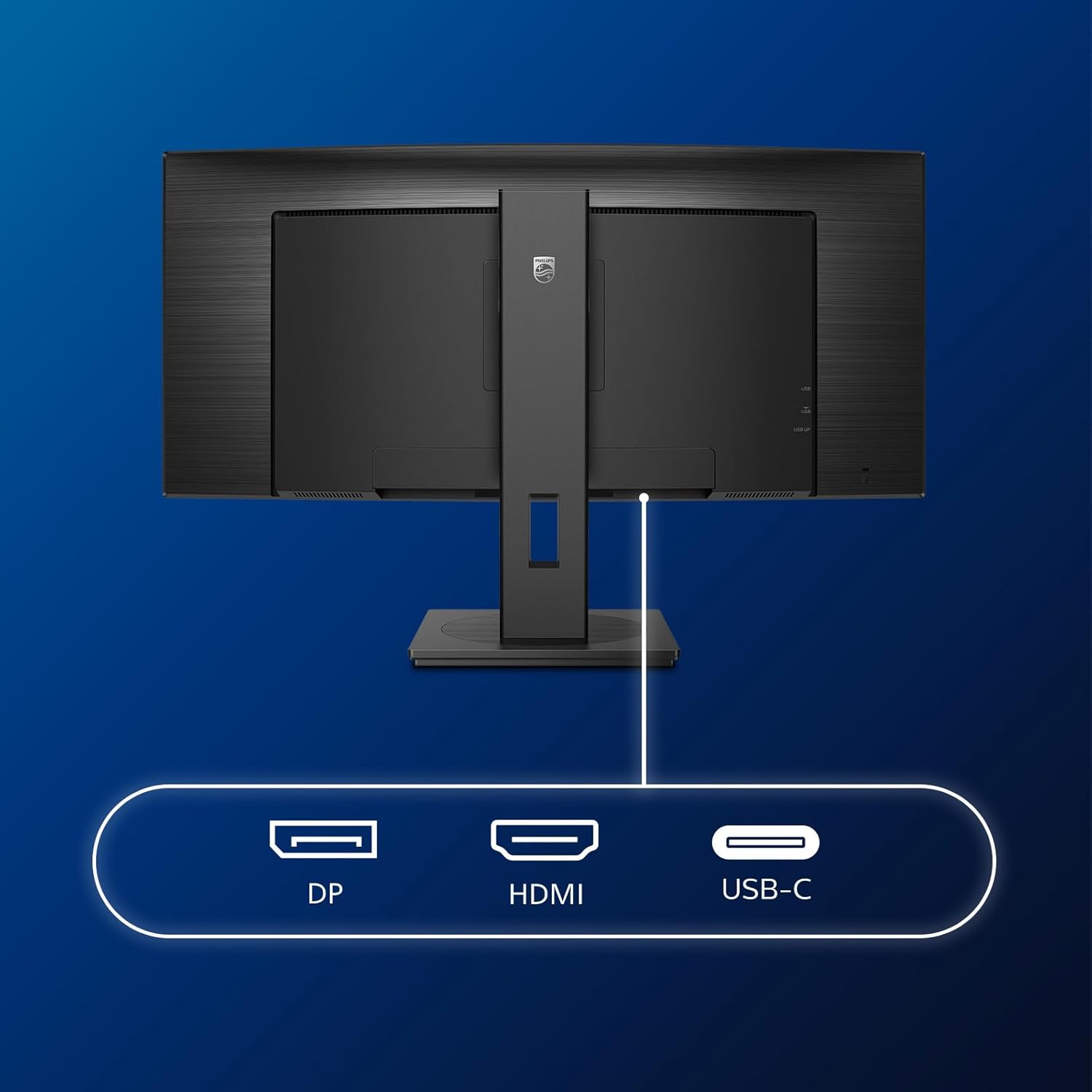
Выява: Падрабязная view of the monitor's input ports, including DisplayPort (DP), HDMI, and USB-C, for connecting to various devices.
3. Падключэнне сілкавання
Падключыце кабель сілкавання да ўваходу сілкавання манітора, а затым да заземленай электрычнай разеткі.
4. Пачатковае ўключэнне
Press the power button located on the monitor to turn it on. The monitor should automatically detect the input signal. If not, use the On-Screen Display (OSD) menu to select the correct input source.
Інструкцыя па эксплуатацыі
Экраннае меню (OSD).
The OSD menu allows you to adjust various monitor settings. Use the joystick control located on the back or bottom of the monitor to navigate the menu.
- Яркасць/кантраст: Адрэгулюйце агульную яркасць і кантраснасць дысплея.
- Налады колеру: Fine-tune color temperature, gamma, and color space.
- Выбар уводу: Ручное пераключэнне паміж уваходамі HDMI, DisplayPort і USB-C.
- Аўдыё: Adjust volume or mute the built-in speakers.
- Рэжым малюнка: Select from preset picture modes (e.g., Standard, Gaming, Text).
МультыView Функцыянальнасць
МультыView feature allows you to connect and view content from two different sources simultaneously on the screen. Access this feature through the OSD menu to select Picture-by-Picture (PbP) or Picture-in-Picture (PiP) modes and configure input sources.
Док-станцыя USB-C
When connected via USB-C, the monitor acts as a docking station, providing video, data transfer through its integrated USB hub, and power delivery to charge your connected laptop (up to 90W).
SmartErgoBase and Adjustability
The monitor's SmartErgoBase allows for ergonomic adjustments including height, swivel, and tilt to optimize your viewз камфортам.

Image: Illustrations demonstrating the monitor's adjustable features, including height adjustment, tilt, and swivel capabilities for ergonomic positioning.
Функцыі камфорту для вачэй
- Рэжым LowBlue: Reduces harmful shortwave blue light emissions to prevent eye strain. Activate this mode via the OSD menu.
- FlickerFree Technology: Regulates brightness and reduces flicker for more comfortable viewing. This feature is always active.
- PowerSensor & LightSensor: These sensors automatically adjust monitor brightness based on ambient light conditions and user presence, saving energy and reducing eye strain.
Тэхнічнае абслугоўванне
Чыстка манітора
- Перад чысткай заўсёды адключайце манітор ад сеткі.
- Выкарыстоўвайце мяккую тканіну без ворса. dampвадой або мяккім неабразіўным ачышчальнікам для экранаў.
- Do not use alcohol, solvents, or ammonia-based cleaners, as these can damage the screen surface.
- Акуратна працярыце экран, каб выдаліць пыл і плямы.
- Ачысціце манітор casinпрацярыце мяккай сухой тканінай.
Агульны догляд
- Не кладзіце цяжкія прадметы на манітор або яго кабелі.
- Не падвяргайце манітор уздзеянню прамых сонечных прамянёў, празмернага нагрэву або моцнага холаду.
- Забяспечце належную вентыляцыю вакол манітора.
Ліквідацыю непаладак
Калі ў вас узніклі праблемы з маніторам, звярніцеся да наступных распаўсюджаных крокаў па ліквідацыі непаладак:
| праблема | Магчымая прычына | Рашэнне |
|---|---|---|
| Няма выявы на экране | Адключаны кабель харчавання; адключаны відэакабель; выбрана няправільная крыніца ўваходнага сігналу. | Ensure power cable is securely connected; Check video cable connections (HDMI, DP, USB-C); Select correct input source via OSD menu. |
| Выява размытая або скажоная | Няправільнае разрозненне; праблема з графічным драйверам. | Set display resolution to 3440 x 1440; Update graphics card drivers. |
| З дынамікаў няма гуку | Volume muted or too low; Incorrect audio output selected on computer. | Adjust monitor volume via OSD; Check computer's audio output settings. |
| Парты USB не працуюць | Выходны кабель USB не падключаны. | Ensure the USB-A to USB-B upstream cable is connected from the monitor to your computer. |
Каб атрымаць дадатковую дапамогу, звярніцеся ў раздзел падтрымкі або ў службу падтрымкі кліентаў Philips.
Тэхнічныя характарыстыкі
| Асаблівасць | Дэталь |
|---|---|
| Марка | Philips |
| Нумар мадэлі | 346B1C |
| Памер экрана | 34 цалі (86 см) |
| дазвол | 3440x1440 (WQHD) |
| Суадносіны бакоў | 21:9 |
| Паверхня экрана | Выгнутая панэль VA |
| Частата абнаўлення | 100 Гц |
| Час водгуку | 5 Milliseconds (GtG) |
| Каэфіцыент кантраснасці | 3000:1 (тыповы) |
| Яркасць | 300 кд/м² |
| Viewing кут | 178° (Г) / 178° (В) |
| Сувязь | 1x HDMI 2.0, 1x DisplayPort 1.2, 1x USB-C 3.2 Gen 1 (upstream, power up to 90W), 1x USB-B (upstream), 4x USB 3.2 (downstream), RJ45 (Ethernet) |
| Адаптыўная сінхранізацыя | FreeSync |
| Убудаваныя дынамікі | 2x 5 Вт |
| Энергаспажыванне | 5 Watts (Eco mode) |
| Вага | 7.8 Kilograms (with stand) |
Гарантыя і падтрымка
Інфармацыя аб гарантыі
Гэты манітор Philips пастаўляецца з 2-гадовая гарантыя вытворцы. The specific terms and conditions of the warranty can be found in the detailed documentation provided with your product or on the official Philips support website. Your statutory rights as a consumer are not affected by this warranty.
Падтрымка кліентаў
For technical assistance, product inquiries, or warranty claims, please visit the official Philips support website or contact their customer service department. You may need your monitor's model number (346B1C) and serial number (found on the back of the monitor) when contacting support.
Падтрымка Philips Webсайт: www.philips.com/support


