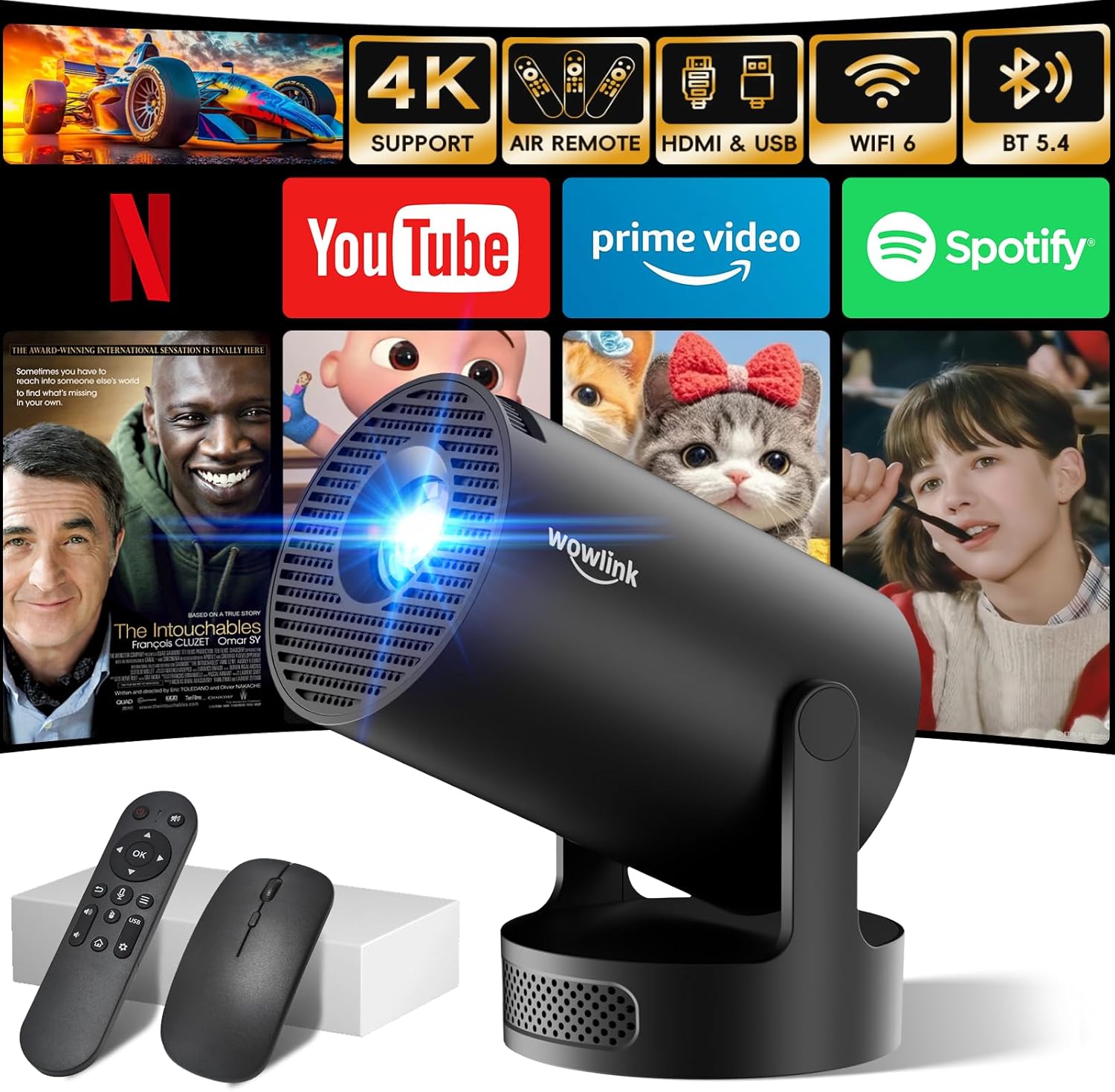
Setup Guide
1. Power Connection
- Connect the power adapter to the projector's power input port.
- Plug the power adapter into a wall outlet. The projector will power on or enter standby mode.
2. Placement and Projection Angle
The W210 projector features a 180° rotatable design, allowing flexible placement and projection onto walls or ceilings.
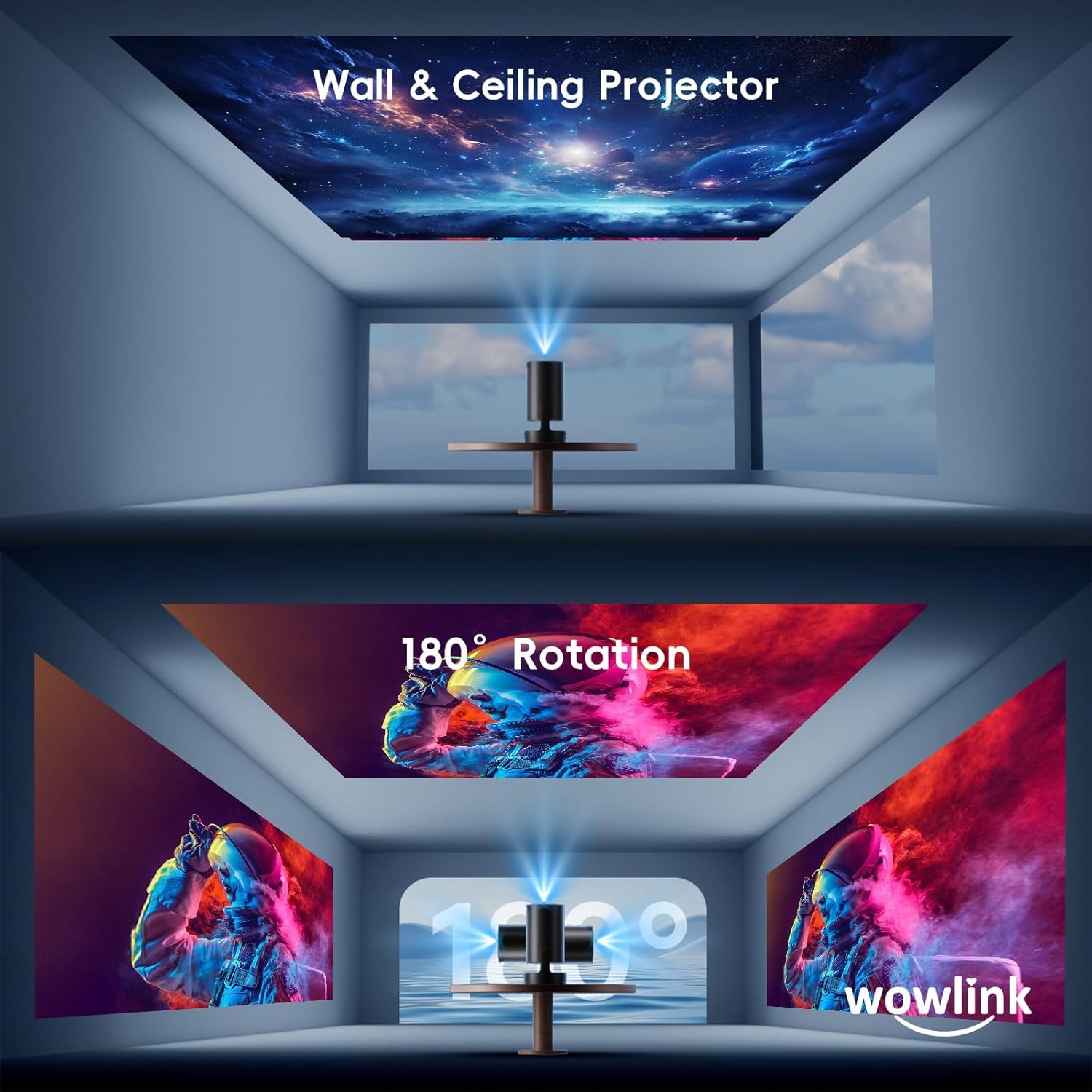
Image: The projector demonstrating its 180° rotation capability for projecting onto various surfaces, including walls and ceilings.
- Place the projector on a stable surface.
- Adjust the projector's angle by rotating its body to direct the image onto your desired surface (wall, screen, or ceiling).
- For ceiling or wall mounting, use the 0.25-inch screw hole at the bottom with a compatible tripod or mount (sold separately).
3. Auto Keystone Correction
The projector automatically corrects trapezoidal distortion to ensure a rectangular image.

Image: The projector automatically adjusting the image to a perfect rectangle using its auto keystone correction feature, shown with a large screen display.
- After positioning the projector, the auto keystone function will activate to square the image.
- If manual adjustment is needed, navigate to the settings menu using the remote control.
4. Remote Control Pairing (Air Remote)
The remote control features an Air Remote function for intuitive navigation.

Image: A visual guide demonstrating the steps to pair the Air Mouse Remote Control with the projector.
- Ensure Bluetooth is enabled on the projector (usually enabled by default).
- Press and hold the Left and Right arrow buttons on the remote simultaneously until the projector beeps.
- Press the "mouse" icon button on the remote to activate Air Mouse mode.
- Shake your wrist to move the cursor on the screen. Press the "OK" button to select.
5. Network Connection (WiFi 6)
Connect your projector to a wireless network for internet access and streaming.
- Navigate to the "Settings" menu on the projector.
- Select "Network" or "Wi-Fi Settings".
- Choose your desired Wi-Fi network from the list.
- Enter the password if prompted and confirm the connection.
6. Bluetooth Connection
Connect external Bluetooth devices like speakers or headphones.
- Go to "Settings" and select "Bluetooth".
- Ensure Bluetooth is turned on.
- Put your Bluetooth device into pairing mode.
- Select your device from the list of available devices on the projector screen to pair.
7. External Device Connection
The projector supports HDMI and USB connections.

Image: An illustration detailing the various devices that can be connected to the projector via HDMI (laptops, PCs, TV sticks, gaming consoles) and USB (USB drives, phones).
- HDMI: Connect laptops, PCs, TV sticks, or gaming consoles using an HDMI cable. Select the HDMI input source from the projector's menu.
- USB: Insert USB drives for media playback. Select the USB input source from the projector's menu.
Operating Instructions
1. Navigating the Interface
- Use the directional buttons on the remote control to move between menu items.
- Press the "OK" button to select an item.
- Use the "Back" button to return to the previous screen.
- Activate the Air Remote function for a mouse-like cursor experience.
2. Using Built-in Applications
The projector comes with pre-installed streaming apps like Netflix, Prime Video, YouTube, and D+.

Image: The projector displaying its home screen with various built-in Android TV applications, including Netflix, Prime Video, and YouTube.
- Ensure the projector is connected to Wi-Fi.
- From the home screen, select the desired application icon.
- Log in with your account credentials if required by the application.
- Browse and play content directly.
3. Screen Mirroring (Wireless Projection)
Wirelessly project content from your smartphone, tablet, or computer.
- Ensure both the projector and your device are connected to the same Wi-Fi network.
- On the projector, select the "Screen Mirroring" or "Wireless Projection" option.
- On your mobile device (Android/iOS) or computer (Windows/macOS), activate its screen mirroring feature (e.g., Miracast, AirPlay, or equivalent).
- Select the projector from the list of available devices.
4. Adjusting Settings
Access the settings menu to customize image, sound, and system preferences.
- Image Settings: Adjust brightness, contrast, color, and aspect ratio.
- Sound Settings: Control volume, audio output (internal speaker or Bluetooth), and sound modes.
- System Settings: Manage network connections, language, date/time, and software updates.