
1. Introduction
Thank you for choosing the AOHI Future AI 280W PD3.2 GaN Desktop Charging Station. This device is designed to provide efficient and versatile power delivery for a wide range of electronic devices. This manual provides essential information for the safe and effective use of your charging station, including setup, operation, maintenance, and troubleshooting.
2. Product Overview
The AOHI Future AI 280W Desktop Charging Station is a high-performance power solution featuring GaN (Gallium Nitride) technology for compact size and high efficiency. It offers a total output of 280W across 6 ports (4 USB-C and 2 USB-A), enabling simultaneous charging of multiple devices. Key features include a Smart TFT Display for real-time monitoring and Wi-Fi App Control for advanced management.

Figure 2.1: The AOHI Future AI 280W Charging Station providing power to multiple devices, including two MacBook Pro laptops at 140W each.
2.1 Key Features
- 280W Total Output: Powers up to 6 devices simultaneously with a maximum combined output of 280W.
- PD3.2 Technology: Supports the latest Power Delivery standard for efficient and powerful charging.
- 240W Max USB-C Output: Dedicated USB-C1 port delivers up to 240W for high-performance laptops and devices.
- Dual 140W Fast Charging: Two USB-C ports can simultaneously deliver 140W each for rapid charging of two high-power laptops.
- Smart TFT Display: Provides real-time information on charging power, port status, and temperature.
- Wi-Fi App Control: Allows remote monitoring, mode switching, and firmware updates via a dedicated application.
- GaN+ Architecture: Advanced Gallium Nitride technology ensures high efficiency, lower heat generation, and a compact design.

Figure 2.2: Illustration of the 240W maximum single-port output capability via USB-C1.
3. Setup Instructions
3.1 Initial Connection
- Unpack the AOHI Future AI charging station and all included accessories.
- Connect the provided AC power cable to the charging station's power input port.
- Plug the other end of the AC power cable into a standard wall outlet (110V, 50Hz).
- The Smart TFT Display will illuminate, indicating the device is powered on.
3.2 Wi-Fi and App Setup
To unlock advanced features and remote control, connect your charging station to the AOHI App.
- Download the AOHI App from your device's app store (iOS or Android).
- Open the AOHI App and follow the on-screen instructions to create an account or log in.
- Select "Add Device" and choose the AOHI Future AI Charging Station from the list.
- Follow the app's prompts to connect the charging station to your Wi-Fi network. You may need to press the reset hole with the included pin tool if the device is not found.
- Once connected, you can access all app features, including charging mode selection, real-time monitoring, and firmware updates.

Figure 3.1: The AOHI App interface for Wi-Fi control and feature management.
4. Operating Instructions
4.1 Connecting Devices
Connect your devices to the available USB-C (C1, C2, C3, C4) or USB-A (A1, A2) ports using appropriate charging cables. The charging station will automatically detect the connected device and begin charging.
4.2 Charging Modes
The AOHI Future AI offers three intelligent charging modes, selectable via the AOHI App:
- Smart Mode: Automatically balances power distribution across all connected devices for optimal efficiency. This is the default mode.
- Turbo Mode: Prioritizes high-performance devices, unleashing the full 280W output to ensure rapid charging for demanding laptops and workstations.
- Custom Mode: Allows you to individually configure the maximum output for each USB-C port via the AOHI App, creating personalized charging profiles.

Figure 4.1: The charging station in use, demonstrating its capability to power multiple devices simultaneously.
4.3 Real-Time Monitoring (TFT Display)
The integrated Smart TFT Display provides immediate feedback on the charging status:
- Charging Power: Displays the total power output in watts.
- Port Status: Shows the power output for each individual port (C1, C2, C3, C4, A1, A2).
- Temperature: Indicates the internal operating temperature of the charging station.
- Time and Date: Displays current time and date.
The device will automatically enter standby animation after 60 seconds of inactivity to conserve energy.

Figure 4.2: Examples of the real-time interactive charging display.
5. Device Compatibility
The AOHI Future AI charging station supports a wide range of devices due to its compatibility with PD3.2, PD3.1, PD3.0, PPS, and UFCS Adaptive Fast Charging protocols. This includes, but is not limited to:
- Laptops: MacBook Pro/Air series, XPS/Precision series, ThinkPad series, Galaxy Book series, Surface series.
- Tablets: iPad Pro/Air/Mini series, Galaxy Tab S/A series.
- Phones: iPhone 17/16/15/14/13 series, Pixel 9/8 series, Galaxy S/Z series, Xperia series.
- Other Devices: Steam Deck series, Air Drone series, EOS R1/R3 series, AirPods series, handheld gaming consoles, action cameras, and more.
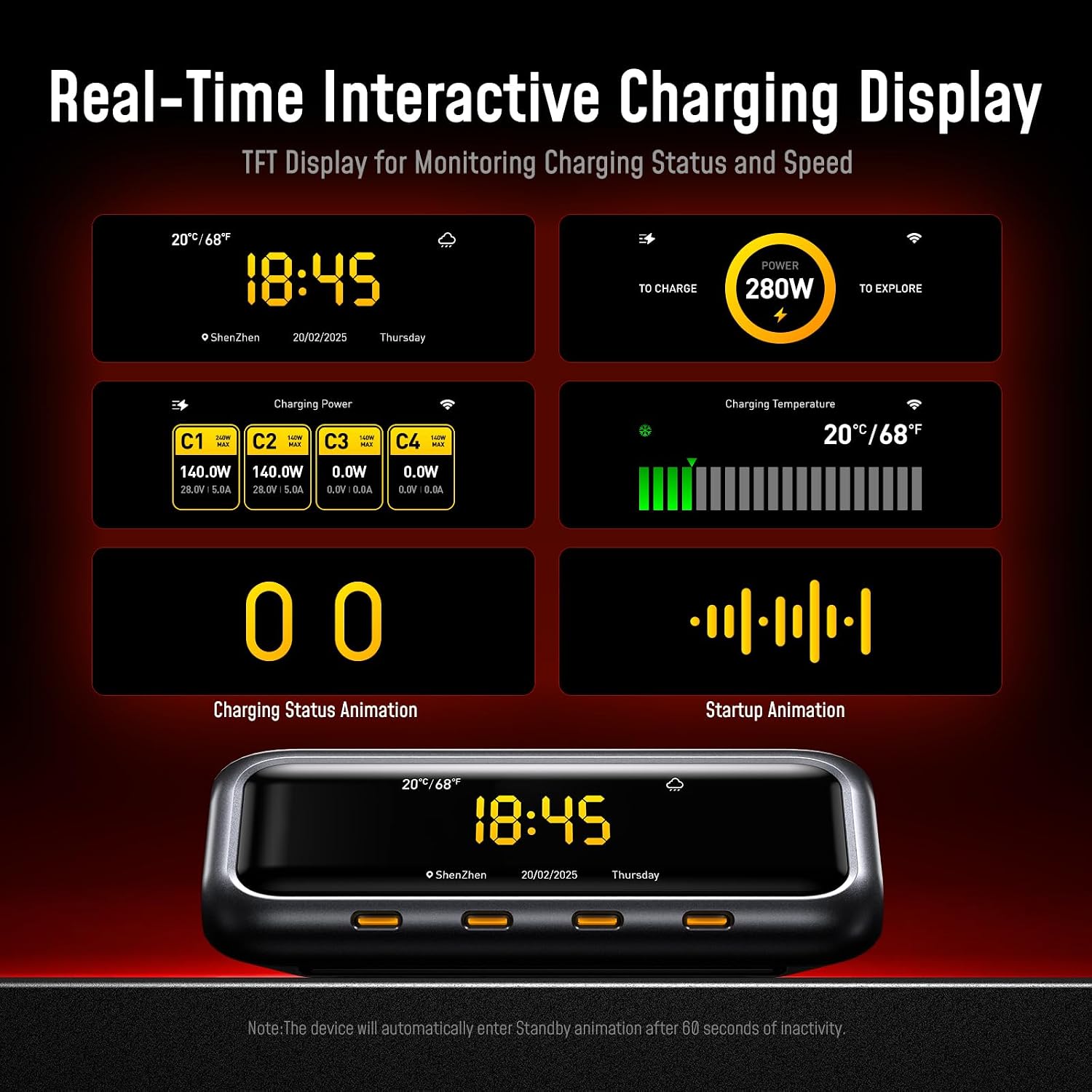
Figure 5.1: The AOHI charging station's broad compatibility with over 1000 devices.
5.1 PD3.2 Technology
The charging station incorporates PD3.2 technology, offering enhanced performance and compatibility compared to previous Power Delivery standards. This ensures smarter, more efficient charging and improved compatibility with a wider range of devices, including future AI devices and multi-device ecosystems.

Figure 5.2: Comparison of Power Delivery standards, emphasizing the advantages of PD3.2.
6. Specifications
| Feature | Specification |
|---|---|
| Brand | AOHI |
| Model Number | AOC-C022 |
| Total Power Output | 280W |
| USB-C Ports | 4 (USB-C1: up to 240W, USB-C2/C3/C4: up to 140W each) |
| USB-A Ports | 2 (Max 22.5W combined) |
| Input Voltage | 110 Volts |
| Frequency Range | 50 Hz |
| Material | ABS Plastic, Aluminum |
| Color | Dark Gray |
| Item Weight | 760 Grams |
| Form Factor | Desktop |
| Safety Certification | FCC |
Note: Specifications are subject to change without prior notice.
7. Maintenance
7.1 Cleaning
- Ensure the charging station is unplugged from the power outlet before cleaning.
- Use a soft, dry, lint-free cloth to wipe the exterior surfaces.
- Do not use liquid cleaners, aerosols, or solvents, as these may damage the device.
- Keep the ports free from dust and debris. Use a soft brush or compressed air if necessary.
7.2 Storage
- Store the charging station in a cool, dry place away from direct sunlight and extreme temperatures.
- Avoid storing in environments with high humidity.
- If storing for an extended period, disconnect all cables and store them neatly.

Figure 7.1: Internal design featuring AI Thermal Control and Smart GaN+ technology for efficient and stable operation.
8. Troubleshooting
| Problem | Possible Cause | Solution |
|---|---|---|
| Device not charging. |
|
|
| TFT Display is off or unresponsive. |
|
|
| Wi-Fi App connection issues. |
|
|
| Slow charging. |
|
|
9. Safety Information
- Do not expose the device to water, moisture, or extreme temperatures.
- Avoid dropping or subjecting the device to severe impacts.
- Do not attempt to disassemble, repair, or modify the charging station. This will void the warranty and may cause damage or injury.
- Use only the provided power cable and certified charging cables.
- Keep out of reach of children.
- Ensure adequate ventilation around the charging station during operation.
- If you notice any unusual odors, smoke, or excessive heat, immediately unplug the device from the power outlet.
10. Warranty and Support
The AOHI Future AI 280W PD3.2 GaN Desktop Charging Station comes with a standard manufacturer's warranty. Please refer to the warranty card included in your product packaging for specific terms and conditions.
EU Spare Part Availability: 2 Years
For technical support, warranty claims, or further assistance, please contact AOHI customer service through their official website or the contact information provided in your product documentation.
Manufacturer: Shenzhen Aoda Power Technology Co., Ltd

