
1. Introduction
Thank you for choosing the Halitaa Farmhouse Executive Desk with Hutch. This desk is designed to provide a functional and stylish workspace for your home office or study. It features a spacious desktop, ample storage, a built-in charging station, and integrated LED lighting. This manual provides detailed instructions for assembly, operation, maintenance, and troubleshooting to ensure you get the most out of your new desk.
2. Safety Information
- Read all instructions carefully before assembly and use.
- Keep all small parts and packaging materials away from children.
- Assemble the desk on a soft, clean surface to prevent scratches.
- Ensure all connections for the charging station and LED lights are secure before use.
- Do not overload the desk or shelves beyond their intended capacity.
- Use only the provided power adapter for the charging station and LED lights.
- If any parts are damaged or missing, do not proceed with assembly. Contact customer support immediately.
3. Package Contents
Your Halitaa Farmhouse Executive Desk with Hutch is shipped in two separate cardboard boxes. Please ensure you have received both packages before beginning assembly. Carefully unpack all components and verify against the parts list provided in your assembly guide. All necessary hardware and tools for assembly are included.

Image: The desk is delivered in two separate packages. Please check for both boxes.
4. Setup and Assembly Instructions
Assembly of this desk requires attention to detail. We recommend that two people work together to install it more quickly and accurately. Follow the detailed step-by-step instructions and use the clearly numbered parts provided in your separate assembly manual.
Key Assembly Steps:
- Unpack and Identify Parts: Lay out all components and hardware. Match them with the parts list in your assembly guide.
- Assemble the Base Desk Frame: Follow the instructions to connect the main desk panels and supports.
- Install Drawers: Assemble the four drawers, including the file drawer, and install them into their respective compartments. Ensure smooth operation.
- Attach the Hutch: Securely fasten the hutch unit to the top of the main desk.
- Integrate Charging Station and LED Lights: Install the charging station into its designated slot and attach the LED light strip according to the instructions. Connect all electrical components.

Image: Dimensional diagram of the desk, including hutch and drawer measurements.

Image: The fully assembled desk with hutch, showcasing its design and storage capabilities.
5. Operating Instructions
5.1. Charging Station
The built-in charging station provides convenient power access for your electronic devices. It includes:
- 3 AC Outlets (120V, 12A)
- 1 USB Port (5V, 2A)
- 1 Type-C Port (5V, 2A)
To use, simply plug the desk's power cord into a wall outlet. Then, connect your devices to the appropriate ports. The charging station supports charging up to 5 electronic devices simultaneously, ensuring a tidy workspace without messy cords.

Image: The integrated charging station with various ports in use.
5.2. Smart LED Light Strip
The desk features a smart Bluetooth LED light strip to personalize your workspace ambiance. You can control it via a mobile application or a physical button controller.
App Control:
Download the designated Bluetooth app (refer to your assembly guide for app name and QR code). Once installed, pair your device with the LED light strip via Bluetooth. Through the app, you can:
- Adjust colors (over 60,000 options)
- Control brightness levels
- Select from various dynamic modes
- Activate music mode (lights react to sound)
- Set timing functions for automatic on/off
Button Control:
A physical button controller is also provided for basic functions such as turning the lights on/off and cycling through preset colors or modes.

Image: The desk with its LED lights set to blue, illustrating various control features.
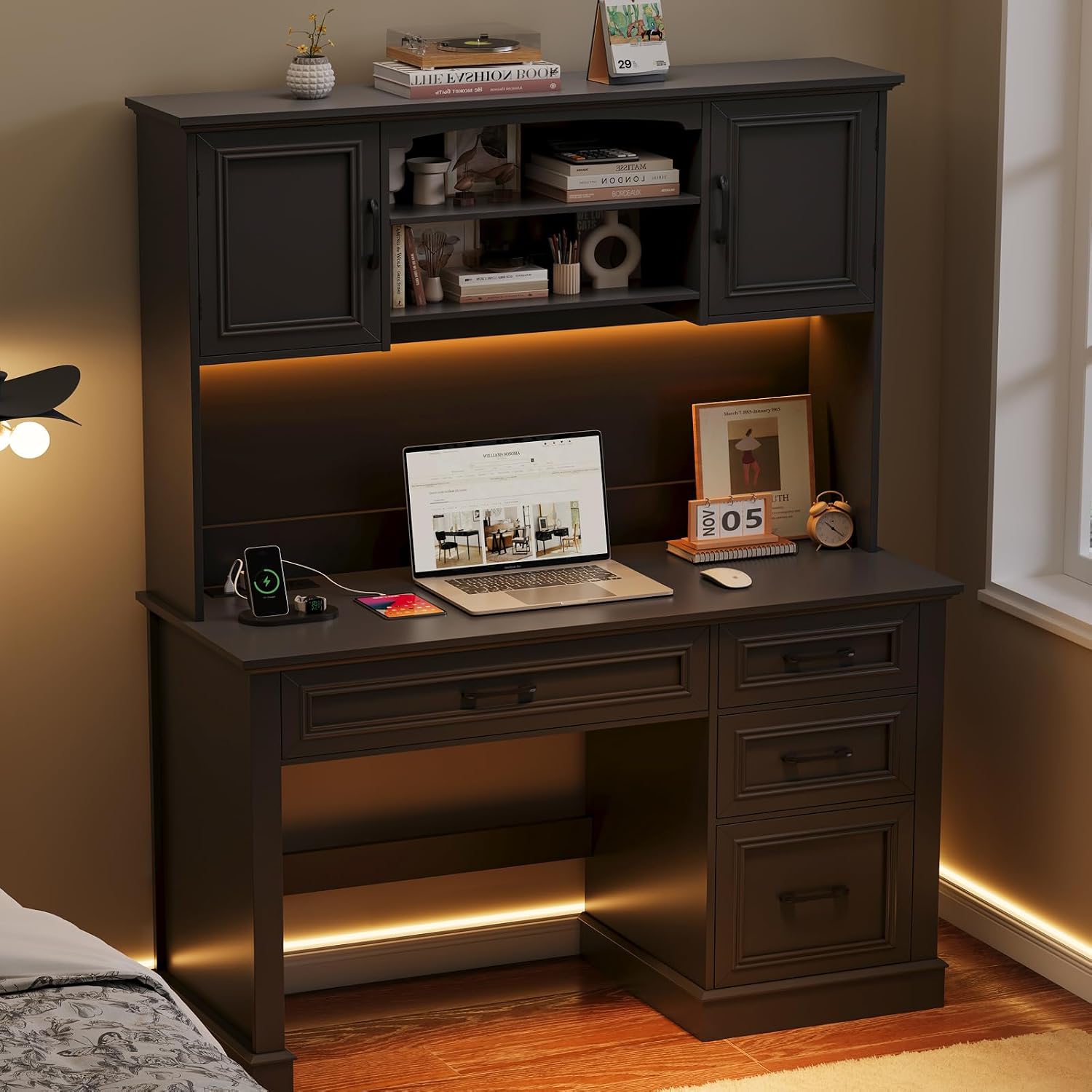
Image: The desk with its LED lights set to a warm orange, demonstrating ambiance options.
6. Maintenance
To maintain the appearance and longevity of your Halitaa desk, follow these care instructions:
- Cleaning: Wipe surfaces with a soft, damp cloth. Avoid harsh chemicals or abrasive cleaners, which can damage the engineered wood finish.
- Spills: Immediately wipe up any spills to prevent staining or water damage.
- Heat and Moisture: Avoid placing hot items directly on the surface. Use coasters or protective pads. Keep the desk away from excessive moisture or direct sunlight.
- Hardware: Periodically check and tighten all screws and fasteners to ensure stability.
7. Troubleshooting
Common Issues and Solutions:
- Missing or Damaged Parts: If your item arrives damaged, scratched, or with missing parts, do not attempt to assemble. Contact customer support immediately with your purchase details and photos of the issue.
- Desk Wobbles: Ensure all screws and fasteners are securely tightened. Check that the desk is placed on a level surface.
- Drawers Do Not Slide Smoothly: Verify that the drawer slides are correctly installed and aligned. Ensure no obstructions are present in the drawer tracks.
- Charging Station Not Working: Check that the desk's main power cord is securely plugged into a functional wall outlet. Ensure devices are properly connected to the charging ports.
- LED Lights Not Functioning: Verify the LED light strip is properly connected to its power source. If using app control, ensure Bluetooth is enabled on your device and the app is correctly paired. If using button control, check for any loose connections.
8. Specifications
| Brand | Halitaa |
| Model | Farmhouse Executive Desk with Hutch |
| Color | Pure Black |
| Material | Engineered Wood |
| Product Dimensions (D x W x H) | 19.68"D x 47.24"W x 66.93"H |
| Number of Drawers | 4 (including 1 file drawer) |
| Charging Station | 3 AC Outlets (120V, 12A), 1 USB Port (5V, 2A), 1 Type-C Port (5V, 2A) |
| LED Light Features | Bluetooth App Control, Over 60,000 Colors, 3 Dynamic Modes, Music Mode, Timing Function, Button Control |
| Storage Options | Adjustable shelves, drawers, hutch |
9. Warranty and Support
For any issues regarding damaged, scratched, or missing parts, please contact Halitaa customer support directly. Provide your purchase information and a detailed description of the problem for assistance. Specific warranty details may be provided with your purchase documentation; please refer to those materials for comprehensive warranty information.