
Introduction
Welcome to your new T.Dagger Arena T-TGK321 60% Mechanical Gaming Keyboard. This compact and responsive keyboard is designed for an optimal gaming and typing experience. It features durable red mechanical switches, vibrant RGB rainbow backlighting, and anti-ghosting technology to ensure every keypress is registered accurately.
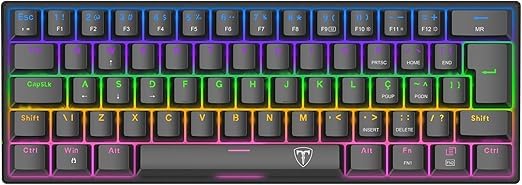
Image: Top-down view of the T.Dagger Arena T-TGK321 keyboard, showcasing its compact 60% layout and colorful RGB backlighting.
Package Contents
- T.Dagger Arena T-TGK321 60% Mechanical Gaming Keyboard
- USB Cable
- User Manual
Setup Instructions
- Connect the Keyboard: Locate the USB port on the T-TGK321 keyboard. Connect one end of the provided USB cable to this port.
- Connect to Device: Plug the other end of the USB cable into an available USB 2.0 port on your computer (PC, laptop, desktop) or gaming device.
- Automatic Recognition: The keyboard is plug-and-play. Your operating system should automatically detect and install the necessary drivers. No additional software installation is typically required.
- Ready for Use: Once recognized, the keyboard's RGB lighting will illuminate, and it will be ready for immediate use.

Image: Angled view of the T.Dagger Arena T-TGK321 keyboard, showing the USB-C port on the side for connection.
Operating Instructions
Key Functions
The T-TGK321 features a compact 60% QWERTY layout with 61 keys. Many standard functions are accessed via the Fn (Function) key in combination with other keys.
- Standard Typing: All alphanumeric keys function as standard.
- Function Keys (F1-F12): Typically accessed by holding Fn and pressing the corresponding number row key (e.g., Fn + 1 for F1).
- Arrow Keys: On 60% keyboards, arrow keys are often integrated. Look for markings on the WASD or IJKL keys, activated with Fn.
- Media Controls: Volume up/down, play/pause, etc., are usually secondary functions on keys like P, [, ], activated with Fn.
- Anti-Ghosting: The keyboard supports anti-ghosting, ensuring that multiple simultaneous key presses are registered accurately, which is crucial for gaming.
RGB Lighting Control
The keyboard features dynamic rainbow RGB backlighting. Use the following (common) Fn key combinations to control the lighting effects:
- Change Lighting Mode: Fn + \ | (or similar key, often near Enter) to cycle through various lighting effects (e.g., wave, breathing, static).
- Adjust Brightness: Fn + ↑ (Up Arrow) to increase brightness, Fn + ↓ (Down Arrow) to decrease brightness.
- Adjust Speed: Fn + ← (Left Arrow) to decrease effect speed, Fn + → (Right Arrow) to increase effect speed.
- Toggle Backlight On/Off: Fn + P (or similar key).
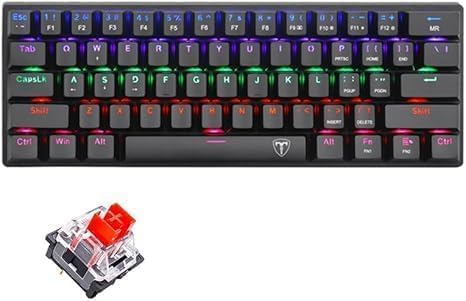
Image: A close-up view of a red mechanical switch, highlighting its linear design for smooth key presses.
Maintenance
Proper maintenance ensures the longevity and optimal performance of your keyboard.
- Cleaning: Regularly dust the keyboard using a soft brush or compressed air to remove debris from between the keycaps. For deeper cleaning, carefully remove keycaps (if applicable and with a keycap puller) and clean the switch area.
- Avoid Liquids: Do not spill liquids on the keyboard. If a spill occurs, immediately disconnect the keyboard from your computer and allow it to dry completely before reconnecting.
- Avoid Harsh Chemicals: Do not use abrasive cleaners or harsh chemicals, as these can damage the keycaps or the keyboard's finish. Use a slightly damp cloth with mild soap if necessary.
- Storage: When not in use for extended periods, store the keyboard in a clean, dry place away from direct sunlight and extreme temperatures.
Troubleshooting
| Problem | Possible Cause | Solution |
|---|---|---|
| Keyboard not responding. | Loose USB connection, faulty USB port, computer issue. |
|
| RGB lighting is not working or is dim. | Lighting turned off, brightness set too low, insufficient USB power. |
|
| Certain keys are not registering. | Debris under keycap, faulty switch. |
|
Specifications
| Brand | T.Dagger |
| Model | T-TGK321 |
| Connectivity Technology | Wired USB 2.0 |
| Switch Type | Linear Red Mechanical Switches |
| Key Layout | 61-key QWERTY |
| Backlight | Rainbow RGB |
| Special Features | Anti-ghosting, 60% Compact Design |
| Material | ABS Plastic, Metal |
| Dimensions (L x W x H) | 30 cm x 12 cm x 3.5 cm |
| Weight | 500 grams |
| Power Source | USB Powered |
| Compatible Devices | Gaming Devices, Personal Computer, Desktop, Laptop |

Image: Bottom view of the T.Dagger Arena T-TGK321 keyboard, illustrating its compact size and stable design.
Warranty and Support
This T.Dagger Arena T-TGK321 keyboard is covered by an official agent warranty. For detailed information regarding warranty terms, conditions, and duration, please refer to the warranty card or documentation included with your purchase.
For technical assistance, troubleshooting not covered in this manual, or to initiate a warranty claim, please contact the official T.Dagger support channels or the retailer from whom you purchased the product. Keep your proof of purchase for warranty validation.
Note: Warranty terms may vary by region.