
1. Introduction
Welcome to the user manual for your new Compaq QTab Plus LTE 11-inch Tablet. This guide provides essential information for setting up, operating, maintaining, and troubleshooting your device. Please read this manual thoroughly to ensure optimal performance and longevity of your tablet.
The Compaq QTab Plus LTE is a versatile tablet featuring an 11-inch IPS display, Android 16 operating system, 8GB RAM, 128GB ROM, 4G LTE connectivity, an Octa-core MT8781 processor, 16MP rear camera, 8MP front camera, and an 8000mAh battery. It is designed for a wide range of uses, from streaming and video calls to work and study.
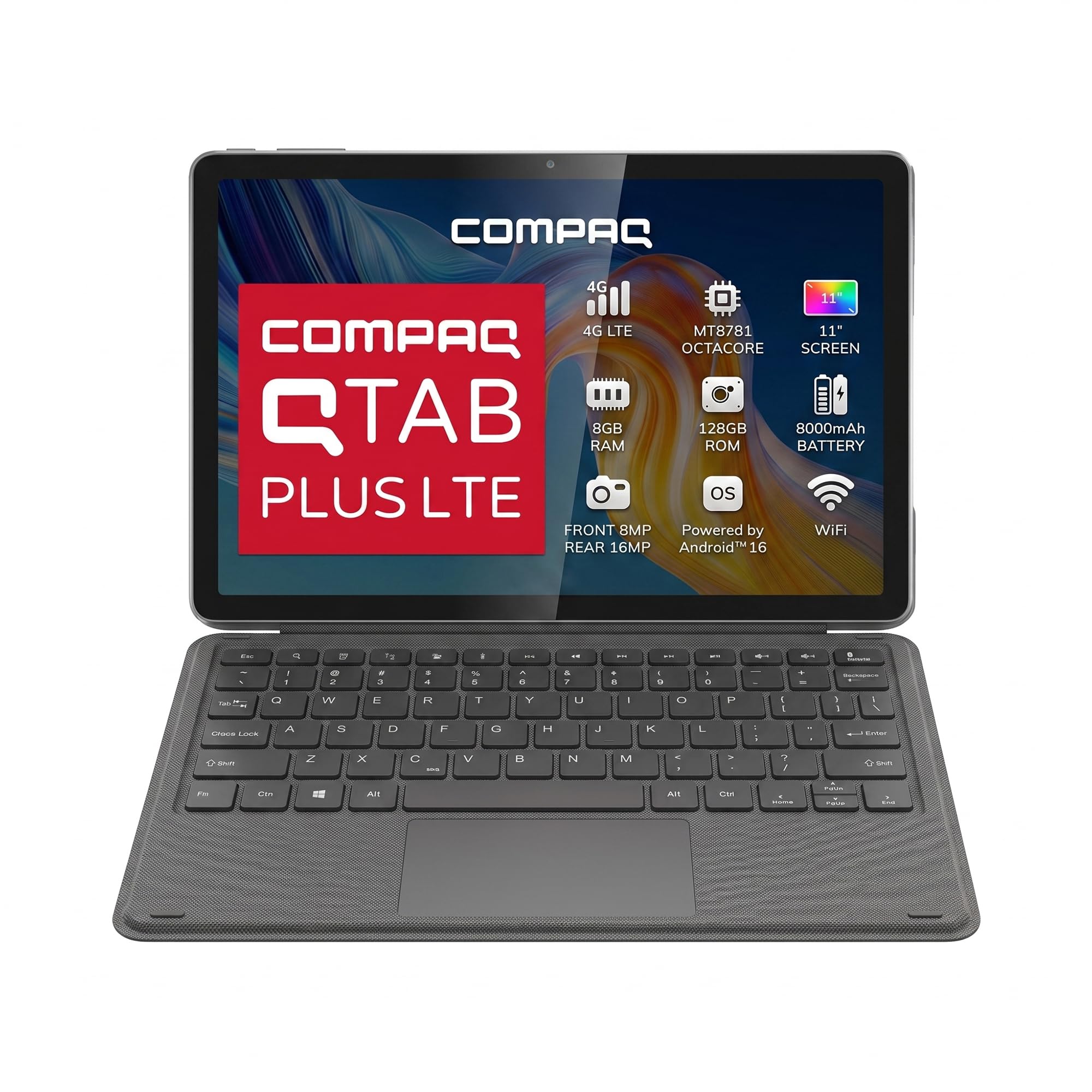
Image: Front view of the Compaq QTab Plus LTE tablet, showcasing its key specifications on the display.
2. Package Contents
Ensure all the following items are present in your product package:
- Compaq QTab Plus LTE 11-inch Tablet
- POGO PIN Keyboard
- USB-C Cable
- Power Adapter (9V/2.22A)
- User Manual (this document)

Image: The Compaq QTab Plus LTE tablet shown with its essential accessories, including the USB-C cable, power adapter, and POGO PIN keyboard.
3. Device Overview
3.1 Front View
The front of the tablet features the 11-inch IPS display and the 8MP front-facing camera, ideal for video calls and selfies.

Image: The front of the Compaq QTab Plus LTE tablet, highlighting the display and front camera.
3.2 Rear View
The rear of the tablet houses the 16MP auto-focus camera with flash, along with the Compaq logo.

Image: The rear of the Compaq QTab Plus LTE tablet, featuring the main camera and brand logo.
3.3 Side Views and Ports
The sides of the tablet include the power button, volume controls, USB-C port for charging and data transfer, HDMI output, and a Type-C audio jack. A slot for the Nano SIM and TF (microSD) card is also present.

Image: Side view of the Compaq QTab Plus LTE tablet, illustrating the placement of ports and physical buttons.

Image: Detailed view of the SIM and microSD card slot on the tablet's side.
3.4 POGO PIN Connector
The bottom edge of the tablet features the POGO PIN connector for attaching the magnetic keyboard.

Image: Close-up of the POGO PIN connector, used for attaching the keyboard.
4. Setup
4.1 Initial Charging
Before first use, fully charge your tablet. Connect the USB-C cable to the tablet's USB-C port and the power adapter, then plug the adapter into a wall outlet. The charging indicator will show the charging status.
4.2 Powering On/Off
- To Power On: Press and hold the power button until the Compaq logo appears on the screen.
- To Power Off: Press and hold the power button until the power options appear, then select "Power off."
- To Restart: Press and hold the power button until the power options appear, then select "Restart."
4.3 SIM Card and MicroSD Card Installation
Your tablet supports a Nano SIM card for 4G LTE connectivity and a microSD (TF) card for expandable storage.
- Locate the SIM/microSD card tray on the side of the tablet.
- Use the provided SIM ejector tool to open the tray.
- Carefully place the Nano SIM card and/or microSD card into their respective slots on the tray, ensuring correct orientation.
- Gently push the tray back into the tablet until it clicks into place.
4.4 Initial Android Setup
Upon first power-on, follow the on-screen instructions to complete the initial setup, including language selection, Wi-Fi connection, Google account login, and security settings.
4.5 Attaching the POGO PIN Keyboard
Align the POGO PIN connectors on the tablet with those on the keyboard. The magnetic connection will secure the keyboard to the tablet, transforming it into a laptop-like device.
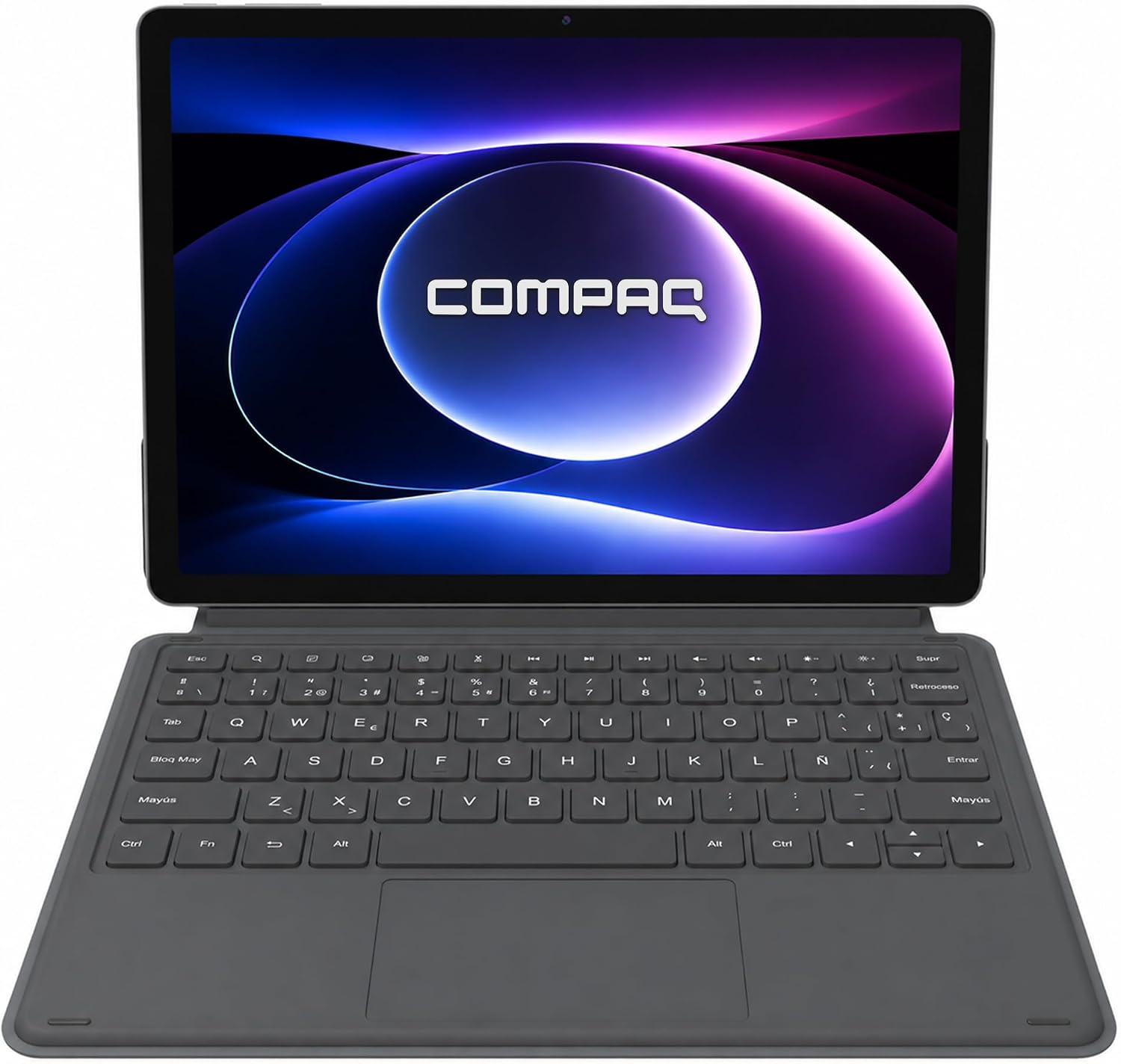
Image: The Compaq QTab Plus LTE tablet attached to its POGO PIN keyboard, ready for use.
5. Operating Your Tablet
5.1 Basic Navigation
Your tablet uses Android 16. Navigate using touch gestures: tap to select, swipe to scroll, pinch to zoom, and long-press for additional options.

Image: The tablet screen displaying precise touch input, illustrating its responsiveness for tasks like drawing.
5.2 Wi-Fi and 4G LTE Connectivity
- Wi-Fi: Go to Settings > Network & internet > Wi-Fi to connect to available wireless networks.
- 4G LTE: If a Nano SIM card is installed, your tablet will automatically connect to the cellular network. Ensure mobile data is enabled in Settings > Network & internet > Mobile network.
5.3 Camera Operation
Use the pre-installed Camera app to capture photos and videos. The 16MP rear camera features auto-focus and flash, while the 8MP front camera is suitable for video calls.

Image: Close-up of the tablet's rear camera module.
5.4 Battery Management
The 8000mAh battery provides extended usage. To optimize battery life, adjust screen brightness, close unused apps, and enable battery saver mode when needed.

Image: A visual representation of the tablet's 8000mAh battery capacity and its potential daily usage.
5.5 Using the POGO PIN Keyboard
Once attached, the keyboard functions like a standard laptop keyboard. Use the touchpad for cursor control. The keyboard enhances productivity for typing and navigation.

Image: The Compaq QTab Plus LTE tablet with its keyboard, demonstrating its use for entertainment and productivity.
5.6 Processor Performance
The Octa-core MediaTek MT8781 processor, combined with 8GB RAM, ensures smooth multitasking, gaming, and media consumption.

Image: A visual representation of the tablet's Octa-core processor, emphasizing its performance capabilities.
6. Maintenance
6.1 Cleaning Your Tablet
Use a soft, lint-free cloth to clean the screen and body of the tablet. Avoid using harsh chemicals or abrasive materials that could damage the surfaces.
6.2 Software Updates
Regularly check for and install system updates to ensure your tablet has the latest features, security patches, and performance improvements. Go to Settings > System > System update.
6.3 Battery Care
To prolong battery life, avoid exposing the tablet to extreme temperatures. Do not let the battery completely drain frequently. Use the original charger for optimal charging.
6.4 Storage Management
Periodically review and delete unnecessary files, apps, and media to free up storage space. Utilize the microSD card slot for additional storage if needed.
7. Troubleshooting
7.1 Tablet Not Powering On
- Ensure the tablet is sufficiently charged. Connect it to the charger for at least 30 minutes.
- Press and hold the power button for 10-15 seconds to perform a forced restart.
7.2 Wi-Fi Connectivity Issues
- Toggle Wi-Fi off and on in Settings.
- Restart your Wi-Fi router.
- Forget the network and reconnect.
7.3 Slow Performance
- Close unused applications running in the background.
- Clear cache data for apps.
- Ensure sufficient storage space is available.
- Restart the tablet.
7.4 Keyboard Not Responding
- Ensure the POGO PIN connectors are clean and free of debris.
- Re-attach the keyboard, ensuring a firm magnetic connection.
- Restart the tablet.
7.5 Factory Reset
If issues persist, you may need to perform a factory reset. Warning: This will erase all data on your tablet. Back up important data before proceeding. Go to Settings > System > Reset options > Erase all data (factory reset).
8. Specifications
| Feature | Detail |
|---|---|
| Model Name | QTAB PLUS LTE |
| Display | 11-inch IPS, 1920x1080 pixels, InCell Technology |
| Processor | Octa-core MediaTek MT8781 (2.2 GHz) |
| RAM | 8 GB |
| Internal Storage | 128 GB ROM (Expandable via microSD up to 512 GB) |
| Operating System | Android 16 |
| Rear Camera | 16 MP AF with Flash |
| Front Camera | 8 MP with Hall Sensor |
| Battery | 8000 mAh Lithium Polymer (Approx. 500 hours average duration) |
| Connectivity | 4G LTE (Nano SIM), Wi-Fi 802.11 a/b/g/n/ac, Bluetooth 5.2 |
| Ports | USB-C (charging/data), HDMI output, Type-C Audio Jack, POGO PIN connector |
| Dimensions | 29.1l x 0.8an x 18.9Ju centimeters |
| Color | Grey |
| Included Components | Tablet, POGO PIN Keyboard |
9. Warranty and Support
9.1 Product Warranty
Your Compaq QTab Plus LTE tablet comes with a 1-year warranty from the date of purchase. This warranty covers manufacturing defects under normal use. Please retain your proof of purchase for warranty claims.
9.2 Customer Support
For technical assistance, troubleshooting, or warranty inquiries, please contact Compaq customer support. Refer to the official Compaq website or your purchase documentation for specific contact details.
Note: Contact information is not provided in this manual. Please refer to the product packaging or official brand website for support details.