
Amazfit Balance 3
Amazfit Balance 3 Smartwatch User Manual
Model: Balance 3
Introduction
Welcome to the user manual for your new Amazfit Balance 3 Smartwatch. This guide provides essential information on setting up, operating, maintaining, and troubleshooting your device. Please read this manual thoroughly to ensure optimal performance and longevity of your smartwatch.
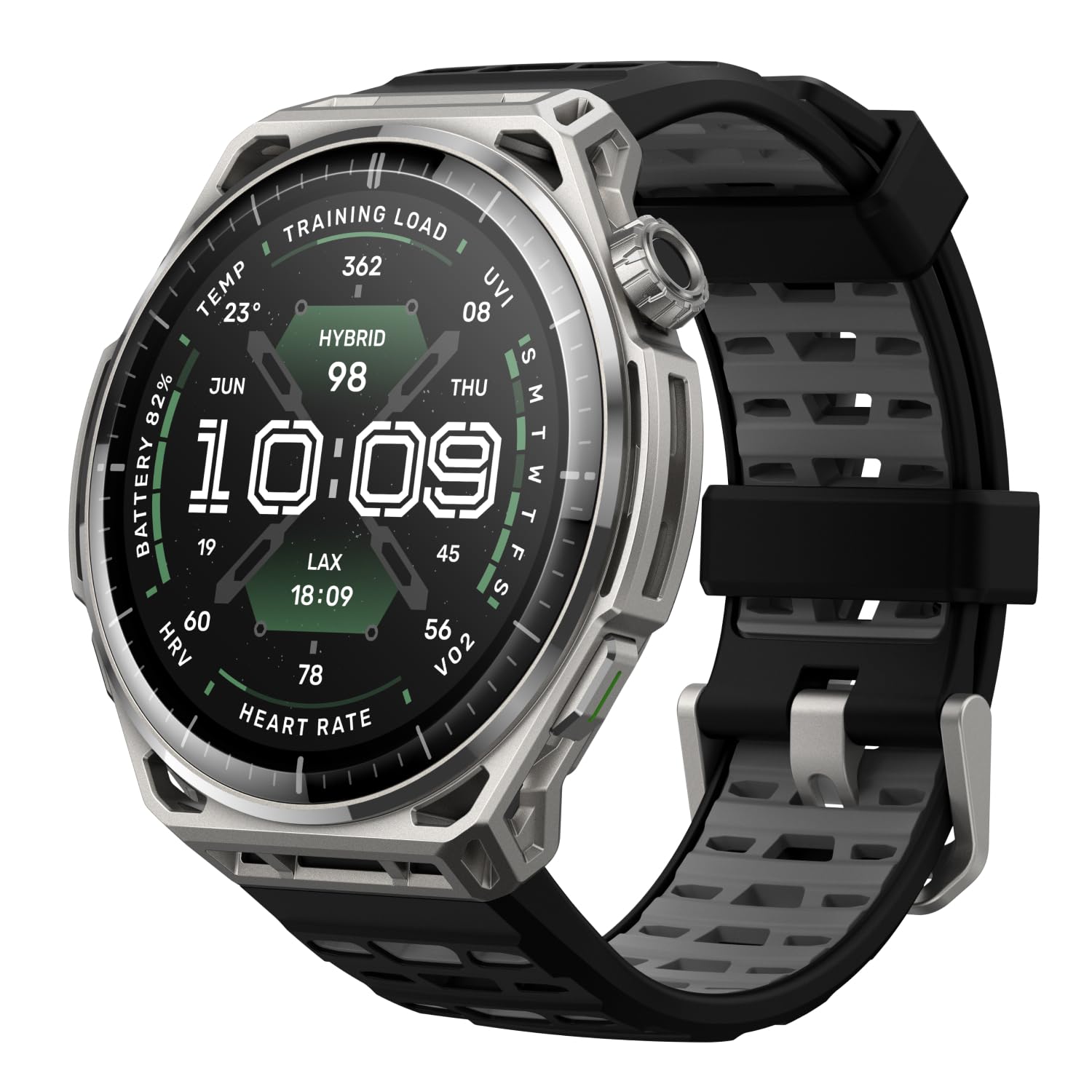
Image Description: A front-facing view of the Amazfit Balance 3 Smartwatch, showcasing its round AMOLED display and stainless steel casing. The watch face displays time and various health metrics.
Designed for Reliability
The Amazfit Balance 3 features a military-grade resistant structure for daily intense workouts. Its scratch-resistant sapphire glass protects the brilliant 1.5-inch AMOLED display, ensuring clear data visibility at all times.

Image Description: A close-up view of the Amazfit Balance 3 Smartwatch's side profile, highlighting its robust construction, sapphire glass, and AMOLED display, with text indicating its reliability features.
Setup
Package Contents
Before you begin, ensure all items are present in your package:
- Amazfit Balance 3 Smartwatch
- User Manual (this document)
- Magnetic Charging Base

Image Description: An overhead view showing the Amazfit Balance 3 Smartwatch, its magnetic charging base, and the product packaging, illustrating the items included in the box.
Initial Charging
Upon first use, fully charge your smartwatch.
- Connect the magnetic charging base to a USB power adapter (not included).
- Place the Amazfit Balance 3 onto the charging base, ensuring the magnetic pins align correctly.
- The watch display will indicate charging status. Allow it to charge until 100%.
Pairing with the Zepp App
To unlock all features, pair your smartwatch with the Zepp App.
- Download the Zepp App from your smartphone's app store (compatible with Android and iOS).
- Open the Zepp App and create an account or log in.
- Follow the on-screen instructions in the app to add your Amazfit Balance 3 device. This typically involves scanning a QR code on the watch or selecting it from a list of nearby devices.
- Ensure Bluetooth is enabled on your smartphone during the pairing process.

Image Description: A smartphone displaying the Zepp App interface with health metrics, positioned next to the Amazfit Balance 3 Smartwatch, illustrating the connection between the device and its companion app.
Operating Your Smartwatch
Basic Navigation
- Touchscreen: Swipe left/right, up/down to navigate menus and widgets. Tap to select.
- Crown Button: Rotate to scroll through lists or adjust settings. Press to return to the watch face or confirm selections.
- Side Button: Customizable shortcut for quick access to frequently used functions.
Key Features
- HybridCharge™ Energy Intelligence: Monitors BioCharge, LifeLoad, and Training Load to assess daily capacity and guide recovery.
- HYROX Official Modality & Race Analysis: Integrated training plans and post-race performance evaluation for competitive athletes.
- Advanced Health Monitoring: Continuous tracking of heart rate, HRV, blood oxygen (SpO2), sleep quality, and stress levels. One-Tap Measuring provides a comprehensive health overview in 45 seconds.
- 180+ Sport Modes: Extensive selection of sports tracking, including VO2 max monitoring and RPE recording.
- Precision GPS Navigation: Dual-band positioning with six satellite systems, offline maps, and turn-by-turn navigation.
- 64GB Integrated Memory: Store offline maps, music, and podcasts directly on your watch.
- Integrated LED Torch: Customizable Safety Light with white and red illumination, Boost, and SOS modes for visibility.
- Contactless Payments (Zepp Pay): Secure NFC technology for quick payments directly from your wrist.

Image Description: The Amazfit Balance 3 Smartwatch displaying "HybridCharge" data on its screen, with a person exercising in the background, highlighting the watch's fitness tracking capabilities.

Image Description: A person running outdoors, with a graphic overlay showing a GPS navigation route, emphasizing the smartwatch's precision GPS features.

Image Description: The Amazfit Balance 3 Smartwatch displaying a map, alongside a smartphone screen showing downloaded music and a map, illustrating the 64GB integrated memory for offline content.

Image Description: The Amazfit Balance 3 Smartwatch displaying a credit card on its screen, next to a payment terminal, demonstrating the Zepp Pay contactless payment feature.
Maintenance
Cleaning Your Smartwatch
- Wipe the screen and body with a soft, lint-free cloth.
- For stubborn marks, slightly dampen the cloth with water. Avoid harsh chemicals.
- Clean the charging contacts regularly to ensure efficient charging.
Water Resistance
The Amazfit Balance 3 has a water resistance rating of 10 ATM, making it suitable for swimming and shallow water activities. It is not recommended for diving, high-pressure water activities, or exposure to hot water/steam.
Battery Care
- Avoid fully discharging the battery frequently.
- Store the watch in a cool, dry place when not in use for extended periods.
- Use only the provided charging base.

Image Description: The Amazfit Balance 3 Smartwatch displaying the time and battery percentage, with text indicating "21 Days Typical Use" and "41 Hours High Precision GPS Mode," highlighting its extended battery life.
Troubleshooting
Watch Not Turning On
- Ensure the watch is fully charged. Connect it to the charging base for at least 30 minutes.
- Press and hold the crown button for 10-15 seconds to force a restart.
Pairing Issues
- Make sure Bluetooth is enabled on your smartphone and the watch is within range.
- Restart both your smartphone and the smartwatch.
- Try unpairing the device from your phone's Bluetooth settings and re-pairing through the Zepp App.
- Ensure the Zepp App is updated to the latest version.
Inaccurate Data Readings
- Ensure the watch is worn snugly on your wrist, not too tight or too loose.
- Clean the sensors on the back of the watch.
- Update the watch firmware via the Zepp App.
- For GPS, ensure you are in an open area with a clear view of the sky.
Specifications
| Brand | Amazfit |
| Model Name | Balance 3 Stainless Steel |
| Model Number | ES-Balance3-Stainless Steel |
| Color | Stainless Steel |
| Screen Size | 1.5 Inches |
| Screen Type | AMOLED |
| Storage Capacity | 64 GB |
| Battery Capacity | 658 mAh |
| Battery Type | Lithium Polymer |
| Operating System | Android, iOS |
| Connectivity | Bluetooth, GPS, NFC |
| Water Resistance | 10 ATM |
| Special Feature | HYROX Support |
| User Interface | Touchscreen |
| Manufacturer | Amazfit |
| Country of Origin | China |
Warranty and Support
Product Warranty
The Amazfit Balance 3 Smartwatch comes with a 1-year warranty from the date of purchase. This warranty covers manufacturing defects under normal use. Please retain your proof of purchase for warranty claims.
Customer Support
For further assistance, technical support, or warranty inquiries, please visit the official Amazfit support website or contact their customer service.
- Official Amazfit Website: www.amazfit.com
- Zepp App: Access support and FAQs directly through the app.
Related documentsBalance 3


Ask a question about this manual
Ask about setup, troubleshooting, compatibility, parts, safety, or missing instructions. Manuals+ will review the question and use this page’s manual context to help answer it.