
Introduction
This manual provides comprehensive instructions for the installation, operation, and maintenance of your Uniter 4K Dual Lens Solar Security Camera. Please read this manual carefully before using the product to ensure proper functionality and safety.
Product Overview
The Uniter 4K Dual Lens Solar Security Camera is an advanced outdoor surveillance solution featuring dual lenses for comprehensive coverage, solar power for continuous operation, and smart detection capabilities.
Key Features:
- Dual Lens System: Includes a panoramic camera for fixed monitoring and a tracking camera with 355° horizontal and 90° vertical rotation.
- 4K HD Video: Delivers ultra-clear images and videos.
- Color Night Vision: Built-in CMOS sensor and IR light for clear color images up to 33 feet, even in low light.
- Solar Powered: Equipped with a solar panel for 365 days of uninterrupted power, eliminating the need for frequent charging.
- 2.4GHz WiFi Connectivity: Supports wireless connection to your home network (2.4GHz only).
- Two-Way Audio: Built-in microphone and speaker for communication with visitors or deterring intruders.
- PIR Motion Detection: High-sensitivity sensor triggers alerts, recording, siren, and spotlight upon detecting motion.
- IP66 Waterproof: Designed to withstand various weather conditions, including rain and snow.
- Storage Options: Supports local storage via Micro SD card (up to 128GB, not included) and optional cloud storage.
Package Contents:
- 1x Camera Body
- 1x Solar Panel
- 1x USB Cable (9.8ft)
- 1x Mounting Bracket

Image: The Uniter 4K Dual Lens Solar Security Camera, showcasing its main components including the camera body and solar panel.
Setup Guide
Follow these steps to set up your Uniter 4K Dual Lens Solar Security Camera.
1. Charging the Camera
Before initial use, ensure the camera's internal battery is sufficiently charged. Connect the camera to the solar panel and place the solar panel in direct sunlight. Alternatively, you can use the provided USB cable to charge the camera via a standard USB power adapter (not included).

Image: The Uniter solar security camera connected to its solar panel, illustrating solar charging in a sunny outdoor environment.
2. App Installation and Account Creation
Download the Yuicam app from your smartphone's app store (iOS or Android). Follow the on-screen instructions to create an account and log in.
3. Connecting to Wi-Fi
- Open the Yuicam app and tap to add a new device.
- Follow the in-app prompts to connect the camera to your 2.4GHz Wi-Fi network. Note: This camera only supports 2.4GHz Wi-Fi. 5GHz networks are not supported.
- Ensure the camera is within range of your Wi-Fi router during the setup process.
4. Mounting the Camera
Select a suitable outdoor location for mounting. The camera should be positioned to provide optimal surveillance coverage, and the solar panel should receive maximum direct sunlight. Use the provided mounting bracket and hardware to securely attach the camera and solar panel to a wall or other stable surface.
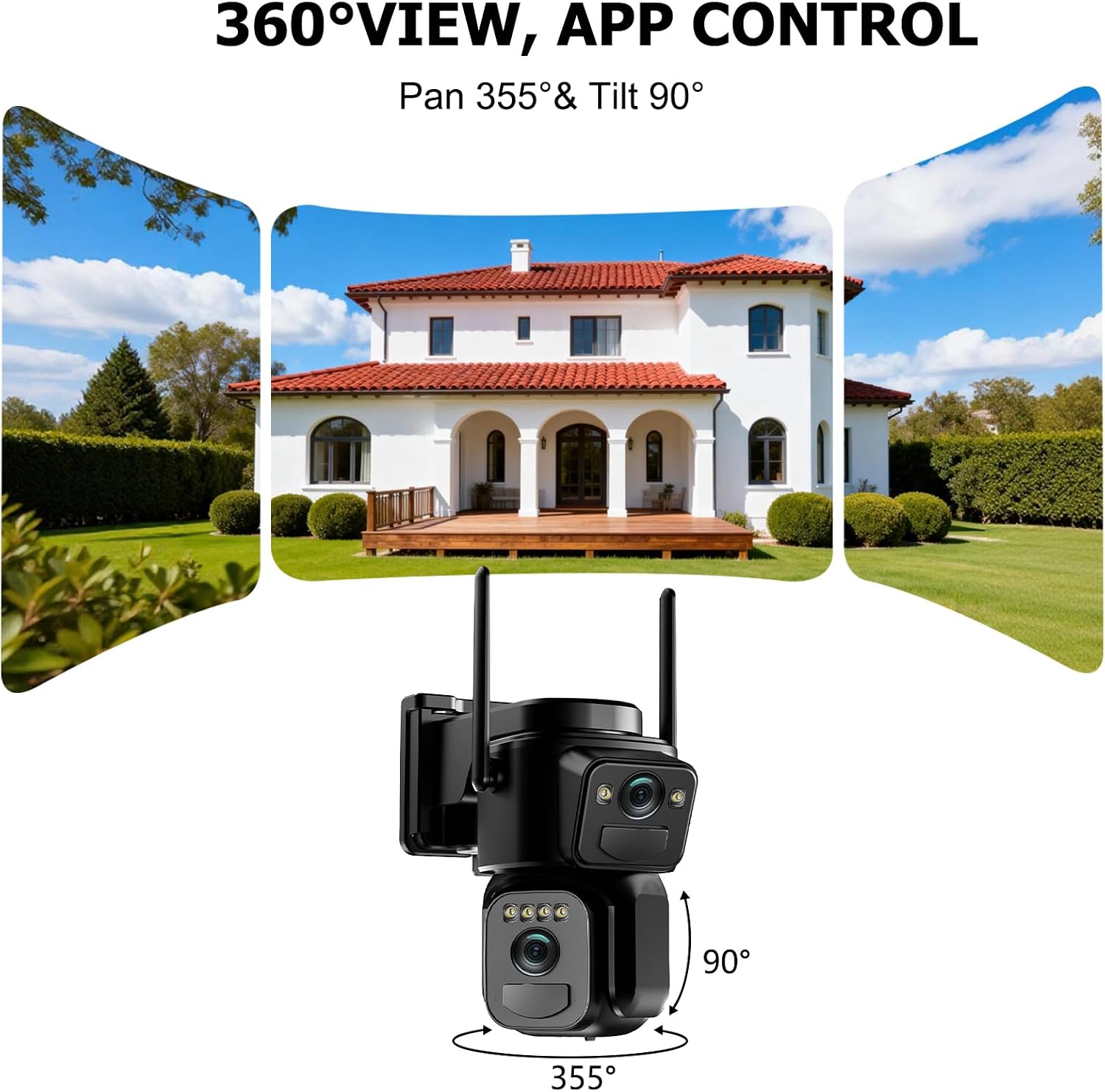
Image: The Uniter security camera mounted on an exterior wall, demonstrating its 360-degree pan and tilt capabilities for wide area monitoring.
Operating Instructions
Once your camera is set up, use the Yuicam app to access and control its features.
1. Live View and Pan/Tilt Control
Open the Yuicam app and select your camera to view the live feed. Use the on-screen controls to pan (355° horizontal) and tilt (90° vertical) the tracking camera to adjust its viewing angle. The panoramic camera provides a fixed, wider view.
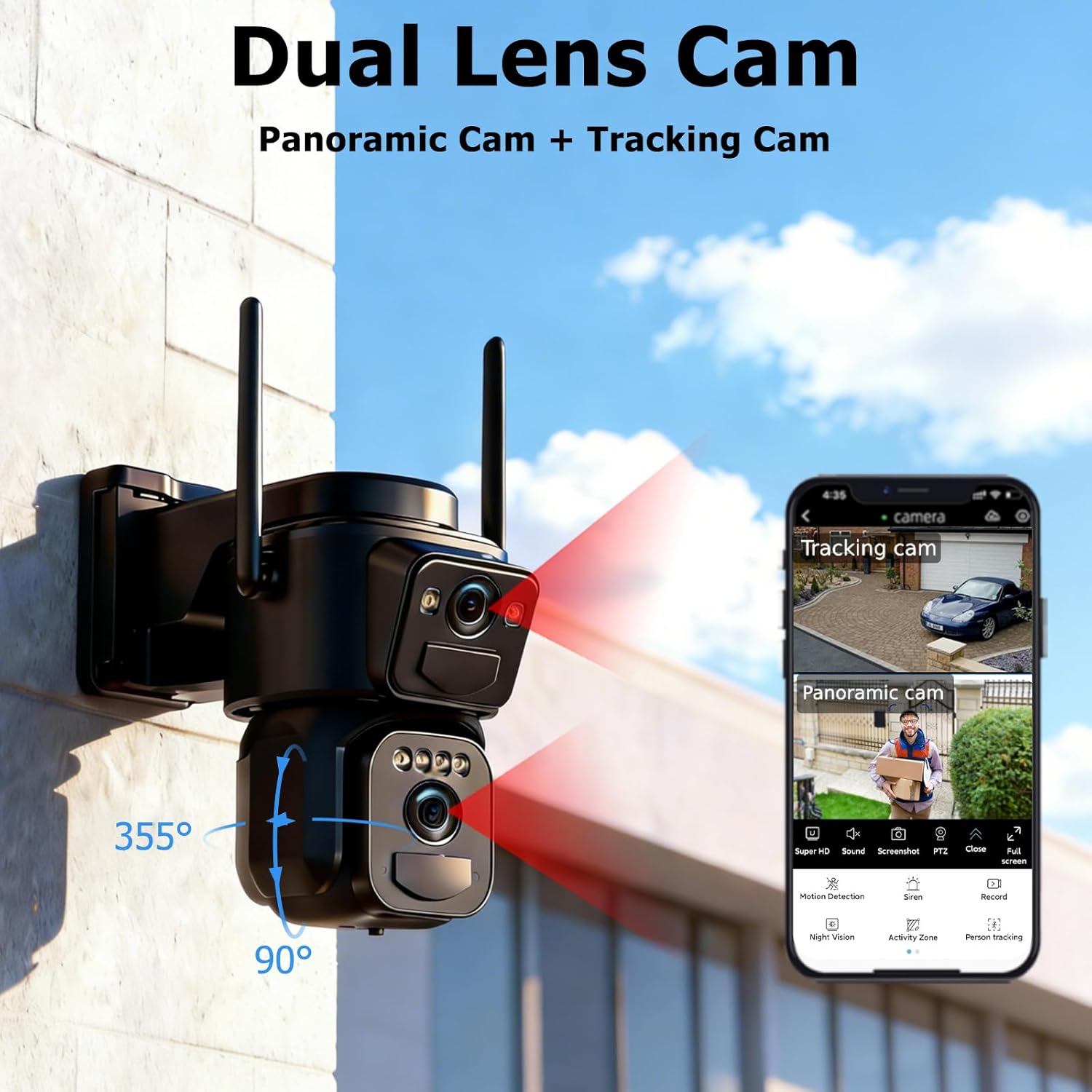
Image: A close-up of the dual-lens camera and a smartphone screen displaying the Yuicam app interface with both panoramic and tracking camera views.
2. Two-Way Audio
To use the two-way audio feature, tap the microphone icon in the app. You can speak through your phone, and your voice will be broadcast through the camera's speaker. Similarly, you can hear audio from the camera's vicinity through your phone.
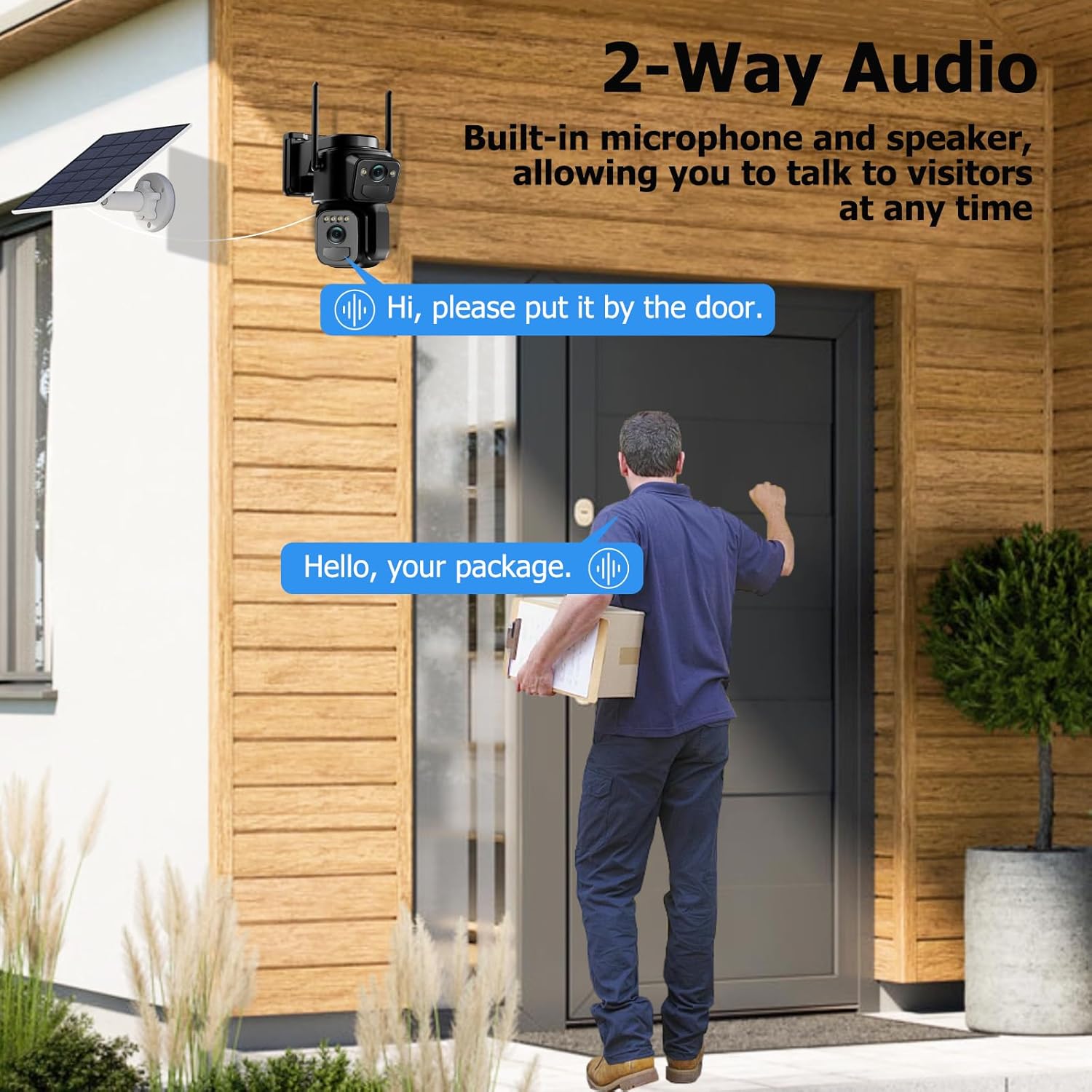
Image: A delivery person at a door, with a speech bubble indicating communication via the camera's two-way audio feature.
3. Night Vision Modes
The camera automatically switches between infrared and color night vision modes based on ambient light conditions. You can also manually select your preferred night vision mode within the app settings.
4. Motion Detection and Alerts
The camera's PIR motion sensor detects movement and can trigger various actions:
- App Push Notifications: Receive instant alerts on your smartphone.
- Siren: A loud siren can be activated to deter intruders.
- Spotlight: The built-in spotlight illuminates the area upon detection.
- Video Recording: The camera will automatically record a 5-30 second video clip of the event.
You can customize motion detection sensitivity and alert settings in the Yuicam app.

Image: An illustration of the camera's motion detection features, showing a detected intruder, an app notification, and icons for siren and spotlight.
5. Storage Management
Recorded videos can be stored in two ways:
- Micro SD Card: Insert a Micro SD card (up to 128GB, not included) into the designated slot on the camera for local storage.
- Cloud Storage: An optional cloud storage service (3-day cycle) is available for secure backup of your recordings. Refer to the Yuicam app for subscription details.
6. Multi-User Sharing
You can share access to your camera's live feed and recordings with family members or trusted individuals through the Yuicam app. This allows multiple users to monitor the property simultaneously.
Maintenance
Regular maintenance ensures optimal performance and longevity of your security camera.
1. Solar Panel Cleaning
Periodically clean the surface of the solar panel to remove dust, dirt, or debris that may obstruct sunlight and reduce charging efficiency. Use a soft, damp cloth for cleaning.
2. Battery Management
While the solar panel provides continuous power, extreme weather conditions or prolonged periods of low sunlight may affect battery levels. Monitor the battery status in the Yuicam app. If the battery level is consistently low, consider temporarily repositioning the solar panel for better sun exposure or manually charging the camera via USB.
3. Weather Resistance
The camera has an IP66 waterproof rating, making it resistant to rain, snow, and dust. However, avoid submerging the camera in water or exposing it to high-pressure water jets.

Image: The Uniter security camera shown operating effectively in rainy, hot, and snowy conditions, highlighting its IP66 waterproof and weather-resistant design.
Troubleshooting
If you encounter issues with your Uniter 4K Dual Lens Solar Security Camera, refer to the following common solutions.
| Problem | Possible Cause | Solution |
|---|---|---|
| Camera not connecting to Wi-Fi | Incorrect Wi-Fi password; 5GHz Wi-Fi network; camera too far from router. | Ensure correct 2.4GHz Wi-Fi password. Verify your router is broadcasting a 2.4GHz signal. Move the camera closer to the router. |
| Poor video quality | Weak Wi-Fi signal; dirty lens. | Improve Wi-Fi signal strength. Clean the camera lenses with a soft cloth. |
| Motion detection not working | Incorrect sensitivity settings; obstructions in detection zone. | Adjust PIR sensitivity in the Yuicam app. Ensure no objects are blocking the sensor's view. |
| Battery not charging | Solar panel not receiving enough sunlight; faulty connection. | Relocate the solar panel to an area with direct sunlight. Check cable connections between the camera and solar panel. |
| No audio from two-way communication | Microphone/speaker muted in app; low volume on phone. | Check app settings to ensure audio is enabled. Adjust volume on your smartphone. |
Important Note: This camera is designed for mobile phone connection only. It does not support desktop computers, tablets, NVRs, or DVRs.
Specifications
Detailed technical specifications for the Uniter 4K Dual Lens Solar Security Camera.
| Feature | Detail |
|---|---|
| Model Name | Dual Lens Solar Security Camera |
| Brand | Uniter |
| Connectivity Technology | 2.4GHz WiFi Only |
| Special Features | Dual Lens, Color Night Vision, Motion Detection, Spotlight Siren, 2-Way Audio, IP66 Waterproof |
| Indoor/Outdoor Usage | Outdoor |
| Compatible Devices | Smartphone |
| Power Source | Solar Powered |
| Controller Type | Yuicam App |
| Mount Type | Wall Mount |
| Color | Black |
| Water Resistance Level | IP66 Waterproof |
| Effective Still Resolution | 8 MP |
| Video Capture Resolution | 4K |
| Viewing Angle | 360 Degrees (Pan 355°, Tilt 90°) |
| Digital Zoom | 8x |
| Photo Sensor Technology | CMOS |
| Item Dimensions | 10.2 x 7.6 x 10.2 Centimetres |
| Wattage | 3 watts |
| Night Vision Range | 33 Feet |
| Flash Memory Supported Size Maximum | 128 GB (Micro SD) |
Warranty and Support
The Uniter 4K Dual Lens Solar Security Camera comes with a 1-year manufacturer warranty.
For technical support or warranty claims, please contact Uniter customer service. Refer to the product packaging or the Yuicam app for specific contact information.

