
1. Introduction
The HUO JI CK625 is a 75% compact mechanical keyboard designed for versatility and performance. It features tri-mode connectivity (Bluetooth 5.0, 2.4G wireless, and USB wired), a hot-swappable PCB, RGB backlighting, and a multi-function knob. This manual provides detailed instructions for setup, operation, and maintenance of your keyboard.
2. Package Contents
Please verify that all items are present in your package:
- HUO JI CK625 Mechanical Keyboard
- USB Cable (Type-C)
- User Manual
- Keycap Puller
3. Setup
3.1 Charging the Keyboard
Before initial use, fully charge the keyboard using the provided USB Type-C cable. Connect the cable to the keyboard's USB-C port and a power source (e.g., computer USB port, USB wall adapter). The keyboard features a 4000mAh battery. Press Fn + X to check the battery level in wireless mode.

Image: The keyboard's 4000mAh battery provides approximately 17.5 hours of use with backlighting on and 266.5 hours with backlighting off.
3.2 Tri-Mode Connectivity
The CK625 supports three connection methods: Bluetooth 5.0, 2.4G wireless, and USB wired. You can pair with up to 5 devices simultaneously and switch between them.

Image: Overview of the keyboard's three connection modes and compatible devices.
3.2.1 2.4G Wireless Connection
- Locate the 2.4G USB receiver, usually stored in a compartment on the keyboard.
- Plug the 2.4G receiver into an available USB port on your device.
- Switch the keyboard's connection mode to 2.4G (indicated by a specific LED or switch position).
- The keyboard should automatically connect.
3.2.2 Bluetooth Connection
- Switch the keyboard's connection mode to Bluetooth (indicated by a specific LED or switch position).
- On your device, enable Bluetooth and search for new devices.
- Select "CK625" or a similar name from the list of available devices.
- Follow any on-screen prompts to complete pairing. The keyboard can pair with up to 5 devices.
3.2.3 USB Wired Connection
- Connect the provided USB Type-C cable to the keyboard and your device.
- The keyboard will automatically switch to wired mode and begin charging.
3.3 Switching Between Windows/Mac Modes
Use the dedicated switch on the side of the keyboard to toggle between Windows and Mac operating system layouts for optimal key functionality.

Image: Convenient side switch for instant Windows/Mac system switching.
4. Operating Instructions
4.1 Multi-Function Knob
The built-in knob offers dual functionality, switching between Gaming Mode and Office Mode.
- To switch modes: Press and hold the knob for 5 seconds.
- In Gaming Mode: Rotate the knob to adjust backlight brightness. Click the knob to cycle through lighting effects.
- In Office Mode: Rotate the knob to adjust audio volume. Click the knob to control media playback (play/pause).
Video: Demonstration of the multi-function knob for adjusting volume and backlighting.
4.2 RGB Backlighting Control
The keyboard features 16.8 million RGB colors and 21 preset lighting effects. Control is available via the multi-function knob (in Gaming Mode) or FN shortcut keys.

Image: RGB backlighting options and FN key shortcuts for customization.
- Fn + Space: Turn backlight ON/OFF.
- Fn + \|: Switch between 21 lighting modes.
- Fn + Right Ctrl: Change lighting color.
- Fn + Up Arrow: Increase brightness.
- Fn + Down Arrow: Decrease brightness.
- Fn + Left Arrow: Decrease lighting speed.
- Fn + Right Arrow: Increase lighting speed.
4.3 N-Key Rollover
The keyboard supports full N-key rollover, ensuring that every key press is registered accurately, even when multiple keys are pressed simultaneously. This prevents ghosting and missed inputs during fast typing or intense gaming.

Image: N-Key Rollover ensures accurate registration of all simultaneous key presses.
4.4 FN Key Shortcuts (Windows)
Utilize the following FN key combinations for quick access to various functions:
| Combination | Function |
|---|---|
| Fn + F1 | Computer |
| Fn + F2 | Browser |
| Fn + F3 | Mailbox |
| Fn + F4 | Calculator |
| Fn + F5 | Media Player |
| Fn + F6 | Stop Playback |
| Fn + F7 | Previous Song |
| Fn + F8 | Play/Pause |
| Fn + F9 | Next Song |
| Fn + F10 | Mute |
| Fn + F11 | Volume - |
| Fn + F12 | Volume + |
5. Customization
5.1 Hot-Swappable Switches
The CK625 features a hot-swappable PCB, allowing you to easily change mechanical switches without soldering. It supports both 3-pin and 5-pin switches. The keyboard comes pre-installed with pre-lubed linear red switches for a smooth typing experience.

Image: Hot-swappable sockets support 3-pin and 5-pin switches, shown with linear red switches.
5.2 Keycaps
The keyboard is equipped with side-printed PBT keycaps. These keycaps are manufactured using double-shot molding and heat sublimation technology, making them fade-resistant, sweat-proof, and durable. The side legends allow backlighting to shine through.
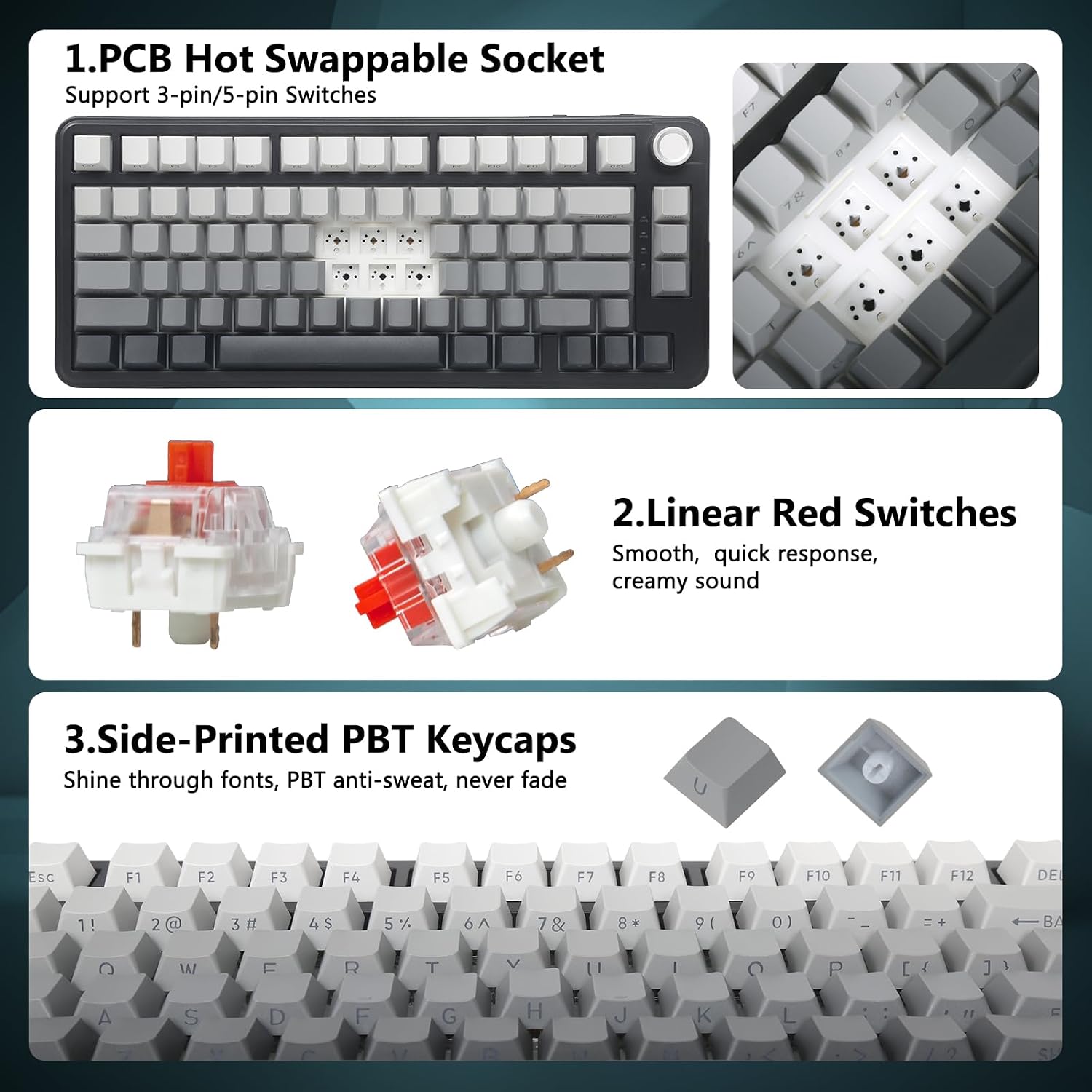
Image: Side-printed PBT keycaps with shine-through legends.
6. Maintenance
6.1 Cleaning
To clean your keyboard, power it off and disconnect it from your device. Use a soft, lint-free cloth slightly dampened with water or a mild cleaning solution. For dust and debris between keycaps, use compressed air or the provided keycap puller to remove keycaps and clean underneath.
6.2 Battery Care
To prolong battery life, avoid fully discharging the keyboard frequently. Store the keyboard in a cool, dry place when not in use for extended periods. If storing for a long time, ensure the battery is charged to approximately 50%.
7. Troubleshooting
- Keyboard not responding: Ensure the keyboard is charged. Check the connection mode (2.4G, Bluetooth, or wired) and ensure it matches your device's connection. For wireless modes, ensure the receiver is properly plugged in or Bluetooth is enabled on your device. Try restarting the keyboard and your device.
- Keys not registering or ghosting: Verify N-key rollover is active. Ensure switches are properly seated if you have hot-swapped them. Clean any debris that might be under the keycaps.
- Backlight not working: Ensure the backlight is turned on (Fn + Space). Check brightness settings (Fn + Up/Down Arrow or knob in Gaming Mode).
- Bluetooth pairing issues: Ensure the keyboard is in Bluetooth pairing mode. Remove previous pairings from your device's Bluetooth settings and try pairing again. Ensure no other devices are interfering.
- Multi-function knob not working: Ensure you are in the correct mode (Gaming or Office) for the desired function. Press and hold the knob for 5 seconds to switch modes.
8. Specifications
| Feature | Detail |
|---|---|
| Model Number | CK625 |
| Layout | 75% (81 Keys) |
| Connectivity | Bluetooth 5.0, 2.4Ghz Wireless, USB Type-C Wired |
| Switches | Pre-lubed Linear Red Switches (Hot-Swappable 3-pin/5-pin) |
| Keycaps | Side-Printed Double-Shot PBT |
| Backlighting | 16.8 Million RGB, 21 Preset Effects |
| Battery Capacity | 4000mAh |
| Special Features | Multi-Function Knob, N-Key Rollover, Win Key Lock, Dual-Stage Kickstand |
| Compatible Devices | PC, Laptop, Tablet, Smartphone, Gaming Console (PS, XBOX, Switch) |
| Material | Plastic |
| Weight | 1.5 pounds |
9. Warranty and Support
For warranty information and technical support, please refer to the official HUO JI website or contact their customer service directly. Details are typically provided on the product packaging or a dedicated support page.