
1. Introduction
The Eujgoov Mini 3-Key RGB Mechanical Keypad is a versatile and compact input device designed to enhance productivity and gaming experiences. This keypad features three customizable mechanical keys with red switches and RGB lighting, offering tactile feedback and visual appeal. Its programmable nature allows for a wide range of applications, from office tasks to complex gaming macros.
This manual provides detailed instructions for setting up, operating, and maintaining your Eujgoov Mini 3-Key RGB Mechanical Keypad.
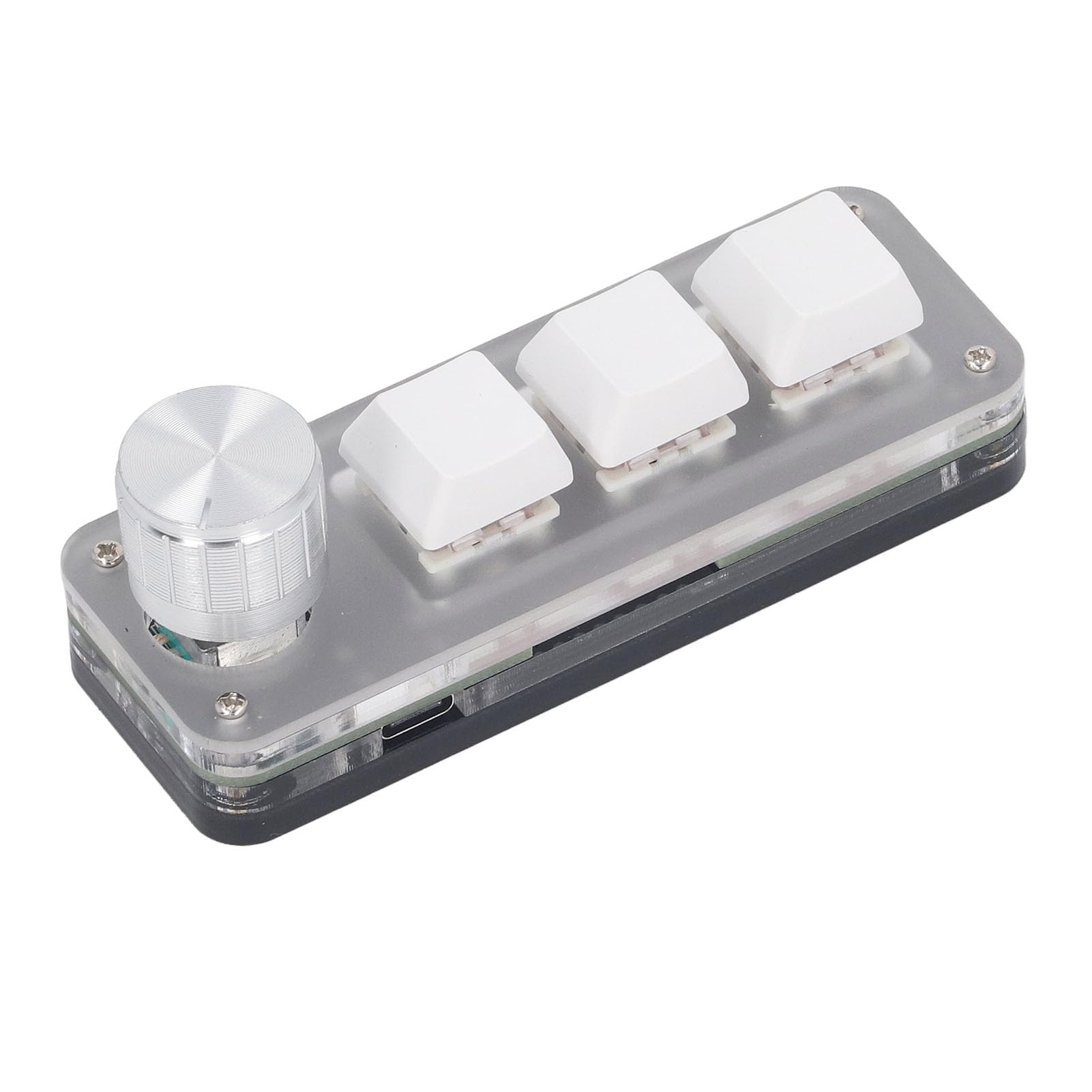
Image 1.1: Eujgoov Mini 3-Key Keypad highlighting its multifunctional capabilities.
2. Product Features
- Multifunctional Use: Supports various functions including zoom, copy, paste, select all, cut, gaming commands, office shortcuts, music controls, media playback, and industrial control applications.
- Customizable Programming: Easily personalize settings using the dedicated configuration program. Integrated memory ensures your custom shortcuts and macros are saved directly on the device, eliminating the need for re-configuration when switching between computers.
- Robust Construction: Manufactured from high-quality ABS, acrylic, and metal materials, ensuring durability and reliability for long-term use in diverse environments.
- Enhanced Experience: Equipped with responsive red mechanical switches and vibrant RGB lighting, providing tactile feedback and an engaging aesthetic for both gaming and professional use.
- Compact Design: With dimensions of approximately 35 x 100 mm (1.38 x 3.94 inches), this mini keypad fits seamlessly into any workspace or gaming setup.
3. Package Contents
Please verify that all items listed below are included in your package:
- 1 x Eujgoov Mini 3-Key Keypad
- 1 x USB Data Cable (Type-C)
- 1 x Bag of Foot Pads (4 pieces)
- 1 x User Manual

Image 3.1: Package contents of the Eujgoov Mini 3-Key Keypad.
4. Setup
- Connect the Keypad: Use the provided USB Type-C data cable to connect the Mini 3-Key Keypad to an available USB port on your computer. The keypad is plug-and-play for basic functionality.
- Install Foot Pads (Optional): If desired, peel and attach the four included foot pads to the bottom corners of the keypad for added stability and to prevent slipping.
- Install Configuration Software: To customize key functions and macros, download the dedicated configuration software from the official Eujgoov support website (refer to the product packaging or included manual for the specific URL). Follow the on-screen instructions to complete the installation.

Image 4.1: Eujgoov Mini 3-Key Keypad ready for connection.
5. Operating Instructions
5.1 Basic Operation
Once connected, the keypad will function with its default settings. If no custom settings have been applied, the keys may not perform specific actions until programmed.
5.2 Customizing Key Functions
- Launch Software: Open the Eujgoov configuration software installed on your computer.
- Select Key: Within the software interface, select the key (Key 1, Key 2, Key 3, or the Rotary Knob actions) you wish to program.
- Assign Function: Choose from a variety of available functions, such as:
- Keyboard functions (e.g., Ctrl+C for Copy, Ctrl+V for Paste, specific letters or numbers)
- Mouse functions (e.g., left click, right click, scroll up/down)
- Multimedia controls (e.g., Play/Pause, Volume Up/Down, Next Track)
- Macro definitions (a sequence of key presses or actions)
- Gaming commands
- Save Settings: After assigning the desired function, save the settings to the keypad's integrated memory. The software will typically have a "Save" or "Apply" button for this purpose. The settings are stored directly on the keypad, so they will persist even when connected to a different computer without the software.
Refer to the software's built-in help or online documentation for advanced customization options and macro creation.
6. Maintenance
- Cleaning: Use a soft, dry cloth to wipe the surface of the keypad. For stubborn dirt, a slightly damp cloth can be used, ensuring no liquid enters the key switches or internal components.
- Avoid Liquids: Do not expose the keypad to excessive moisture or immerse it in water. Liquids can damage the internal electronics.
- Storage: When not in use, store the keypad in a clean, dry environment away from direct sunlight and extreme temperatures.
- Cable Care: Avoid bending or twisting the USB cable excessively to prevent internal wire damage.
7. Troubleshooting
- Keypad Not Responding:
- Ensure the USB cable is securely connected to both the keypad and the computer.
- Try connecting the keypad to a different USB port on your computer.
- Test the keypad on another computer to rule out system-specific issues.
- Custom Functions Not Working:
- Verify that the configuration software was used to save the settings to the keypad's onboard memory.
- Ensure the software is up-to-date.
- Check for any conflicting software or drivers on your computer.
- RGB Lighting Not Working:
- Confirm the keypad is properly connected and receiving power.
- Check the configuration software for RGB lighting settings and ensure they are enabled.
If you encounter issues not covered here, please refer to the support section for further assistance.
8. Specifications
| Brand | Eujgoov |
| Model Number | Eujgoovlo9s6ht5zr |
| Keyboard Type | Mini 3-Key Keypad |
| Switch Type | Dustproof Red Mechanical Switch |
| Material | ABS, Acrylic, Metal |
| Operating Voltage | 5V 1A |
| Connection | USB Type-C Data Cable |
| Dimensions (L x W) | Approx. 100 x 35 mm (3.94 x 1.38 inches) |

Image 8.1: Dimensions of the Eujgoov Mini 3-Key Keypad.
9. Warranty Information
The manufacturer guarantees this product for 90 days from the date of purchase. This warranty covers defects in materials and workmanship under normal use. It does not cover damage caused by misuse, accident, unauthorized modification, or external causes.
Please retain your proof of purchase for warranty claims.
10. Support
For technical support, troubleshooting assistance, or warranty inquiries, please contact the seller or manufacturer through the platform where the product was purchased. You may also find additional resources and updated software on the official Eujgoov website.
When contacting support, please provide your product model number (Eujgoovlo9s6ht5zr) and a detailed description of the issue.