
1. Introduction
This manual provides instructions for the Shipadoo Wired Competitive Gaming Mouse. This device is designed for precise control and comfort during gaming and general computer use. Please read this manual thoroughly before using the product to ensure proper operation and to maximize its performance.
Key Features:
- Precise Optical Tracking: Designed for accurate in-game movements.
- Adjustable DPI Settings: Easily switch between 1200, 1800, 2400, and 3200 DPI sensitivity levels.
- RGB Breathing Lamp: Adds a visual effect to your gaming setup.
- Ergonomic Design: Ambidextrous shape for comfortable use during extended sessions.
- Six Programmable Buttons: Includes left-click, right-click, forward key, back button, scroll wheel, and DPI switch.
2. Product Overview
Familiarize yourself with the components of your Shipadoo Wired Competitive Gaming Mouse.
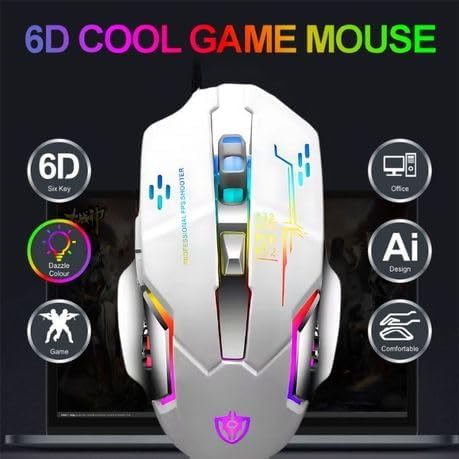
Figure 1: Front view of the Shipadoo Wired Competitive Gaming Mouse, highlighting its overall design and RGB lighting effects.
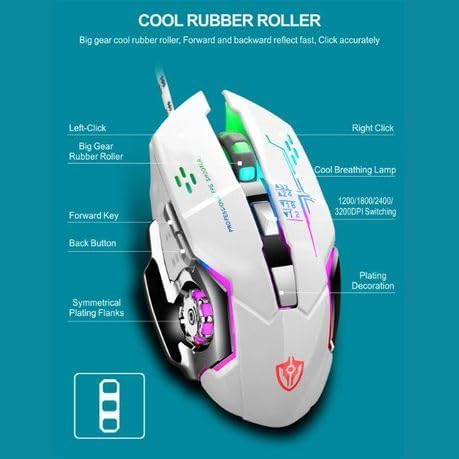
Figure 2: Side view of the mouse with labels indicating the Left-Click, Right-Click, Big Gear Rubber Roller, Forward Key, Back Button, Cool Breathing Lamp, DPI Switching button, Symmetrical Plating Flanks, and Plating Decoration.
3. Setup Instructions
3.1 System Requirements
- Operating System: Windows 7 or later.
- Available USB port.
3.2 Connecting the Mouse
- Locate an available USB port on your desktop computer or laptop.
- Plug the USB connector of the Shipadoo Wired Competitive Gaming Mouse into the USB port.
- The operating system will automatically detect and install the necessary drivers. This process may take a few moments.
- Once the drivers are installed, the mouse will be ready for use, and the RGB breathing lamp will illuminate.
4. Operating Instructions
4.1 Button Functions
The Shipadoo Gaming Mouse features six responsive buttons:
- Left-Click Button: Primary action button.
- Right-Click Button: Secondary action button, typically for context menus.
- Scroll Wheel (Middle Button): For scrolling through documents and web pages. Can also be pressed for a middle-click function.
- Forward Key: Navigates forward in web browsers or file explorers.
- Back Button: Navigates backward in web browsers or file explorers.
- DPI Switch Button: Adjusts the mouse sensitivity (DPI).
4.2 Adjusting DPI Sensitivity
The mouse offers four adjustable DPI settings: 1200, 1800, 2400, and 3200 DPI. To change the sensitivity:
- Press the DPI Switch Button (located behind the scroll wheel) to cycle through the available DPI settings.
- Each press will switch to the next DPI level. The RGB lighting may change color or pattern to indicate the current DPI setting (refer to Figure 2 for button location).
4.3 RGB Breathing Lamp
The mouse features an RGB breathing lamp that cycles through various colors, providing an aesthetic enhancement to your setup. This feature is automatic and does not require manual configuration.
5. Maintenance
5.1 Cleaning the Mouse
- Disconnect the mouse from your computer before cleaning.
- Use a soft, dry, lint-free cloth to wipe the surface of the mouse.
- For stubborn dirt, slightly dampen the cloth with water or a mild, non-abrasive cleaner. Avoid excessive moisture.
- Do not use harsh chemicals, solvents, or abrasive cleaners, as these can damage the mouse's finish.
- Use a cotton swab or compressed air to clean around the scroll wheel and optical sensor.
5.2 Storage
When not in use, store the mouse in a clean, dry environment away from direct sunlight and extreme temperatures.
6. Troubleshooting
If you encounter issues with your Shipadoo Wired Competitive Gaming Mouse, refer to the following common solutions:
- Mouse not responding:
- Ensure the USB cable is securely plugged into a working USB port on your computer.
- Try plugging the mouse into a different USB port.
- Restart your computer.
- DPI not changing:
- Ensure you are pressing the correct DPI Switch Button.
- Check if the mouse is properly connected and recognized by your system.
- RGB lighting not working:
- Verify the mouse is connected and functioning. The RGB lighting is an automatic feature.
- If the mouse functions but the lighting does not, contact customer support.
- Cursor movement is erratic or imprecise:
- Clean the optical sensor on the underside of the mouse.
- Ensure you are using the mouse on a suitable surface (e.g., a mouse pad). Avoid highly reflective or transparent surfaces.
7. Specifications
| Feature | Specification |
|---|---|
| Model Name | Shipadoo Competitive Game Mouse (Al-57) |
| Connectivity | Wired (USB) |
| Movement Detection | Optical |
| DPI Settings | 1200 / 1800 / 2400 / 3200 DPI |
| Number of Buttons | 6 |
| Hand Orientation | Ambidextrous |
| Operating System | Windows 7 and above |
| Material | ABS Plastic |
| Color | White |
| Item Weight | 100 Grams |
| Dimensions (L x W) | 11L x 6W centimetres |
| Manufacturer | SHIPADOO |
8. Warranty and Support
For warranty information or technical support, please refer to the retailer's policy or contact the manufacturer directly. Keep your purchase receipt for any warranty claims.
For further assistance, please visit the official Shipadoo website or contact their customer service department.