
Introduction
This manual provides instructions for the AOC Captain 600 Wireless Headset. This headset is designed for clear communication and versatile connectivity, suitable for various work and personal use scenarios. Please read this manual carefully before using the product to ensure proper operation and to maintain its longevity.
Package Contents
Verify that all items are present in your package:
- 1 x AOC Captain 600 Wireless Headset
- 1 x USB-C Dongle
- 1 x Type-C to 3.5mm Audio Cable
- 1 x Type-C Charging Cable
- 1 x User Manual (this document)
Product Overview
The AOC Captain 600 headset features an adjustable headband, comfortable ear cushions, and a flexible microphone boom. Key controls are located on the earcups for easy access.

Image: The AOC Captain 600 Wireless Headset, showcasing its design and components.
Headset Components
- Adjustable Headband: For a comfortable fit.
- Memory-Foam Ear Cushions: Designed for extended wear.
- Flexible Microphone Boom: Can be rotated up to 270 degrees for optimal positioning.
- Microphone Mute Button: Located on the microphone boom for quick access.
- Volume Controls: Typically located on one of the earcups.
- Power Button: For turning the headset on and off.
- USB-C Charging Port: For charging the headset.
- 3.5mm Audio Jack: For wired connectivity.
Setup
1. Charging the Headset
Before first use, fully charge the headset. Connect the provided Type-C Charging Cable to the headset's USB-C port and to a power source (e.g., computer USB port or wall adapter). The LED indicator will show charging status.
- A full charge takes approximately 2.5 hours.
- The headset provides up to 30 hours of talk time on a single charge.
- The headset supports charging while in use, ensuring uninterrupted operation.

Image: Illustration of the headset's 30-hour talk time and 2.5-hour fast charging capability.
2. Connecting the Headset
The AOC Captain 600 offers three connection methods:

Image: Visual representation of the headset's 3-in-1 connectivity options: Bluetooth, USB Dongle, and Wired.
Bluetooth 5.4 Connection:
- Ensure the headset is charged and powered off.
- Press and hold the Power button until the LED indicator flashes blue and red, indicating pairing mode.
- On your device (phone, laptop), go to Bluetooth settings and search for available devices.
- Select "AOC Captain 600" from the list to connect. The LED will turn solid blue once connected.
USB-C Dongle Connection:
- Plug the USB-C dongle into an available USB-C port on your PC or Mac.
- Power on the headset. It will automatically attempt to connect to the dongle.
- The LED on both the headset and dongle will indicate a successful connection (e.g., solid blue).
- Note: For devices with only USB-A ports, a USB-C to USB-A adapter (not included) may be required.
Wired Connection (3.5mm Audio Cable):
- Connect one end of the provided Type-C to 3.5mm Audio Cable to the headset's USB-C port.
- Connect the other end of the 3.5mm jack to your device's audio output port.
- The headset will function as a wired headset. Power is not required for wired mode.
Operating Instructions
Power On/Off
- Power On: Press and hold the Power button for approximately 3 seconds until the LED indicator lights up.
- Power Off: Press and hold the Power button for approximately 3 seconds until the LED indicator turns off.
Call Management
- Answer/End Call: Press the Multi-function button (often the Power button or a dedicated call button) once during an incoming call to answer, and once again to end the call.
- Reject Call: Press and hold the Multi-function button for 2 seconds during an incoming call.
- Microphone Mute: Press the dedicated mute button located on the microphone boom to mute or unmute your voice during an active call.

Image: A close-up view of the microphone boom, highlighting the one-touch mute button for instant privacy control during calls.
Microphone Adjustment
The flexible microphone boom can be rotated up to 270 degrees. Position the microphone close to your mouth for optimal voice clarity and to minimize background noise during calls.

Image: Diagram illustrating the 270-degree rotatable microphone, allowing for flexible positioning.
Volume Control
Use the volume up (+) and volume down (-) buttons on the earcup to adjust the audio level. These buttons control the system volume of the connected device.
Multi-Device Use Note
When connected to multiple devices (e.g., via Bluetooth and USB dongle), audio will play from one source at a time. To switch audio output from one device to another, manually pause the media or end the call on the first device before initiating playback or a call on the second device. The headset does not automatically switch audio sources.
Maintenance
Cleaning
- Wipe the headset with a soft, dry cloth.
- Do not use abrasive cleaners or solvents.
- Keep the charging port free of dust and debris.
Storage
- Store the headset in a cool, dry place away from direct sunlight and extreme temperatures.
- Avoid placing heavy objects on the headset.
Troubleshooting
| Issue | Possible Cause | Solution |
|---|---|---|
| Headset does not power on | Low battery | Charge the headset fully using the provided Type-C charging cable. |
| Cannot connect via Bluetooth | Headset not in pairing mode; Device Bluetooth off; Out of range | Ensure headset is in pairing mode (flashing blue/red LED). Turn on Bluetooth on your device. Move closer to the device (within 32.8 feet). |
| USB dongle not connecting | Dongle not properly inserted; Driver issue | Ensure dongle is fully inserted. Try a different USB-C port. Restart your computer. |
| No audio or poor audio quality | Volume too low; Incorrect audio output selected; Loose cable (wired mode) | Adjust volume on headset and device. Select "AOC Captain 600" as the audio output device in your system settings. Ensure 3.5mm cable is securely connected. |
| Microphone not working | Microphone muted; Incorrect input device selected; Microphone not positioned correctly | Press the mute button to unmute. Select "AOC Captain 600" as the microphone input device in your system settings. Position the microphone closer to your mouth. |
| Mute button does not pause music/video | Intended functionality | The mute button is designed strictly to mute your voice during active calls; it does NOT function as a play/pause button for music or video playback. |
| Difficulty switching between devices | Manual switching required | Manually pause media or end calls on the currently active device before attempting to use the headset with another connected device. |
Specifications
| Feature | Detail |
|---|---|
| Brand | AOC |
| Model Name | ACW2212 (Captain 600) |
| Connectivity Technology | Wired, Wireless (Bluetooth 5.4, USB-C Dongle) |
| Bluetooth Version | 5.4 |
| Bluetooth Range | Up to 32.8 feet (10 meters) |
| Ear Placement | On Ear |
| Audio Driver Size | 40 Millimeters |
| Impedance | 32 Ohms |
| Frequency Response | 20 Hz - 20 KHz |
| Microphone | Clear Voice Capture, Noise-cancelling, 270° Rotatable |
| Battery Life (Talk Time) | Up to 30 Hours |
| Charging Time | Approx. 2.5 Hours |
| Control Type | Button Control (Power, Volume, Mute) |
| Material | Acrylonitrile Butadiene Styrene (ABS) |
| Additional Features | Adjustable Headband, Fast Charging, Lightweight |

Image: An exploded view illustrating the internal components of the 40mm audio drivers, designed for sound reproduction.

Image: Diagram depicting the Smart Noise Control technology, featuring an AI chip for clear voice transmission by reducing ambient sounds.
Warranty and Support
Warranty Information
The AOC Captain 600 Wireless Headset comes with a 1-Year Limited Warranty from the date of purchase. This warranty covers manufacturing defects and workmanship under normal use. It does not cover damage caused by misuse, accidents, unauthorized modifications, or normal wear and tear.
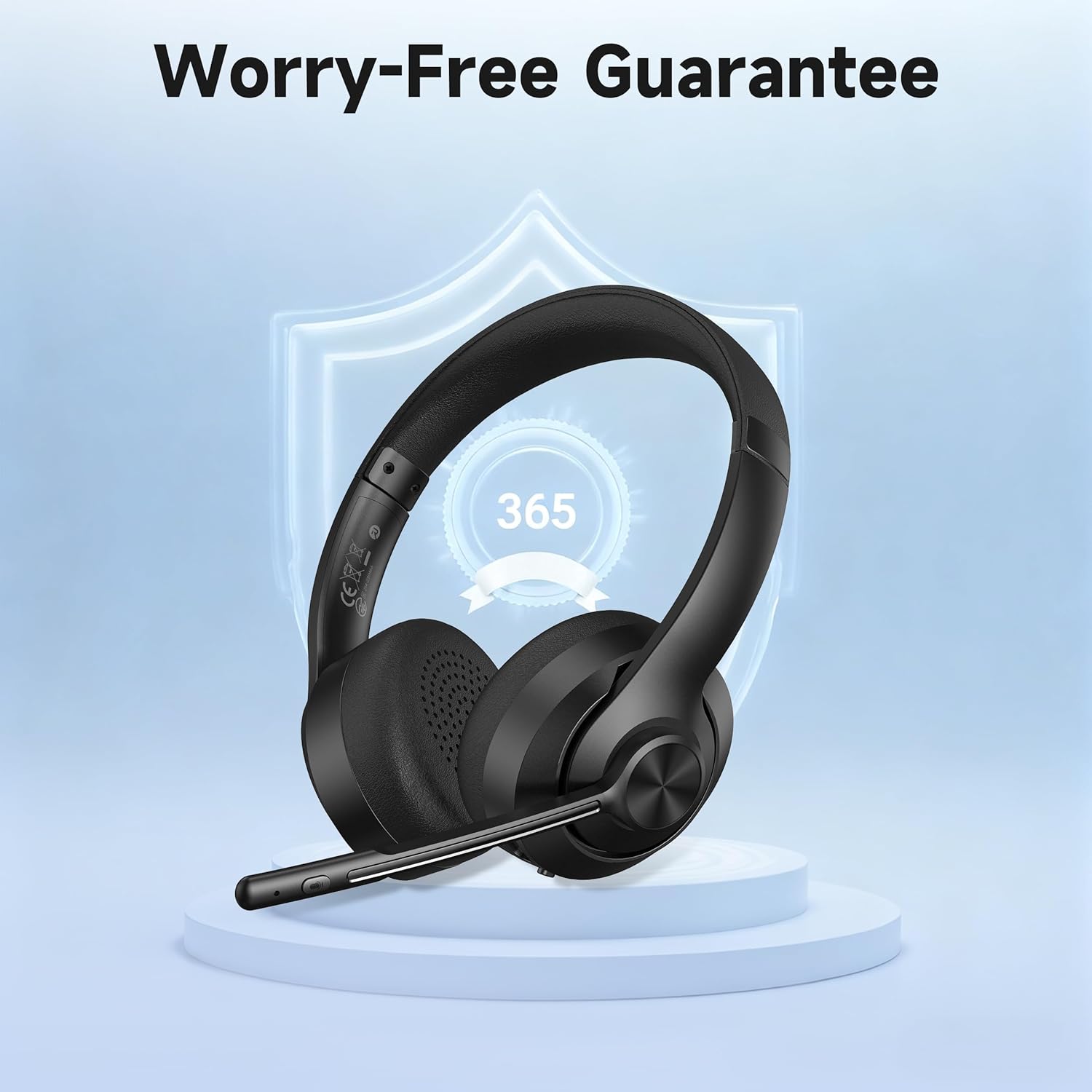
Image: The AOC headset accompanied by a shield icon and '365', symbolizing the 1-year warranty and customer support.
Customer Support
For technical assistance, warranty claims, or further inquiries, please refer to the contact information provided on the AOC official website or your purchase documentation. Please have your model number (ACW2212) and proof of purchase ready when contacting support.


