
1. Introduction and Overview
Thank you for choosing the HZD Wireless Bluetooth Keyboard. This ultra-thin, lightweight, and rechargeable keyboard is designed for universal compatibility with various devices. It features a comfortable scissor-switch key mechanism, silent keys, and a 7-color backlit design to enhance your typing experience.
This manual provides detailed instructions for setting up, operating, and maintaining your keyboard, along with troubleshooting tips and product specifications.

Image: HZD Wireless Bluetooth Keyboard in Watermelon Red, showcasing its sleek design.
2. Setup Instructions
2.1 Charging the Keyboard
Before first use, fully charge the keyboard. Connect the provided Type-C charging cable to the keyboard's charging port and a USB power source. The CHARGE indicator light will remain on during charging and turn off once fully charged. A full charge typically takes 2 to 3 hours.

Image: The HZD Wireless Bluetooth Keyboard connected to a Type-C charger, illustrating the charging process and battery specifications.
2.2 Bluetooth Pairing
- Turn on the keyboard by sliding the ON/OFF switch to the 'ON' position. The POWER indicator will light up.
- Press and hold the 'CONNECT' button for 3 seconds. The BT (Bluetooth) indicator light will start blinking, indicating the keyboard is in pairing mode.
- On your device (tablet, smartphone, laptop), go to Bluetooth settings and enable Bluetooth.
- Search for available devices. You should see 'Bluetooth Keyboard' in the list. Select it to connect.
- Once connected, the BT indicator light will stop blinking and remain solid for a moment before turning off.

Image: Visual guide demonstrating how to turn on the keyboard, activate pairing mode, and connect via Bluetooth on a device.
2.3 System Switching
To ensure proper functionality and key mapping, switch the keyboard to the correct operating system mode:
- For Android devices: Press Fn + Android
- For Windows devices: Press Fn + Windows
- For iOS devices: Press Fn + iOS
Note: This keyboard is not compatible with Mac computers.

Image: A diagram illustrating the Fn key combinations required to switch the keyboard's operating mode for Android, Windows, and iOS devices.
2.4 Language Switching
To change the input language on your device using the keyboard:
- On Android: Press Shift + Space
- On iOS: Press Control + Space
- On Windows: Press Win + Space, or Shift + Alt, or Control + Shift

Image: A diagram detailing the key combinations for changing the input language on Android, iOS, and Windows operating systems.
3. Operating Instructions
3.1 Automatic Sleep Mode
To conserve battery, the keyboard will automatically enter sleep mode after 10 minutes of inactivity. To reactivate it, simply press any key and wait briefly for it to reconnect.
3.2 Backlight Control
The keyboard features a 7-color backlight with three modes:
- Always On: Constant illumination.
- Breathing: Pulsating illumination effect.
- Off: Backlight disabled.
Use the dedicated backlight adjustment switch or key combination (refer to keyboard layout) to cycle through colors and modes.

Image: Several HZD Wireless Bluetooth Keyboards showcasing the variety of 7 backlight colors and different illumination modes.
3.3 Function Keys
The keyboard includes various function keys for quick access to common commands:
| Function | Description |
|---|---|
| Home | Return to home screen |
| Search | Activate search function |
| Select All | Select all content |
| Copy | Copy selected content |
| Paste | Paste copied content |
| Cut | Cut selected content |
| Previous Track | Go to previous media track |
| Play/Pause | Play or pause media |
| Next Track | Go to next media track |
| Volume Down | Decrease volume |
| Volume Up | Increase volume |
| Brightness Down | Decrease screen brightness |
| Brightness Up | Increase screen brightness |
| Lock Screen | Lock the device screen |
| Backlight | Toggle backlight on/off or change mode |
| RGB | Cycle through backlight colors |

Image: The HZD Wireless Bluetooth Keyboard layout, highlighting the various function keys and their associated commands for media, volume, brightness, and backlight control.
4. Maintenance
4.1 Cleaning
To clean your keyboard, gently wipe the surface with a soft, damp cloth. Avoid using harsh chemicals, abrasive cleaners, or excessive moisture, as these can damage the keyboard's electronics and finish.
4.2 Battery Care
To prolong battery life, avoid fully discharging the keyboard frequently. Recharge it when the POWER indicator blinks, signaling low battery. Store the keyboard in a cool, dry place away from extreme temperatures.
5. Troubleshooting
If you encounter issues with your HZD Wireless Bluetooth Keyboard, please refer to the following common solutions:
5.1 Keyboard Not Connecting/Pairing
- Ensure the keyboard is turned ON and fully charged.
- Make sure Bluetooth is enabled on your device.
- Place the keyboard within 10 meters (33 feet) of your device.
- Try unpairing and re-pairing the keyboard from your device's Bluetooth settings.
- Restart both the keyboard and your device.
5.2 Keys Not Responding or Laggy Typing
- Check the battery level; recharge if low.
- Ensure the keyboard is properly paired and connected.
- Verify that the correct operating system mode is selected (Fn + Android/Windows/iOS).
- Minimize interference by moving away from other wireless devices.
5.3 Incorrect Characters or Layout
- Confirm that the keyboard is set to the correct operating system mode (Fn + Android/Windows/iOS).
- Ensure your device's input language settings match the keyboard's physical layout (Italian QWERTY). Adjust language settings on your device if necessary.
- Use the appropriate language switching shortcuts (Shift + Space, Control + Space, Win + Space, etc.) for your device's OS.
5.4 Backlight Not Working
- Check the battery level; the backlight consumes more power.
- Ensure the backlight is not turned off. Use the backlight control key to cycle through modes.
6. Specifications
| Feature | Detail |
|---|---|
| Dimensions | 25 x 15.5 x 0.5 cm (9.84 x 6.1 x 0.2 inches) |
| Weight | 205 grams |
| Battery Capacity | 500 mAh Lithium Battery |
| Charging Time | 2-3 hours |
| Continuous Use Time | Approx. 80 hours (approx. 3 hours with backlight active) |
| Standby Time | Up to 130 days |
| Wireless Range | Up to 10 meters (33 feet) |
| Key Mechanism | Scissor-switch |
| Key Lifespan | Over 5 million keystrokes |
| Charging Port | Type-C |
| Compatibility | iOS, Android, Windows (Not compatible with Mac) |

Image: A visual representation of the keyboard's battery specifications, including capacity, charging time, and standby duration.
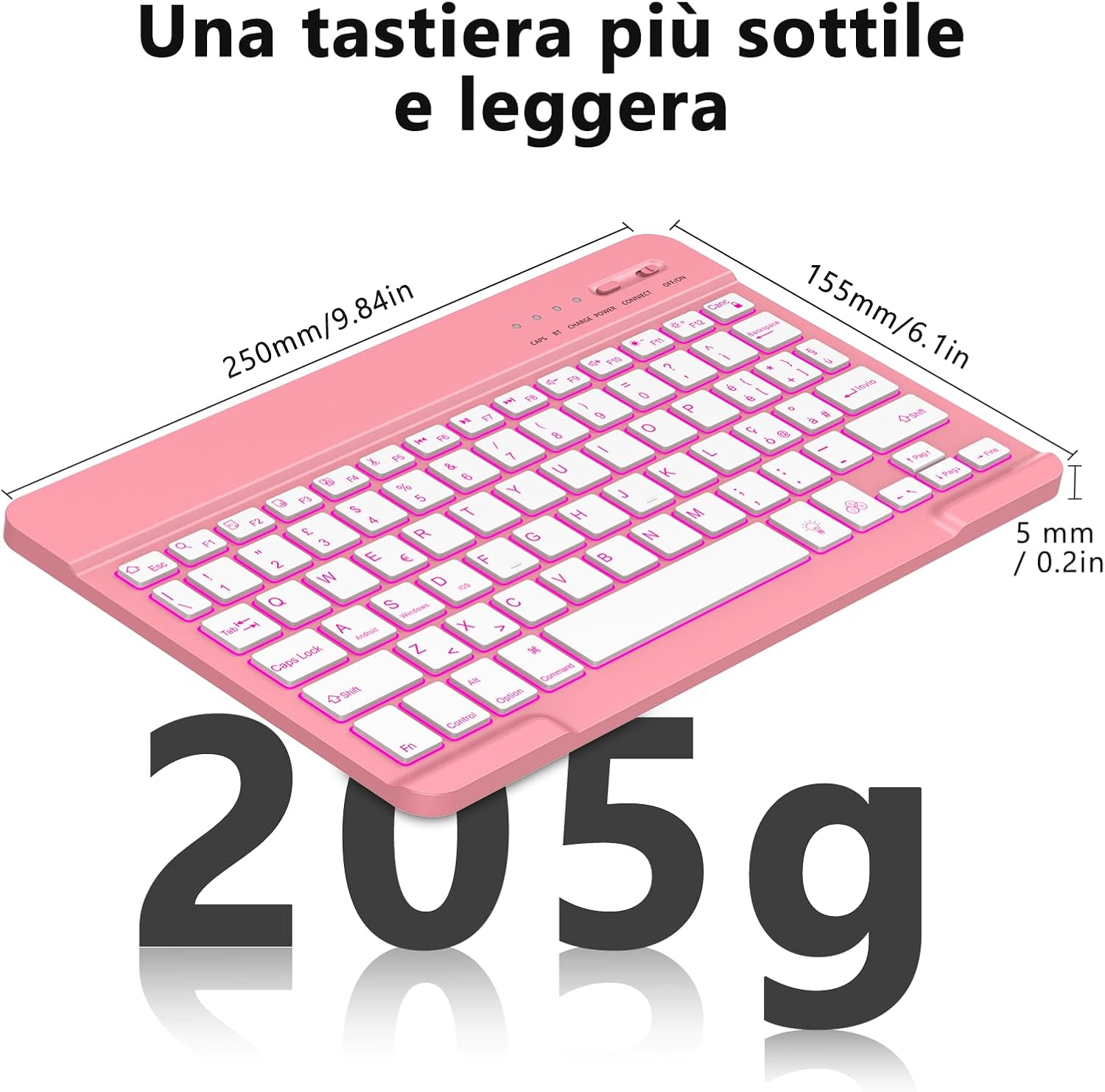
Image: The HZD Wireless Bluetooth Keyboard with its ultra-thin dimensions (250mm x 155mm x 5mm) and lightweight (205g) clearly labeled.
7. Warranty and Support
7.1 Product Warranty
This HZD Wireless Bluetooth Keyboard comes with a 1-year product warranty from the date of purchase. This warranty covers manufacturing defects under normal use. It does not cover damage caused by misuse, accidents, unauthorized modifications, or normal wear and tear.
7.2 Customer Support
For any issues not resolved by the troubleshooting section, or for warranty claims, please contact the seller or manufacturer directly through your purchase platform. Provide your order number and a detailed description of the problem for efficient assistance.