
1. Introduction
This manual provides instructions for the proper use and maintenance of your GOWENIC 4G LTE WiFi 6 Mobile Hotspot. This device offers portable internet access, supporting up to 32 devices simultaneously with WiFi 6 technology for high-speed connectivity. It is equipped with a 3000mAh battery for extended use, making it suitable for travel and on-the-go internet needs.
2. Package Contents
Please verify that all items are present in the package:
- 1 x GOWENIC 4G LTE WiFi 6 Mobile Hotspot Router
- 1 x USB Charging Cable
- 1 x Instruction Manual

Image: The GOWENIC 4G LTE WiFi 6 Mobile Hotspot device shown alongside its included USB charging cable.
3. Product Features
- WiFi 6 Technology: Supports the latest WiFi 6 standard, providing peak speeds up to 229Mbps for efficient data transfer and smooth streaming.
- Multi-Device Connectivity: Allows up to 32 devices to connect simultaneously, ensuring stable internet access for various devices.
- Real-Time Display: Features a circular LED screen that displays essential information such as speed, data usage, number of connected devices, and network status.
- Long-Lasting Battery: Equipped with a 3000mAh removable lithium-ion battery, offering up to 10 hours of continuous use.
- SIM Compatibility: Designed for plug-and-play SIM card usage, enabling internet access across supported networks.
- Dual Band Support: Operates on both 2.4GHz and 5.8GHz wireless frequencies.
- Data Roaming: Supports data roaming functionality.
4. Setup Guide
4.1. Installing the SIM Card and Battery
- Remove the Back Cover: Gently slide or pry off the back cover of the mobile hotspot.
- Insert SIM Card: Locate the SIM card slot. Insert your activated 4G SIM card into the designated slot with the gold contacts facing down and the notched corner oriented correctly. Ensure it clicks into place.
- Insert Battery: Place the 3000mAh lithium-ion battery into its compartment, ensuring the contacts align with the device's terminals.
- Replace Back Cover: Securely reattach the back cover.

Image: The internal view of the GOWENIC Mobile Hotspot, illustrating the SIM card slot and battery placement area with the back cover removed.
4.2. Charging the Device
Before initial use, fully charge the device. Connect the provided USB cable to the hotspot's charging port and the other end to a USB power adapter (not included) or a computer's USB port. The charging indicator on the screen will show the charging status.
4.3. Powering On/Off
- Power On: Press and hold the Power button (usually located on the side or top) for a few seconds until the screen illuminates.
- Power Off: Press and hold the Power button again until the device powers down.
5. Operating Instructions
5.1. Connecting Devices to the Hotspot
- Power On: Ensure your GOWENIC Mobile Hotspot is powered on.
- Locate Network Information: The device's screen will display the WiFi Network Name (SSID) and Password (KEY).
- Connect from Your Device: On your smartphone, laptop, or other WiFi-enabled device, go to WiFi settings.
- Select SSID: Find and select the SSID displayed on your hotspot's screen.
- Enter Password: Enter the WiFi password (KEY) when prompted.
- Connect: Your device should now be connected to the internet via the mobile hotspot.
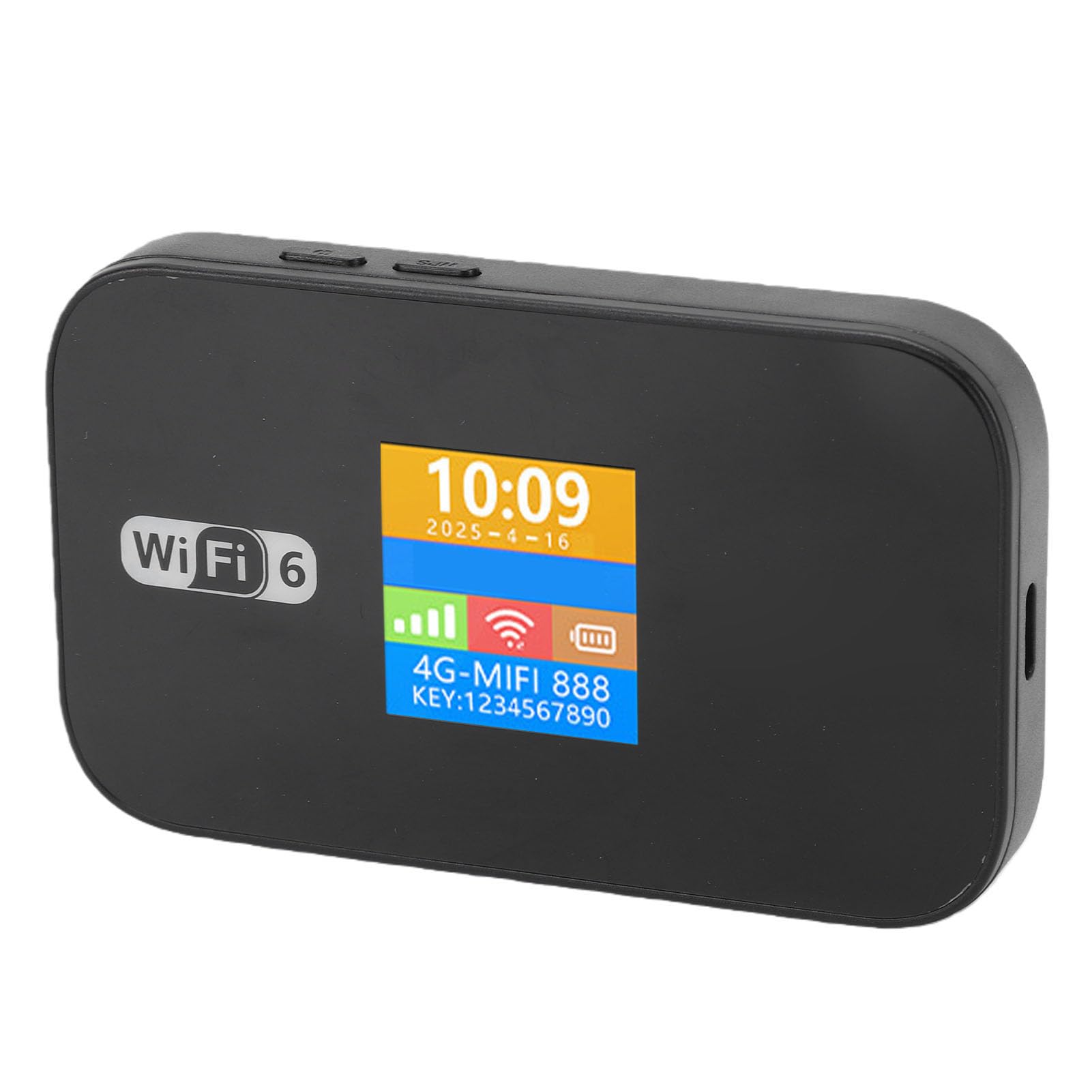
Image: The GOWENIC Mobile Hotspot with its screen illuminated, showing the current time, date, 4G signal strength, WiFi signal, battery level, network name (SSID), and WiFi password (KEY).
5.2. Understanding the Display Screen
The circular LED screen provides real-time status updates:
- Time and Date: Current time and date.
- Signal Strength: Indicates the strength of the 4G network signal.
- WiFi Status: Shows if WiFi is active and the number of connected devices.
- Battery Level: Displays the current battery charge.
- Data Usage: May show current data consumption (check device settings for detailed usage).
- SSID and KEY: The WiFi network name and password for connecting devices.
5.3. Data Roaming
The device supports data roaming. Ensure your SIM card plan includes roaming services if you intend to use the hotspot internationally. Data roaming settings can typically be managed through the device's web interface (if available) or your mobile carrier's services.
5.4. SMS and USSD Functions
The hotspot supports SMS (Short Message Service) and USSD (Unstructured Supplementary Service Data) functions. Note that USSD functionality typically requires the device to be operating in 3G mode only.
6. Specifications
| Feature | Detail |
|---|---|
| Model Name | GOWENIC3lzmseu0a8 |
| Network Band (4G FDD) | B1, B3, B5, B7, B8, B20 |
| Network Band (4G TDD) | B38, B40, B41 |
| WiFi Standard | 802.11b/g/n (WiFi 6 supported) |
| Wireless Frequency | 2.4GHz / 5.8GHz (Dual Band) |
| Built-in Battery | Lithium-ion 3000mAh |
| Maximum Connected Devices | 32 |
| Data Roaming | Supported |
| SMS and USSD Function | Supported (USSD requires 3G mode only) |
| Display Language | Chinese, English, Russian, French, Spanish |
| Screen Display | Time and Data Usage |
| Material | ABS |
7. Troubleshooting
If you encounter issues with your GOWENIC Mobile Hotspot, please refer to the following common solutions:
- No Signal or Weak Signal:
- Ensure your SIM card is properly inserted and activated.
- Move to an area with better network coverage.
- Restart the hotspot device.
- Cannot Connect to WiFi:
- Verify the WiFi password (KEY) entered on your connecting device matches the one displayed on the hotspot screen.
- Ensure the hotspot is powered on and WiFi is active.
- Restart both the hotspot and the device you are trying to connect.
- Check if the maximum number of connected devices (32) has been reached.
- Slow Internet Speed:
- Check your network signal strength on the hotspot's display.
- Reduce the number of connected devices.
- Ensure your data plan has sufficient high-speed data remaining.
- Move closer to the hotspot device.
- Battery Not Charging:
- Ensure the USB cable is securely connected to both the hotspot and the power source.
- Try a different USB cable or power adapter.
- Verify the battery is correctly inserted.
8. Maintenance
- Cleaning: Use a soft, dry cloth to clean the device. Avoid liquid cleaners or abrasive materials.
- Battery Care:
- Avoid exposing the battery to extreme temperatures.
- Do not puncture or disassemble the battery.
- If storing the device for an extended period, charge the battery to about 50% to prolong its lifespan.
- Storage: Store the device in a cool, dry place away from direct sunlight and moisture.
9. Warranty and Support
The GOWENIC 4G LTE WiFi 6 Mobile Hotspot comes with a manufacturer warranty for 90 days from the date of purchase. Please retain your proof of purchase for warranty claims.
For technical support or warranty inquiries, please refer to the contact information provided with your purchase documentation or visit the official GOWENIC support website.