
1. Introduction
The Next Cine800S GoogleTV Projector is designed to provide a versatile and immersive home entertainment experience. This manual offers essential information for the safe and efficient setup, operation, and maintenance of your projector. Please read this manual thoroughly before using the device.
2. Safety Information
- Power Supply: Use only the specified power adapter. Ensure the power cord is not damaged or pinched.
- Ventilation: Do not block ventilation openings. Maintain adequate space around the projector for proper airflow to prevent overheating.
- Placement: Place the projector on a stable, level surface. Avoid placing it in direct sunlight, near heat sources, or in environments with high humidity or dust.
- Cleaning: Disconnect the power before cleaning. Use a soft, dry cloth. Do not use liquid or aerosol cleaners.
- Lens Care: Avoid touching the projector lens directly. Use a soft, lint-free cloth specifically designed for optical lenses if cleaning is necessary.
- Servicing: Do not attempt to repair the projector yourself. Refer all servicing to qualified personnel.
3. Product Overview
The Next Cine800S is a Full HD LED projector featuring Google TV. Below are key components and features.

Figure 3.1: Front view of the Next Cine800S GoogleTV Projector, highlighting its design and key features like 800 ANSI Lumens and Google TV integration.
3.1. Key Features
- Display Resolution: Full HD 1920x1080, supporting screen sizes from 40 to 200 inches.
- Brightness: 800 ANSI Lumens.
- Video Processing: Supports 4Kx2K @ 60fps encode/decode.
- Focus & Keystone: Automatic or Manual Focus, Automatic Keystone Correction.
- Operating System: Google TV with Android 14.
- Streaming Services: Netflix L1, Prime Video, YouTube, Disney+ with L1 DRM Certification.
- Wireless Connectivity: Wi-Fi 802.11 a/b/g/n/ac (2.4G & 5G) and Bluetooth 5.0.
- Memory: 2GB LPDDR4 RAM / 8GB eMMC Storage.
- Audio: Integrated 12W (4W) Speaker.
- Optical System: Dust-Sealed Optical Mechanism.
- Screen Mirroring: Air Screen and Google Cast for iOS & Android devices.
3.2. Ports and Connections
Identify the various input and output ports on your projector.
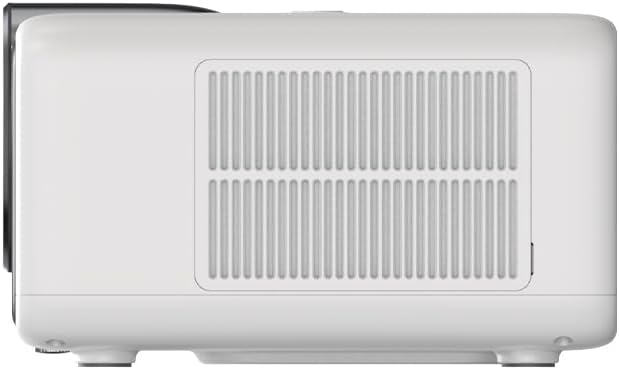
Figure 3.2: Rear panel of the projector, displaying available ports. Note: Actual ports may vary slightly by region or production batch. This model typically includes HDMI, USB, and a 2.5mm Audio Jack.
- HDMI: Connect to external video sources such as Blu-ray players, gaming consoles, or computers.
- USB: For connecting USB storage devices to play media files.
- 2.5mm Audio Jack: For connecting external audio devices like headphones or speakers.
4. Setup
4.1. Unpacking and Initial Inspection
- Carefully remove the projector and all accessories from the packaging.
- Check for any signs of damage during transit. If damage is found, contact your retailer immediately.
- Ensure all listed accessories are present.
4.2. Projector Placement
Optimal placement is crucial for the best viewing experience.

Figure 4.1: Example of projector placement and adjustable screen sizes (40" to 200").
- Distance: Position the projector at a suitable distance from the screen or wall to achieve your desired screen size (40 to 200 inches).
- Height: Place the projector on a stable surface or mount it to project the image at the desired height.
- Mounting: The projector includes a mounting point on its base. Ensure any tripod or mount used is compatible with the projector's screw size and weight. Note that some standard tripod screws may not fit.
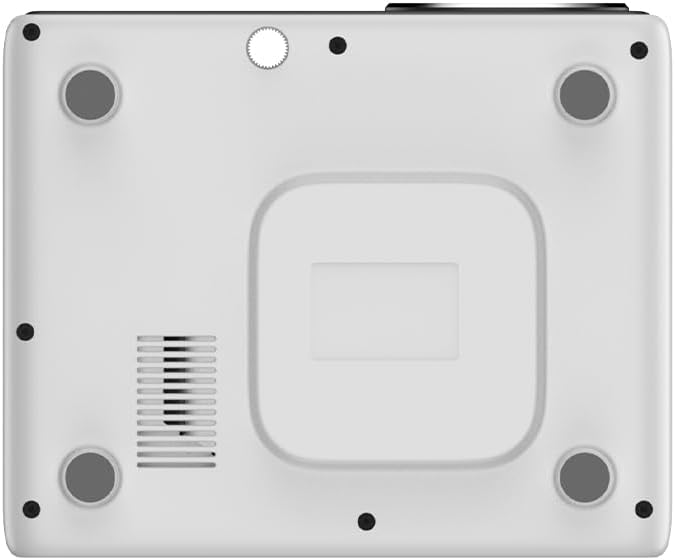
Figure 4.2: Bottom view of the projector, indicating the mounting point and ventilation grilles.
4.3. Power Connection
- Connect the power adapter to the projector's power input port.
- Plug the power adapter into a suitable electrical outlet.
- Press the power button on the projector or remote control to turn it on.
4.4. Initial Setup and Network Connection
- Upon first power-on, the projector will guide you through the initial Google TV setup process.
- Follow the on-screen instructions to select your language, connect to a Wi-Fi network (2.4G or 5G), and log in with your Google account.
- The projector features automatic focus and keystone correction. If the image is not perfectly clear or rectangular, you can access manual adjustment options in the settings menu.
5. Operating Instructions
5.1. Navigating Google TV
The projector runs on Google TV, providing a user-friendly interface for accessing content.

Figure 5.1: The Google TV interface on the Next Cine800S Projector, showing recommended content and installed applications.
- Use the remote control to navigate through menus, select apps, and control playback.
- The home screen provides personalized recommendations and quick access to your favorite streaming services.
5.2. Streaming Applications
Access popular streaming platforms directly from your projector.

Figure 5.2: Supported streaming applications and Google Play Store access.
- Pre-installed apps include Netflix, Prime Video, YouTube, and Disney+.
- Download additional applications from the Google Play Store.
- Ensure you are logged into your respective service accounts to access content.
5.3. Connecting External Devices
- HDMI: Connect your device to an HDMI port. The projector will automatically detect the input or you can manually select it from the input source menu.
- USB: Insert a USB drive into the USB port. The media player application will typically launch automatically, allowing you to browse and play supported media files (JPG, PNG, BMP, JPEG, MP3, M4A, MP2, WAV, FLAC, MP4, MOV, TS, DAT, F4V, 3GP).
5.4. Screen Mirroring
The projector supports Air Screen and Google Cast for mirroring content from your iOS or Android devices.
- Ensure your mobile device and the projector are connected to the same Wi-Fi network.
- On your mobile device, open the screen mirroring function (e.g., 'Screen Cast', 'Smart View', 'AirPlay').
- Select the projector from the list of available devices.
6. Maintenance
Regular maintenance ensures optimal performance and extends the lifespan of your projector.
6.1. Cleaning the Lens

Figure 6.1: Close-up of the projector lens, which requires careful cleaning.
- Use a soft, lint-free cloth or a lens cleaning brush to gently remove dust from the lens surface.
- For stubborn smudges, use a specialized lens cleaning solution applied to a microfiber cloth, not directly to the lens.
- Avoid abrasive materials or excessive force, which can scratch the lens.
6.2. Cleaning Ventilation Ports
- Periodically check the ventilation grilles for dust accumulation.
- Use a soft brush or a vacuum cleaner with a brush attachment to gently clean the grilles.
- Do not insert any objects into the ventilation openings.
6.3. Software Updates
- Ensure your projector is connected to the internet.
- Navigate to the system settings to check for and install available software updates. Updates can improve performance and add new features.
7. Troubleshooting
This section addresses common issues you might encounter with your projector.
| Problem | Possible Cause | Solution |
|---|---|---|
| No power | Power cord disconnected, power outlet issue | Check power cord connection. Try a different power outlet. |
| No image | Input source not selected, device not connected, lens cap on | Ensure input source is correctly selected. Check HDMI/USB connections. Remove lens cap. |
| Image is blurry | Focus not adjusted | Adjust focus manually using the projector's focus ring or through the settings menu if automatic focus is not sufficient. |
| Image is distorted/trapezoidal | Keystone not adjusted, projector not perpendicular to screen | The projector has automatic keystone correction. If the image is still distorted, access the manual keystone correction settings to fine-tune the image. |
| No sound or poor sound quality | Volume too low, external audio device not connected, speaker issue | Increase volume. Check external audio connections if used. If internal speaker sound is distorted at low volumes, consider connecting external speakers via the 2.5mm audio jack or Bluetooth. |
| Wi-Fi connection issues | Incorrect password, router issues, signal interference | Verify Wi-Fi password. Restart router. Ensure projector is within Wi-Fi range. |
| Remote control not working | Batteries low/dead, IR sensor blocked | Replace batteries. Ensure no obstructions between remote and projector's IR sensor. |
8. Specifications
Detailed technical specifications for the Next Cine800S GoogleTV Projector.
| Feature | Specification |
|---|---|
| Model | Cine800S |
| Display Technology | LED Projector |
| Native Resolution | Full HD 1920x1080 |
| Brightness | 800 ANSI Lumens |
| Projection Size | 40" — 200" |
| Video Decoding | 4Kx2K @ 60fps |
| Focus | Automatic or Manual |
| Keystone Correction | Automatic |
| Operating System | Google TV, Android 14 |
| DRM Certification | Netflix L1, Prime Video, YouTube, Disney+ L1 |
| Wi-Fi | 802.11 a/b/g/n/ac (2.4G & 5G) |
| Bluetooth | 5.0 |
| RAM | 2GB LPDDR4 |
| Internal Storage | 8GB eMMC |
| Speaker Output | 12W (4W) |
| Ports | HDMI, 2.5mm Audio Jack, USB |
| Supported Media Formats | JPG, PNG, BMP, JPEG, MP3, M4A, MP2, WAV, FLAC, MP4, MOV, TS, DAT, F4V, 3GP, FAT, NTFS |
| Optical Mechanism | Dust-Sealed System |
| Screen Mirroring | Air Screen, Google Cast (iOS & Android) |
9. Warranty and Support
For warranty information, please refer to the documentation provided with your purchase or visit the official Next website. For technical support, product inquiries, or service requests, please contact Next customer service through their official channels.
Keep your purchase receipt and product serial number handy when contacting support.