
1. Introduction
Thank you for choosing the ETiansu 32-inch 4K 160Hz 1500R Curved VA Gaming Monitor. This manual provides essential information for setting up, operating, maintaining, and troubleshooting your new monitor. Please read this manual thoroughly before use to ensure optimal performance and safety.
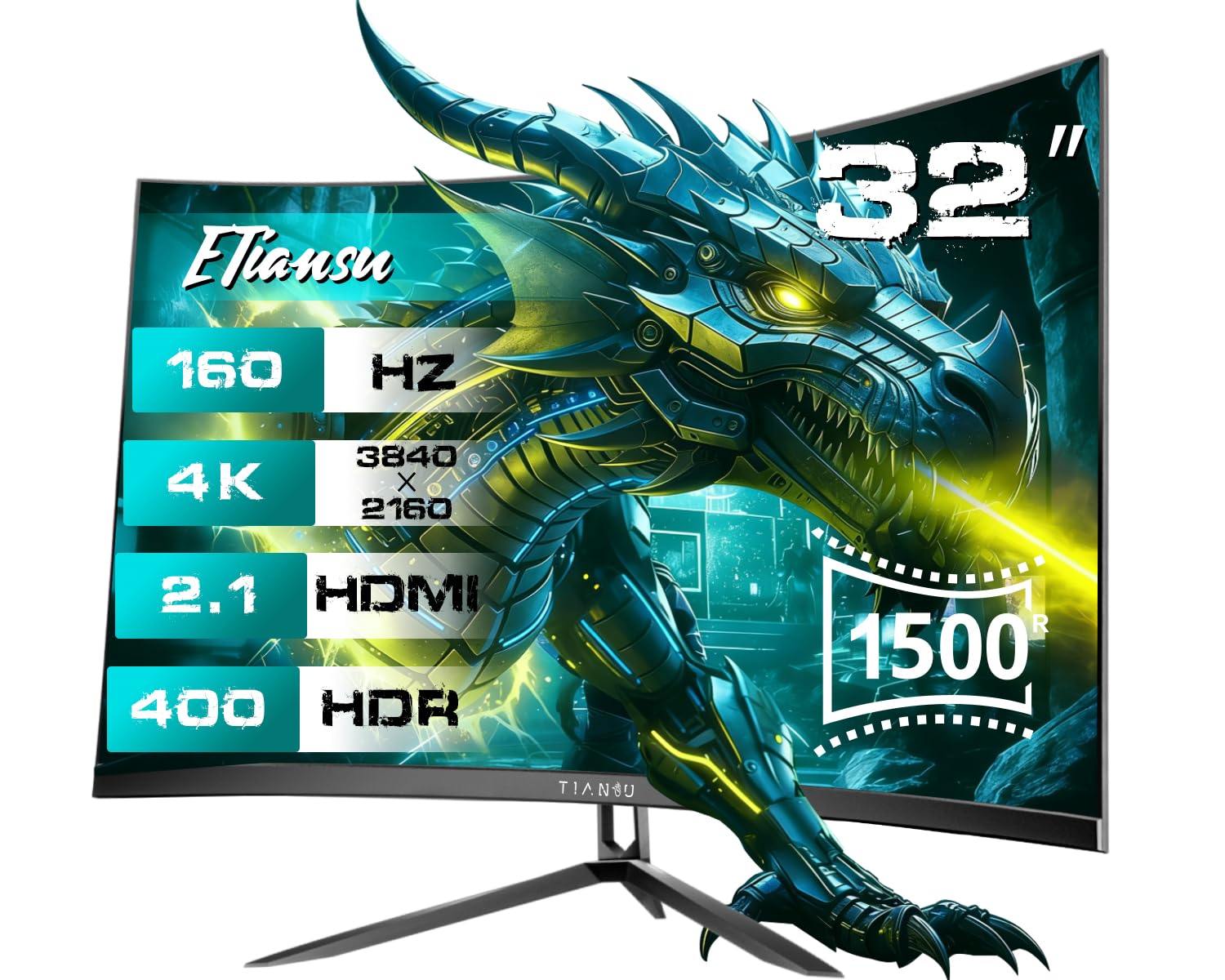
Image 1.1: Front view of the ETiansu 32-inch 4K 160Hz Curved VA Gaming Monitor.
2. Safety Information
Observe the following safety precautions to prevent damage to the monitor or injury to yourself:
- Do not expose the monitor to rain, moisture, or extreme temperatures.
- Ensure proper ventilation around the monitor. Do not block ventilation openings.
- Use only the power adapter and cables provided by the manufacturer.
- Avoid placing heavy objects on the power cord or monitor.
- Disconnect the power cable from the outlet if the monitor will not be used for an extended period.
- Do not attempt to disassemble or repair the monitor yourself. Refer all servicing to qualified personnel.
3. Package Contents
Verify that all items are present in the package:
- 32-inch 4K curved monitor x 1
- Sturdy Stand x 1
- Power Cable x 1
- High-speed HDMI 2.1 Cable x 1
- Display Port 1.4 x 1

Image 3.1: Contents included in the monitor package.
4. Setup
4.1 Physical Assembly
Stand Installation:
- Carefully remove the monitor and stand components from the packaging.
- Attach the stand base to the stand neck using the provided screws.
- Connect the assembled stand to the back of the monitor until it clicks into place or is secured with screws.
- Place the monitor on a stable, flat surface.
VESA Mounting (Optional):
The monitor supports VESA 100x100mm mounting. If using a VESA mount, remove the stand and attach the monitor to your VESA-compatible arm or wall mount using appropriate screws (not included).
4.2 Connectivity
Connect your devices to the monitor using the available ports:
- Power: Connect the power cable to the monitor's DC input and then to a power outlet.
- HDMI: Use the provided HDMI 2.1 cable to connect your computer, game console (PS5, Xbox Series X), or other HDMI-enabled device to one of the monitor's HDMI 2.1 ports.
- DisplayPort: Use the provided DisplayPort 1.4 cable to connect your computer to the monitor's DisplayPort.
- Audio Out: Connect external speakers or headphones to the 3.5mm audio output jack if desired.

Image 4.1: Monitor connectivity ports and dimensions.
5. Operating Instructions
5.1 Power On/Off
Press the power button, usually located on the back or bottom of the monitor, to turn the monitor on or off. The power indicator light will illuminate when the monitor is on.
5.2 On-Screen Display (OSD) Menu Navigation
The OSD menu allows you to adjust various monitor settings. Use the joystick or buttons (location may vary) on the back or bottom of the monitor to navigate the menu:
- Press the joystick/button to open the OSD menu.
- Move the joystick up/down or use the navigation buttons to select menu options.
- Move the joystick left/right or use the corresponding buttons to adjust values or enter sub-menus.
- Press the joystick/button again to confirm selections or exit menus.
5.3 Key Features and Settings
Your monitor offers several features to enhance your viewing and gaming experience:
- 160Hz Refresh Rate & 1ms Response Time: Provides smooth motion and reduced input lag. Ensure your graphics card settings are configured to utilize the 160Hz refresh rate.
- Adaptive Sync (AMD FreeSync & G-Sync Compatible): Synchronizes the monitor's refresh rate with your graphics card's frame rate to eliminate screen tearing and stuttering. Enable this feature in the OSD menu and your graphics card control panel.
- Display Quality (4K UHD, HDR400, Color Gamut, Contrast Ratio): Experience vibrant and detailed visuals with 4K UHD (3840x2160) resolution, HDR400 support, 95% DCI-P3 / 130% sRGB color gamut, and a 3000:1 contrast ratio. Adjust brightness, contrast, and color settings in the OSD menu for your preference.
- 1500R Curved Screen: The 1500R curvature provides an immersive viewing experience by matching the natural curve of the human eye, reducing distortion and enhancing peripheral vision.
- Eye Care Features (Flicker-Free & Low Blue Light): Designed to reduce eye strain during extended use. Flicker-Free technology minimizes screen flickering, and the Low Blue Light mode reduces harmful blue light emissions. These settings can be adjusted in the OSD menu.
- Gaming Enhancements:
- Game Mode: Optimizes display settings for various game genres.
- Black Stabilizer: Enhances visibility in dark areas of games, making hidden enemies more apparent.
- Dynamic Action Sync: Reduces input lag for more responsive gameplay.
- Low Input Lag Mode: Minimizes the delay between input and on-screen action.
- On-Screen Crosshair: Provides a virtual crosshair for improved aiming accuracy in games.

Image 5.1: High refresh rate and fast response time benefits.

Image 5.2: Adaptive Sync (FreeSync) in action.

Image 5.3: Monitor's display quality features.
Video 5.1: Demonstrates the visual difference with HDR 400 enabled and showcases 4K UHD resolution and 125% sRGB color gamut.

Image 5.4: The immersive effect of the 1500R curved screen.

Image 5.5: Eye care technologies for prolonged viewing comfort.

Image 5.6: Shadow Booster feature for improved visibility in dark scenes.
6. Maintenance
6.1 Cleaning
- Always unplug the monitor before cleaning.
- Use a soft, lint-free cloth lightly dampened with water or a mild, non-abrasive screen cleaner.
- Do not spray cleaner directly onto the screen.
- Avoid using harsh chemicals, solvents, or abrasive materials.
6.2 Storage
- If storing the monitor for an extended period, disconnect all cables and pack it in its original packaging if possible.
- Store in a cool, dry place away from direct sunlight and extreme temperatures.
7. Troubleshooting
Refer to the following table for common issues and their solutions:
| Problem | Possible Cause | Solution |
|---|---|---|
| No image on screen | Power cable disconnected; Video cable disconnected or loose; Incorrect input source selected. | Ensure power cable is securely connected. Check video cable connections. Select the correct input source via the OSD menu. |
| Image flickering or unstable | Video cable issue; Graphics card driver issue; Refresh rate mismatch. | Replace video cable. Update graphics card drivers. Ensure refresh rate is set correctly in display settings. Enable Adaptive Sync. |
| No sound from built-in speakers | Volume too low or muted; Incorrect audio output selected on PC; Audio cable not connected (if using external source). | Adjust monitor volume via OSD. Select monitor as default audio output in PC settings. Ensure audio cable is connected if applicable. |
| Colors appear incorrect | Color settings misconfigured; Cable issue. | Reset color settings in OSD to default. Check video cable for damage. |
8. Specifications
Detailed technical specifications for the ETiansu 32-inch 4K 160Hz Curved VA Gaming Monitor:

Image 8.1: Product Specifications Overview.
| Feature | Specification |
|---|---|
| Brand | ETiansu |
| Screen Size | 32 Inches |
| Resolution | 4K UHD 2160p (3840 x 2160 Pixels) |
| Aspect Ratio | 16:9 |
| Screen Surface Description | Matte |
| Contrast Ratio | 3000:1 |
| Refresh Rate | 160 Hz |
| Display Type | LED VA |
| Viewing Angle | 178 Degrees |
| Brightness | 400 Candela (HDR400) |
| Color Gamut | 130% sRGB, 95% DCI-P3 |
| Response Time | 1 Millisecond |
| Connectivity Technology | DisplayPort, HDMI |
| Hardware Connectivity | 2x HDMI 2.1, 2x DisplayPort 1.4 |
| Adaptive Sync | FreeSync Premium, G-Sync Compatible |
| Additional Features | Blue Light Filter, Built-In Speakers, Curved, Height Adjustment |
| Specific Uses For Product | Desktop, Entertainment, Gaming |
| Color | Black |
| Item Dimensions D x W x H | 7.87"D x 28.15"W x 20.28"H |
| Model Number | 32"UHD 160Hz Curved |
| Manufacturer | ETiansu |
9. Warranty and Support
Warranty Information:
This ETiansu monitor comes with a 3-year manufacturer warranty. Please retain your proof of purchase for warranty claims. The warranty covers defects in materials and workmanship under normal use.
Customer Support:
For technical assistance, troubleshooting, or warranty inquiries, please contact ETiansu customer support. You can find contact information and additional resources on the official ETiansu website or through the ETiansu Store on Amazon.