
Introduction
Thank you for choosing the Tec Wurenju XT555 GPS Drone. This advanced quadcopter features a 4K EIS camera, a 4.5-inch HD screen controller, and intelligent flight modes designed for an enhanced flying experience. This manual provides essential information for safe operation, setup, maintenance, and troubleshooting.

Image: The Tec Wurenju XT555 GPS Drone, showcasing its sleek design and camera.
Safety Guidelines
Adhere to the following safety guidelines to ensure safe operation and prevent damage or injury:
- Ensure the remote control is OFF while charging.
- Only use the original charging cable provided with the drone.
- Turn off GPS for indoor flight to prevent signal interference.
- Before the first flight, calibrate the gyroscope and compass. Always take off from a flat, stable surface.
- When flying outdoors, ensure GPS is activated for accurate positioning and intelligent flight features.
- Maintain a safe distance from people, animals, buildings, and obstacles.
- Do not fly in adverse weather conditions such as strong winds, rain, or snow.
- Operate the drone within your line of sight.
- Familiarize yourself with local drone regulations and restrictions.
Package Contents
Verify that all items are present in the package:
- XT555 GPS Drone
- Remote Controller with 4.5-inch HD Display
- Intelligent Flight Batteries (2x 3.7V 2000mAh)
- USB Charging Cable
- Spare Propellers
- Screwdriver
- SD Card and Card Reader
- Carrying Case
- User Manual (this document)
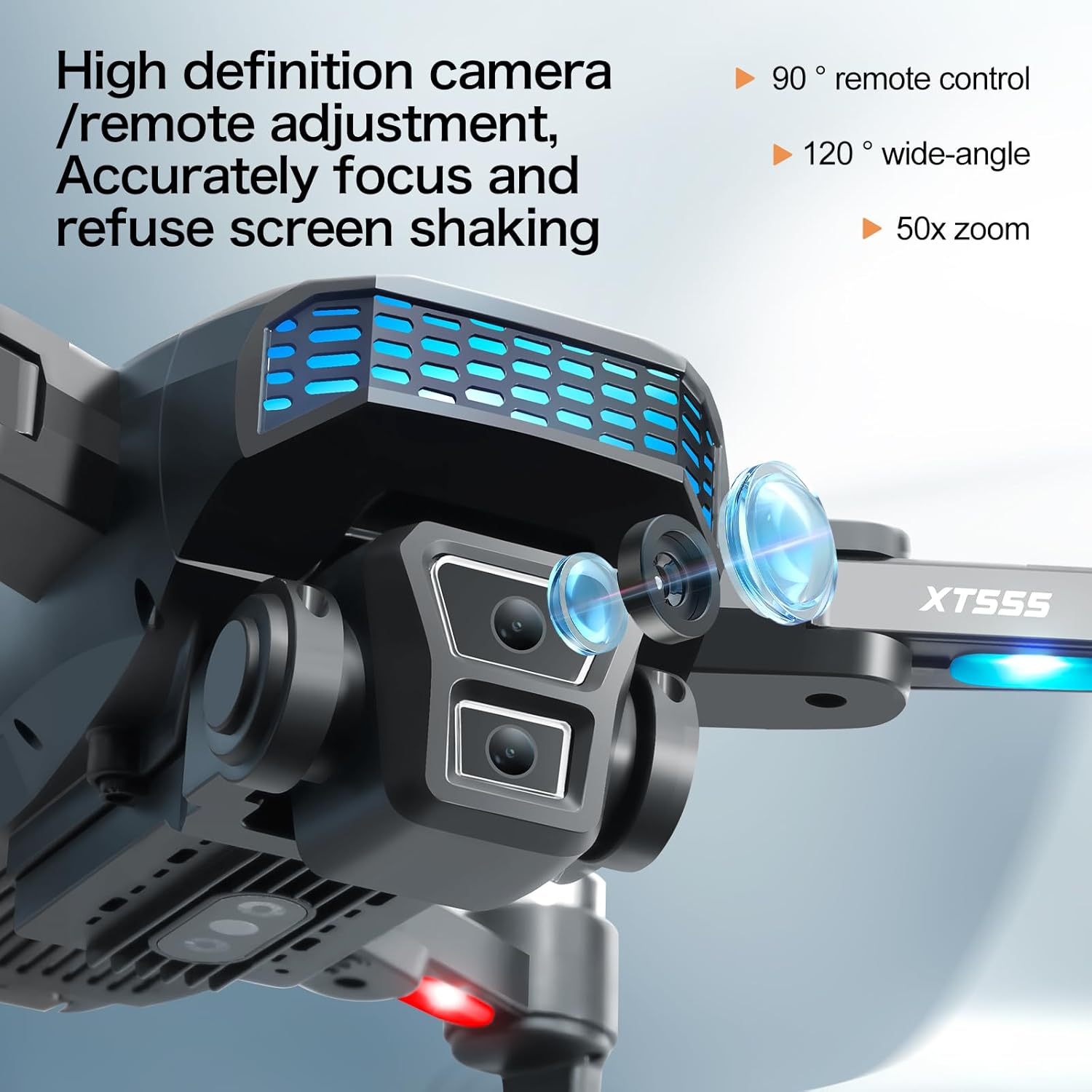
Image: All components included in the XT555 drone package, including the drone, controller, batteries, and accessories.
Product Overview
Drone Features
- 4K EIS Camera: 90° adjustable lens, 120° wide-angle lens for high-quality aerial photography and stable video.
- 5GHz FPV Transmission: Ensures smooth and stable real-time video feed.
- 4-Way Obstacle Avoidance: Automatically detects and avoids obstacles during indoor flight.
- GPS Module: Enables precise positioning, Auto Return Home, Follow Me, Waypoint Flight, and Circle Fly functions.
- Brushless Motors: Provide efficient, stable, and powerful flight performance with low noise.
- Altitude Hold System: Maintains a stable height for easier control.
- Foldable Design: Compact and portable for easy transport.
- Lightweight: Under 249 grams, typically not requiring FAA registration in many regions.

Image: The XT555 drone in both folded and unfolded configurations, illustrating its compact design and dimensions.
Remote Controller Features
- 4.5-inch HD Display: Provides real-time footage directly on the controller, eliminating the need for a smartphone.
- Integrated Controls: Intuitive buttons and joysticks for precise drone manipulation.
- Long Control Range: Stable control up to 4921 feet (1500 meters).

Image: The XT555 drone remote controller, highlighting its integrated 4.5-inch HD display for direct video feed.
Setup
1. Charging Batteries
Charge both the drone's intelligent flight batteries and the remote controller's battery using the provided USB charging cable. Ensure the remote is OFF during charging. A full charge provides approximately 20 minutes of flight time per drone battery.

Image: Illustration of the XT555 drone's intelligent battery and charging module.
2. Installing Drone Batteries
Insert the charged intelligent flight battery into the designated compartment on the drone until it clicks securely into place.
3. Unfolding the Drone
Gently unfold the drone arms until they are fully extended and locked into position. Ensure all propellers are clear and undamaged.
4. Propeller Installation (if necessary)
If propellers are not pre-installed, attach them according to the markings (A and B) on the propellers and motor arms. Use the provided screwdriver to secure them firmly.
Operating Instructions
1. Power On and Pairing
Power on the drone first, then the remote controller. The drone and controller will automatically pair. Wait for the status indicators to confirm a successful connection.
2. Calibration
Before each flight, especially the first one, perform gyroscope and compass calibration. Follow the on-screen instructions on the controller's HD display or refer to the quick start guide for specific steps. Always calibrate on a flat surface.
3. Takeoff and Landing
- One-Key Takeoff: Press the designated one-key takeoff button on the controller. The drone will automatically ascend to a safe height and hover.
- Manual Takeoff: Push both control sticks diagonally outwards and downwards to start the motors, then slowly push the left stick up to ascend.
- One-Key Landing: Press the one-key landing button. The drone will descend and land automatically.
- Manual Landing: Slowly pull the left stick down to descend. Once landed, push both sticks diagonally outwards and downwards to stop the motors.
4. Flight Modes and Features
- GPS Mode: Provides stable flight, precise hovering, and enables intelligent functions. Ensure GPS is active for outdoor flights.
- Headless Mode: Simplifies control by orienting the drone's direction relative to the pilot, regardless of the drone's actual front.
- Follow Me: The drone will automatically follow the controller, capturing footage as you move.
- Waypoint Flight: Plan a custom flight path by setting multiple waypoints on the map via the controller. The drone will fly along the specified route.
- Circle Fly: The drone will orbit a designated point, maintaining a set radius and altitude.
- Obstacle Avoidance: The 4-way obstacle avoidance system (effective indoors) helps prevent collisions by detecting and reacting to nearby obstacles.

Image: The XT555 drone utilizing its GPS intelligent return feature, showing its ability to plan safe routes.

Image: Close-up of the XT555 drone's intelligent obstacle avoidance head, illustrating its omnidirectional perception.
5. Camera Operation
The 4K EIS camera features a 90° adjustable lens and a 120° wide-angle lens. Use the controls on the remote to adjust the camera angle and capture photos or videos. The 5GHz FPV transmission provides a live feed to the controller's HD display. An SD card and card reader are included for storing and transferring your media.

Image: Detailed view of the XT555 drone's 4K camera, highlighting its high-definition capabilities and adjustable lens.
Maintenance
1. Cleaning
Regularly clean the drone body, propellers, and camera lens with a soft, dry cloth. Avoid using harsh chemicals or solvents. Ensure no dust or debris obstructs the motors or sensors.
2. Storage
When not in use, store the drone and its accessories in the provided carrying case in a cool, dry place, away from direct sunlight and extreme temperatures. Remove batteries if storing for extended periods.
3. Battery Care
To prolong battery life, avoid overcharging or completely draining the batteries. Store batteries at approximately 50-60% charge if not used for a long time. Inspect batteries regularly for any signs of damage or swelling.
Troubleshooting
| Problem | Possible Cause | Solution |
|---|---|---|
| Drone does not power on. | Battery not charged or improperly installed. | Ensure battery is fully charged and correctly inserted. |
| Drone fails to take off or flies unstably. | Improper calibration; uneven takeoff surface; strong winds. | Perform gyroscope and compass calibration on a flat surface. Avoid flying in strong winds. |
| No video feed on controller. | Weak FPV signal; drone and controller not properly paired. | Ensure drone and controller are paired. Fly within range. Check for obstructions. |
| Drone returns automatically (Auto Return Home). | Low battery or signal loss. | This is a safety feature. Ensure batteries are charged before flight and maintain signal. |
| Obstacle avoidance not working outdoors. | Obstacle avoidance is primarily designed for indoor use. | This is expected behavior. Exercise caution when flying outdoors. |
| Remote controller battery not charging. | Remote is ON during charging; faulty cable. | Ensure the remote is OFF while charging. Use only the original charging cable. |
Specifications
| Feature | Detail |
|---|---|
| Brand | Tec Wurenju |
| Model Name | XT555 |
| Camera Resolution | 4K |
| Special Features | Image Stabilization (EIS), Integrated Camera, Integrated GPS, Lightweight, Long Battery Life, Obstacle Avoidance |
| Color | Black |
| Connectivity Technology | Wi-Fi (5GHz FPV) |
| Item Weight | 184 Grams |
| Maximum Range | 1500 Meters (4921 feet) |
| Battery Type | Lithium Ion (3.7V 2000mAh per battery) |
| Flight Time | Up to 20 minutes per battery (60 minutes total with 2 batteries) |
| Controller Display | 4.5-inch HD Screen |
| Includes Remote | Yes |
Official Product Video
Watch this official video for a visual guide on the XT555 GPS Drone's features and operation.
Video: An official product video demonstrating the features and capabilities of the XT555 GPS Drone with 4K EIS Camera.
Warranty and Support
For warranty information, technical support, or service inquiries, please refer to the contact details provided with your purchase documentation or visit the official Tec Wurenju website. Keep your proof of purchase for warranty claims.