
1. Introduction and Overview
The 3DMakerpro Moose Lite is a high-precision handheld 3D scanner designed for 3D printing and various other applications. It features AI Visual Tracking Technology and an innovative point cloud algorithm to enhance scanning efficiency and quality. With an accuracy of 0.05mm and a resolution of 0.10mm, it captures detailed point clouds for refined models. The scanner supports scan ranges from 15mm to 1500mm and integrates seamlessly with JMStudio scanning software for comprehensive data processing.
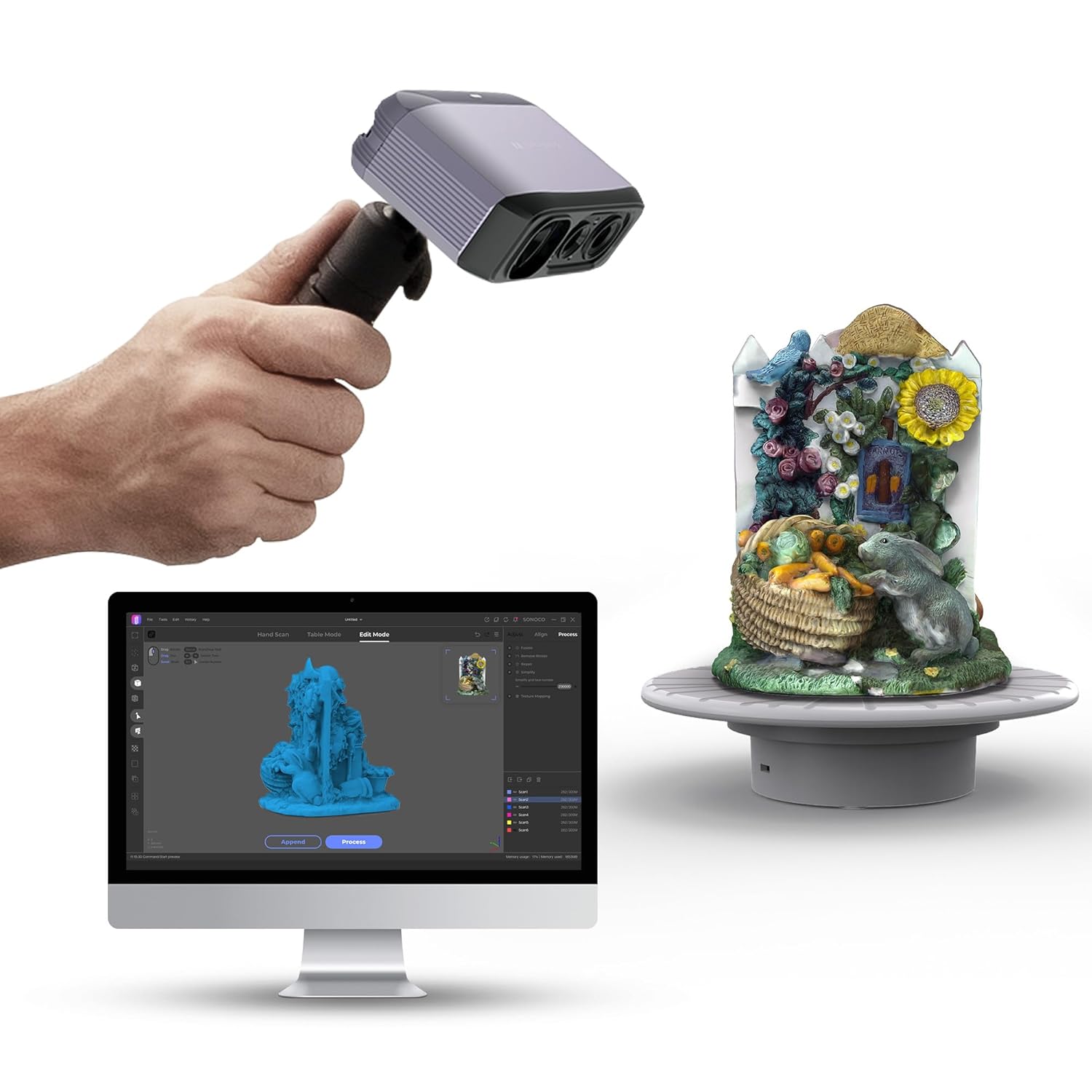
Key Features:
- AI Visual Tracking: Enhances scanning efficiency and quality.
- High Accuracy: Achieves 0.05mm accuracy for precise models.
- Fine Resolution: Offers 0.10mm resolution to capture intricate details.
- Wide Scan Range: Capable of scanning objects from 15mm to 1500mm.
- JMStudio Software: Integrated software for scanning, editing, and optimizing 3D models with lifetime free OTA upgrades.
- Marker-Free Technology: Simplifies the scanning process by eliminating the need for markers.
- 10 FPS Scan Speed: Real-time scanning for quick data acquisition.
- Portable Design: Lightweight (250g) and easily fits in your pocket.
2. Setup Guide
Follow these steps to set up your 3DMakerpro Moose Lite 3D Scanner:
- Connect the Scanner: Plug the longer 'L' type plug of the device cable into the scanner's USB-C port. Connect one of the shorter ends into a PC USB port and the other shorter end into the provided power adapter. Ensure sufficient power is supplied, especially for faster data transfer.
- Power the Turntable (Optional): If using the motorized turntable, place the turntable surface on top of the turntable base. Plug the Micro USB end of the turntable cable into the turntable and the USB end to a power source (e.g., PC USB port or your own USB power supply).
- Install Software: Download and install the latest JMStudio software from the official 3DMakerpro website.
- Position the Scanner: The scanner can be used handheld or mounted on the mini tripod for tabletop use. Attach the mini tripod to the bottom of the scanner by screwing it into the designated thread.

Setup Video:
3. Operating Instructions
The JMStudio software provides an intuitive interface for operating the Moose Lite scanner. There are two primary scanning modes:
- Easy Scan: Ideal for handheld scanning of objects ranging from 15mm to 1500mm.
- Table Scan: Best used with the motorized turntable for objects between 15mm and 300mm.
Scanning Process:
- Device Connection: Ensure the scanner is properly connected to your computer via a USB 3.0 port for optimal data transfer.
- Preview and Adjustment: In the JMStudio software, click "Start Scanning" in the splash screen. The Work Panel will switch to the "Adjust" panel. Select the proper splicing mode (Geometry & Texture) and adjust the distance between the object and scanner to "excellent" using the on-screen guide.
- Scan: Click the "Scan" button to begin capturing data. Maintain a steady movement around the object.
- Append Scans: For complex objects or to capture all sides, flip the object and click "Append" to perform additional scans.
- Align: After multiple scans, use the "Align" function in the software to merge the scanned data points. The software can automatically align scans, or you can manually select three surface points for alignment if needed.
- Process: Once aligned, click "Process" to convert the data points into a mesh. You can then use tools like "Remove Noise," "Repair Gaps," and "Simplify" to refine your 3D model.
- Export: The final 3D model can be exported in common formats such as OBJ, STL, PLY, and ASC for use in 3D printing or CAD software.

Operating Videos:
4. Special Considerations for Scanning
Certain object types may require special preparation before scanning to ensure optimal results:
- Transparent Objects: Items like glass products or plastic bottles may not be accurately captured.
- Deformable Objects: Clothes or animals can change shape during scanning, affecting accuracy.
- Reflective/Shiny Objects: Metal products or electroplated parts can cause glare and incomplete data.
For transparent, reflective, or dark objects, it is recommended to apply a thin, even coat of developer or powder spray to dull the surface. This makes the object visible to the scanner and improves data capture quality.


5. JMStudio Software
JMStudio is the dedicated software for the 3DMakerpro Moose Lite, integrating scanning, editing, and optimization into one seamless process. It allows you to visually monitor the entire scanning process and offers free lifetime OTA upgrades to enhance your scanning experience.

Software Features:
- All-in-one Scanning & Editing
- Lightning-Fast Speed
- One-click Post-processing
- Compatible with Leading 3D Software (e.g., Maya, Unity3D, Blender, SolidWorks)
- Exports OBJ / STL / PLY / ASC formats
- Available for MacOS and Windows


6. Specifications
| Feature | Detail |
|---|---|
| Product Dimensions | 2 x 1 x 1 inches |
| Item Weight | 3.58 pounds |
| Manufacturer | 3dmakerpro |
| ASIN | B0FN7WWBJ9 |
| Date First Available | August 21, 2025 |
7. What's in the Box
The 3DMakerpro Moose Lite package includes:
- 3D Scanner (Moose Lite)
- Power Adapter
- Data Transmission Cable
- Tripod
- Turntable
- Instruction Manual
8. Support & Warranty
For technical support, troubleshooting, or warranty inquiries, please refer to the official 3DMakerpro website or contact their customer service. Specific warranty details are typically provided with your product documentation.