
Introduction
This manual provides essential information for the proper setup, operation, and maintenance of your DWARFLAB Dwarf Mini Smart Telescope. Please read these instructions carefully before using the device to ensure optimal performance and longevity.
The DWARFLAB Dwarf Mini is a compact and portable smart telescope designed for astrophotography and celestial observation. It features intuitive app control, automated tracking, and advanced imaging capabilities for users of all experience levels.
What's in the Box
Verify that all items listed below are included in your package:
- DWARF Mini Smart Telescope × 1
- Filter × 1
- USB-C to USB-C Charging Cable × 1
- Cleaning Cloth × 1
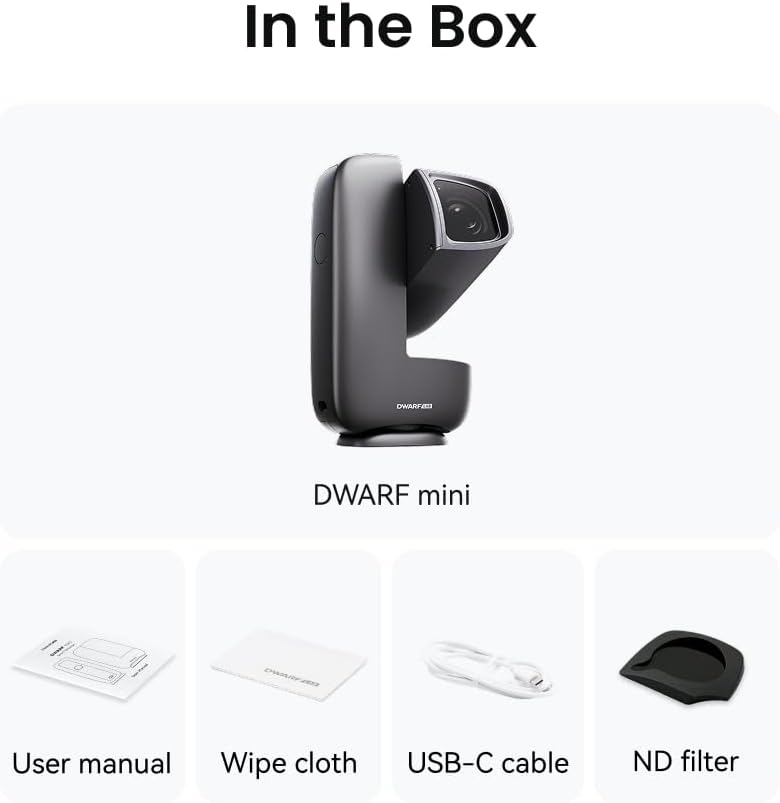
Image: The DWARFLAB Dwarf Mini Smart Telescope and its included accessories: a filter, USB-C cable, and cleaning cloth.
Setup
- Charge the Device: Before first use, fully charge the DWARF Mini using the provided USB-C cable. Connect one end to the telescope and the other to a compatible USB power adapter (not included).
- Download the App: Search for "DWARFLAB" in your smartphone's app store (iOS or Android) and install the official application.
- Mount the Telescope: Attach the DWARF Mini to a stable tripod (not included) using the standard tripod mount. Ensure it is securely fastened.
- Power On: Press and hold the power button on the DWARF Mini until the indicator light illuminates.
- Connect via App: Open the DWARFLAB app on your smartphone. Follow the on-screen instructions to connect to your DWARF Mini via Bluetooth or Wi-Fi.
- Initial Calibration: The app may guide you through an initial calibration process to align the telescope with the sky. Follow these steps carefully for accurate tracking.

Image: The DWARF Mini telescope set up on a tripod in an outdoor setting, ready for observation.

Image: A user interacting with the DWARFLAB app on a smartphone, controlling the telescope which is visible in the background.
Operating Instructions
The DWARFLAB app is your primary interface for controlling the telescope and capturing images.
App Control and Sky Atlas
The DWARFLAB app features an interactive sky atlas. You can select celestial objects directly from the map, and the telescope will automatically point and track them (Auto GOTO function).
- Object Selection: Browse the sky atlas or search for specific objects like planets, nebulae, or star clusters.
- Auto GOTO: Once an object is selected, tap the "GoTo" button, and the telescope will automatically slew to the target and begin tracking.
- Manual Adjustment: Use the on-screen directional controls for fine adjustments if needed.

Image: A smartphone displaying the DWARFLAB app interface, featuring a star map with various celestial objects marked and control buttons.
Imaging Modes
The DWARF Mini supports various imaging modes for different celestial targets.
- Deep-Sky Photography (EQ Mode): For nebulae and galaxies, activate Equatorial (EQ) Mode in the app. This mode allows for longer single-frame exposures (up to 90 seconds) and uses built-in light pollution filters to enhance image quality.
- Sun and Moon Shooting: The telescope can auto-track, focus, and center the Sun (with appropriate solar filter, not included) and Moon. Select the desired object in the app.
- Star Trails Shooting: Capture the apparent motion of stars across the night sky. The app can assist in setting up photo and time-lapse sequences simultaneously.
- Milky Way Shooting: Utilize wide-angle settings for capturing broad views of the Milky Way.
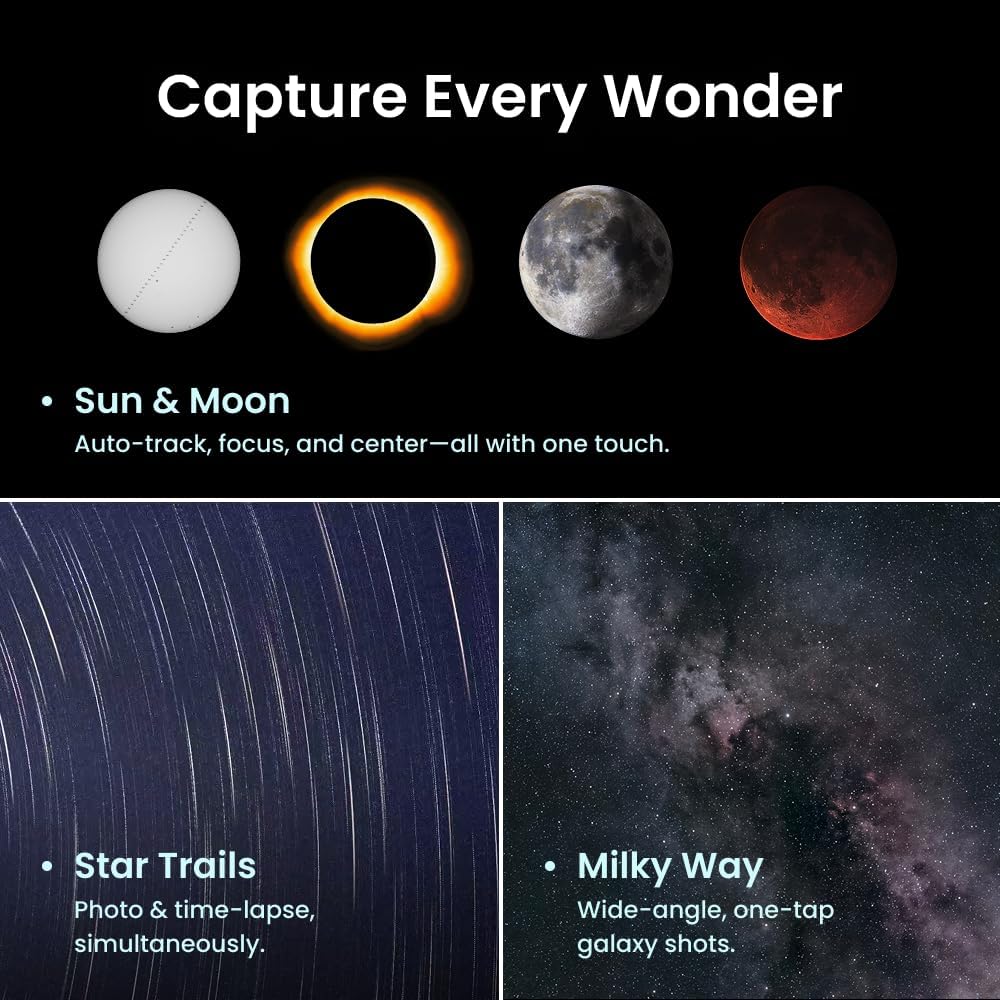
Image: A collage of celestial images, demonstrating the DWARF Mini's capabilities for capturing the Sun, Moon, star trails, and the Milky Way.
Cloud Processing
After capturing raw data, use the integrated cloud processing feature within the DWARFLAB app to enhance your images. This feature helps in stacking and processing multiple exposures for improved detail and reduced noise.

Image: A screenshot from the DWARFLAB app illustrating various image processing options available for astrophotography, such as stacking and noise reduction.
Maintenance
- Cleaning the Lens: Use the provided cleaning cloth or a specialized optical cleaning kit to gently wipe the lens. Avoid using abrasive materials or harsh chemicals.
- Storage: Store the telescope in a dry, dust-free environment when not in use. Protect it from extreme temperatures and humidity.
- Battery Care: For long-term storage, ensure the battery is charged to approximately 50-60% to maintain battery health. Avoid fully discharging the battery for extended periods.
- Software Updates: Regularly check the DWARFLAB app for firmware updates for your telescope to ensure optimal performance and access to new features.
Troubleshooting
| Problem | Possible Cause | Solution |
|---|---|---|
| Telescope does not power on. | Low or depleted battery. | Charge the telescope using the USB-C cable. Ensure the power adapter is working. |
| Cannot connect to the DWARFLAB app. | Bluetooth/Wi-Fi disabled on smartphone; telescope not in pairing mode; app outdated. | Ensure Bluetooth/Wi-Fi is enabled. Restart the telescope and app. Check for app updates. |
| Inaccurate tracking or GOTO. | Improper initial calibration; unstable tripod; magnetic interference. | Perform a re-calibration through the app. Ensure the tripod is stable. Move away from strong magnetic fields. |
| Images appear blurry or out of focus. | Incorrect focus setting; atmospheric conditions; dirty lens. | Adjust focus manually or use auto-focus in the app. Wait for clearer atmospheric conditions. Clean the lens with the provided cloth. |
Specifications
| Feature | Detail |
|---|---|
| Brand | DWARFLAB |
| Model Name | Dwarf Mini |
| Objective Lens Diameter | 30 Millimeters |
| Telescope Mount Description | Altazimuth and Equatorial Mount |
| Product Dimensions (D x W x H) | 2.39"D x 3.95"W x 7.23"H |
| Focus Type | Manual-and-Auto |
| Power Source | Battery Powered (1 Nonstandard Battery included) |
| Item Weight | 1.85 Pounds (840g) |
| Compatible Devices | Smartphone |
| Coating | Basic Anti-Reflection Coating |
| Field Of View | 2.45 Degrees |
| Additional Features | App-Controlled, Auto GOTO, 360° Pivot, EQ Mode, Smart Cloud Processing |
Warranty Information
The DWARFLAB Dwarf Mini Smart Telescope comes with a 2-year warranty from the date of purchase. This warranty covers manufacturing defects and malfunctions under normal use. Please retain your proof of purchase for warranty claims. For detailed terms and conditions, refer to the official DWARFLAB website or contact customer support.
Support
For any usage-related questions, technical assistance, or warranty inquiries, please contact DWARFLAB customer support.

Email: support@dwarflab.com
At DwarfLab, we are committed to making the cosmos accessible to all. Our mission is to bring the universe closer to everyone.
Official Product Video
Video: An official DWARFLAB video introducing the DWARF Mini Smart Telescope, highlighting its compact design and key features. This video is provided by the seller, DWARF LAB.


