
1. Introduction
The Mezed 21.5" Smart Digital Calendar is a versatile interactive device designed to streamline family schedules, meal planning, task management, and digital photo display. With its HD touch screen and dual app/touch control, it offers a convenient way to organize your home and keep everyone informed.
2. Key Features
- Smart Family Calendar: App/Touch Screen Dual Control for synchronizing calendars and assigning tasks.
- Digital Calendar & Photo Frame 2-in-1: Seamlessly switch between calendar and digital photo frame modes.
- Meal Planner: Dedicated section for daily and weekly meal planning.
- Smart Reminders & Weather Updates: Never miss an appointment and get built-in weather forecasts.
- Sleep Mode: Automatically dims at night for a soothing display.
- Wall-Mountable Design: Flexible placement options for home or office.
3. Setup Guide
3.1 Unboxing and Physical Setup
Carefully remove the Mezed Smart Digital Calendar from its packaging. Attach the included kickstand if you plan to place it on a surface. The device can also be wall-mounted. Connect the power cable to the designated port on the back of the device.
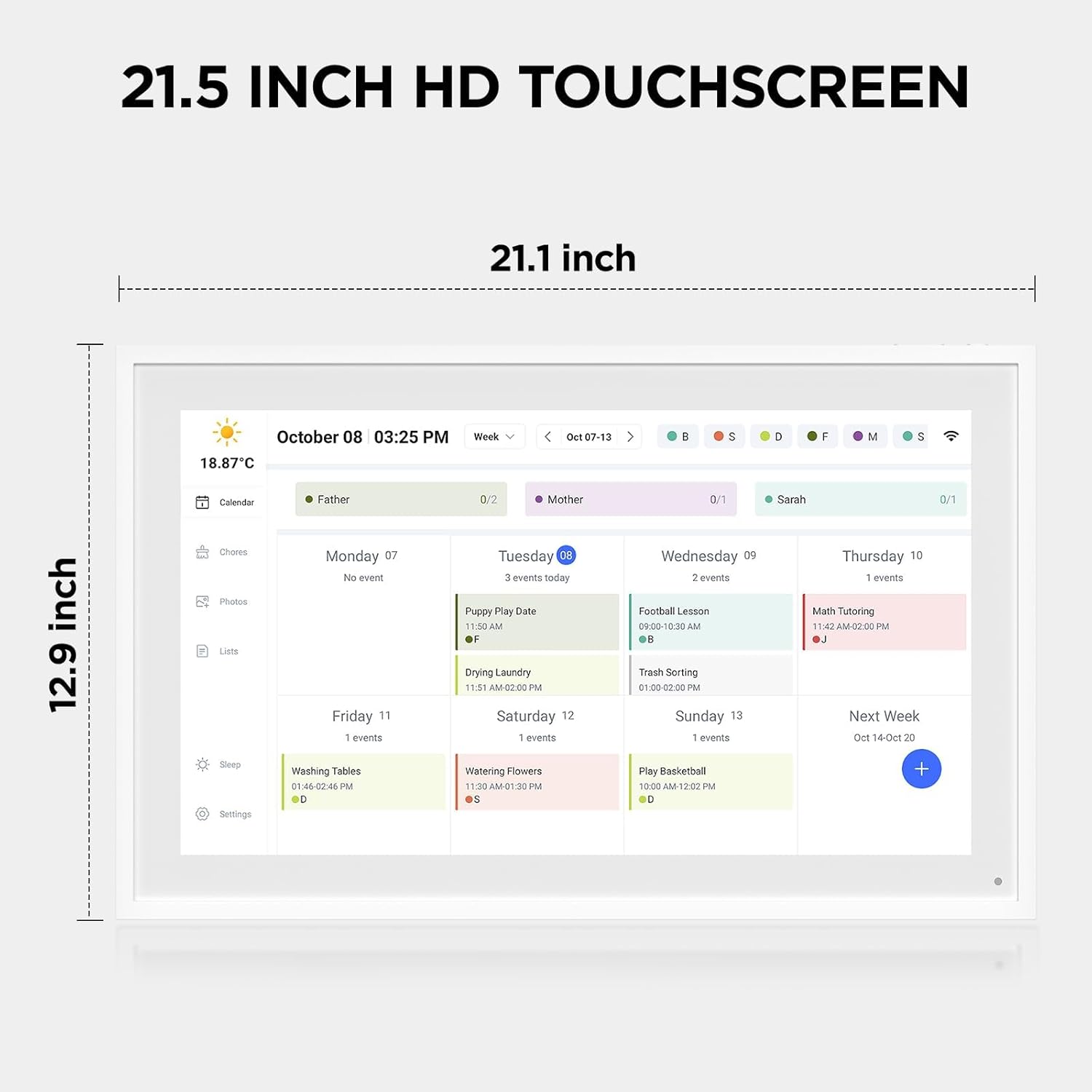
Image: The Mezed Smart Digital Calendar with its kickstand, illustrating its dimensions and sleek design.
3.2 App Installation and Synchronization
Download the official Mezed companion app from your device's app store (available for Android and iOS). Follow the on-screen instructions within the app to pair your smartphone with the Mezed Smart Digital Calendar. This will enable seamless synchronization of events, tasks, photos, and other data between your phone and the calendar.
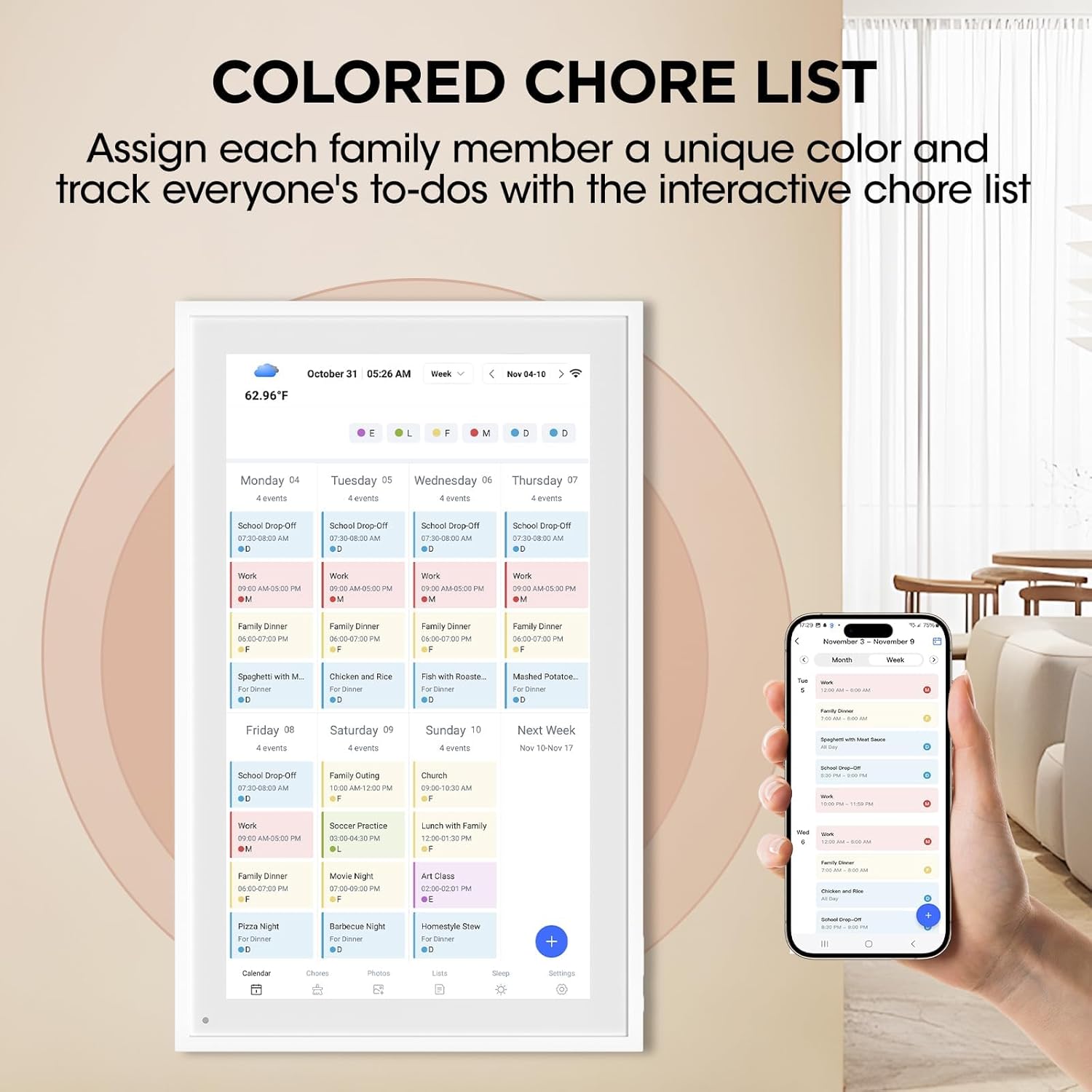
Image: The digital calendar screen showing a detailed weekly schedule with color-coded tasks, alongside a smartphone displaying the synchronized mobile application.
4. Operating Instructions
4.1 Calendar View
The main screen displays your calendar. You can switch between Day, Week, Month, and custom Schedule views using the options at the top. Events can be color-coded and assigned to different profiles (e.g., family members) for easy identification. The calendar supports synchronization with existing online calendars like Google Calendar, iCloud Calendar, and Outlook Calendar.

Image: The digital calendar screen illustrating its ability to auto-sync with existing calendars from popular services like Google, Yahoo, iCloud, and Outlook.
4.2 Task Management
Access the Tasks section to create and manage daily or weekly chores and responsibilities. Assign tasks to specific profiles and mark them as complete. The app allows for quick updates on the go, ensuring all family members are aware of their duties.

Image: The digital calendar displaying tasks assigned to different family members, color-coded for easy identification, with a hand touching the screen.
4.3 Rewards System
The Rewards section allows you to set up an incentive system for task completion. Assign star values to tasks, and family members can accumulate stars to redeem for pre-defined rewards. This feature is particularly useful for motivating children with household chores or homework.

Image: The digital calendar highlighting its customizable features, including a 1080P Full HD display, responsive touchscreen, and options to personalize with colors and more.
4.4 Meal Planner
Utilize the Meal Planner to organize your daily breakfast, lunch, dinner, and snacks. You can plan several days or a full week ahead, and even pre-arrange special menus for holidays. This helps with grocery planning and ensures everyone knows what's for dinner.

Image: The digital calendar displaying a weekly meal planner, allowing users to schedule breakfast, lunch, and dinner for each day.
4.5 Digital Photo Frame
When not actively using the calendar, the device can function as a digital photo frame. Upload your favorite photos and videos via the companion app to display a rotating slideshow of memories. The device supports both portrait and landscape orientations.
4.6 Sleep Mode
Configure Sleep Mode to automatically dim the screen during specified hours, making it ideal for bedrooms or shared spaces where a bright screen might be disruptive. The device can be woken up by pressing the power button.
5. Media Integration: Feature Overview
Watch this comprehensive video for a detailed deep dive into all the features of your Mezed Smart Digital Calendar.
Video: A detailed demonstration of the Mezed Smart Digital Calendar's various functions, including calendar management, task assignment, meal planning, and photo frame capabilities.
6. Maintenance
- Cleaning: Use a soft, dry cloth to clean the screen and device exterior. Avoid abrasive cleaners or sprays.
- Software Updates: Ensure your device and companion app are updated to the latest versions for optimal performance and new features. Updates are typically delivered wirelessly.
- Placement: Place the device on a stable surface or securely wall-mount it. Avoid direct sunlight or extreme temperatures.
7. Troubleshooting
- Device Not Responding: Try restarting the device by holding down the power button.
- Synchronization Issues: Ensure both the device and your smartphone have a stable internet connection. Check that the companion app is running and properly paired.
- Display Problems: If the screen is dim or unresponsive, check the power connection and ensure Sleep Mode is not active.
- Further Assistance: If issues persist, refer to the detailed user manual provided with the product or contact customer support.
8. Specifications
| Feature | Detail |
|---|---|
| Size | 21.5 inches |
| Brand | Mezed |
| Manufacturer | mezed |
| Model Number | mezed-1 |
| ASIN | B0GSVTK19H |
9. Warranty and Support
The Mezed 21.5" Smart Digital Calendar is supported by 24-hour customer service and a 2-year warranty, ensuring smooth installation and long-term satisfaction. For any inquiries or assistance, please contact Mezed customer support.


