
1. Introduction
Thank you for choosing the iContact Camera Pro 4K HD Webcam. This manual provides essential information for setting up, operating, and maintaining your webcam to ensure optimal performance for all your video conferencing needs. The iContact Camera Pro is designed to enhance your virtual interactions by facilitating natural eye contact, delivering crystal-clear 4K video, and superior audio with its dual noise-cancelling microphones.
2. Package Contents
Please verify that all items are present in your package:
- iContact Camera Pro 4K HD Webcam
- USB Cable
3. Product Overview
The iContact Camera Pro is engineered for professional video communication, featuring advanced technology to improve your online presence.

Description: This image illustrates the difference in eye contact during video calls. On the left, a person using a standard above-screen webcam appears to be looking down. On the right, the same person using the iContact Camera maintains direct eye contact, enhancing engagement.

Description: The iContact Camera is shown mounted on top of a desktop monitor, with a person visible on the screen. Below the screen, logos indicate its compatibility and certification with major video conferencing platforms: Zoom Certified, Works with Google Meet, Works with MS Teams, and Works with Webex.

Description: A detailed close-up of the iContact Camera's compact sensor, emphasizing its Ultra HD 4K resolution powered by a Sony Sensor for superior image quality.

Description: This image highlights the webcam's noise-reducing microphones. Sound wave graphics show how ambient noise is filtered out, ensuring clear audio during calls.

Description: The iContact Camera features a physical power switch, providing a clear visual indicator and control for privacy. The image shows the switch in both the 'ON' and 'OFF' positions.

Description: The webcam is shown with an optional light panel attached, demonstrating its integrated mount feature. This allows users to easily add external lighting for improved video quality.
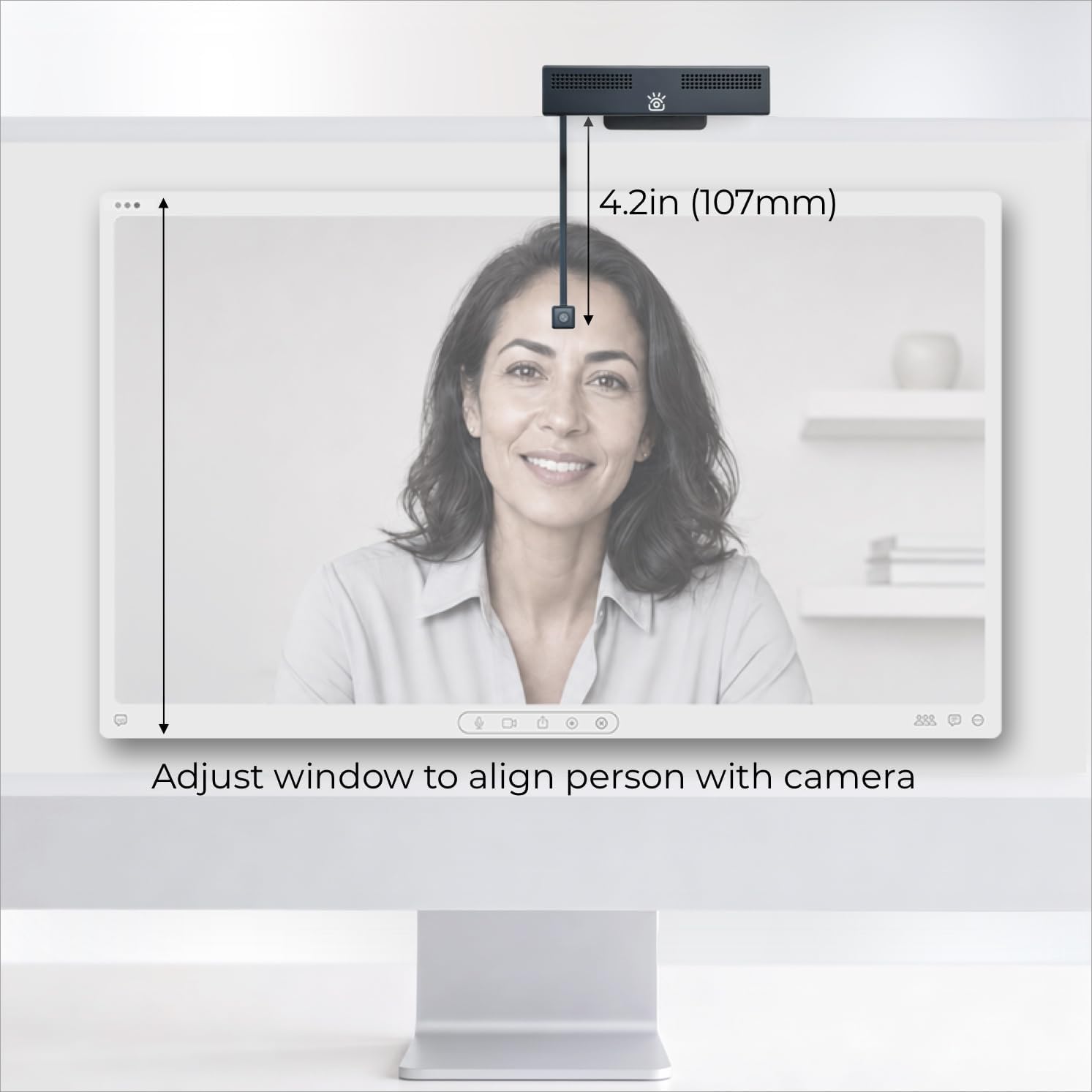
Description: This diagram provides guidance on positioning the webcam and adjusting the video call window on the screen. It shows a measurement of 4.2 inches (107mm) from the top of the monitor to the camera lens, advising users to align their image for direct eye contact.
4. Setup
- Mounting the Webcam:
Carefully place the iContact Camera Pro on top of your desktop monitor. Ensure it is stable and securely positioned. The adjustable mount allows for various monitor thicknesses.
- Connecting to your Computer:
Connect the provided USB cable to the webcam and then to an available USB port on your Mac or PC. The iContact Camera Pro is a plug-and-play device, meaning it should be automatically recognized by your operating system without requiring additional drivers.
- Powering On:
Locate the physical power switch on the webcam and slide it to the 'ON' position. A small indicator light may illuminate to confirm it is powered on.
- Software Configuration:
Open your preferred video conferencing application (e.g., Zoom, Microsoft Teams, Google Meet, Webex). Navigate to the video and audio settings within the application. Select "iContact Camera Pro" as your video input device and "iContact Camera Pro Audio" (or similar) as your microphone input device.
- Optimizing Eye Contact:
For optimal eye contact, adjust your video call window on your screen so that your face aligns with the camera lens. The retractable arm allows for precise positioning of the camera sensor.
5. Operating Instructions
5.1 Video Calls and Conferencing
- Ensure the webcam is connected and selected in your video conferencing software.
- The 4K HD resolution provides clear and detailed video.
- The dual noise-cancelling microphones reduce background noise, ensuring your voice is heard clearly.
- Utilize the retractable arm to position the camera for direct eye contact, enhancing engagement during calls.
5.2 Privacy Control
The physical power switch offers immediate privacy. Slide the switch to the 'OFF' position to completely disable the camera and microphone, ensuring your privacy when not in use.
5.3 Optional Light Panel Integration
The integrated mount allows for easy attachment of an optional light panel (sold separately) to improve lighting conditions for your video calls.
6. Maintenance
- Cleaning the Lens: Use a soft, lint-free cloth specifically designed for camera lenses to gently wipe the lens. Avoid abrasive materials or harsh chemicals.
- Cleaning the Body: Wipe the webcam body with a soft, dry cloth. Do not use liquid cleaners directly on the device.
- Storage: When not in use for extended periods, store the webcam in a cool, dry place away from direct sunlight and extreme temperatures.
7. Troubleshooting
| Problem | Solution |
|---|---|
| Webcam not detected by computer. |
|
| No video output in conferencing software. |
|
| No audio input from webcam microphone. |
|
| Video quality is poor or blurry. |
|
8. Specifications
| Feature | Detail |
|---|---|
| Brand | iContact Camera |
| Model Name | iContact Camera Pro |
| Model Number | 1 |
| Video Capture Resolution | 4K |
| Effective Video Resolution | 4 Kilopixels |
| Effective Still Resolution | 8.3 MP |
| Photo Sensor Technology | BSI CMOS |
| Sensor Type | BSI CMOS |
| Connectivity Technology | USB |
| Compatible Devices | Laptop, Personal Computer |
| Lens Type | Wide Angle |
| Focus Type | Auto Focus |
| Features | Low Light, Dual Noise-Cancelling Microphones, Eye Contact Optimization |
| Color | Black + White |
| UPC | 850071733174 |
| ASIN | B0GSRQXLHB |
9. Warranty Information
The product comes with a manufacturer's warranty. For detailed information regarding warranty coverage, terms, and conditions, please refer to the official iContact Camera website or contact customer support. The provided information indicates a warranty period of "2" (likely 2 years), but specific details should be confirmed with the manufacturer.
10. Customer Support
For technical assistance, troubleshooting, or further inquiries, please visit the official iContact Camera website or contact their customer support team. You can also visit the iContact Camera Store on Amazon for additional resources and product information.