
1. Introduction
This manual provides detailed instructions for the installation, operation, and maintenance of your Inefala Android 15 Car Radio. This intelligent car radio is designed for seamless integration into Citroën Berlingo B9 and Peugeot Partner models manufactured between 2008 and 2018. It features a 9-inch InCell touchscreen, 4GB RAM, 64GB storage, wireless CarPlay, Android Auto, GPS navigation, WiFi connectivity, Bluetooth 5.0, FM/RDS radio, and support for steering wheel controls and a rear view camera.
Please read this manual thoroughly before installation and use to ensure proper functionality and to maximize your driving experience.

Image 1.1: Inefala Android 15 Car Radio after installation in a compatible vehicle dashboard.
2. Package Contents
Verify that all items listed below are included in your package:
- Car Radio Unit ×1
- Radio Housing ×1
- Power Cable ×1
- CANbus Decoder ×1
- Original USB Cable ×1
- Radio Antenna ×1
- Installation Tool ×1
- Microphone ×1
- Rear Camera ×1

Image 2.1: Product dimensions and a visual representation of the package contents.
3. Installation Guide
3.1 General Wiring Diagram
Refer to the following diagram for the main wiring connections. Ensure all cables are securely connected to their corresponding ports on the car radio and your vehicle's harness. Professional installation is recommended.

Image 3.1: Main wiring diagram for the Inefala Android 15 Car Radio.
3.2 Backup Camera Wiring
To enable the rear view camera functionality, connect the camera as shown in the diagram. The camera automatically activates when the vehicle is in reverse gear, providing enhanced visibility for safer maneuvering.

Image 3.2: Backup camera wiring diagram.
4. Basic Operation
4.1 Power On/Off
The car radio will power on automatically when the vehicle's ignition is turned on. To power off, turn off the vehicle's ignition. A short press on the power button (if available) may put the unit into standby mode.
4.2 Touchscreen Interface
The 9-inch InCell touchscreen provides a responsive and intuitive interface. Navigate through menus and applications by tapping, swiping, and pinching gestures, similar to a smartphone or tablet.

Image 4.1: In-cell Touchscreen features.
5. Key Features
5.1 Wireless CarPlay & Android Auto
Connect your smartphone wirelessly to access CarPlay (for iPhone) or Android Auto (for Android devices). This feature allows you to use navigation, make calls, send messages, and listen to music directly from your car radio's display, enhancing convenience and safety.

Image 5.1: Wireless CarPlay, Android Auto, and Mirror Link functionality.
5.2 GPS Navigation & WiFi Connectivity
The unit includes a built-in GPS module for precise navigation, supporting both online and offline maps. Connect to the internet via WiFi hotspot or tethering to receive real-time updates, stream content, and download applications.

Image 5.2: GPS Navigation and WiFi Connection features.
5.3 Bluetooth 5.0
Bluetooth 5.0 enables hands-free calling and wireless music streaming. Pair your smartphone to make and receive calls safely while driving, and enjoy your favorite audio content without cables.
5.4 FM/RDS Radio
Tune into your favorite FM radio stations with clear reception. The RDS (Radio Data System) feature provides additional information such as station names, song titles, and traffic updates where available.
5.5 Audio Equalizer (EQ) Settings
Customize your audio experience with the built-in equalizer settings. Adjust bass, treble, and other sound parameters to match your preferences and optimize sound quality, reducing distortion and interference.

Image 5.3: Bluetooth, FM/RDS Radio, and EQ Settings interfaces.
5.6 Steering Wheel Control (SWC)
Maintain control of your car radio functions directly from your vehicle's steering wheel buttons. This feature enhances safety by allowing you to manage audio, calls, and navigation without taking your hands off the wheel.
- Without CANbus Decoder: Connect the plug from the power cable or the steering wheel control cable (Key1/Key2) to the corresponding interface or wiring in the original vehicle. Then enter the 'Steering Wheel Key' manual pairing function to activate the button functionality.
- With CANbus Decoder: Connect the CAN bus before powering the device. Then navigate to App > Settings > Factory Settings (1234) > CAN Settings to ensure SWC functions properly. First select the CAN bus decoder brand, then choose the corresponding vehicle model and year based on actual conditions.
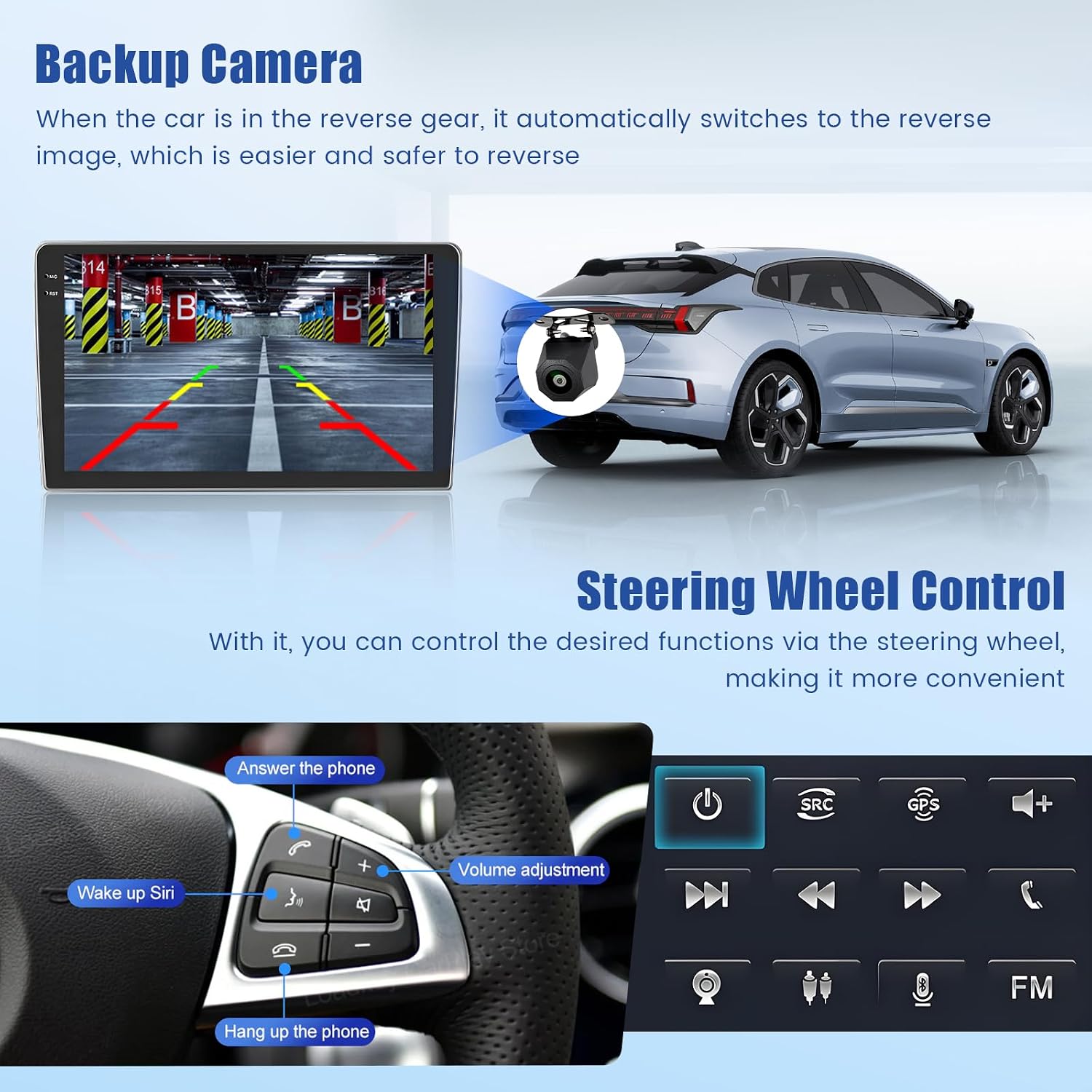
Image 5.4: Steering Wheel Control functionality.

Image 5.5: Detailed Steering Wheel Control setup.
5.7 Backup Camera Functionality
When the vehicle is shifted into reverse gear, the car radio automatically displays the rear view camera feed. This provides a clear view of the area behind your vehicle, significantly improving safety during parking and reversing maneuvers.
Image 5.6: Backup Camera in operation.
6. Specifications
| Model Number | Inefala-A7878A4291H6MI2-EU60 |
| Operating System | Android 15 |
| RAM | 4 GB |
| Storage | 64 GB |
| Screen Size | 9 inches |
| Screen Type | InCell Touchscreen |
| Connectivity | Bluetooth 5.0, WiFi |
| Special Functions | Wireless Apple CarPlay, Android Auto, Rear View Camera Input, RDS, GPS Navigation |
| Compatible Devices | Smartphone |
| Connector Type | RCA |
| Audio Output Mode | Stereo |
| Output Watts | 180 Watts |
| Control Method | Touch |
| Product Dimensions (D x W x H) | 13.5 x 23.5 x 4.5 cm |
| Product Weight | 1.67 Kilograms |
| Manufacturer | Inefala |
| Country of Origin | China |
7. Maintenance & Care
To ensure the longevity and optimal performance of your Inefala Car Radio, follow these maintenance guidelines:
- Cleaning: Use a soft, dry cloth to clean the screen and exterior. For stubborn smudges, lightly dampen the cloth with water or a screen-safe cleaner. Avoid abrasive materials or harsh chemicals.
- Temperature: Avoid exposing the unit to extreme temperatures, both hot and cold, for extended periods.
- Moisture: Keep the unit dry. Do not expose it to water or excessive humidity.
- Software Updates: Periodically check for available software updates through the system settings to ensure you have the latest features and performance improvements.
8. Troubleshooting
If you encounter any issues with your car radio, refer to the following common problems and solutions:
- No Power:
- Check all power connections to ensure they are secure.
- Verify the vehicle's fuse related to the car radio is not blown.
- No Sound:
- Check speaker connections.
- Ensure the volume is not muted or set too low.
- Verify audio output settings in the system menu.
- GPS Not Working:
- Ensure the GPS antenna is properly connected and has a clear view of the sky.
- Check GPS settings in the system menu.
- Bluetooth Connection Issues:
- Ensure Bluetooth is enabled on both the car radio and your smartphone.
- Delete previous pairings and try pairing again.
- Move your smartphone closer to the car radio.
- Touchscreen Unresponsive:
- Restart the car radio by turning the vehicle ignition off and on.
- Ensure the screen is clean and free of debris.
For persistent issues or problems not listed here, please contact customer support.
9. Warranty & Support
Your Inefala Car Radio comes with a 24-month online consultation service. Our support team aims to provide a response within 78 hours for any inquiries or technical assistance you may require.
9.1 How to Obtain Support
For quick assistance, please follow these steps:
- Step 1: Identify your seller (e.g., Amazon, Inefala EU). If purchased from Inefala EU, click on the seller's name to access their store or contact information.
- Step 2: Contact the seller directly via email. Provide your order number and a detailed description of the issue.

Image 9.1: Technical support instructions.
We are committed to resolving 100% of your concerns. Thank you for choosing Inefala.