
Introduction
Thank you for choosing the CHIVALZ PM220 Portable Thermal Label Printer. This manual provides essential information for setting up, operating, maintaining, and troubleshooting your device. Please read it thoroughly before use to ensure optimal performance and longevity of your printer.
The CHIVALZ PM220 is a compact, wireless thermal label printer designed for various labeling needs, including clothing, addresses, barcodes, and household products. It connects seamlessly with smartphones via Bluetooth for convenient printing.
Package Contents
Before proceeding with the setup, please verify that all items are present in the package:
- CHIVALZ PM220 Thermal Label Printer
- USB Charging Cable
- One roll of thermal labels
- User Manual (this document)
Setup
1. Charging the Printer
Before initial use, fully charge the printer. Connect the provided USB charging cable to the printer's charging port and a compatible USB power adapter (not included) or a computer's USB port. The charging indicator light will show the charging status.
2. Loading Thermal Labels
- Open the label compartment cover.
- Insert the thermal label roll with the printing surface facing upwards. Ensure the labels are aligned correctly with the feed mechanism.
- Pull a small portion of the label roll out past the print head.
- Close the label compartment cover securely.
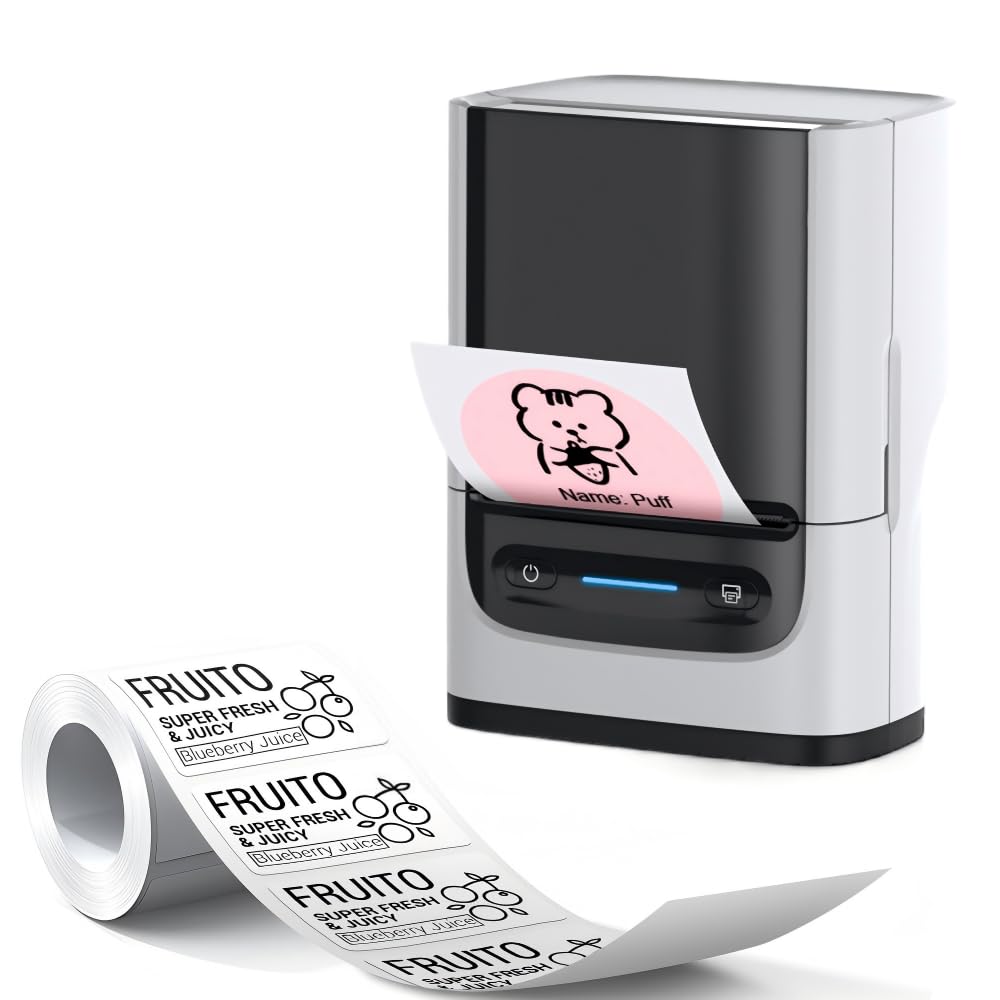
Image: The CHIVALZ PM220 printer with a thermal label roll correctly inserted into its compartment. The label roll is visible, extending slightly from the printer's output slot.
3. Installing the Mobile Application
Search for the official CHIVALZ label printing application on your smartphone's app store (e.g., Apple App Store for iOS or Google Play Store for Android). Download and install the application.
4. Connecting via Bluetooth
- Ensure your CHIVALZ PM220 printer is powered on.
- Enable Bluetooth on your smartphone.
- Open the CHIVALZ label printing application.
- Within the app, navigate to the device connection settings. Select the CHIVALZ PM220 from the list of available Bluetooth devices. The printer's name typically includes "CHIVALZ" or "PM220".
- Follow any on-screen prompts to complete the pairing process. A successful connection will usually be indicated within the app.
Operating Instructions
1. Powering On/Off
- To Power On: Press and hold the power button for approximately 3 seconds until the indicator light illuminates.
- To Power Off: Press and hold the power button for approximately 3 seconds until the indicator light turns off.
2. Creating and Printing Labels
- Ensure the printer is connected to your smartphone via Bluetooth.
- Open the CHIVALZ label printing application.
- Select a label template or create a new label design. The app allows for text, images, barcodes, and QR codes.
- Customize your label content as needed.
- Preview the label to ensure it appears as desired.
- Tap the "Print" button within the application. Select the number of copies if applicable.
- The printer will feed and print the labels. Carefully tear off the printed labels along the perforation.
Maintenance
1. Cleaning the Print Head
Regular cleaning of the print head ensures optimal print quality. Use a soft, lint-free cloth lightly dampened with isopropyl alcohol. Gently wipe the print head surface. Allow it to dry completely before using the printer.
- Frequency: Clean the print head after every 5-10 rolls of labels or if print quality degrades.
- Caution: Do not touch the print head with bare hands as oils can affect print quality.
2. Battery Care
To prolong battery life:
- Avoid fully discharging the battery frequently.
- Store the printer in a cool, dry place when not in use for extended periods.
- Charge the printer at least once every three months if stored for a long time.
3. Label Storage
Store thermal labels in a cool, dry place away from direct sunlight and heat sources. Exposure to heat or light can cause labels to fade prematurely.
Troubleshooting
| Problem | Possible Cause | Solution |
|---|---|---|
| Printer does not power on. | Low battery; Power button not pressed correctly. | Charge the printer; Press and hold the power button for 3 seconds. |
| Cannot connect via Bluetooth. | Bluetooth off on phone/printer; Printer not discoverable; App issue. | Ensure Bluetooth is enabled on both devices; Restart printer and phone; Reinstall app. |
| Poor print quality (faint, blank lines). | Print head dirty; Incorrect label orientation; Low battery. | Clean the print head; Re-insert labels correctly; Charge the printer. |
| Labels not feeding or jamming. | Labels incorrectly loaded; Label compartment not closed properly. | Open and re-load labels, ensuring proper alignment; Close cover firmly. |
| Printer stops responding. | Temporary software glitch. | Perform a soft reset by powering off and on the printer. |
Specifications
| Feature | Detail |
|---|---|
| Brand | CHIVALZ |
| Model Name | PM220 |
| Connectivity Technology | Bluetooth |
| Printing Technology | Thermal |
| Color | White |
| Printer Output | Monochrome |
| Max Monochrome Print Speed | 203 dpi (dots per inch) |
| Product Dimensions (L x W x H) | 13 x 8 x 10 centimeters (approx. 5.1 x 3.1 x 3.9 inches) |
| Max Media Size | 4 x 6 inches |
| Included Components | Label roll |
| Manufacturer | CHIVALZ |
| ASIN | B0GSGB976P |
Warranty and Support
Warranty Information
The CHIVALZ PM220 Thermal Label Printer comes with a standard manufacturer's warranty. Please refer to the warranty card included in your package or visit the official CHIVALZ website for detailed terms and conditions regarding warranty coverage and duration.
Customer Support
For technical assistance, troubleshooting not covered in this manual, or warranty claims, please contact CHIVALZ customer support. Contact details can typically be found on the official CHIVALZ website or on the product packaging.
When contacting support, please have your product model (PM220) and purchase information ready.