
1. Introduction
This manual provides detailed instructions for the VBESTLIFE Customizable Control Knob. It covers product features, setup, operation, customization, maintenance, and troubleshooting to ensure optimal use of your device. Please read this manual thoroughly before using the product.
2. Product Overview
2.1 Key Features
- 3 Modes Connection: Supports BT5.0, 2.4G (receiver not included), and USB C connectivity. Plug and play via Type C to USB interface, no driver required.
- Wide Compatibility: Compatible with Wins, OS X, Android, HarmonyOS, and iOS platforms.
- Customizable Functions: Program for media playback, brightness, volume, webpage navigation, video editing, and e-book page turning with 360° rotation.
- User Friendly Design: Constructed from aluminum alloy and ABS for durability. Features a built-in 400mAh battery with Type C charging.
- Enhanced Efficiency: Compact and versatile, designed to simplify repetitive tasks and improve workflow across various applications.
2.2 What's in the Box
- 1 x Customized Knob
- 1 x USB C Data Cable
- 1 x User Manual (this document)

Image: The customizable control knob shown alongside its included USB C data cable.
3. Setup
Follow these steps to set up your VBESTLIFE Customizable Control Knob.
3.1 Charging the Device
The knob has a built-in 400mAh Li battery. Before first use, or when the battery is low, connect the device using the provided USB C data cable to a power source (e.g., computer USB port or USB wall adapter).
3.2 Connectivity Modes
The control knob supports three connection methods:
- USB C Wired Connection:
Connect the provided USB C data cable from the knob to your computer or device. The knob will be recognized automatically as a plug-and-play device, requiring no additional drivers.
- Bluetooth (BT5.0) Connection:
Ensure the knob is charged. Turn on the knob using the power switch located on the bottom. Activate Bluetooth pairing mode on the knob (refer to the device's LED indicator for status). On your computer or mobile device, search for Bluetooth devices and select the VBESTLIFE knob to pair.
- 2.4G Wireless Connection:
This mode requires an additional 2.4G receiver (not included). Insert the 2.4G receiver into a USB port on your computer. Turn on the knob and switch it to 2.4G mode. The knob should automatically connect to the receiver.

Image: The underside of the control knob, highlighting the power switch and USB C charging/connection port.
4. Operating Instructions
The VBESTLIFE Customizable Control Knob features a double-layer design with rotatable and press functions for both upper and lower knobs.
4.1 Basic Operation
- Rotation: Both the upper and lower knobs can be rotated left or right to control various functions.
- Press Function: The upper knob supports a press function, allowing for additional control methods.
- Press and Rotate: The upper knob also supports a press-and-rotate function, integrating more complex controls.

Image: A visual guide demonstrating how to rotate the upper and lower knobs, press the upper knob, and combine press with rotation for control.
4.2 Default Functions (Example)
While functions are highly customizable, common uses include:
- Adjusting system volume (up/down, mute).
- Controlling media playback (play/pause, previous/next track).
- Adjusting screen brightness.
- Navigating web pages or electronic books (flip up/down).
- Executing commands in video editing software.
For specific function assignments, refer to the customization software section.
5. Customization
The VBESTLIFE Customizable Control Knob allows extensive personalization through its dedicated software.
5.1 Custom Software
The device utilizes an interactive, user-friendly English software for customization. This software allows you to set knob key positions and control RGB lighting effects. The software is only required during the setting process and does not need to run in the background for daily use.

Image: Multiple screenshots of the customization software, illustrating various configuration options such as basic key assignments, combination key setups, multimedia controls, RGB lighting adjustments, mouse/swipe gestures, and general software settings.
5.2 RGB Lighting Control
The knob features customizable RGB lighting. Through the software, you can adjust the lighting to create a desired ambiance or visual cue for different functions or environments.

Image: The control knob displaying its customizable RGB lighting, which can be configured via the software.
5.3 Key Mapping and Memory
The device's built-in memory stores your customized key mappings, including complex shortcut combinations. Once configured, these settings are retained even when switching between devices or connectivity modes, eliminating the need for re-configuration.
6. Maintenance
To ensure the longevity and optimal performance of your control knob, follow these maintenance guidelines:
- Cleaning: Use a soft, dry cloth to wipe the surface of the knob. Avoid using harsh chemicals or abrasive materials.
- Storage: Store the device in a cool, dry place away from direct sunlight and extreme temperatures.
- Battery Care: For optimal battery life, avoid fully discharging the battery frequently. Charge the device regularly, especially if it will be stored for an extended period.
7. Troubleshooting
If you encounter issues with your control knob, refer to the following common solutions:
- Device Not Responding:
- Ensure the device is charged.
- Check the power switch on the bottom of the knob.
- Verify the connection (USB C cable, Bluetooth pairing, or 2.4G receiver).
- Try restarting your computer or device.
- Custom Functions Not Working:
- Ensure you have saved your settings in the customization software.
- Confirm the software is compatible with your operating system.
- Re-apply the settings using the customization software.
- Bluetooth Connection Issues:
- Ensure Bluetooth is enabled on your host device.
- Remove the knob from your device's paired Bluetooth list and attempt to re-pair.
- Ensure the knob is in Bluetooth pairing mode.
8. Specifications
| Attribute | Value |
|---|---|
| Item Type | Customizable Knob |
| Product Material | ABS, Aluminum Alloy |
| Connectivity Modes | 2.4G (receiver not included), BT5.0, USB C Wired |
| Compatibility | Wins, OS X, Android, HarmonyOS, iOS |
| Product Diameter | Approx. 55mm / 2.2in |
| Product Height | Approx. 40mm / 1.6in |
| Battery | 1 x 400mAh Li Battery (Built-in) |
| Model Number | VBESTLIFEt8fa1hp392 |
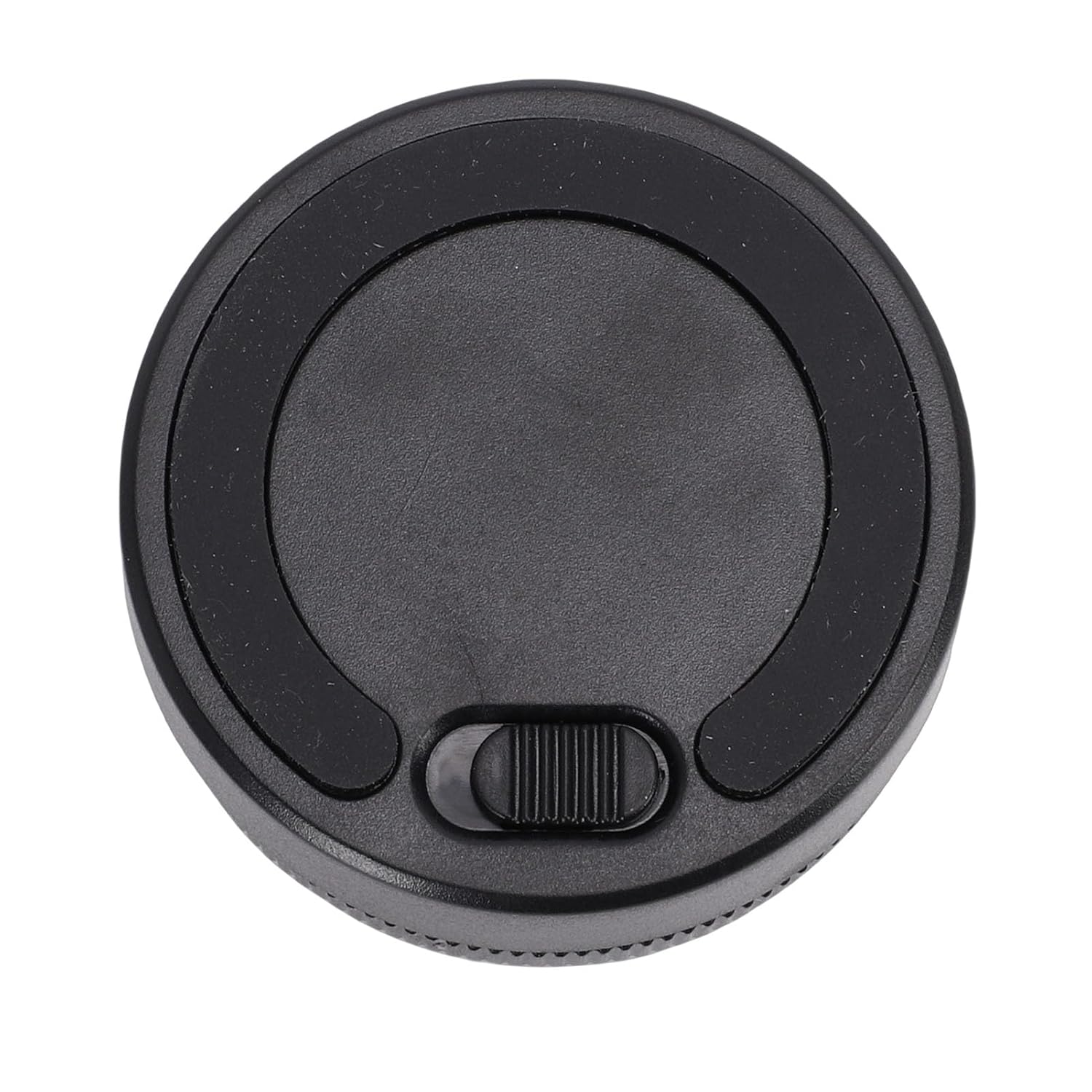
Image: A diagram illustrating the physical dimensions of the control knob, with a diameter of 55mm (2.2in) and a height of 40mm (1.6in).
9. Warranty and Support
For warranty information and technical support, please refer to the documentation provided with your purchase or contact VBESTLIFE customer service directly. Keep your proof of purchase for warranty claims.