
Introduction
This manual provides instructions for the VBESTLIFE Customizable Control Knob. This device is designed to enhance productivity and control various functions across multiple operating systems through its programmable rotary knob and customizable RGB lighting. It supports three connectivity modes: Bluetooth 5.0, 2.4G wireless, and USB-C wired connection.
Product Overview
The VBESTLIFE Customizable Control Knob features a double-layer design, allowing for versatile control inputs. Both the upper and lower knobs can be rotated left or right. The upper knob also supports press and press-rotation functions, integrating multiple control methods into a compact device.

Image: Double-Layer Knob Functionality. This diagram illustrates how both the upper and lower knobs can be rotated left or right. The upper knob also supports a press function and a press-and-rotate function for additional control options.
The device also features customizable RGB lighting, which can be configured via dedicated software to match your preferences or workspace ambiance.

Image: RGB Lighting. A close-up view of the control knob showcasing its active, customizable RGB lighting strip around the base.
Package Contents
- 1 x VBESTLIFE Customizable Control Knob
- 1 x USB-C Data Cable
- 1 x User Manual (this document)

Image: Package Contents. The image displays the customizable control knob alongside its included USB-C charging and data cable.
Setup
Charging the Device
Before first use, ensure the control knob is fully charged. Connect the provided USB-C cable to the port on the device and the other end to a USB power source (e.g., computer USB port, wall adapter).

Image: USB-C Port and Power Switch. This view shows the side of the control knob, highlighting the USB-C charging port and the power/mode switch.
Powering On/Off
Locate the power switch on the side of the device. Slide the switch to the 'ON' position to power on the knob. Slide it to the 'OFF' position to power off.
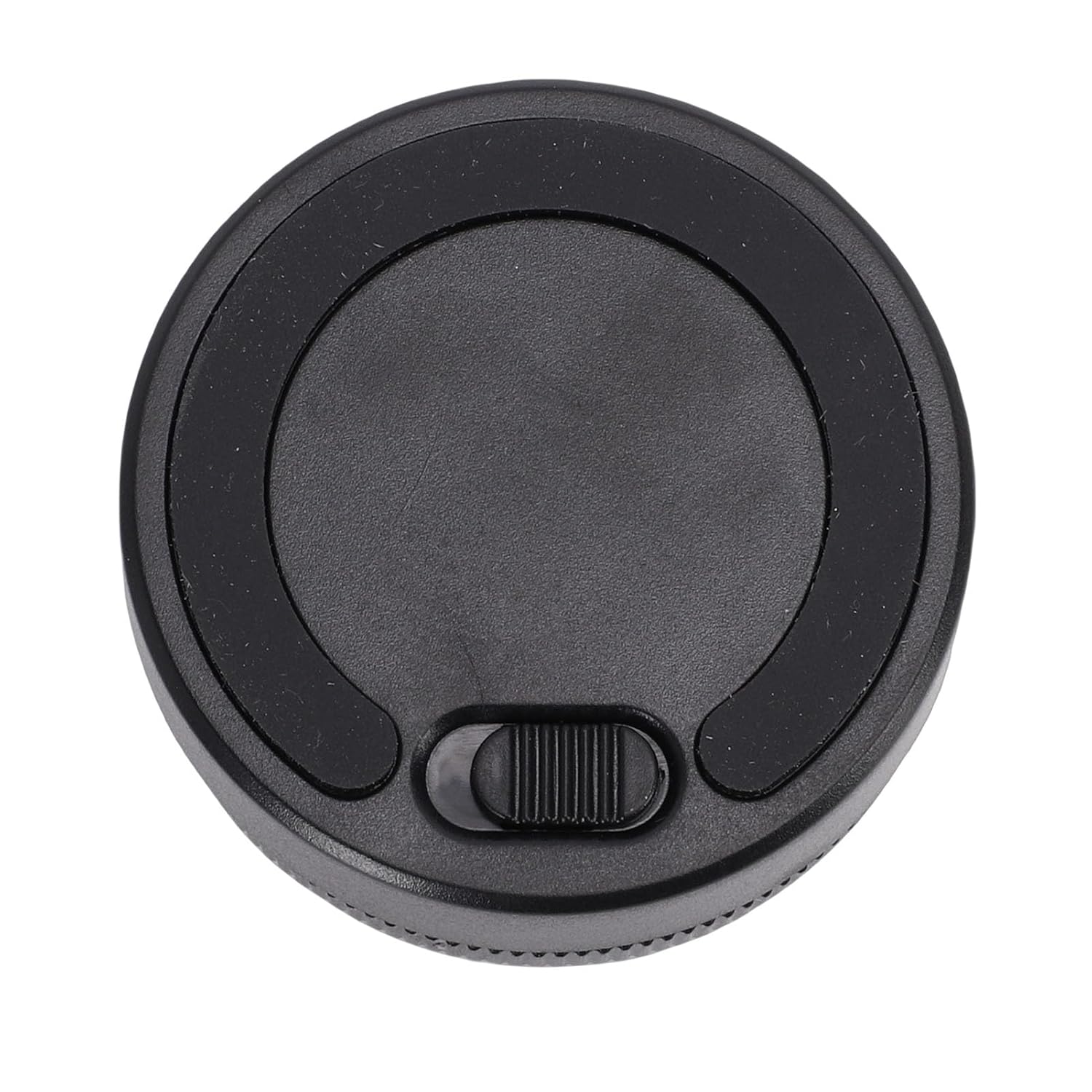
Image: Bottom View with Power Switch. The bottom of the control knob is shown, clearly indicating the position of the power/mode switch.
Connectivity Modes
The VBESTLIFE control knob supports three distinct connectivity modes:
- USB-C Wired Connection: Connect the device directly to your computer using the provided USB-C cable. This mode offers a stable, plug-and-play connection and does not require drivers.
- Bluetooth 5.0 Wireless:
- Ensure the knob is powered on.
- Activate Bluetooth pairing mode on the knob (refer to device indicators for pairing status, usually a blinking light).
- On your computer or mobile device, search for Bluetooth devices and select "VBESTLIFE Knob" (or similar name) to pair.
- 2.4G Wireless Connection: This mode requires a separate 2.4G receiver (not included).
- Plug the 2.4G receiver into an available USB port on your computer.
- Ensure the knob is powered on and in 2.4G mode (refer to device indicators).
- The device should automatically connect to the receiver.
The knob's built-in memory stores custom key assignments, allowing for complex shortcut combinations across different connectivity modes.
Operating Instructions & Customization
The VBESTLIFE control knob is highly customizable through its dedicated software. This software allows you to assign various functions to the knob's rotations and presses.
Software Installation and Use
- Download the official customization software from the VBESTLIFE website (or as instructed in the product packaging).
- Install the software on your compatible operating system (Wins, OS X, Android, HarmonyOS, iOS).
- Launch the software to access customization options for:
- Basic Key Assignments: Map single key presses.
- Combination Keys: Create complex shortcuts (e.g., Ctrl+C, Alt+Tab).
- Multimedia Control: Play/pause, next/previous track, volume up/down, mute.
- Brightness Adjustment: Control screen brightness (on compatible laptops/monitors).
- Web Page Navigation: Scroll, switch tabs.
- Video Editing Commands: Specific functions for video editing software.
- E-book Page Flipping: Navigate through e-books.
- Mouse Functions: Control mouse movement or clicks.
- RGB Light Effect Control: Customize lighting patterns and colors.
- The software is primarily used for initial setup and customization. It does not need to run in the background for daily use once settings are saved to the knob's memory.

Image: Customization Software Interface. This image displays various sections of the customization software, including options for basic key mapping, combination keys, multimedia controls, mouse settings, and RGB lighting effects.
Maintenance
- Cleaning: Use a soft, dry cloth to clean the surface of the knob. Avoid using abrasive cleaners or solvents.
- Storage: Store the device in a cool, dry place away from direct sunlight and extreme temperatures.
- Battery Care: To prolong battery life, avoid fully discharging the device frequently. Charge it regularly, especially if not used for extended periods.
Troubleshooting
- Device not responding:
- Ensure the device is powered on.
- Check battery level and charge if necessary.
- Verify the correct connectivity mode (USB-C, Bluetooth, or 2.4G) is selected and properly established.
- For Bluetooth, try re-pairing the device.
- For 2.4G, ensure the receiver is securely plugged in.
- Custom functions not working:
- Ensure the customization software was used to save the settings to the device.
- Restart the application you are trying to control.
- Check for software updates for the customization tool.
- RGB lights not working/customizing:
- Ensure the device is powered on.
- Use the customization software to adjust RGB settings.
Specifications
| Parameter | Value |
|---|---|
| Product Type | Customizable Control Knob |
| Model Number | VBESTLIFEt61jvofznb |
| Material | ABS, Aluminum Alloy |
| Connectivity Modes | Bluetooth 5.0, 2.4G Wireless (receiver not included), USB-C Wired |
| Battery | 400 mAh Lithium Battery (built-in) |
| Diameter | Approx. 55 mm / 2.2 inches |
| Height | Approx. 40 mm / 1.6 inches |
| Product Weight | 164 g |
| Compatibility | Wins, OS X, Android, HarmonyOS, iOS |

Image: Product Dimensions. This image provides a visual representation of the control knob's dimensions, indicating a diameter of 55mm (2.2 inches) and a height of 40mm (1.6 inches).