
1. Introduction
The RayCue CyberAxon D5 is a versatile 13-in-1 USB-C docking station designed to expand the connectivity and display capabilities of your laptop or tablet. Featuring a 2.4-inch interactive touchscreen, multiple HDMI outputs, high-speed USB ports, Ethernet, and power delivery, this dock provides a comprehensive solution for a streamlined workstation.
2. Package Contents
Please verify that all items listed below are present in your package:
- 1 x RayCue CyberAxon D5 13-in-1 USB-C Docking Station
- 1 x USB-C to USB-C Cable
- 1 x User Instruction Manual

Image: Contents of the RayCue CyberAxon D5 package. The image displays the CyberAxon D5 docking station, a braided USB-C to USB-C cable, and a small instruction booklet, all neatly arranged next to the product box.
3. Product Overview and Components
Familiarize yourself with the various ports and features of your CyberAxon D5 docking station:

Image: Detailed diagram of the CyberAxon D5 docking station, highlighting and labeling each port and feature. Key components include RJ45 (Gigabit Ethernet), USB-A 2.0 (x2), USB-A Gen 1 (5Gbps x2), HDMI (4K@60Hz x3), USB-C Gen 2 (10Gbps x3), 3.5mm audio jack, 2.41-inch IPS screen, ON/OFF button, USB C Host port, and USB C PD 100W port.
- RJ45 (Gigabit Ethernet): For stable wired network connection (1000Mbps).
- USB-A 2.0 (x2): For connecting peripherals like keyboards, mice, or printers.
- USB-A Gen 1 (5Gbps x2): High-speed data transfer for external drives or other USB devices.
- HDMI (4K@60Hz x3): Connect up to three external displays.
- USB-C Gen 2 (10Gbps x3): High-speed data transfer for USB-C devices.
- 3.5mm Audio Jack: For headphones or speakers.
- 2.41-inch IPS Screen: Interactive display for real-time monitoring.
- ON/OFF Button: To power the docking station.
- USB C Host: Connects to your laptop or tablet.
- USB C PD 100W: For power input to charge your host device.
4. Smart Digital Display
The CyberAxon D5 features a 2.4-inch interactive display that provides real-time information about the docking station's status and connected devices.

Image: A close-up view of the CyberAxon D5's smart digital display. The screen shows real-time operational information, including connected HDMI displays (e.g., 'Lenovo 24" 1920x1080 60Hz'), power delivery status (e.g., '100W'), and connection status for various ports (C1, C2, C3, A1, A2, A3, A4, RJ45).
This display allows you to monitor:
- Power Usage: View the current power delivery to your host device.
- Port Connection Status: See which ports are active and what devices are connected.
- System Information: Get quick insights into the dock's operational state.
5. Setup Instructions
Follow these steps to set up your RayCue CyberAxon D5 docking station:
- Connect Power (Optional but Recommended): Connect a USB-C power adapter (up to 100W, not included) to the 'USB C PD 100W' port on the docking station. This will provide power to the dock and allow it to charge your host device.
- Connect to Host Device: Use the provided USB-C to USB-C cable to connect the 'USB C Host' port on the docking station to a USB-C port on your laptop, tablet, or smartphone.
- Connect Peripherals: Connect your external monitors to the HDMI ports, USB devices (keyboard, mouse, external hard drives) to the USB-A and USB-C data ports, and your Ethernet cable to the RJ45 port.
- Power On: Press the ON/OFF button on the docking station to power it on. The smart digital display will activate.
The CyberAxon D5 is plug-and-play compatible with Windows, macOS, and iPadOS, requiring no additional driver installation for basic functionality.
6. Operating Instructions
6.1 General Operation
- Once connected, your host device should automatically detect the docking station and its connected peripherals.
- Use your operating system's display settings to configure external monitors (resolution, refresh rate, arrangement).
- The 2.4-inch smart screen provides real-time feedback on port activity and power delivery.
6.2 Display Configuration
The CyberAxon D5 supports various display configurations:
Single 8K Display Output
Connect one monitor to any HDMI port for a single display output up to 8K@30Hz.

Image: A laptop connected to a large 8K monitor, demonstrating the single 8K display output capability of the docking station. The docking station is visible next to the laptop.
Triple 4K Display Output
Connect up to three external displays via the HDMI ports, supporting resolutions up to 4K@60Hz simultaneously.
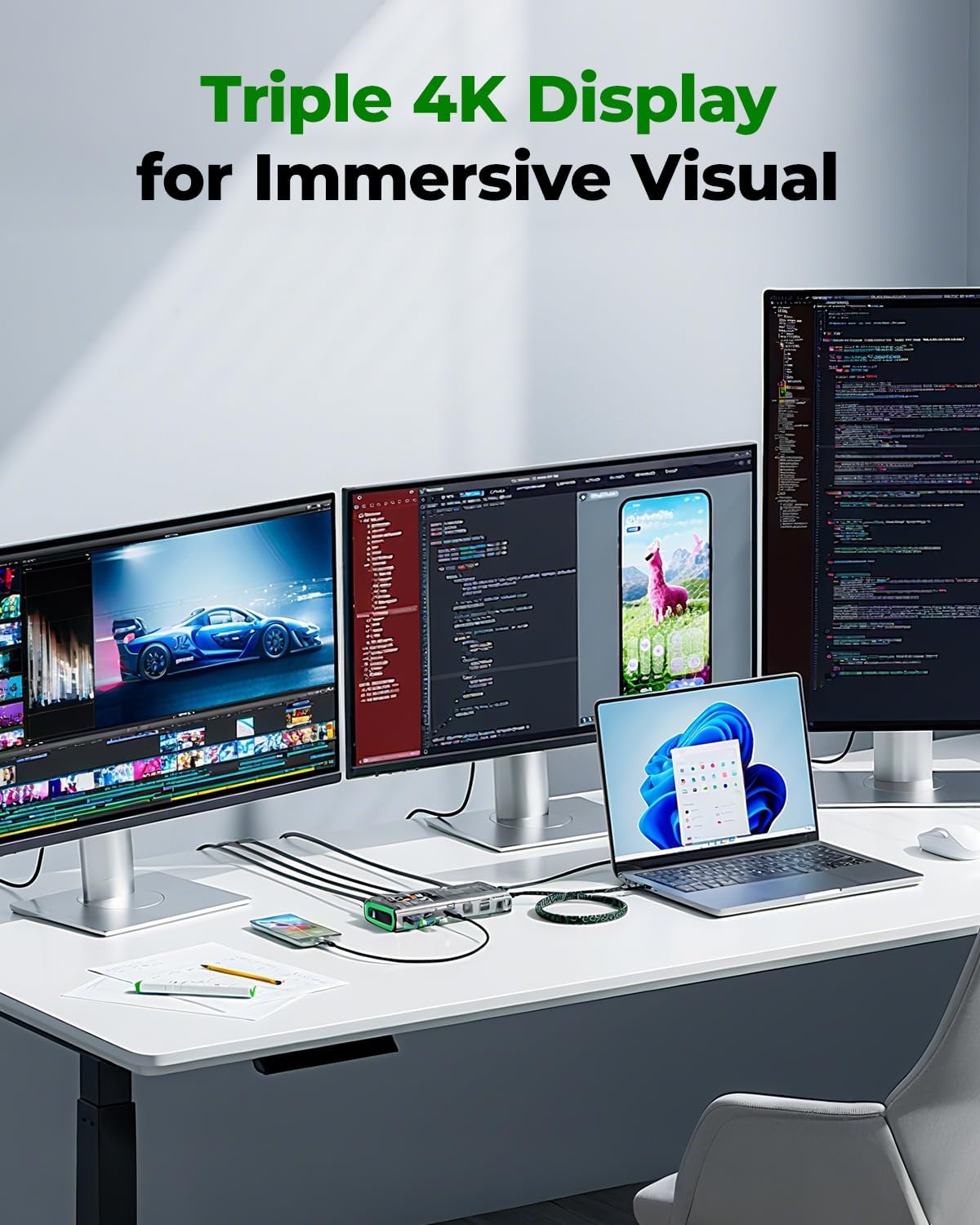
Image: A workstation setup showing a laptop connected to three external 4K monitors, illustrating the triple 4K display output feature of the docking station. The docking station is centrally placed, managing the multiple display connections.
- Windows: Supports MST/SST multi-display modes (e.g., ABBB/ABCD for extended or mirrored displays).
- macOS: Supports SST mirror/extended display modes (e.g., AAAA/ABBB). Note that macOS typically mirrors all external displays in extended mode due to system limitations.
6.3 Power Delivery and Data Transfer
The docking station supports up to 100W Power Delivery to charge your host laptop while simultaneously providing high-speed data transfer.

Image: The CyberAxon D5 docking station connected to a laptop, with a power adapter supplying 100W to the dock, which then delivers 85W to the laptop, demonstrating its high-speed charging capability.
- Ensure your power adapter connected to the dock is capable of delivering sufficient wattage (e.g., 100W) to charge your laptop effectively.
- USB-C data ports support speeds up to 10Gbps for rapid file transfers.
7. Maintenance
To ensure the longevity and optimal performance of your CyberAxon D5 docking station:
- Keep the device clean by wiping it with a soft, dry cloth. Avoid liquid cleaners.
- Do not expose the device to extreme temperatures, humidity, or direct sunlight.
- Avoid dropping or subjecting the device to strong impacts.
- Ensure proper ventilation around the device, especially during extended use, to benefit from its aluminum alloy heat dissipation design.

Image: An exploded view of the CyberAxon D5 docking station, illustrating its internal components, transparent casing, and aluminum shell designed for efficient cooling and high performance.
8. Troubleshooting
If you encounter issues with your CyberAxon D5, refer to the following common problems and solutions:
- No Display Output:
- Ensure the HDMI cables are securely connected to both the dock and the monitor.
- Verify that your host device's USB-C port supports video output (DisplayPort Alternate Mode).
- Check your operating system's display settings to detect and extend/mirror displays.
- Try connecting one monitor at a time to isolate the issue.
- No Power Delivery to Laptop:
- Ensure a compatible USB-C power adapter is connected to the dock's 'USB C PD 100W' port.
- Verify the power adapter's wattage meets or exceeds your laptop's charging requirements.
- Check the connection between the dock and your laptop.
- USB Devices Not Recognized:
- Ensure the USB devices are properly plugged into the dock's USB ports.
- Try connecting the device directly to your host computer to confirm it functions.
- Restart your host device and the docking station.
- Ethernet Connection Issues:
- Verify the Ethernet cable is securely connected to both the dock and your router/modem.
- Check your host device's network settings.
- Ensure your router/modem is functioning correctly.
9. Specifications
| Feature | Specification |
|---|---|
| Model | CyberAxon D5 |
| Brand | RayCue |
| Number of Ports | 13 |
| Hardware Interface | USB Type C |
| HDMI Ports | 3 (up to 8K@30Hz single, 4K@60Hz triple) |
| USB-C Data Ports | 3 (10Gbps) |
| USB-A Data Ports | 2 (5Gbps) |
| USB 2.0 Ports | 2 |
| Ethernet Port | Gigabit (1000Mbps) |
| Audio Jack | 3.5mm |
| Power Delivery | Up to 100W (input) |
| Display Screen | 2.4-inch IPS Interactive Display |
| Compatible Devices | Windows, macOS, iPadOS, and over 2000 USB-C devices |
| Color | Silver |
10. Warranty and Support
For warranty information or technical support, please refer to the official RayCue website or contact their customer service directly. Keep your purchase receipt for warranty claims.