
1. Important Safety Information
Please read all safety instructions carefully before operating the GreenVation Electric Smart Mouse Trap. Failure to follow these instructions may result in electric shock, fire, or injury.
- Keep Away from Children and Pets: The trap uses high-voltage shocks. Ensure it is placed in locations inaccessible to children and pets.
- Do Not Touch Steel Board While Working: Avoid contact with the internal steel plates when the trap is active.
- Turn Off Power Before Touching: Always switch off the power and remove batteries before handling, cleaning, or performing any maintenance on the trap.
- Indoor Use Only: This device is designed for indoor use in dry areas. Do not use it outdoors or in wet environments.
- Dry Areas Only: To ensure durability and effectiveness, keep the electric rat trap in dry areas. Do not immerse the electronic part in water.

Image: Safety guidelines for using the mouse trap, including warnings for children, pets, and handling.
2. Product Overview
The GreenVation Electric Smart Mouse Trap (Model NAS-MA01W) is an advanced rodent control solution designed for indoor use. It utilizes high-voltage electric shocks to eliminate mice and provides real-time notifications to your smartphone via a 2.4GHz Wi-Fi connection. Its no-touch design ensures hygienic disposal.
Key Features:
- High-voltage electric shock (up to 6000V) for effective elimination.
- App push notifications for real-time alerts when a mouse is caught.
- No-touch disposal for improved hygiene.
- Suitable for small rodents like mice, chipmunks, and squirrels.
- Reusable design.

Image: The GreenVation Electric Smart Mouse Trap with an illustration of its high-voltage shock mechanism and app notification feature.
3. Getting Started
3.1 Battery Installation
The trap is powered by four high-capacity 1.5V AA batteries. Ensure batteries are installed correctly before first use.
- Push open the cover of the mouse trap.
- Install four 1.5V AA/LR6 batteries into the battery compartment, observing correct polarity.
- Remove the battery insulation sheet for the first use.
- Close the cover securely.
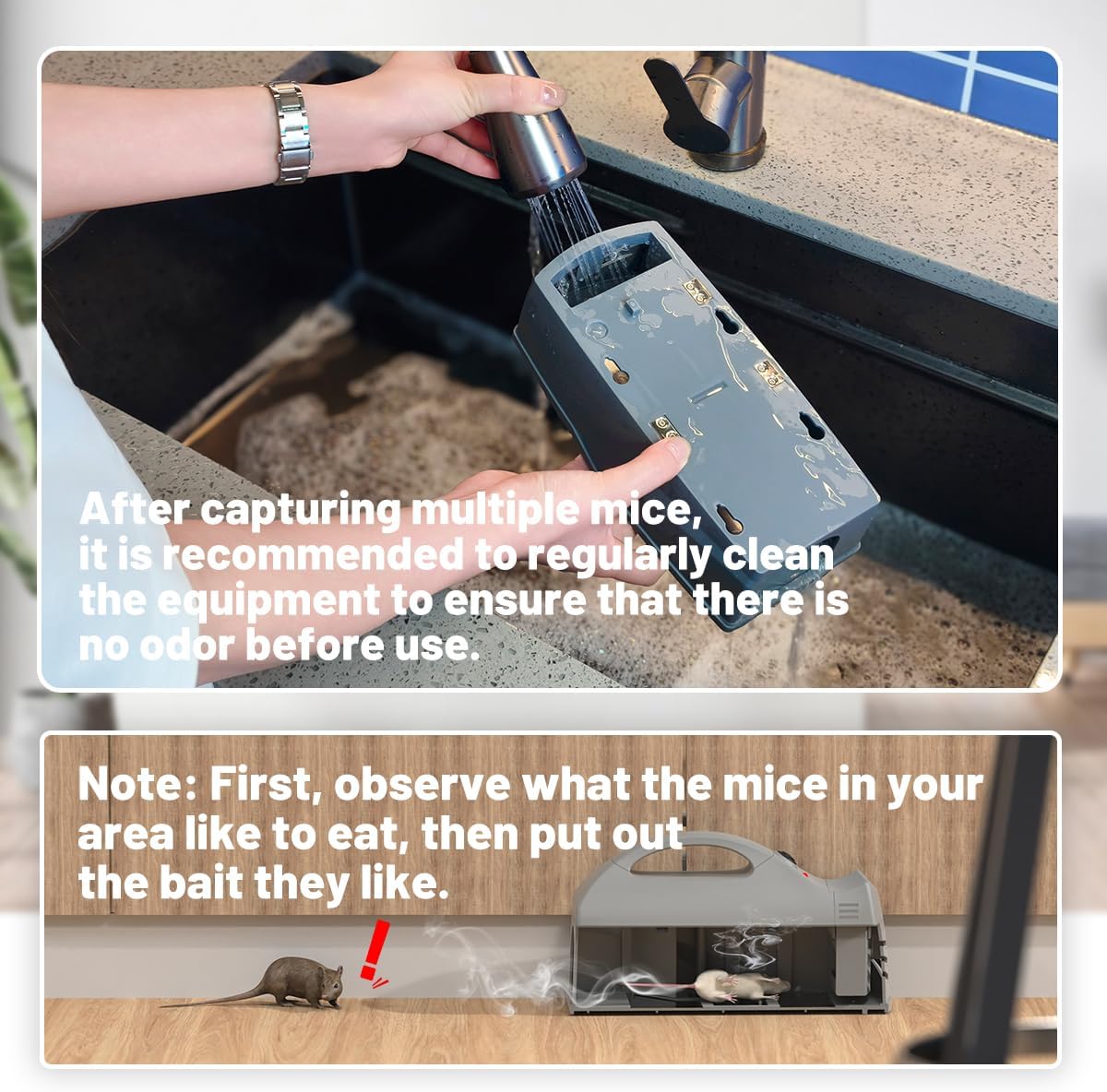
Image: Detailed view of battery installation, highlighting the removal of the insulation sheet.
3.2 App Download and Connection
To utilize the smart features and receive notifications, connect your trap to the Smart Life or Tuya app.
- Download the "Smart Life" or "Tuya" app from your smartphone's app store.
- Ensure your smartphone is connected to a 2.4GHz Wi-Fi network. The trap does not support 5GHz networks.
- Remove the cover from the mouse trap.
- Press and hold the reset button until the green light flashes to enter pairing mode.
- Open the app and add your device. The app should automatically detect the "Smart Mouser".
- Follow the in-app instructions to complete the connection.
- After successful pairing, ensure to update the firmware to the latest version within the app for optimal performance.

Image: Step-by-step guide for connecting the mouse trap to the mobile application.
Video: Tutorial demonstrating the firmware upgrade process for the mouse trap via the mobile application.
4. Operation
4.1 Baiting the Trap
Effective baiting is crucial for successful rodent capture.
- First, observe what mice in your area prefer to eat.
- Take out the food box from the trap.
- Place the preferred bait inside the food box.
- Reinsert the food box into the trap.
4.2 Trap Placement
Mice tend to use walls and fences as guides. Strategic placement increases capture rates.
- Place the trap in areas where mice frequently appear.
- Ideally, position the trap along a wall or fenceline.

Image: Visual instructions for baiting and placing the mouse trap.
4.3 Catch Notification and Indication
When a mouse is caught, the trap will provide visual feedback and send a notification to your connected app.
- The red indicator light on the trap will stay on for one minute, then flash for another minute.
- After catching a mouse, the red indicator light flashes 10 times in the first minute and 10 times every 5 minutes thereafter, with a maximum duration of 30 minutes.
- The app will automatically notify you that a mouse has been caught.

Image: App notification indicating a mouse has been caught by the smart trap.
Video: Demonstration of the GreenVation Electric Smart Mouse Trap in action, showing a mouse entering, the electric shock, and the app notification.
5. Maintenance
5.1 Cleaning the Trap
Regular cleaning ensures the trap remains hygienic and effective.
- Turn off the power and remove the upper cover.
- After capturing a mouse, dispose of it hygienically without touching.
- Pour out any food residue and clean the food box.
- Remove the top cover and rinse with tap water.
- Dry off any moisture completely before reassembling and reusing the trap. Do not immerse the electronic parts in water.

Image: Instructions for cleaning the mouse trap after use.
6. Troubleshooting
If you encounter issues with your GreenVation Electric Smart Mouse Trap, refer to the following common solutions:
- Difficulty Connecting to Wi-Fi:
- Ensure your router is broadcasting a 2.4GHz Wi-Fi network. The trap does not support 5GHz Wi-Fi.
- Place the trap within 50 meters of your Wi-Fi router for optimal signal strength.
- Confirm your phone is also connected to the 2.4GHz network during the pairing process.
- If using a mesh Wi-Fi system, you may need to temporarily disable the 5GHz band during setup.
- Trap Not Functioning / Not Sending Notifications:
- Check battery levels. Replace batteries if low.
- Ensure the trap is powered on.
- Verify the trap is properly connected to the Smart Life/Tuya app.
- Firmware Update: Ensure the trap's firmware is updated to the latest version via the app. This can resolve connectivity and performance issues.
- Resetting the Device:
- To wake up the device for an OTA upgrade, short press the reset button for 1 second (green light on).
- To perform a full reset, press and hold the reset button for 6 seconds (green light on). This will clear pairing information.

Image: Important tips for Wi-Fi connectivity and device behavior.

Image: Instructions for waking up the device for updates and performing a factory reset.
7. Product Specifications
| Specification | Detail |
|---|---|
| Device Name | Wi-Fi Mouse Trap |
| Model Number | NAS-MA01W |
| Power Source | 4 x 1.5V AA/LR6 Batteries (6V total) |
| Standby Current | 52.5uA |
| Wireless Distance | 45M |
| Bluetooth Version | Bluetooth 5.0 |
| Wireless Standard | IEEE 802.11b/g/n |
| Wireless Frequency | 2.4GHz |
| Working Temperature | -10°C ~ 60°C (14°F ~ 140°F) |
| Working Humidity | 1% ~ 85%RH (Non-condensation) |
| Product Dimensions (L x W x H) | 222mm (8.74") x 112mm (4.41") x 120mm (4.72") |
8. Warranty and Support
Specific warranty details are not provided in the product information. For warranty claims, technical support, or further assistance, please contact GreenVation customer service directly through their official channels or the retailer where the product was purchased.