
AT-Mizhi G126
AT-Mizhi 4K/5G Wireless HDMI Display Dongle Adapter User Manual
Model: G126
1. Introduction
The AT-Mizhi 4K/5G Wireless HDMI Display Dongle Adapter provides a solution for wirelessly mirroring or extending content from your compatible devices to a larger display such as an HDTV, monitor, or projector. This device supports 4K resolution output and utilizes 5GHz Wi-Fi for stable and low-latency transmission. It is compatible with various operating systems and protocols, including Miracast, AirPlay, and DLNA.

Image: The AT-Mizhi 4K/5G Wireless HDMI Display Dongle Adapter, a compact grey device with an HDMI connector.
2. Key Features
- 4K UHD Output: Supports real 4K resolution for high-definition screen mirroring.
- 5GHz Wi-Fi Module: Ensures stable and low-latency wireless transmission.
- Plug & Play Operation: Designed for ease of use, requiring no drivers or additional applications for basic casting.
- Wide Compatibility: Supports Mac OS, Windows, iOS, and Android devices.
- Multiple Protocols: Compatible with Miracast, AirPlay, and DLNA for versatile connectivity.
- Mirror & Extend Modes: Offers both screen mirroring and extended display options for multitasking.
- Broad Application: Suitable for business presentations, home entertainment, and educational settings.

Image: Illustration highlighting the device's 4K resolution and 5G low latency capabilities, showing a laptop mirroring to a TV.
3. Package Contents
Please verify that all items are present in your package:
- AT-Mizhi 4K/5G Wireless HDMI Display Dongle Adapter
- USB Power Cable
- User Manual
4. Setup Instructions
Follow these steps to set up your wireless display dongle:
- Connect to Display: Plug the HDMI connector of the dongle into an available HDMI port on your HDTV, monitor, or projector.
- Provide Power: Connect the USB power cable to the dongle and then to a 5V/1A USB power adapter (not included) or a USB port on your display device. Ensure the dongle receives stable power.
- Select Input: Power on your display device and select the corresponding HDMI input source. The dongle's startup screen will appear.
- Connect Your Device: On your phone, tablet, or laptop, connect to the Wi-Fi network broadcast by the dongle. The Wi-Fi name (SSID) and password will be displayed on your TV screen.
- Configure Internet (Optional): To enable internet access for the dongle, open a web browser on your connected device and navigate to the IP address shown on the TV screen. In the dongle's web interface, select your home Wi-Fi network and enter its password.
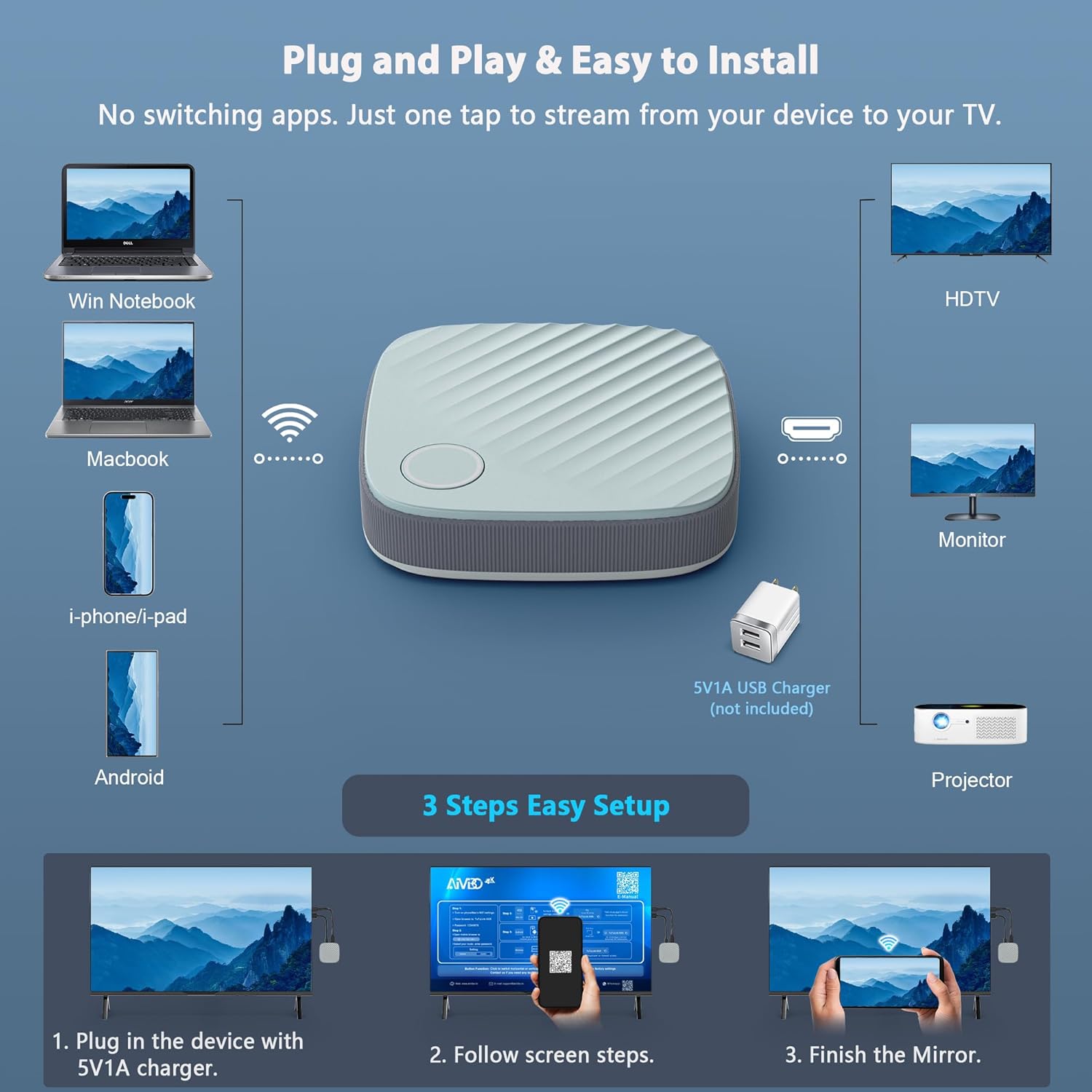
Image: A visual guide demonstrating the three easy setup steps: plug in power, follow on-screen instructions, and finish mirroring.
Setup Video Guide
Video: A detailed video demonstrating the setup process for the wireless HDMI display adapter, including connecting to Wi-Fi and initiating screen mirroring.
5. Operating Instructions
Once the dongle is set up and connected to your display, you can begin mirroring or extending your screen using the following methods:
5.1. iOS / macOS (AirPlay)
- Ensure your iOS device (iPhone/iPad) or macOS device (MacBook) is connected to the same Wi-Fi network as the dongle (or directly to the dongle's Wi-Fi).
- On iOS, swipe down from the top-right corner (or up from the bottom for older models) to open Control Center, then tap Screen Mirroring. Select the dongle from the list.
- On macOS, click the AirPlay icon in the menu bar and select the dongle.
5.2. Android (Miracast / Google Cast)
- Ensure your Android device is connected to the same Wi-Fi network as the dongle (or directly to the dongle's Wi-Fi).
- Navigate to your device's settings and look for options like Smart View, Screen Cast, Wireless Display, Cast, or MirrorShare. The exact name may vary by device manufacturer.
- Select the dongle from the list of available devices.
5.3. Windows (Miracast / Project)
- On your Windows 10/11 PC, press the Windows key + K.
- Select the dongle from the list of available wireless displays.

Image: A business meeting scenario where a laptop screen is wirelessly mirrored to a large display using the dongle.
Operating Video Guide
Video: A demonstration of the 4K output and 5G screen mirroring capabilities of the display adapter, showcasing its use with various devices.
6. Mirror and Extend Modes
The dongle supports two primary display modes:
- Mirror Mode: Duplicates your device's screen onto the larger display. This is ideal for sharing presentations, photos, or videos directly.
- Extend Mode: Allows the larger display to act as a secondary monitor, extending your desktop. This enables you to work on different applications simultaneously on your device and the external display, maintaining privacy on your primary screen.

Image: A visual comparison of Mirror Mode, showing identical content on phone and TV, and Extend Mode, showing different content on phone and TV.
7. Device and Application Compatibility
The AT-Mizhi Wireless HDMI Display Dongle Adapter is designed for broad compatibility:
- Supported Devices: Smartphones (iOS/Android), Tablets (iPad/Android), Laptops (Windows/Mac OS), PCs.
- Supported Protocols: Miracast, AirPlay, DLNA.
- Supported Internet Services/Apps: Browser, Cinemanow, Google TV, Prime Video, Skype, YouTube, etc.
Important Note:
Due to HDCP (High-bandwidth Digital Content Protection) compliance, some streaming applications such as Netflix, Hulu, and DIRECTV may not support wireless mirroring from iOS/macOS devices. Functionality may vary across platforms and app versions.

Image: A chart detailing application compatibility for Windows/Android and iOS/Mac OS, indicating which apps are supported and which are not for screen mirroring.
8. Troubleshooting
If you encounter issues, please refer to the following common solutions:
- No Display on TV:
- Ensure the dongle is properly connected to the HDMI port and receiving sufficient power (5V/1A recommended).
- Verify that your TV/monitor is set to the correct HDMI input source.
- Try a different HDMI port or power source.
- Unstable Connection / Lag:
- Ensure your device is within close proximity to the dongle and your Wi-Fi router (if connected to home Wi-Fi).
- Check for interference from other wireless devices.
- Confirm the dongle is operating on the 5GHz band for optimal performance.
- No Sound:
- Check the volume settings on both your source device and the display device.
- Ensure the dongle is securely connected.
- Cannot Connect to Dongle's Wi-Fi:
- Double-check the Wi-Fi password displayed on the TV screen.
- Restart the dongle by disconnecting and reconnecting its power.
- Certain Apps Not Mirroring:
- As noted in the compatibility section, some apps (e.g., Netflix, Hulu) may restrict mirroring due to HDCP protection. This is an app limitation, not a device malfunction.
9. Specifications
| Feature | Detail |
|---|---|
| Brand | AT-Mizhi |
| Model Number | G126 |
| Connectivity Technology | Wireless |
| Connector Type | HDMI |
| Resolution | 4K |
| Controller Type | Button Control |
| Product Dimensions (L x W x H) | 2" x 3" x 5" |

Image: A close-up view of the AT-Mizhi wireless HDMI dongle, showcasing its compact design and HDMI and USB-C ports.
10. Maintenance
To ensure the longevity and optimal performance of your AT-Mizhi Wireless HDMI Display Dongle Adapter:
- Keep the device clean by wiping it with a soft, dry cloth. Avoid using liquid cleaners or solvents.
- Store the device in a cool, dry place away from direct sunlight and extreme temperatures.
- Avoid dropping the device or subjecting it to strong impacts.
- Do not attempt to disassemble or repair the device yourself, as this will void any warranty.
11. Warranty and Support
The AT-Mizhi Wireless HDMI Display Dongle Adapter comes with a manufacturer's warranty. For specific warranty terms and conditions, please refer to the documentation included with your purchase or contact AT-Mizhi customer support. If you require technical assistance or have questions about your device, please reach out to the seller or manufacturer directly.
Related documentsG126

Ask a question about this manual
Ask about setup, troubleshooting, compatibility, parts, safety, or missing instructions. Manuals+ will review the question and use this page’s manual context to help answer it.