
1. Introduction
This manual provides essential information for the safe and efficient operation of your Lifelong ROAR Projector. Please read it thoroughly before using the device and retain it for future reference.
2. Package Contents
Verify that all items listed below are included in your package:
- Lifelong ROAR Projector (LLPJEJ42)
- Remote Control
- Power Cord
- User Manual (this document)
Video 1: Unboxing the Lifelong ROAR Projector. This video demonstrates the contents of the package and the initial unboxing process for the projector.
3. Safety Information
- Do not block ventilation openings. Ensure adequate airflow around the projector.
- Do not expose the projector to rain or moisture to prevent electric shock or fire.
- Avoid looking directly into the projector lens when the lamp is on, as it can cause eye damage.
- Use only the power cord provided with the device.
- Keep the projector away from heat sources and direct sunlight.
- Do not attempt to disassemble or modify the projector. Refer all servicing to qualified personnel.
4. Product Overview
Familiarize yourself with the components and ports of your Lifelong ROAR Projector.

Image 1: Front View. Shows the projector lens and front speaker grille.

Image 2: Side View. Displays various input/output ports such as HDMI and USB.

Image 3: Back View. Shows the power input and additional ventilation.
5. Setup
- Placement: Place the projector on a stable, flat surface. Ensure there is enough distance from the projection surface (wall or screen) to achieve your desired image size (30 to 150 inches). The optimal throw distance ranges from 2.29 feet to 11.1 feet.
- Power Connection: Connect the provided power cord to the projector's power input and then to a suitable AC 220V power outlet.
- Power On: Press the power button on the projector or the remote control to turn on the device.
- Adjust Focus: Rotate the front ring around the lens to achieve a sharp image.
- Keystone Correction: The projector features automatic keystone correction. For fine adjustments, use the remote control to manually correct the image angle if needed.
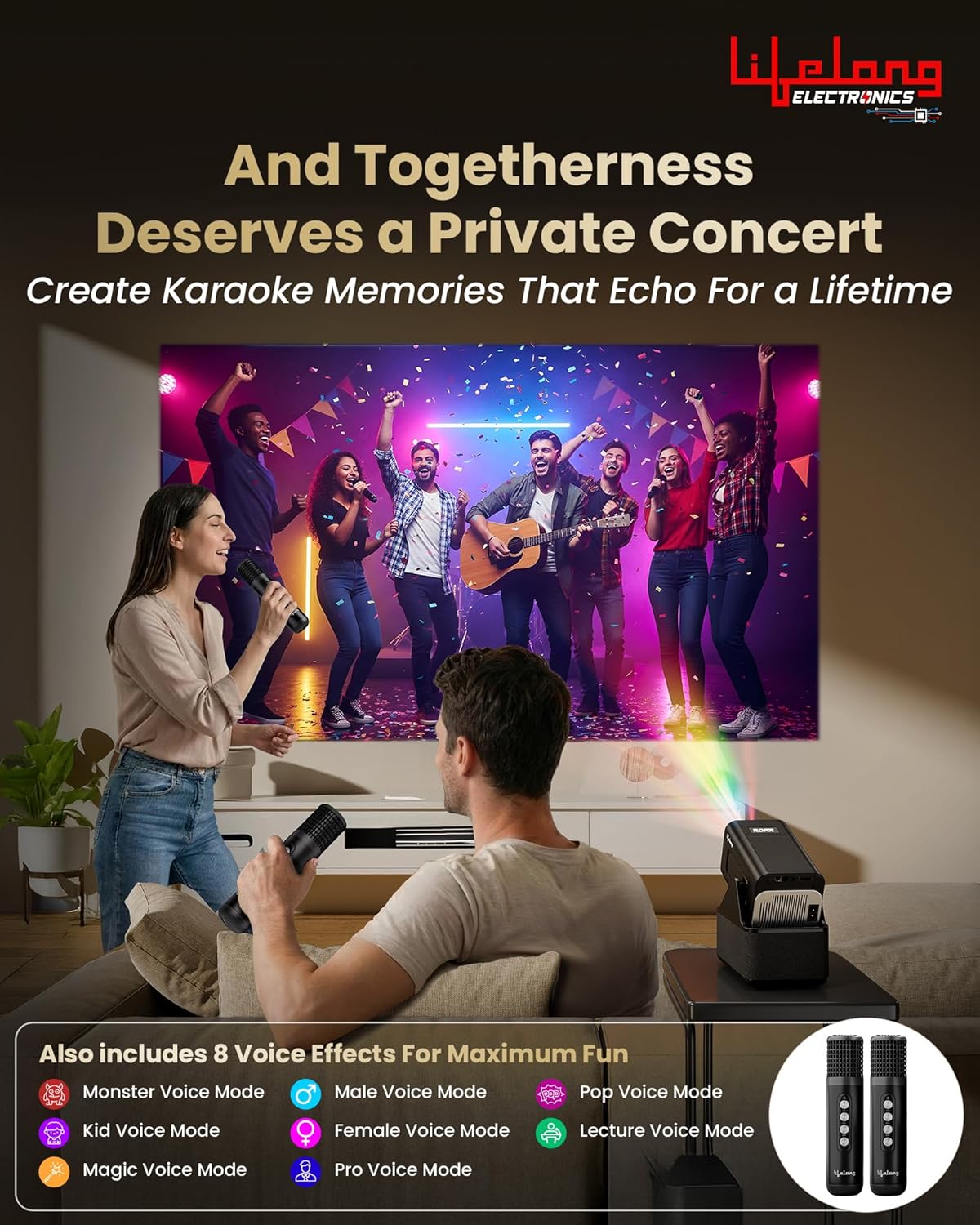
Image 4: Scalable Screen Size. Illustrates the projector's ability to display images from 50 to 150 inches, depending on throw distance.

Image 5: Powerful 20W Speakers. Highlights the integrated 20W stereo surround sound system.
6. Operating Instructions
6.1. Navigation and Android OS
The projector runs on Android OS, providing direct access to various applications. Use the remote control to navigate the interface, select apps, and adjust settings.
Image 6: Smart Features Overview. Shows the Android OS with built-in OTT apps, Wi-Fi 6 connectivity, Miracast functionality, and standalone Bluetooth speaker mode.
6.2. Built-in OTT Apps
Access popular streaming platforms directly from the projector without needing additional devices. Ensure the projector is connected to Wi-Fi (Wi-Fi 6 supported) for optimal streaming performance.
6.3. Connecting External Devices
Use the HDMI and USB ports to connect laptops, smartphones, tablets, or other compatible devices. Select the appropriate input source from the projector's menu.
6.4. Bluetooth Speaker Mode
The projector can function as a standalone Bluetooth speaker. Pair your smartphone or tablet with the projector via Bluetooth to play audio through its 20W speakers.
6.5. Miracast Functionality
Mirror the screen of your compatible smartphone or tablet to the projector using Miracast for a larger viewing experience.
6.6. Using Dual Microphones for Karaoke & Commentary
The projector comes with two microphones and 8 voice effects, ideal for karaoke parties or live commentary during sports events.

Image 7: Live Commentary. Demonstrates using the dual microphones for live commentary during a cricket match.

Image 8: Karaoke Party. Shows the projector being used for a karaoke session with the included microphones and various voice effects.
Video 2: Product Features Overview. This video highlights key features of the Lifelong ROAR Projector, including its audio, display, and smart capabilities.
Video 3: Projection Quality Demonstration. This video showcases the visual clarity and brightness of the projector's display in a typical home environment.
7. Maintenance
- Lens Cleaning: Use a soft, lint-free cloth specifically designed for optical lenses to gently wipe the projector lens. Do not use abrasive cleaners or solvents.
- Dust Removal: Regularly clean the projector's exterior with a soft, dry cloth. Ensure ventilation openings are free from dust and debris.
- Storage: When not in use for extended periods, store the projector in a cool, dry place, protected from dust and extreme temperatures.
8. Troubleshooting
| Issue | Possible Cause | Solution |
|---|---|---|
| No Power | Power cord not connected; Power outlet faulty | Ensure power cord is securely connected; Try a different power outlet. |
| No Image | Incorrect input source; Device not connected | Select correct input source (HDMI/USB); Check cable connections. |
| Blurry Image | Focus not adjusted; Keystone incorrect | Adjust the focus ring; Use keystone correction. |
| No Sound | Volume too low; Audio output settings | Increase volume; Check audio settings on projector and source device. |
| Remote Not Working | Dead batteries; Obstruction | Replace batteries; Ensure no obstruction between remote and projector. |
9. Specifications
| Feature | Detail |
|---|---|
| Brand | Lifelong |
| Model Number | LLPJEJ42 |
| Native Resolution | 1280 x 720 (720p HD) |
| Maximum Display Resolution | 3840 x 2160 (4K Support) |
| Display Type | LED |
| Lumens | 4500 Lumen |
| Light Source Operating Life | 50000 Hours |
| Maximum Image Size | 150 Inches |
| Minimum Image Size | 30 Inches |
| Maximum Throw Distance | 11.1 Feet |
| Minimum Throw Distance | 2.29 Feet |
| Speaker Wattage | 20 Watts |
| Connectivity Technology | Bluetooth, HDMI, USB, Wi-Fi (Wi-Fi 6) |
| Operating System | Android OS |
| Special Features | Built-In Speaker, Digital Keystone Correction, Lightweight, Dual Microphones |
| Power Input | 220 Volts (AC) |
| Item Weight | 1000 Grams |
| Item Dimensions (L x W x H) | 14.8L x 16.8W x 10.5H Centimeters |
10. Warranty & Support
Your Lifelong ROAR Projector (LLPJEJ42) comes with a 12-month warranty from the date of purchase. This warranty covers manufacturing defects under normal use.
For warranty claims, technical support, or service inquiries, please contact Lifelong customer service. Refer to the contact information provided on the product packaging or the official Lifelong website.
Manufacturer Contact Information: Lifelong Online Retail Limited, 5th Floor, Unit No. 508, DLF, South Court, Saket District Center, Saket, New Delhi, India-110017