
1. Introduction
The SONOFF SNZB-02DR2 AirGuard TH is an indoor smart Zigbee temperature and humidity sensor designed to provide accurate environmental monitoring. Featuring a 3.6-inch LCD display, it offers real-time data, daily highs and lows, and comfort level indications. This device integrates with the eWeLink app for remote monitoring, notification alerts, data charting, and export capabilities. It can also display data from other compatible sensors, expanding your monitoring area.
2. Safety Information
- Keep the device away from water and high humidity environments to prevent damage.
- Avoid exposing the device to direct sunlight or extreme temperatures.
- Do not attempt to disassemble or repair the device yourself. Refer to qualified personnel for service.
- Ensure batteries are inserted with correct polarity. Dispose of used batteries responsibly.
- This device is for indoor use only.
3. Package Contents
The package includes the following items:
- 1 x SONOFF SNZB-02DR2 AirGuard TH Sensor
Note: 2 x AAA batteries are required for operation and may not be included.
4. Product Overview
The SNZB-02DR2 AirGuard TH sensor provides comprehensive environmental data with a user-friendly interface and smart features.
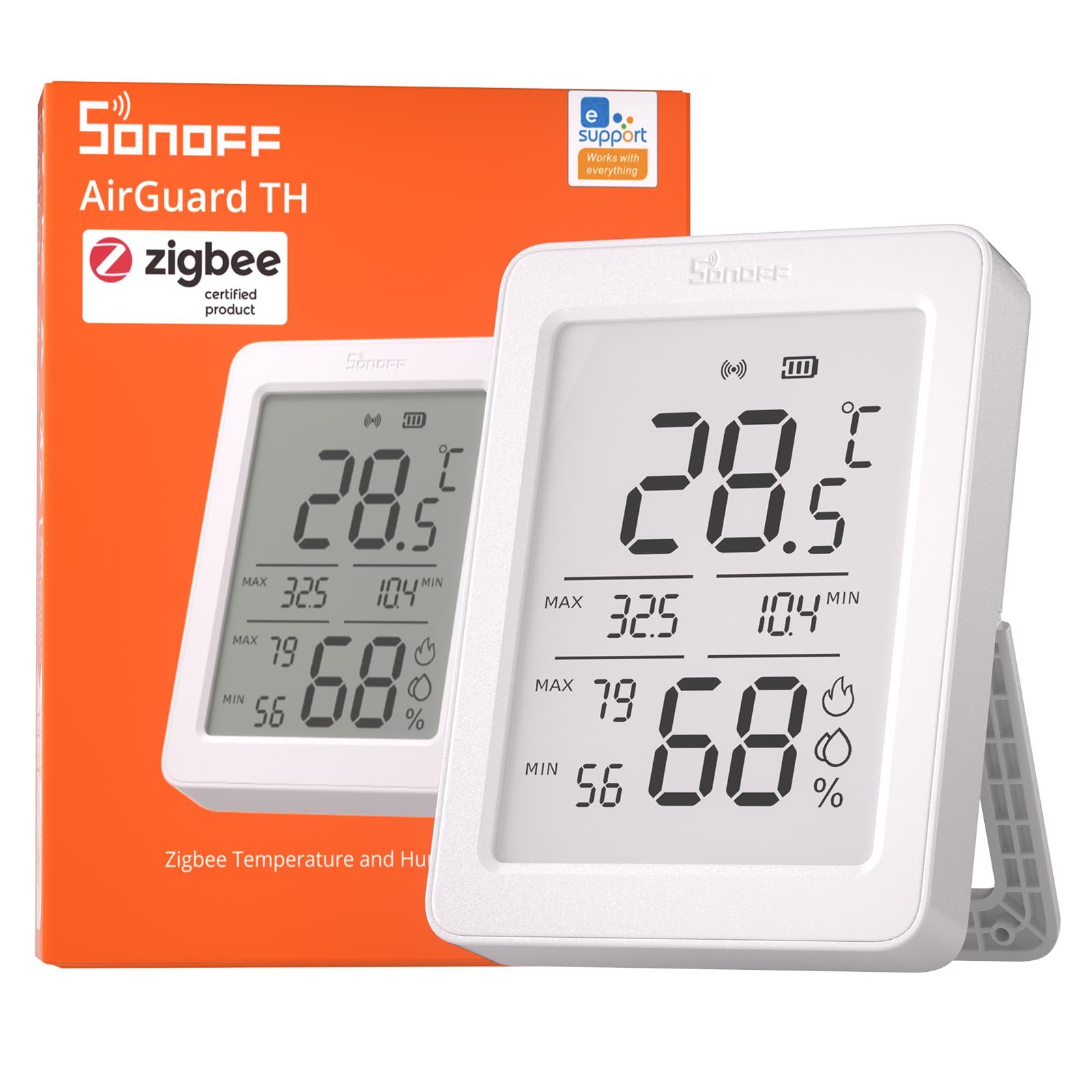
Image: Front view of the SONOFF SNZB-02DR2 AirGuard TH sensor, showing its large LCD display.
Key Features:
- 3.6-inch Large LCD Display: Provides clear, crisp readings of real-time temperature and humidity, updated every 5 seconds. It also shows maximum and minimum data for the past 24 hours and comfort level signals.
- App Remote Monitoring & Notifications: Monitor temperature and humidity remotely via the eWeLink app. Receive instant alerts when environmental data exceeds predefined comfort levels. The device offers up to 120m/400ft coverage.
- Remote Data Display: Configure the device to display real-time data from another compatible temperature and humidity sensor, extending your monitoring capabilities to multiple rooms or areas.
- High Accuracy: Equipped with a Swiss Sensirion sensor, ensuring temperature accuracy of ±0.2°C (-20~60°C) and humidity accuracy of ±2% RH (0~100%RH).
- Real-time and Historical Data Charts: The eWeLink app provides detailed real-time charts recording temperature and humidity data per minute for the recent 24 hours. Access 6-month detailed records with maximum, minimum, and average curves across daily, weekly, monthly, and half-year spans.
- Advanced Insights: Offers dew point and VPD (Vapor Pressure Deficit) insights to help prevent mold and manage moisture.
- Data Export: All historical data can be exported for free from the app.

Image: Overview of the SNZB-02DR2 AirGuard TH sensor's features, including its display, accuracy, and app integration.
5. Setup
5.1. Battery Installation
- Locate the battery compartment cover on the back of the device.
- Slide or gently pry open the cover.
- Insert two (2) AAA 1.5V batteries, ensuring correct polarity (+ and -).
- Close the battery compartment cover securely.

Image: Internal view of the SNZB-02DR2, highlighting the battery placement and internal components.
5.2. Pairing with a Zigbee Gateway
The SNZB-02DR2 requires a Zigbee gateway (e.g., SONOFF Zigbee Bridge Pro, Bridge-U, NSPanel Pro, iHost) to connect to the eWeLink app and enable smart features. Ensure your gateway is updated to the latest firmware version before adding the device.
- Power On: After installing batteries, the device will power on.
- Enter Pairing Mode: Press and hold the pairing button on the back of the sensor for 5 seconds until the signal indicator flashes.
- Open eWeLink App: Launch the eWeLink app on your smartphone or tablet.
- Add Device: In the app, select your Zigbee gateway and choose to add a new device. Follow the on-screen instructions to complete the pairing process.
- Bluetooth Pairing (if no Zigbee gateway): If your eWeLink account has no Zigbee gateway, the app may automatically enter Bluetooth pairing mode. Follow the app's prompts to pair via Bluetooth for local monitoring.
Video: A step-by-step guide on how to set up and pair the SONOFF SNZB-02DR2 AirGuard TH sensor with the eWeLink app and a Zigbee gateway.
5.3. Placement
Place the sensor in the desired indoor location. It can be placed on a flat surface using its integrated stand or mounted on a wall. Ensure it is not in direct airflow from heating/cooling vents or direct sunlight for accurate readings.

Image: Examples of where the SNZB-02DR2 sensor can be placed, such as living rooms, nurseries, bedrooms, offices, greenhouses, wine cellars, collection rooms, and RVs.
6. Operation
6.1. Reading the LCD Display
The 3.6-inch LCD display shows the following information:
- Real-time Temperature: Displays the current temperature in °C or °F.
- Real-time Humidity: Displays the current relative humidity in %.
- Max/Min 24-hour Data: Shows the highest and lowest temperature and humidity recorded within the last 24 hours.
- Comfort Level Indicator: Visual icons indicate the current comfort level (e.g., Dry, Comfortable, Wet).

Image: Demonstrates the readability of the large LCD display from a comfortable distance for various users.
6.2. Using the eWeLink App
Once paired with a Zigbee gateway, the eWeLink app unlocks advanced functionalities:
- Remote Monitoring: View real-time temperature and humidity data from anywhere.
- Notification Alerts: Set custom thresholds for temperature and humidity. Receive instant push notifications when these thresholds are exceeded.
- Historical Data & Charts: Access detailed historical data, including daily, weekly, monthly, and half-yearly charts. Analyze trends and identify patterns.
- Data Export: Export historical data in a convenient format for further analysis.
- Remote Data Source: Configure the SNZB-02DR2 to display data from another compatible SONOFF temperature and humidity sensor (e.g., SNZB-02P, SNZB-02D, SNZB-02WD, SNZB-02L2D) connected to the same Zigbee gateway.
- Smart Scene Automation: Integrate the sensor with other smart devices through the eWeLink app to create automated scenes. For example, turn on a humidifier when humidity drops below a certain level or activate a fan when temperature rises.

Image: Screenshot of the eWeLink app displaying real-time temperature and humidity, comfort level, and historical data charts.

Image: Illustration of the sensor triggering whole-home environment control, such as an air conditioner or fan, based on set temperature/humidity thresholds.
6.3. Voice Control Integration
The SNZB-02DR2 can be integrated with voice assistants like Amazon Alexa and Google Home for convenient voice control. Once integrated, you can ask for temperature readings. Note: Amazon Alexa platform currently does not support humidity features for this device.

Image: A user interacting with a smart speaker to inquire about the temperature in a room, demonstrating voice control capabilities.
7. Maintenance
7.1. Cleaning
Wipe the device with a soft, dry cloth. Do not use liquid cleaners or abrasive materials, as they may damage the sensor or display.
7.2. Battery Replacement
When the battery level is low, a low battery warning will appear on the display and in the eWeLink app. Replace the two (2) AAA 1.5V batteries by following the battery installation steps in Section 5.1.
7.3. Firmware Updates
Periodically check the eWeLink app for available firmware updates for your Zigbee gateway and the SNZB-02DR2 sensor. Firmware updates can improve performance, add new features, and enhance stability. Ensure the device is awake (briefly press the pairing button) before initiating a firmware update via your Zigbee gateway.
8. Troubleshooting
| Issue | Possible Cause | Solution |
|---|---|---|
| Device not pairing. | Device not in pairing mode; Zigbee gateway issue; distance from gateway. | Ensure the device is in pairing mode (flashing indicator). Check if your Zigbee gateway is powered on and functioning correctly. Move the sensor closer to the gateway. Ensure gateway firmware is up to date. |
| Inaccurate temperature/humidity readings. | Improper placement; sensor obstruction; environmental factors. | Relocate the sensor away from direct sunlight, heat sources, cold drafts, or high humidity areas (e.g., directly above a humidifier). Ensure the sensor vents are not blocked. |
| App not showing real-time data or frequent disconnections. | Weak Zigbee signal; device asleep; gateway offline. | Ensure a robust Zigbee network with repeaters if necessary. Briefly press the button on the back of the sensor to wake it up and re-establish connection. Verify your Zigbee gateway is online and connected to the internet. |
| Low battery warning. | Batteries are depleted. | Replace the two (2) AAA 1.5V batteries. |
| Cannot trigger smart scenes. | Incorrect scene configuration; device not reporting data. | Verify your smart scene settings in the eWeLink app. Ensure the sensor is connected and reporting data to the gateway. |
9. Specifications
| Parameter | Value |
|---|---|
| Model | SNZB-02DR2 |
| Brand | SONOFF |
| Color | White |
| Power Supply | DC 3V (2 x AAA 1.5V batteries) |
| Wireless Protocol | Zigbee |
| Temperature Detection Range | -20°C to 60°C (-4°F to 140°F) |
| Temperature Accuracy | ±0.2°C |
| Humidity Detection Range | 0% RH to 100% RH |
| Humidity Accuracy | ±2% RH |
| Display Size | 3.6 inches LCD |
| Sensor Type | Swiss Sensirion SHT40-AD1B-R3 |
| Included Components | SNZB-02DR2 Sensor |
10. Warranty & Support
10.1. Warranty
This SONOFF product is covered by a two-year warranty from the date of purchase. Please retain your proof of purchase for warranty claims.
10.2. Customer Support
For technical assistance, troubleshooting, or warranty inquiries, please contact SONOFF customer support:
- Email: support@itead.cc


