
1. Product Overview
The Samsung 65-inch Class Q6F Series QLED 4K UHD Smart Tizen TV (Model QN65Q6FDAF) offers an immersive viewing experience with advanced picture and sound technologies. Featuring a Q4 Lite Processor, Quantum HDR, Motion Xcelerator, and Object Tracking Sound Lite, this television is designed to deliver vibrant colors, sharp detail, and dynamic audio. Its Tizen operating system provides a smart and intuitive interface for accessing a wide range of streaming content and smart features.

Image: Front view of the Samsung 65-inch QLED TV on its stands, showcasing its slim bezels and a colorful display.
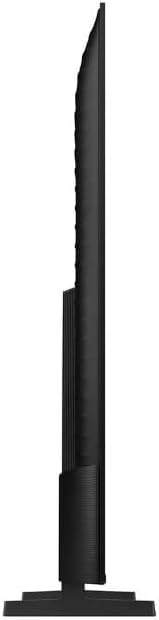
Image: Side profile of the Samsung 65-inch QLED TV, demonstrating its sleek and thin form factor.
2. Setup
2.1 Unboxing
Carefully open the TV packaging. It is recommended to have two people for safe unboxing and installation due to the size and weight of the television. The box is designed to open from the top, allowing you to lift the box upwards to reveal the TV without needing to lift the TV itself out of the box.

Image: A diagram illustrating the dimensions of the 65-inch QLED TV and the contents of its packaging, including the remote control.
2.2 Stand Installation
The TV comes with two stand legs. These can be installed in two positions: wide (outer) or narrow (inner), depending on the width of your TV console. Ensure the TV is placed face down on a soft, clean surface before attaching the stands. Securely fasten the stand legs into the designated slots on the back of the TV. The TV will not stand securely without the legs properly attached or if it is not wall-mounted.
2.3 Initial Power-on and Setup
Once the stands are securely attached or the TV is wall-mounted, connect the power cable to the TV and a power outlet. Press the power button on the remote control. Follow the on-screen instructions to complete the initial setup, including connecting to your Wi-Fi network, signing into your Samsung account, and configuring smart features.
3. Operating the TV
3.1 Smart TV Features (Tizen OS)
The Samsung Q6F Series TV runs on the Tizen operating system, providing a user-friendly interface for accessing various applications and services. The home screen allows quick access to your favorite streaming apps, live TV, and connected devices. Navigate using the included Smart Remote.
3.2 Remote Control Usage
The included Smart Remote is designed for intuitive control. It features dedicated buttons for popular streaming services like Netflix, Disney+, and Prime Video, as well as a button for Samsung TV Plus. Use the directional pad to navigate menus and select options. The remote also includes volume and channel controls.
3.3 Picture Quality Features
- Quantum HDR: Experience a wide range of contrast and brightness, revealing hidden details in both dark and bright scenes.
- 100% Color Volume with Quantum Dot: Enjoy a billion shades of accurate and vibrant colors, even in bright scenes.
- 4K Upscaling: The Q4 Lite Processor optimizes audio and upscales content to near 4K resolution for enhanced clarity.
- Color Booster AI: This technology analyzes each scene to enhance color expression for more vivid and dynamic visuals.
3.4 Sound Features
- Object Tracking Sound Lite: Sound follows the action on screen, creating a more immersive audio experience.
- Q-Symphony: When paired with a compatible Samsung soundbar, the TV and soundbar speakers work together to create a richer, more nuanced soundstage.
3.5 Gaming Features
For gamers, the TV includes Motion Xcelerator for fast motion clarity, reducing blur and enhancing the gaming experience. The HDMI 2.1 ports support advanced gaming features, though specific refresh rates for gaming consoles may vary.
4. Connectivity
The Samsung Q6F Series TV offers a variety of connectivity options to integrate with your home entertainment system.

Image: A detailed view of the TV's back panel, highlighting the various input and output ports including HDMI, USB, and LAN connections.
4.1 Ports
- HDMI Ports: Multiple HDMI ports (including HDMI 2.1) for connecting gaming consoles, Blu-ray players, and other high-definition devices.
- USB Ports: For connecting USB storage devices to play media files.
- LAN Port: For a wired internet connection.
- Antenna Input: For connecting an antenna for over-the-air broadcasts.
4.2 Wireless Connectivity
- Wi-Fi: Built-in Wi-Fi for seamless internet access and streaming.
- Bluetooth: For connecting wireless headphones, soundbars, and other Bluetooth-enabled devices.
5. Maintenance
To ensure the longevity and optimal performance of your Samsung QLED TV, follow these maintenance guidelines:
- Cleaning the Screen: Gently wipe the screen with a soft, dry microfiber cloth. For stubborn smudges, lightly dampen the cloth with water or a screen-specific cleaning solution (never spray directly onto the screen).
- Cleaning the Frame: Use a soft, dry cloth to clean the TV frame.
- Ventilation: Ensure adequate ventilation around the TV to prevent overheating. Do not block the ventilation openings.
- Power Management: Unplug the TV from the power outlet during lightning storms or when it will be left unattended for long periods.
6. Troubleshooting
If you encounter issues with your TV, try the following basic troubleshooting steps:
- No Power: Check if the power cable is securely connected to both the TV and the power outlet. Ensure the outlet is functional.
- No Picture/Sound: Verify that the correct input source is selected. Check all cable connections (HDMI, antenna, etc.) for looseness.
- Remote Not Working: Replace the batteries in the remote control. Ensure there are no obstructions between the remote and the TV.
- Network Connection Issues: Restart your router and modem. Reconnect the TV to your Wi-Fi network through the TV's settings menu.
- Picture Quality Issues: Adjust picture settings (brightness, contrast, color) in the TV's menu. Ensure the content source is high quality.
For more detailed troubleshooting, refer to the full user manual or contact Samsung customer support.
7. Specifications
| Feature | Detail |
|---|---|
| Brand | Samsung |
| Model Name | QN65Q6FDAF |
| Screen Size | 65 Inches |
| Display Technology | QLED |
| Resolution | 4K |
| Refresh Rate | 60 Hz |
| Special Features | 100% Color Volume with Quantum Dot, Color Booster / 4K Upscaling / Object Tracking Sound Lite / Q-Symphony, Motion Xcelerator, Q4 Lite Processor, Quantum HDR |
| Connectivity Technology | Bluetooth, Wi-Fi |
| Aspect Ratio | 16:9 |
| Color | Black |
| Item Weight | 33 Pounds |
| Product Dimensions | 3 x 56.9 x 32.7 inches |
| Voltage | 120 Volts (AC) |
8. What's in the Box
Upon opening your Samsung 65-inch Q6F Series QLED TV package, you should find the following items:
- Samsung 65” Class Q6F Series QLED Smart Tizen TV
- Remote Control
- Power Cable
- User Manual (this document)
9. Warranty and Support
Your Samsung Q6F Series QLED TV comes with a manufacturer's warranty. Please refer to the warranty card included in your package for specific terms and conditions. For technical support, service, or additional information, please visit the official Samsung support website or contact their customer service hotline. Keep your proof of purchase handy for any warranty claims.