
1. Introduction
Thank you for choosing the Yunseity 4K HD WiFi Action Camera. This manual provides essential information for the safe and effective operation of your device. Please read it thoroughly before use and retain it for future reference. This camera is designed to capture high-quality video and photos, featuring 4K resolution, a 180-degree rotating lens, a 1.31-inch display, and WiFi connectivity for various activities including sports, travel, and vlogging.
2. Product Overview
The Yunseity Handheld Camera is a compact and portable device equipped with advanced features for capturing your moments. Familiarize yourself with its components:
- 180° Rotating Lens: Allows for flexible shooting angles.
- 1.31 Inch Screen: Provides an intuitive interface for navigation and playback.
- Microphone: For audio recording.
- Power Button: To turn the device on/off.
- Recording Button: To start and stop video recording or take photos.
- USB Type-C Port: For charging and data transfer.
- MicroSD Card Slot: For expandable storage.
- Back Clamp: For secure attachment to clothing or gear.

Image: Overview of the Yunseity Handheld Camera highlighting its key features such as 4K video recording, long battery life, LED fill light, 180° rotatable lens, and loop recording.
3. Setup
3.1 Charging the Battery
- Locate the USB Type-C port on the camera.
- Connect the provided USB Type-C cable to the camera and a compatible USB power adapter (not included) or a computer USB port.
- The charging indicator will illuminate. Once fully charged, the indicator may change color or turn off.
The camera is equipped with a built-in 1000mAh Li-battery for extended performance.

Image: The camera's Type-C charging port, indicating its power input and battery status.
3.2 Inserting a MicroSD Card
A MicroSD card (up to 256GB, not included) is required to store recordings.
- Locate the MicroSD card slot on the side of the camera.
- Gently insert the MicroSD card with the gold contacts facing the back of the camera until it clicks into place.
- To remove, push the card in slightly until it springs out.
3.3 Powering On/Off
- To Power On: Press and hold the Power button for a few seconds until the screen illuminates.
- To Power Off: Press and hold the Power button again until the screen turns off.
4. Operating Instructions
4.1 Basic Video Recording
- Ensure the camera is powered on and a MicroSD card is inserted.
- Press the Recording button once to start recording. A red indicator or on-screen icon will confirm recording is active.
- Press the Recording button again to stop recording. The video file will be saved to the MicroSD card.
4.2 Using the 180° Rotating Lens
The innovative 180° rotating lens provides creative flexibility for capturing unique angles.
- Manually rotate the lens module to your desired angle. The screen display will automatically adjust to the lens orientation.
- This feature is ideal for capturing footage from various perspectives, including self-recording or dynamic action shots.
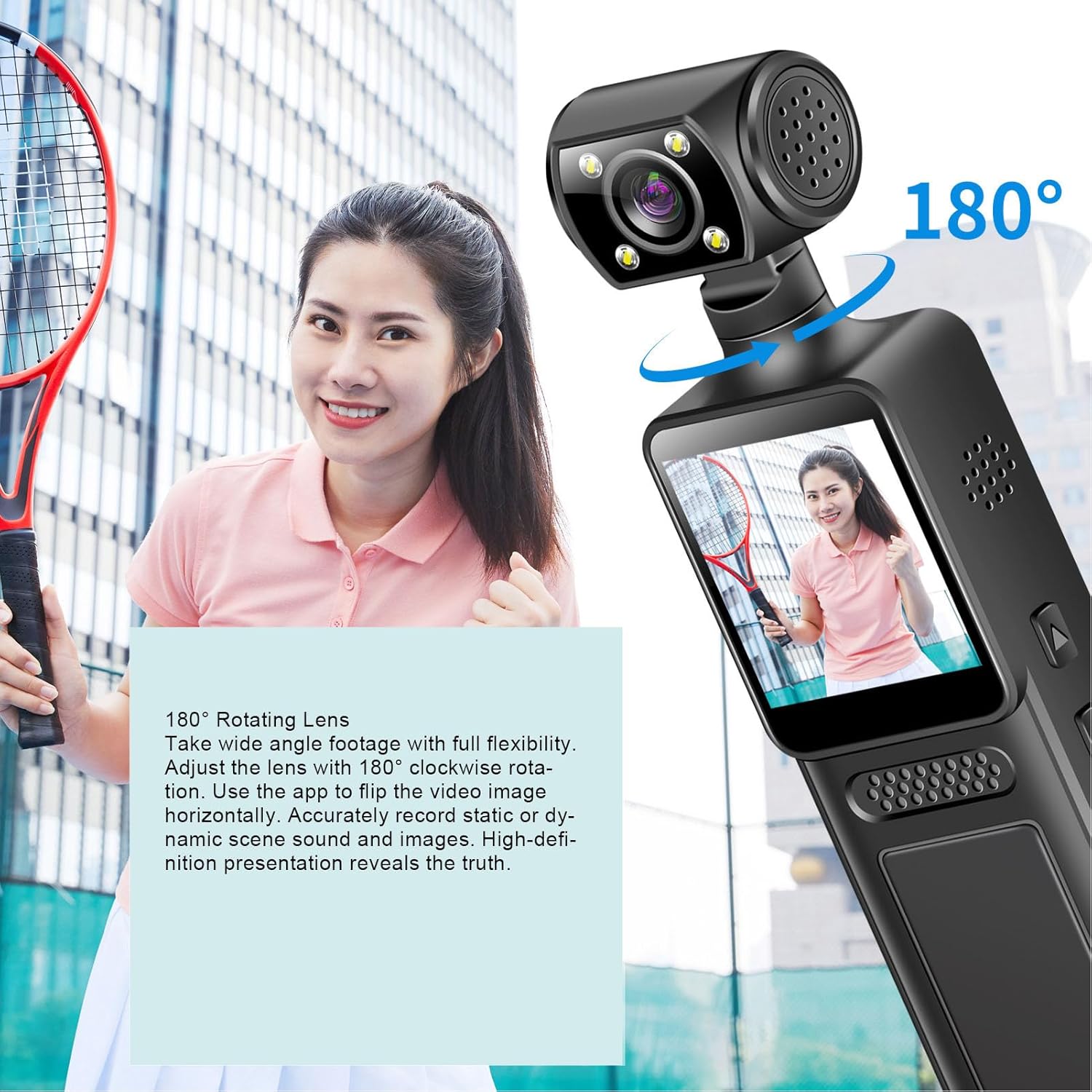
Image: The camera demonstrating its 180° rotating lens capability, allowing for versatile shooting angles.
4.3 Loop Recording
The camera supports loop recording, which automatically overwrites the oldest video files when the memory card is full.
- This feature ensures continuous recording without manual intervention to clear space.
- Consult the on-screen menu for options to enable or disable loop recording and adjust segment duration, if available.

Image: Visual representation of the loop recording function, showing how older video segments are automatically overwritten to allow for continuous recording.
4.4 Navigating the 1.31 Inch Screen
The intuitive screen interface allows for easy navigation and control of camera functions.
- Use the physical buttons adjacent to the screen to navigate through menus and settings.
- The screen displays live view, recording status, battery level, and other important information.
5. WiFi Connectivity
The camera features built-in WiFi for seamless connection to your mobile device.
- Download the dedicated companion app for your smartphone (refer to the packaging or product page for app name).
- On the camera, enable WiFi through the settings menu.
- On your smartphone, connect to the camera's WiFi network (SSID and password usually displayed on the camera screen).
- Open the app to view real-time footage, control camera functions, and download recordings directly to your device.

Image: The camera wirelessly connected to a smartphone, illustrating the real-time viewing and control capabilities via WiFi.
6. Maintenance
6.1 Cleaning
- Use a soft, lint-free cloth to clean the camera body and screen.
- For the lens, use a specialized lens cleaning cloth and solution to avoid scratches.
- Do not use harsh chemicals or abrasive materials.
6.2 Storage
- Store the camera in a cool, dry place away from direct sunlight and extreme temperatures.
- Remove the MicroSD card if storing for extended periods.
- Ensure the battery is partially charged (around 50%) before long-term storage to preserve battery health.
7. Troubleshooting
- Camera not turning on: Ensure the battery is charged. Connect to a power source and try again. If the issue persists, try a different charging cable or adapter.
- Recording issues (e.g., freezing, corrupted files): Check if the MicroSD card is properly inserted and has sufficient free space. Try formatting the MicroSD card (this will erase all data) or using a different, high-speed MicroSD card.
- WiFi connection problems: Ensure WiFi is enabled on the camera and your smartphone. Restart both devices. Verify you are connecting to the correct network and entering the correct password.
- Poor video quality: Ensure the lens is clean. Check the recording resolution settings on the camera. Ensure adequate lighting conditions.
If you encounter persistent issues not covered here, please refer to the support information provided with your purchase.
8. Specifications
| Model Number | Yunseityw6f3d8teq4 |
| Video Resolution | 4K HD |
| Lens Rotation | 180 degrees |
| Screen Size | 1.31 inches |
| Battery Type | Built-in Li Battery |
| Battery Capacity | 1000mAh |
| Storage Support | MicroSD Card up to 256GB (Excluded) |
| Connectivity | WiFi |
| Item Weight | 6.1 ounces |
| Package Dimensions | 6.3 x 3.15 x 1.97 inches |
9. Warranty and Support
This product comes with a standard manufacturer's warranty. Please refer to the warranty card included in your product packaging or contact your retailer for specific warranty terms and conditions. For technical support or further assistance, please reach out to Yunseity customer service through the contact information provided with your purchase or on the official Yunseity website.