
Introduction
Thank you for choosing the Upperizon 16-inch 2K QHD Portable Monitor. This high-performance display is designed to enhance your productivity and entertainment experience, offering a stunning 2560x1600 resolution, a rapid 240Hz refresh rate, and broad compatibility. This manual provides essential information for setting up, operating, maintaining, and troubleshooting your new monitor.
What's in the Box
Please verify that all items listed below are included in your package:
- 1 × Upperizon 16-inch Portable Monitor
- 1 × 30W Power Adapter
- 2 × USB-C to USB-C Display Cables (for both video & power)
- 1 × HDMI to HDMI Cable (for video only)
- 1 × Protective Sleeve Case

Image: All components included in the Upperizon Portable Monitor package.
Product Features
Immersive Display Performance
- 2.5K QHD Resolution (2560x1600): Delivers sharp, detailed visuals with 11% more screen real estate than standard 1080p 16:9 displays.
- Ultra-Smooth 240Hz Refresh Rate: Minimizes motion blur and lag, providing a competitive edge in fast-paced applications and gaming.
- 145% sRGB & 10-Bit Color Depth: Offers pro-grade color accuracy with 1.07 billion colors for vibrant and lifelike images, ideal for creative professionals.
- HDR Support: Enhances contrast and color for a more dynamic visual experience.
- 400 Nits Brightness & 1200:1 Contrast Ratio: Ensures clear visibility and deep blacks.
- FreeSync Technology: Reduces screen tearing and stuttering for seamless gaming.
- Low Blue Light & Flicker-Free: Designed to reduce eye strain during extended use.

Image: Visual comparison demonstrating the difference between 60Hz and 240Hz refresh rates.

Image: Key display technology features including color depth, contrast, brightness, and panel type.
Premium Design & Portability
- Aluminum Alloy Chassis: Provides superior heat dissipation, durability, and a premium feel.
- Integrated Adjustable Kickstand: Allows for 0° to 180° angle adjustments, supporting both landscape and portrait modes.
- VESA Compatible (M4*6mm screws): Enables easy mounting to monitor arms for a customized setup.
- Ultra-Slim & Lightweight: Weighs only 1.6 lbs (725g) and is 0.51 inches thick, making it highly portable for travel.

Image: Details on VESA compatibility and the monitor's adjustable kickstand.
Versatile Connectivity
- Dual Full-Featured USB-C Ports: Supports single-cable connection for video, audio, and power with compatible devices.
- HDMI Port: For video input from a wide range of devices.
- Plug-and-Play: No drivers or complex software installation required.
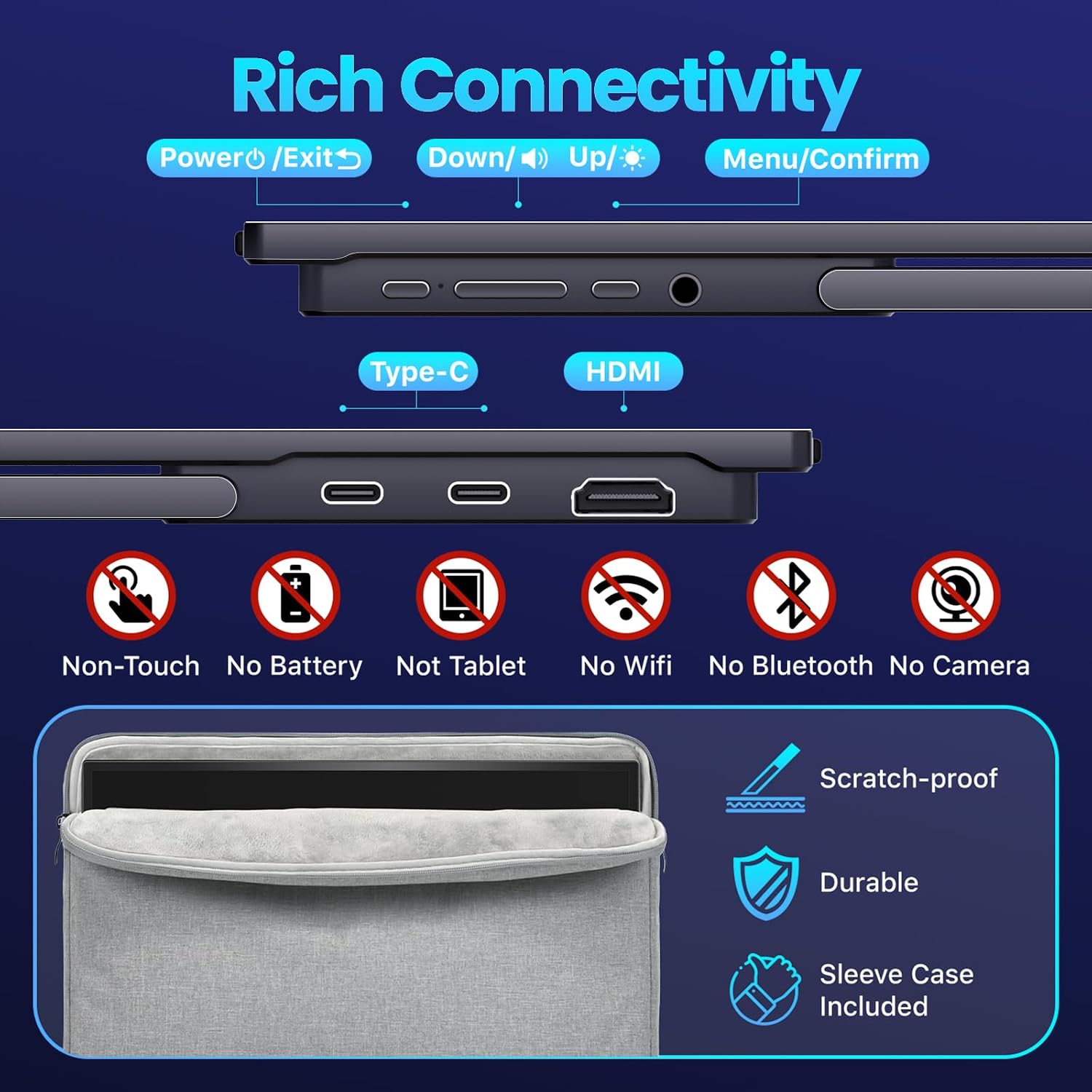
Image: Overview of the monitor's connectivity ports and control buttons.
Integrated Audio
- Built-in Dual 1.5W Speakers: Provides convenient audio output for multimedia.
Setup Guide
Connecting via USB-C (Single Cable)
For devices with a full-featured USB-C port (supporting DisplayPort Alt Mode or Thunderbolt 3/4/5), you can connect the monitor using a single USB-C to USB-C cable for both video signal and power.
- Connect one end of the USB-C to USB-C cable to a full-featured USB-C port on your source device (e.g., laptop, MacBook).
- Connect the other end of the USB-C to USB-C cable to either of the USB-C ports on the Upperizon monitor.
- The monitor should automatically detect the signal and power on.
NOTE: Please confirm the USB-C port on your device supports Thunderbolt 3/4/5 or DisplayPort Alt mode. If the screen flickers, use the original power adapter for stable power delivery.

Image: Single USB-C cable connection for video and power, supporting extended or duplicate display modes.
Connecting via HDMI (Requires Power)
For devices with an HDMI output, you will need both an HDMI cable for video and a power adapter for the monitor.
- Connect one end of the HDMI cable to the HDMI port on your source device.
- Connect the other end of the HDMI cable to the HDMI port on the Upperizon monitor.
- Connect the provided 30W power adapter to one of the USB-C ports on the monitor and plug it into a power outlet.
- The monitor should power on and display the signal from your device.
NOTE: Always use the original power adapter to avoid screen flickering when using HDMI connection.

Image: Setup showing HDMI and power cable connections for the portable monitor.
MacBook Compatibility
Pre-2020 Intel-based MacBooks may not support 2.5K@240Hz. We recommend checking for 144Hz or 120Hz support with these models.

Image: Comprehensive compatibility chart for different interfaces and their supported resolutions/refresh rates.
Operating Instructions
Power On/Off
Press and hold the Power/Exit button (refer to 'Rich Connectivity' image in Product Features) for a few seconds to turn the monitor on or off.
Menu Navigation
Use the Up and Down buttons to navigate through the On-Screen Display (OSD) menu. Press the Menu/Confirm button to enter a menu option or confirm a selection. Press Power/Exit to go back or exit the menu.
Quick Adjustments
- Brightness: Briefly press the Up button to quickly adjust brightness.
- Volume: Briefly press the Down button to quickly adjust volume.
Display Modes (Extended/Duplicate)
When connected to a laptop, you can configure the display mode (Extended or Duplicate) through your operating system's display settings. This allows you to either expand your desktop across both screens or mirror your primary display.
Connectivity Details
To achieve the monitor's maximum performance, ensure your source device meets the following requirements:
- For 2.5K @ 240Hz: Your device must support HDMI 2.1 or USB-C DP 1.4 (or higher), or Thunderbolt 3/4/5.
- For 2.5K @ 120Hz: Your device must support HDMI 2.0.
- For 1080P @ 240Hz: Your device must support HDMI 2.0.
- For 2.5K @ 144Hz: Your device must support USB-C DP 1.2.
Special MacBook Note: Pre-2020 Intel-based MacBooks do NOT support 2.5K@240Hz. We recommend checking for 144Hz or 120Hz support.

Image: Guide to achieving optimal refresh rates based on your device's port specifications.
Console Compatibility
The monitor is compatible with gaming consoles such as PS5, Xbox, and Steam Deck. For optimal console gaming, use an HDMI connection. The monitor supports 1440p 16:9 resolution at 60Hz SDR/HDR and 120Hz SDR/HDR without stretching.
NOTE: USB-C is NOT compatible with Nintendo Switch. Please use HDMI to connect Switch.

Image: Portable monitor used for console gaming, detailing supported resolutions and refresh rates.
Specifications
| Feature | Specification |
|---|---|
| Brand | Upperizon |
| Model Number | UJ160QHLS240 |
| Screen Size | 16 Inches |
| Resolution | 2560 x 1600 Pixels (2K QHD) |
| Aspect Ratio | 16:10 |
| Refresh Rate | 240 Hz |
| Display Technology | IPS LCD |
| Brightness | 400 Candela (Nits) |
| Contrast Ratio | 1200:1 |
| Color Gamut | 145% sRGB |
| Viewing Angle | 178 Degrees |
| Response Time | 10 Milliseconds |
| Connectivity | HDMI, 2x USB Type-C |
| Adaptive Sync | FreeSync |
| Audio | Built-In Speakers (Dual 1.5W) |
| Dimensions (D x W x H) | 0.51"D x 13.93"W x 9"H |
| Item Weight | 1.6 Pounds (725g) |
| VESA Compatibility | 75x75mm (M4*6mm screws recommended) |
Maintenance
To ensure the longevity and optimal performance of your Upperizon portable monitor, follow these maintenance guidelines:
- Cleaning the Screen: Gently wipe the screen with a soft, lint-free cloth. For stubborn smudges, lightly dampen the cloth with water or a screen-specific cleaning solution. Avoid using harsh chemicals, alcohol, or abrasive materials.
- Cleaning the Body: Use a soft, dry cloth to clean the monitor's chassis.
- Storage: When not in use, store the monitor in its protective sleeve case to prevent scratches and dust accumulation. Avoid placing heavy objects on top of the monitor.
- Environmental Conditions: Keep the monitor away from extreme temperatures, direct sunlight, and high humidity. Ensure proper ventilation to prevent overheating.
- Cable Care: Handle cables gently. Avoid bending or twisting them sharply, which can damage the internal wires.
Troubleshooting
If you encounter issues with your Upperizon portable monitor, please refer to the following common solutions:
No Signal / Black Screen
- Check Cable Connections: Ensure all cables (USB-C or HDMI and power) are securely connected to both the monitor and your source device.
- Verify USB-C Port: If using USB-C, confirm that your device's USB-C port supports DisplayPort Alt Mode or is a Thunderbolt 3/4/5 port. Not all USB-C ports support video output.
- External Power: If using HDMI, ensure the monitor is connected to the provided 30W power adapter. Even with USB-C, if your device cannot supply sufficient power, external power may be required.
- Source Device Output: Ensure your source device (laptop, PC, console) is configured to output video to an external display. Try pressing Windows Key + P (on Windows) or checking Display Settings (on macOS).
- Try Different Cables/Ports: Test with different cables or different ports on your source device and monitor to rule out faulty hardware.
Screen Flickering
- Use Original Power Adapter: Always use the provided 30W power adapter for stable power delivery, especially when using HDMI or if your USB-C source cannot provide enough power.
- Reduce Refresh Rate: If flickering occurs at 240Hz, try lowering the refresh rate in your device's display settings to 120Hz or 60Hz to see if the issue resolves.
- Check Cable Quality: Ensure you are using high-quality cables.
Incorrect Resolution or Refresh Rate
- Check Device Settings: Adjust the display resolution and refresh rate in your computer's or console's display settings.
- Verify Port Compatibility: Refer to the 'Connectivity Details' section to ensure your device's ports support the desired resolution and refresh rate.
- Update Graphics Drivers: Ensure your computer's graphics drivers are up to date.
No Audio from Monitor Speakers
- Check Volume: Ensure the monitor's volume is not muted or set too low. Adjust using the quick volume button or OSD menu.
- Select Monitor as Output: In your device's sound settings, ensure the Upperizon monitor is selected as the audio output device.
Warranty and Support
Your Upperizon 16-inch 2K QHD Portable Monitor comes with a 2-Year Manufacturer Warranty.
For any issues, technical support, or warranty claims, please contact Upperizon customer service:
- Email: support@upperizon.com
- Phone: +1-888-666-0082 (24/7)
You can also scan the QR code on the monitor's bezel or packaging to register your 2-year warranty.