
1. Introduction
The TREBLEET 80Gbps eGPU Enclosure provides external graphics capabilities for compatible devices. It is designed to enhance performance for demanding applications such as gaming, 3D rendering, and video editing by allowing the use of desktop-class graphics cards with portable systems. This enclosure features the JHL9480 controller, supporting Thunderbolt 5 and USB4 high-speed interfaces.
2. Package Contents
Verify that all items are present in the package:
- 1x TREBLEET 80Gbps eGPU Enclosure
- 1x High-Speed Data Cable (80Gbps)
- 1x User Manual
3. System Requirements
To ensure proper functionality, your host device must meet the following requirements:
- Host Device: Must feature a USB4 or Thunderbolt 4/5 port. Compatible with NUCs, laptops, and handheld gaming consoles (e.g., Steam Deck, ROG Ally).
- Operating System: Windows or macOS.
- CPU Specific Drivers:
- For Intel CPUs: Ensure "Thunderbolt Controller" hardware drivers are active in System Manager.
- For AMD CPUs: Ensure "USB4" hardware drivers are active in System Manager.
- PCIe Expansion: Your host device must support external PCIe expansion.
- Power Supply (for PD Charging): A power supply of at least 180W is required when utilizing Power Delivery (PD) charging.
4. Setup Instructions
4.1. Install PCIe Card
Carefully insert your desired PCIe card (e.g., graphics card, capture card, NVMe SSD expansion card) into the PCIe slot within the enclosure. Ensure the card is seated firmly.

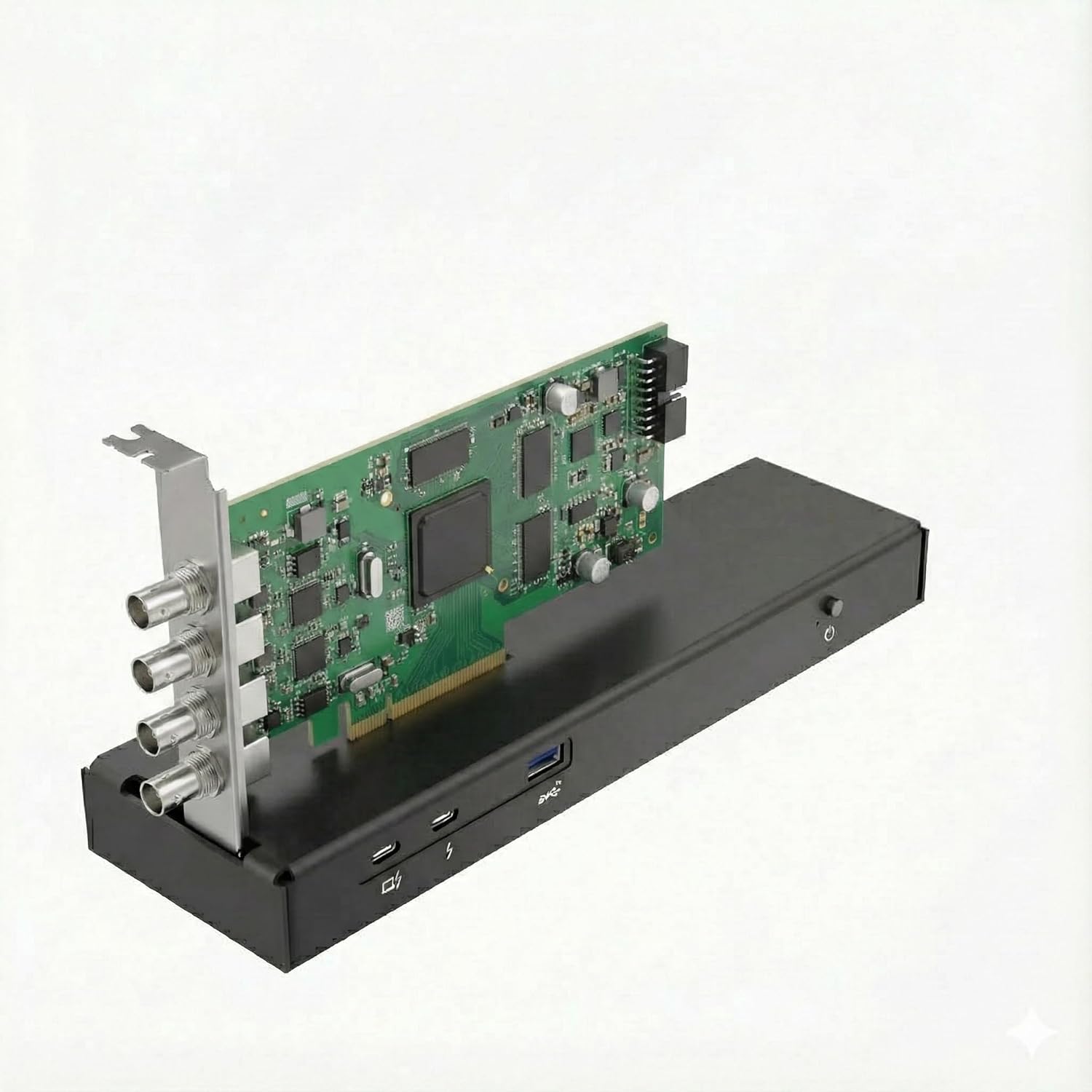


Note: The enclosure is designed for two-slot cards. Ensure your card fits securely. There is no internal bracket system for additional card support, so stability on a flat surface is important.
4.2. Connect Power Supply
The enclosure supports various power options:
- SFX/ATX/FLEX Power Supplies: For high-performance graphics cards requiring substantial power. Connect the 24-pin ATX and 8-pin CPU power connectors from your power supply to the corresponding ports on the enclosure.
- DC Input (7.4mm x 5.0mm): For PCIe cards that do not require external 6+2 pin power, such as Ethernet cards or NVMe SSD expansion cards.
Important: Only use one power input method (either ATX/SFX/FLEX or DC input) at a time. Do not connect both simultaneously.

4.3. Connect to Host Device
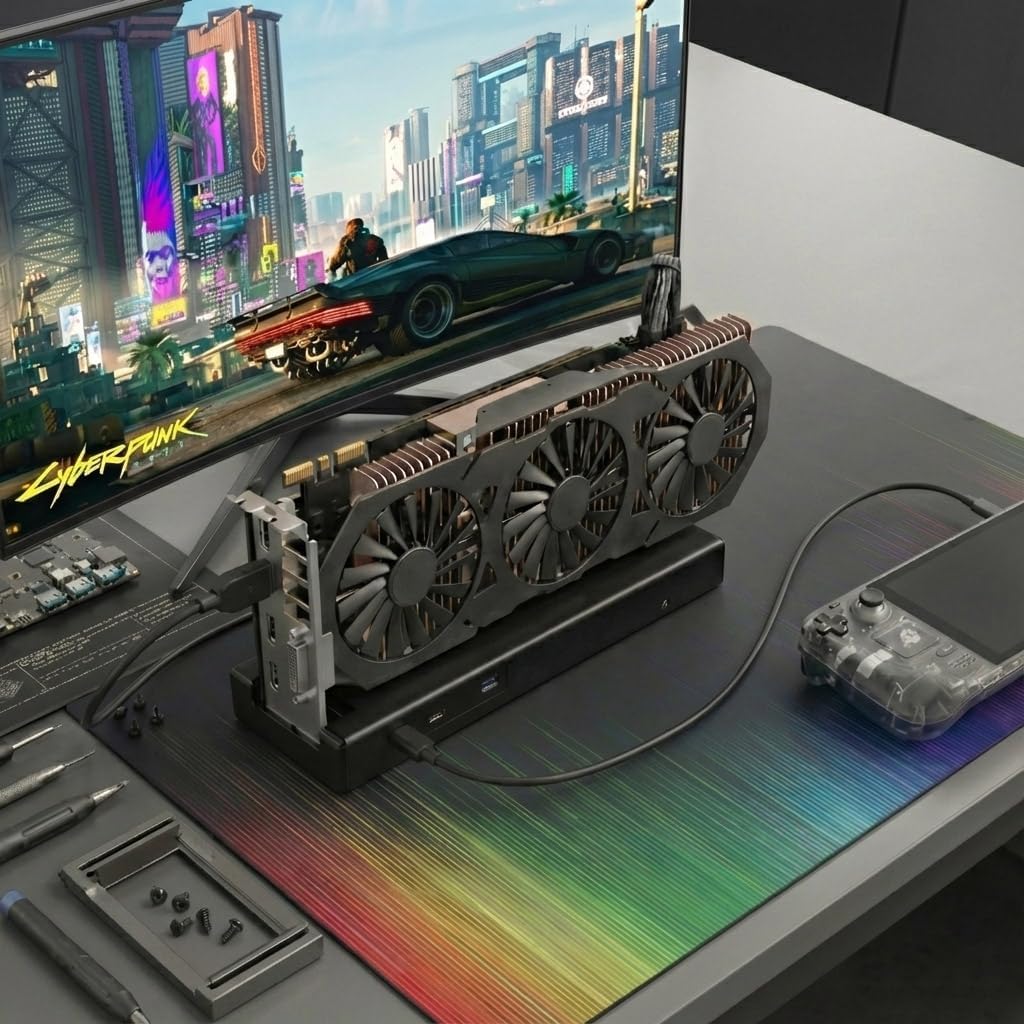
Connect the provided 80Gbps high-speed data cable from the enclosure's Thunderbolt/USB4 port to a compatible Thunderbolt 4/5 or USB4 port on your host device (laptop, NUC, handheld console).

4.4. Driver Installation
After connecting the enclosure, your operating system may automatically detect the new hardware. However, it is often necessary to install or update specific drivers for your PCIe card (e.g., NVIDIA or AMD graphics drivers) and ensure your system's Thunderbolt or USB4 controller drivers are up-to-date. Refer to your card manufacturer's website for the latest drivers.
5. Operating the Enclosure
Once connected and drivers are installed, the eGPU enclosure should function as an extension of your host device's capabilities. The enclosure features a power button on the front panel for manual control. If using an ATX power supply, the enclosure may power on automatically with your host device.
5.1. Power Delivery (PD) Charging
The enclosure supports up to 140W Power Delivery (PD) to charge your laptop via the single data cable, provided a compatible power supply of at least 180W is connected to the enclosure.
5.2. Daisy Chain Functionality
The enclosure includes a downstream high-speed port, allowing you to daisy-chain additional Thunderbolt/USB4 compatible devices such as external storage or displays.
6. Maintenance
To ensure the longevity and optimal performance of your TREBLEET eGPU Enclosure:
- Cleaning: Periodically clean the exterior of the enclosure with a soft, dry cloth. Avoid using liquid cleaners or solvents.
- Ventilation: Ensure the enclosure is placed in a well-ventilated area to prevent overheating, especially when a high-performance graphics card is installed. Do not block any ventilation openings.
- Cable Management: Keep cables organized and free from kinks or excessive tension to prevent damage.
7. Troubleshooting
If you encounter issues with your eGPU enclosure, consider the following:
- No Detection:
- Verify all cables are securely connected.
- Ensure the PCIe card is properly seated in the slot.
- Check that the power supply is correctly connected and providing adequate power.
- Confirm your host device's Thunderbolt/USB4 controller drivers are installed and up-to-date.
- Ensure your host device supports external PCIe expansion.
- Performance Issues:
- Update your graphics card drivers to the latest version.
- Ensure your host device's Thunderbolt/USB4 port is operating at its full bandwidth (80Gbps).
- If using a graphics card, connect your display directly to the graphics card outputs for optimal performance, rather than routing video back to the laptop's internal display.
- Power Problems:
- Double-check that only one power input method (ATX/SFX/FLEX or DC) is connected.
- If using PD charging, confirm your power supply meets the 180W minimum requirement.
This product requires basic knowledge of hardware drivers and compatibility settings. If you are unsure about your device's compatibility or cannot resolve an issue, please contact customer support.
8. Specifications
| Brand | TREBLEET |
| Model | 80Gbps eGPU Enclosure |
| Color | Black |
| Hardware Interface | Thunderbolt 5, USB4 (Compatible with Thunderbolt 3, Thunderbolt 4) |
| Controller | JHL9480 |
| Bandwidth | 80Gbps |
| Power Delivery (PD) | Up to 140W (requires >180W external power supply) |
| Power Compatibility | SFX, ATX, FLEX power supplies; DC Input (7.4mm x 5.0mm, 19.5V-20V) |
| Product Dimensions (L x W x H) | 9.45" x 2.91" x 1.1" (240mm x 74mm x 28mm) |
| Item Weight | 280 g |
| Total USB Ports | 1 (USB-A, 10Gbps) |
| Number of Ports | 3 (Thunderbolt/USB4 upstream, Thunderbolt/USB4 downstream, USB-A) |
9. Warranty Information
The TREBLEET 80Gbps eGPU Enclosure comes with a one-year manufacturer's warranty. Please retain your proof of purchase for warranty claims.
10. Customer Support
For technical assistance, compatibility questions, or troubleshooting beyond the scope of this manual, please contact TREBLEET customer support. Refer to the product packaging or the official TREBLEET website for current contact information.