
Introduction
This manual provides comprehensive instructions for the setup, operation, maintenance, and troubleshooting of your Armaggeddon SMK 1C Low Profile 61 Key Mechanical Hotswappable Gaming Keyboard. Please read this manual thoroughly before using the product to ensure optimal performance and longevity.
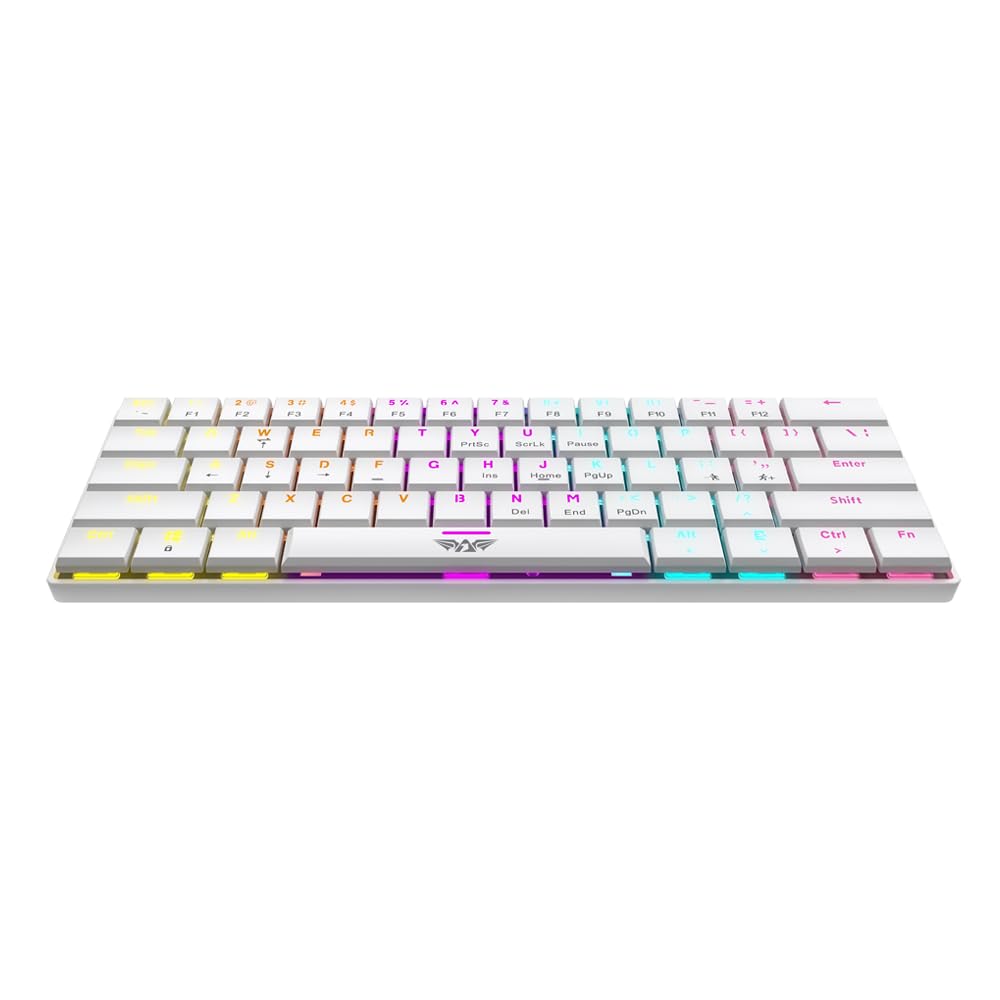
Image showing the Armaggeddon SMK 1C keyboard, highlighting its compact 61-key layout and low-profile design.
Package Contents
Verify that all items listed below are included in your package:
- 1 x Armaggeddon SMK 1C Keyboard
- 1 x User Manual (this document)
- 2 x Spare Switches
- 1 x Key Cap and Switch Puller
- 1 x Type-C Cable (1.5m PVC)
Setup
- Connect the Keyboard: Locate the Type-C port on the keyboard and the USB-A port on your computer. Connect the provided Type-C cable to the keyboard and then to your computer. The keyboard is plug-and-play and does not require additional drivers for basic functionality.
- Adjust Leg Braces: The keyboard features adjustable leg braces on the underside. Flip them out to achieve a more ergonomic typing angle if desired.
- Initial Test: Open a text editor or any application that accepts text input and test all keys to ensure proper functionality.
Operating Instructions
Key Functions
The SMK 1C features a compact 61-key layout. Many functions are accessed via combination keys (Fn + another key). Refer to the keyboard's keycap legends for specific Fn layer functions.
- Anti-Ghosting: The keyboard supports 22-key anti-ghosting, allowing multiple key presses to register simultaneously without conflict, which is beneficial for gaming.
Backlight Control
The keyboard features 17 different light effects. Use the following key combinations to control the backlight:
- Change Light Effect: Use specific Fn key combinations (refer to your keyboard's keycaps) to cycle through the 17 available lighting modes.
- Adjust Brightness: Use Fn + Up/Down arrow keys (or designated keys) to increase or decrease the backlight brightness.
- Adjust Effect Speed: Use Fn + Left/Right arrow keys (or designated keys) to change the speed of dynamic lighting effects.
Maintenance
Cleaning
- Disconnect the keyboard from your computer before cleaning.
- Use a soft, dry cloth to wipe the surface of the keyboard.
- For dust and debris between keycaps, use compressed air.
- To clean keycaps, gently pull them off using the provided keycap puller. Wash them with mild soap and water, then ensure they are completely dry before reattaching.
Switch Replacement (Hotswappable Feature)
The SMK 1C keyboard is hotswappable, allowing you to change mechanical switches without soldering. This feature enables customization and easy replacement of faulty switches.
- Remove Keycap: Use the keycap puller to gently remove the keycap from the switch you wish to replace.
- Remove Switch: Use the switch puller to carefully grip the top and bottom clips of the switch and pull it straight up.
- Insert New Switch: Align the pins of the new switch with the holes on the PCB. Gently push the switch down until it clicks into place. Ensure the pins are not bent.
- Reattach Keycap: Place the keycap back onto the new switch.
Troubleshooting
- Keyboard Not Responding:
- Ensure the Type-C cable is securely connected to both the keyboard and the computer.
- Try connecting the keyboard to a different USB port on your computer.
- Test the keyboard on another computer to rule out system-specific issues.
- Keys Not Registering:
- If only specific keys are not working, the switch might be faulty. Utilize the hotswappable feature to replace the switch with one of the spare switches provided.
- Ensure no debris is lodged under the keycap or switch.
- Backlight Not Working/Incorrect:
- Check if the backlight brightness is set to minimum. Adjust using Fn key combinations.
- Cycle through different lighting effects to see if the issue persists across all modes.
Specifications
| Model | SMK 1C |
| Key Layout | 61 Keys |
| Switch Type | Mechanical (Tactile) |
| Switch Lifespan | Up to 50 Million Keystrokes |
| Travel Distance | 1.3 +/- 0.5mm |
| Anti-Ghosting | 22 Keys |
| Connectivity | Wired, Type-C Detachable Cable (1.5m PVC) |
| Backlight Effects | 17 Light Effects (Adjustable Brightness & Speed) |
| Material | ABS (Acrylonitrile Butadiene Styrene) Top and Bottom Panel |
| Product Dimensions (L x W x H) | 292 x 103 x 25 mm (29.2L x 10.3W x 2.5H cm) |
| Product Weight | 353 Grams |
| Special Features | Hotswappable, Custom Satellite Axis, Adjustable Leg Brace |
Warranty and Support
Your Armaggeddon SMK 1C keyboard comes with a 1-Year Limited Hardware Warranty.
- Warranty Registration: To register your product warranty, please visit https://leapfroglobal.com/register.
- Walk-In Warranty: For warranty claims requiring physical inspection or service, walk-in support is available at:
3 Kallang Sector, #06-01, Singapore 349278 - Warranty Claim without Serial Number: If your product does not have a serial number, please use your Order ID from the purchase platform for warranty claim purposes.
For further assistance or technical support, please contact Armaggeddon customer service.