
RK ROYAL KLUDGE RK X104
RK ROYAL KLUDGE X104 Full Size Mechanical Keyboard User Manual
Model: RK X104
Introduction
This manual provides detailed instructions for the setup, operation, maintenance, and troubleshooting of your RK ROYAL KLUDGE X104 Full Size Mechanical Keyboard. The RK X104 is a wired mechanical keyboard featuring a 104-key layout, a detachable volume knob, hot-swappable switches, and customizable RGB backlighting, designed for both gaming and office use.
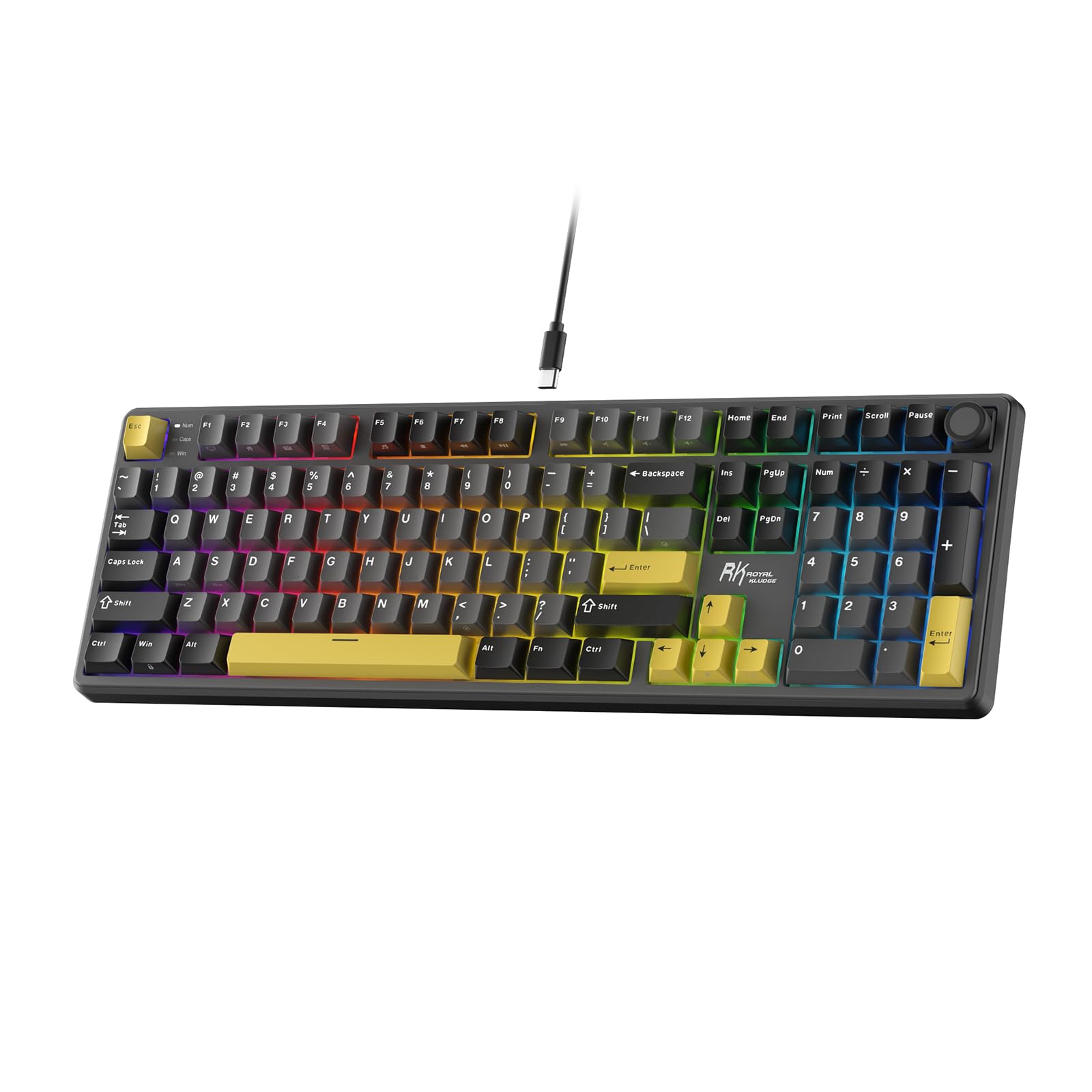
Image: The RK ROYAL KLUDGE X104 Mechanical Keyboard, showcasing its full-size layout with yellow accented keycaps and vibrant RGB backlighting.
What's in the Box
Verify that all items are present upon unboxing:
- RK ROYAL KLUDGE X104 Mechanical Keyboard
- USB Cable (Type-C)
- 4 x Backup Switches
- 1 x Backup Keycap
- User Manual (this document)
- 1 x Dust Cover
Video: An unboxing demonstration of the RK ROYAL KLUDGE X104 Mechanical Keyboard, showing the contents of the package.
Setup
- Connect the Keyboard: Plug the provided USB-C cable into the keyboard's USB-C port and the other end into an available USB port on your computer (Laptop or PC).
- Automatic Driver Installation: The keyboard is plug-and-play. Your operating system (Windows/Mac) should automatically detect and install the necessary drivers.
- Optional Software Installation: For advanced customization, including key remapping, macro creation, and detailed RGB lighting effects, download the official online software from drive.rkgaming.com. Follow the on-screen instructions for installation.

Image: The RK ROYAL KLUDGE X104 keyboard connected to a computer via its USB-C cable, ready for use.
Operating Instructions
Basic Keyboard Functions
- Full Size Layout: The keyboard features a standard 104-key layout, including a dedicated number pad for efficient data entry.
- N-Key Rollover: Supports N-key rollover, allowing multiple key presses to be registered simultaneously without conflict, crucial for fast-paced gaming.

Image: The RK ROYAL KLUDGE X104 keyboard with multiple keys illuminated, demonstrating the N-Key Rollover feature for precise input.
Detachable Volume Knob
The high-quality aluminum alloy knob located on the top right of the keyboard provides quick access to audio controls:
- Rotate Clockwise: Increase volume.
- Rotate Counter-clockwise: Decrease volume.
- Press Down: Mute/Unmute audio.
The knob is fully detachable for user preference or replacement.

Image: A detailed view of the detachable aluminum volume knob on the RK ROYAL KLUDGE X104 keyboard, illustrating its rotational and press functions for audio control.
RGB Lighting Control
The keyboard features 16.8 million RGB lighting colors and 20 different RGB lighting effects. Use the following key combinations to adjust the lighting:
- Fn + \|: Switch Backlight Mode.
- Fn + <, : Switch Backlight Color.
- Fn + ↑/↓: Adjust Backlight Brightness.
- Fn + ←/→: Adjust Breathing Speed (for applicable modes).

Image: The RK ROYAL KLUDGE X104 keyboard displaying multiple RGB lighting effects, with an overlay showing the function key combinations for adjusting lighting modes, colors, brightness, and breathing speed.
Online Software Customization
The dedicated online software provides comprehensive customization options:
- Key Remapping: Assign new functions to any key.
- Macro Sequences: Create and assign complex macro sequences for gaming or productivity.
- Custom RGB Effects: Design and apply personalized RGB lighting patterns.
Access the software at drive.rkgaming.com.

Image: A computer screen showing the RK ROYAL KLUDGE online software, which allows users to redefine keys, set macros, and customize RGB lighting effects for the X104 keyboard.
Maintenance
- Cleaning: Regularly clean the keyboard with a soft, dry cloth. For deeper cleaning, remove keycaps using the provided keycap puller and use compressed air to clear debris.
- Keycap and Switch Replacement: The RK X104 features hot-swappable sockets supporting 3-pin switches. Use the provided switch puller to carefully remove switches for replacement or customization. Ensure proper alignment when inserting new switches to avoid bending pins.
- Dust Cover: Use the included dust cover when the keyboard is not in use to prevent dust accumulation.

Image: A close-up of the RK ROYAL KLUDGE X104 keyboard's hot-swappable PCB sockets, showing how switches can be removed and replaced. This image also highlights the well-tuned stabilizers.
Troubleshooting
- Keyboard not responding:
- Ensure the USB-C cable is securely connected to both the keyboard and the computer.
- Try connecting the keyboard to a different USB port on your computer.
- Test the keyboard on another computer to rule out system-specific issues.
- RGB lighting not working or incorrect:
- Verify that the lighting is enabled using the Fn key combinations (Fn + \|, Fn + <,).
- Check the online software settings for any custom profiles or disabled lighting.
- Ensure the keyboard firmware is up to date via the online software.
- Keys not registering or double-typing:
- Due to the hot-swappable design, a switch might be improperly seated. Carefully remove the keycap and then the switch using the provided tools, and re-insert it firmly.
- If a switch is faulty, replace it with one of the backup switches or a compatible 3-pin switch.
- Volume knob not functioning correctly:
- Ensure the knob is securely attached.
- If the mute function (press down) is not working, try updating the keyboard firmware through the online software. Some users have reported that re-flashing the firmware with a "Device Information Erasure" option can resolve this.
Specifications
| Brand | RK ROYAL KLUDGE |
| Model Number | RK X104 |
| Connectivity Technology | USB-C (Wired) |
| Keyboard Description | Full Size Wired Mechanical Keyboard |
| Number of Keys | 104 |
| Switch Type | Linear (Creamy Linear Switch) |
| Hot-Swappable | Yes (Supports 3-pin switches) |
| Backlighting | RGB (16.8 million colors, 20 effects) |
| Special Features | Detachable Volume Knob, N-Key Rollover, Online Software, PBT Keycaps, 5-layer Sound-dampening Structure |
| Compatible Devices | Laptop, PC |
| Compatible Operating System Family | Windows, Mac (with online software) |
| Material | Aluminum, Plastic |
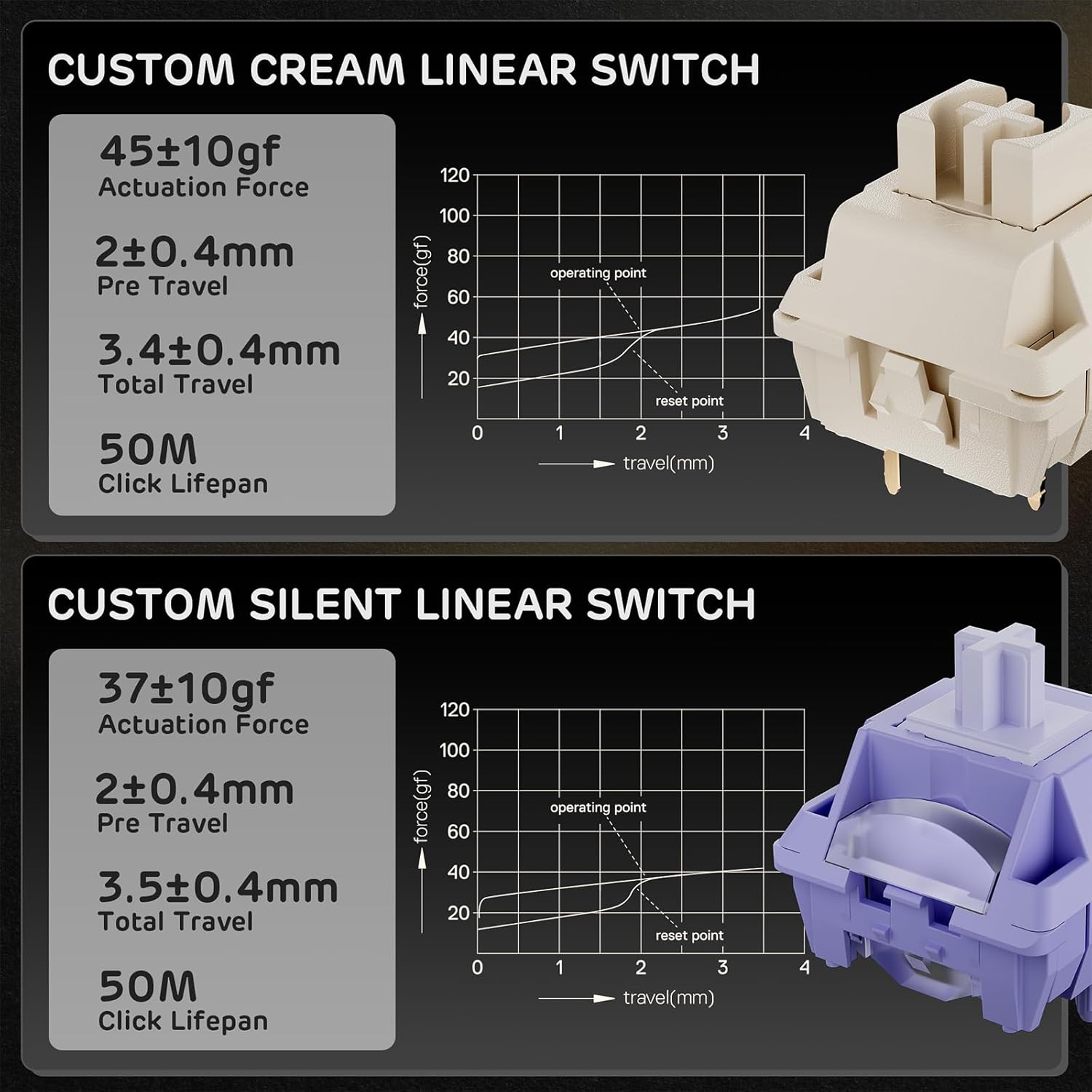
Image: A chart comparing the specifications of Custom Cream Linear Switches and Custom Silent Linear Switches, detailing actuation force, pre-travel, total travel, and click lifespan.

Image: An exploded view diagram illustrating the internal 5-layer sound-dampening structure of the RK ROYAL KLUDGE X104 keyboard, highlighting components like PBT keycaps, top plate, switches, and various dampening layers.
Warranty and Support
The RK ROYAL KLUDGE X104 Mechanical Keyboard comes with a 1-Year Manufacturer Warranty.
For technical support, warranty claims, or further assistance, please visit the official RK ROYAL KLUDGE website or contact their customer service directly. Refer to the product packaging or official website for the most current contact information.
Ask a question about this manual
Ask about setup, troubleshooting, compatibility, parts, safety, or missing instructions. Manuals+ will review the question and use this page’s manual context to help answer it.