
Introduction
This manual provides comprehensive instructions for the PICKUTS VSeeBox V6 max Replacement Remote Control. It covers setup, operation, maintenance, and troubleshooting to ensure optimal performance and user experience with your VSeeBox V6 max system.
Please read this manual carefully before using the remote control.
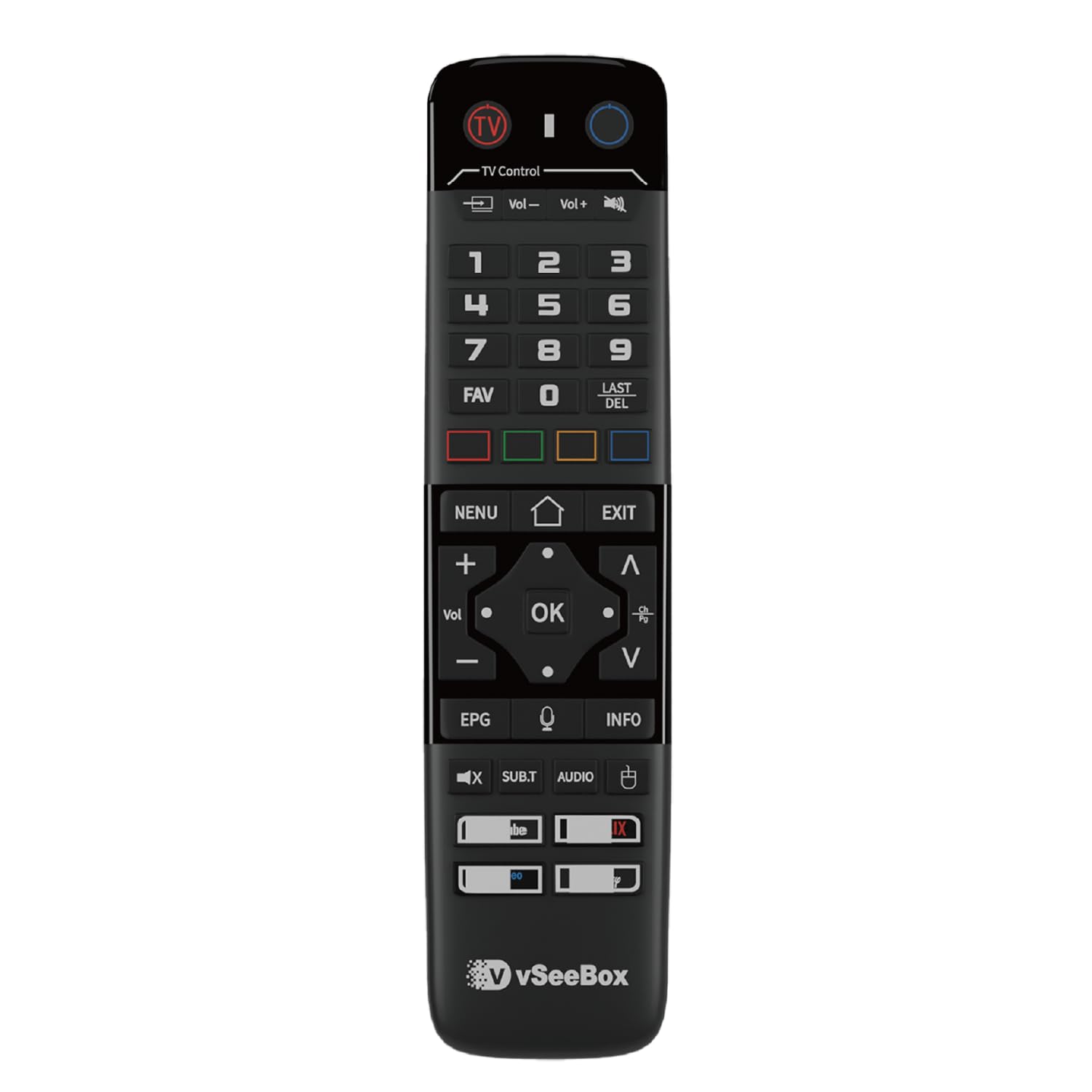
Image: Top-down view of the PICKUTS VSeeBox V6 max Remote Control, showing all buttons clearly.
Package Contents
- PICKUTS VSeeBox V6 max Remote Control
- User Manual (this document)
Note: AAA batteries are not included and must be purchased separately.
Setup
1. Battery Installation
- Locate the battery compartment cover on the back of the remote control.
- Slide the cover downwards or press the latch to open it.
- Insert two (2) AAA batteries, ensuring the positive (+) and negative (-) terminals align correctly with the markings inside the compartment.
- Replace the battery compartment cover until it clicks securely into place.

Image: Angled view of the remote control, illustrating the battery compartment location on the back.
2. Bluetooth Pairing with VSeeBox V6 max
The remote control features built-in Bluetooth for quick pairing with your VSeeBox V6 max system. Follow your VSeeBox V6 max device's instructions to initiate Bluetooth pairing. Typically, this involves navigating to the device's settings menu, selecting Bluetooth, and searching for available devices. The remote should appear as an option for pairing.
3. Programming TV Power Button (IR Learning Function)
This remote control can learn the power function from your existing TV remote control. This allows you to control your TV's power with the VSeeBox remote.
- Press and hold the [TV POWER] button on the VSeeBox remote for approximately 6 seconds. The LED indicator will change from blinking to solid, indicating the remote is in learning mode.
- Press the button on the VSeeBox remote that you wish to program (e.g., the [TV POWER] button itself). The LED will begin blinking slowly, signifying it is ready to receive a signal.
- Aim your original TV remote control directly at the front of the VSeeBox remote (distance less than 3 cm or 1.2 inches). Press and hold the corresponding power button on your TV remote.
- If the programming is successful, the LED on the VSeeBox remote will flash three times.
- Repeat steps 1-3 for any other keys you wish to program (e.g., TV Volume Up/Down, Mute).
- To exit learning mode, press any other button on the VSeeBox remote. The LED will turn off.
Note: Ensure both remotes have fresh batteries for successful programming.
Operating Instructions
This section details the functions of the buttons on your PICKUTS VSeeBox V6 max Remote Control.

Image: Angled view of the remote control, showing the layout of the operational buttons.
- TV Control Section (Top Left):
- [TV POWER]: Powers your TV On/Off (after IR learning).
- [Vol+ / Vol-]: Adjusts TV volume (after IR learning).
- Numeric Keypad (0-9): For direct channel input or other numerical selections.
- [LAST / DEL]: Returns to the previously viewed channel or deletes input.
- [FAV]: Accesses favorite channels or content.
- Colored Buttons (Red, Green, Yellow, Blue): Functionality varies by application or VSeeBox interface.
- [EXIT]: Exits current menu or application.
- [MENU]: Opens the main menu or options.
- Navigation Pad (Up, Down, Left, Right, OK): Navigates through menus and confirms selections.
- [Vol+ / Vol-]: Adjusts VSeeBox system volume.
- [INFO]: Displays information about current content.
- [EPG]: Accesses the Electronic Program Guide.
- [SUB.T]: Toggles subtitles.
- [AUDIO]: Selects audio tracks or languages.
- [MUTE]: Mutes/unmutes audio.
- [Microphone Icon]: Activates Voice Control.
Voice Control Function
The remote features a voice control function for convenient operation. Press the [Microphone Icon] button and speak clearly into the remote. You can use voice commands to:
- Switch channels.
- Adjust volume.
- Search for movies or other content.
Ensure the remote is successfully paired via Bluetooth for voice control functionality.
Backlit Feature
The remote control includes a backlit feature for improved visibility in low-light conditions. The backlight will activate automatically when buttons are pressed and will turn off after a short period of inactivity to conserve battery life.
Maintenance
- Cleaning: Wipe the remote control with a soft, dry cloth. Do not use abrasive cleaners, solvents, or alcohol, as these can damage the surface.
- Battery Replacement: Replace batteries when the remote's performance degrades or the LED indicator behaves erratically. Always replace both AAA batteries simultaneously with new ones.
- Storage: If the remote will not be used for an extended period, remove the batteries to prevent leakage and potential damage. Store in a cool, dry place.
- Avoid Moisture: Keep the remote control away from water and excessive humidity.
- Avoid Extreme Temperatures: Do not expose the remote to direct sunlight or extreme temperatures.
Troubleshooting
| Problem | Possible Cause | Solution |
|---|---|---|
| Remote not responding to VSeeBox. | Low batteries, remote not paired via Bluetooth. | Replace batteries. Re-pair the remote control with your VSeeBox V6 max system via Bluetooth settings. |
| TV Power button not working. | IR learning failed or not performed. | Repeat the IR learning process for the TV Power button as described in the "Setup" section. Ensure proper distance and alignment with your original TV remote. |
| Voice control not working. | Bluetooth connection issue, microphone obstruction. | Ensure the remote is successfully paired via Bluetooth. Check for any obstructions over the microphone. |
| Backlight not activating. | Low batteries, feature disabled (if applicable, though typically automatic). | Replace batteries. The backlight should activate automatically upon button press. |
| Remote is not compatible with my device. | Incorrect model or device. | This remote is specifically designed for VSeeBox V6 max models. Verify your device's compatibility. |
Specifications
- Model: v6 max
- Brand: PICKUTS
- Product Dimensions: 7.09 x 1.77 x 0.98 inches (18 x 4.5 x 2.5 cm)
- Item Weight: 2.56 ounces (72.5 grams)
- Batteries Required: 2 x AAA (not included)
- Color: Black
- Special Feature: Backlit, Voice Control, Bluetooth Connectivity
- Max Number of Supported Devices: 1 (VSeeBox V6 max)
- Compatible Devices: Set Top Box (specifically VSeeBox V6 max)
- Manufacturer: PICKUTS
Limited Warranty
PICKUTS warrants this product against defects in materials and workmanship for a period of one (1) year from the original date of purchase. This warranty does not cover damage caused by accident, misuse, abuse, improper installation or operation, or unauthorized repairs. Proof of purchase is required for all warranty claims.
Customer Support
If you encounter any issues or have questions regarding your PICKUTS VSeeBox V6 max Remote Control, please contact our customer support team:
- Email: support@pickuts.com
- Website: www.pickuts.com/support
Please have your product model number (v6 max) and purchase information ready when contacting support.


