
KTC H15F8
KTC Portable Monitor H15F8 User Manual
Model: H15F8
1. Introduction
This manual provides essential information for the proper setup, operation, and maintenance of your KTC H15F8 15.6-inch Portable Monitor. Please read this manual thoroughly before using the product to ensure optimal performance and safety. Keep this manual for future reference.
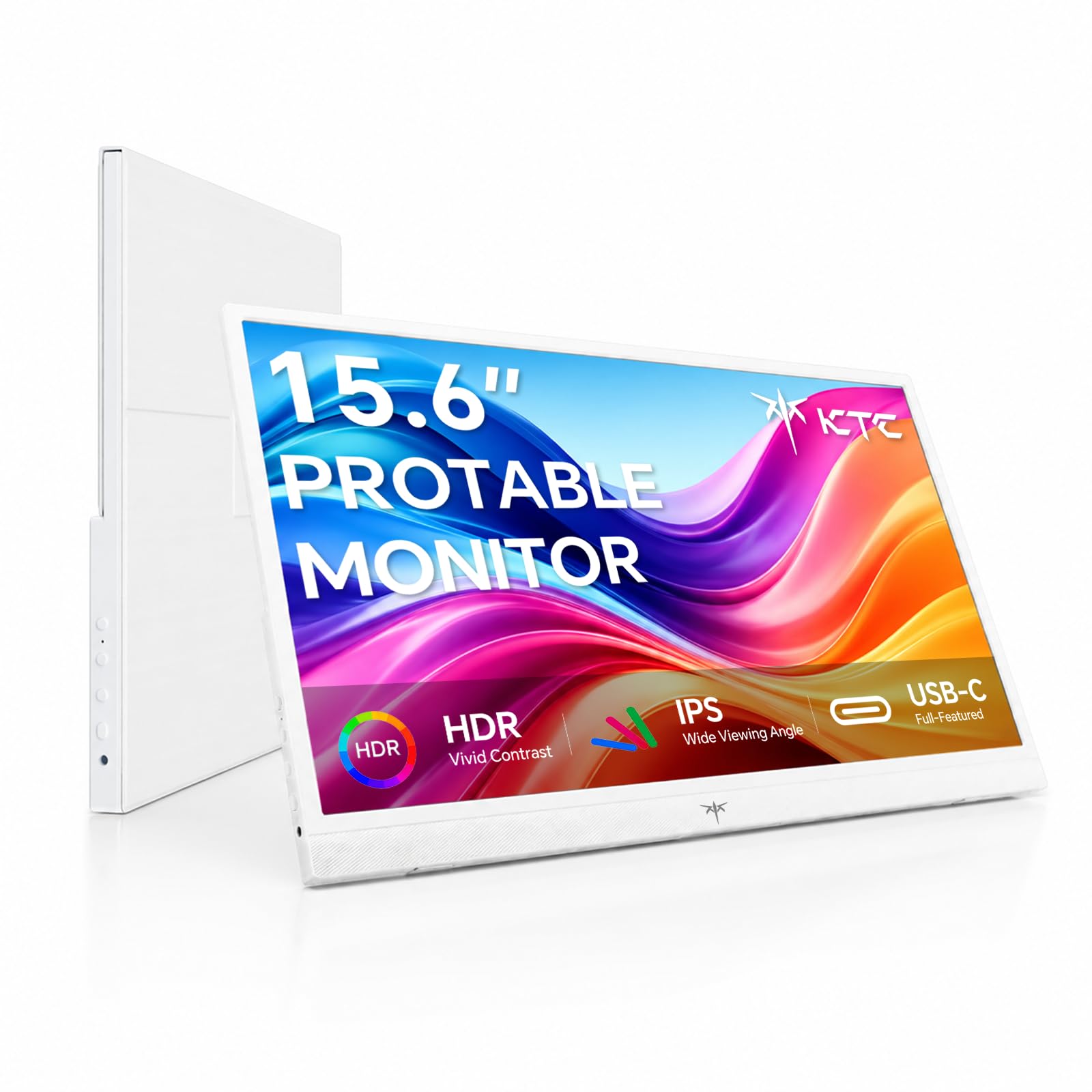
Image: Front view of the KTC H15F8 Portable Monitor.
2. Package Contents
Verify that all items listed below are included in your product package. If any items are missing or damaged, please contact customer support.
- 1 x KTC H15F8 Portable Monitor
- 1 x Protective Cover
- 1 x Product Package Box
- 1 x User Manual
- 1 x HDMI to Mini HDMI Cable
- 1 x USB-C Cable

Image: All items included in the KTC H15F8 Portable Monitor package.
3. Product Overview
3.1 Ports and Controls
Familiarize yourself with the ports and control buttons on your portable monitor:

Image: Detailed view of the monitor's ports and control buttons.
- USB-C (Full-Function) Ports (x2): Used for video signal transmission, power supply, and power pass-through charging.
- Mini HDMI Port: Used for video signal input from devices without full-featured USB-C.
- Menu Button: Accesses the On-Screen Display (OSD) menu.
- Brightness / Increase Button: Adjusts brightness or navigates up in the OSD menu.
- Volume / Decrease Button: Adjusts volume or navigates down in the OSD menu.
- Back / Power Button: Returns to the previous menu or powers the monitor on/off.
4. Setup and Connection
The KTC H15F8 monitor offers wide compatibility and plug-and-play functionality with various devices.

Image: The portable monitor connected to various devices, demonstrating its wide compatibility.
4.1 Connecting via USB-C (Full-Function)
For devices with a full-function USB-C port (e.g., modern laptops, MacBooks, some smartphones/tablets):
- Connect one end of the provided USB-C cable to the full-function USB-C port on your device.
- Connect the other end of the USB-C cable to either of the full-function USB-C ports on the KTC H15F8 monitor.
- The monitor will automatically detect the signal and draw power from your device. If additional power is needed, connect a power adapter (not included) to the second USB-C port on the monitor.
4.2 Connecting via Mini HDMI
For devices without a full-function USB-C port (e.g., gaming consoles like PS5, Xbox, Nintendo Switch, older PCs/laptops):
- Connect one end of the provided HDMI to Mini HDMI cable to the HDMI output of your device.
- Connect the Mini HDMI end of the cable to the Mini HDMI port on the KTC H15F8 monitor.
- Connect a USB-C power adapter (not included) to one of the full-function USB-C ports on the monitor to provide power. The monitor requires external power when using the Mini HDMI connection.
4.3 Powering the Monitor
- USB-C Connection: The monitor can often be powered directly by the connected device via a single USB-C cable. If the device cannot supply sufficient power, or if you wish to charge your device through the monitor, connect an external USB-C power adapter to the monitor's second USB-C port.
- Mini HDMI Connection: External power is required. Connect a USB-C power adapter (not included) to one of the monitor's full-function USB-C ports.
4.4 Video Demonstration
Video: A demonstration of connecting and using the KTC Portable Monitor H15F8 with various devices.
5. Operating Modes
The KTC H15F8 supports various display modes to enhance productivity and entertainment.

Image: Visual representation of the three primary operating modes.
- Extend Mode: Expands your desktop workspace across two screens, allowing for increased multitasking.
- Second Screen Mode: Uses the portable monitor as the primary display for a mini PC or other compact device.
- Duplicate Mode: Mirrors the content of your main screen onto the portable monitor, ideal for presentations or sharing content.
These modes can typically be configured through your connected device's display settings (e.g., Windows Display Settings, macOS System Preferences).
6. Maintenance
To ensure the longevity and optimal performance of your KTC H15F8 Portable Monitor, follow these maintenance guidelines:
- Cleaning: Use a soft, lint-free cloth slightly dampened with water or a non-abrasive screen cleaner. Avoid using alcohol, ammonia, or abrasive cleaners, as they can damage the screen surface.
- Storage: When not in use, store the monitor in its protective cover to prevent scratches and dust accumulation.
- Handling: Avoid applying excessive pressure to the screen. Do not drop or subject the monitor to strong impacts.
- Environment: Operate and store the monitor in a dry environment, away from extreme temperatures, direct sunlight, and high humidity.
7. Troubleshooting
If you encounter issues with your KTC H15F8 Portable Monitor, refer to the following common problems and solutions:
| Problem | Possible Cause | Solution |
|---|---|---|
| No display / "No Signal" message |
|
|
| Flickering or unstable display |
|
|
| No sound from built-in speakers |
|
|
| Monitor not powering on |
|
|
8. Specifications
Technical specifications for the KTC H15F8 Portable Monitor:
| Feature | Detail |
|---|---|
| Brand | KTC |
| Model Number | H15F8 |
| Screen Size | 15.6 inches |
| Resolution | FHD 1080p (1920 x 1080 pixels) |
| Display Technology | IPS |
| Refresh Rate | 60 Hz |
| Aspect Ratio | 16:9 |
| Contrast Ratio | 1000:1 |
| Brightness | 300 cd/m² |
| Viewing Angle | 178 degrees |
| Response Time | 7 milliseconds |
| Connectivity | 2 x USB Type-C (Full-Function), 1 x Mini HDMI |
| Audio | Built-In Speakers |
| Special Features | HDR Support, Adaptive Sync, Portable |
| Dimensions (D x W x H) | 0.46"D x 14.1"W x 8.7"H |
| Power Consumption | 12 watts |
9. Warranty Information
The KTC H15F8 Portable Monitor comes with a 3-Year Manufacturer Warranty. This warranty covers defects in materials and workmanship under normal use. Please retain your proof of purchase for warranty claims.
For detailed warranty terms and conditions, please refer to the official KTC website or contact customer support.
10. Customer Support
KTC offers 24/7 professional customer service to assist you with any inquiries or issues you may have. If you require assistance with setup, encounter missing accessories, or experience damaged shipments, please do not hesitate to contact our support team.
You can typically find contact information for KTC customer support on the official KTC website or through the retailer where you purchased the product.
Related documentsH15F8


Ask a question about this manual
Ask about setup, troubleshooting, compatibility, parts, safety, or missing instructions. Manuals+ will review the question and use this page’s manual context to help answer it.